Follow the steps below to view the measurement statistics in the Forge Dashboard:
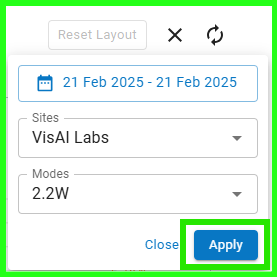
1. Click on the Filter icon.
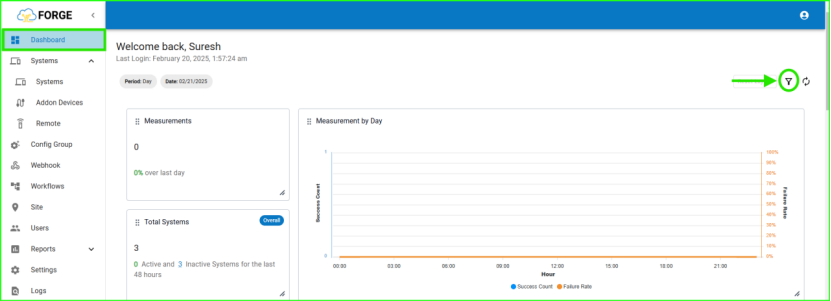
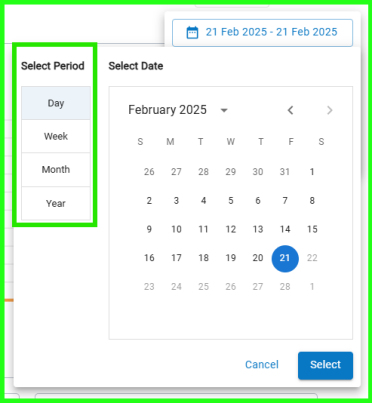
2. Select the desired time period – Day, Week, Month, or Year based on your requirement.
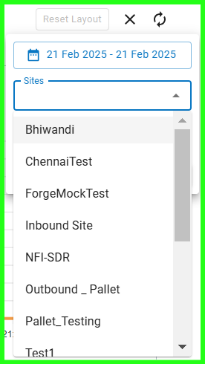
3. Choose the Sites to which your vMeasure device is assigned.
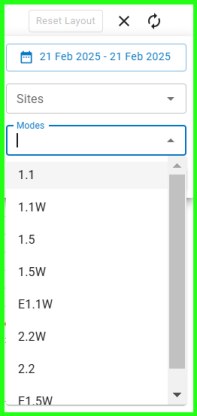
4. Select the Modes of your vMeasure device.
5. Click Apply to confirm the changes.
Upon completing these steps, you will be able to view the measurement statistics of your vMeasure device for the selected time period (e.g., Day, Week, Month, or Year), including:
· Measurements for the selected period
· Total Systems
· Overall Failure Analysis
· Active Systems
· System Statistics
· System Usage
· Site Statistics
If you still need any support, drop a mail to vmeasure@visailabs.com or click here toSubmit a Ticket.
Was this article helpful?
That’s Great!
Thank you for your feedback
Sorry! We couldn't be helpful
Thank you for your feedback
Feedback sent
We appreciate your effort and will try to fix the article