What is Mask Background ?
The Mask Background refers to two types of masking options available: Blur and Fill.
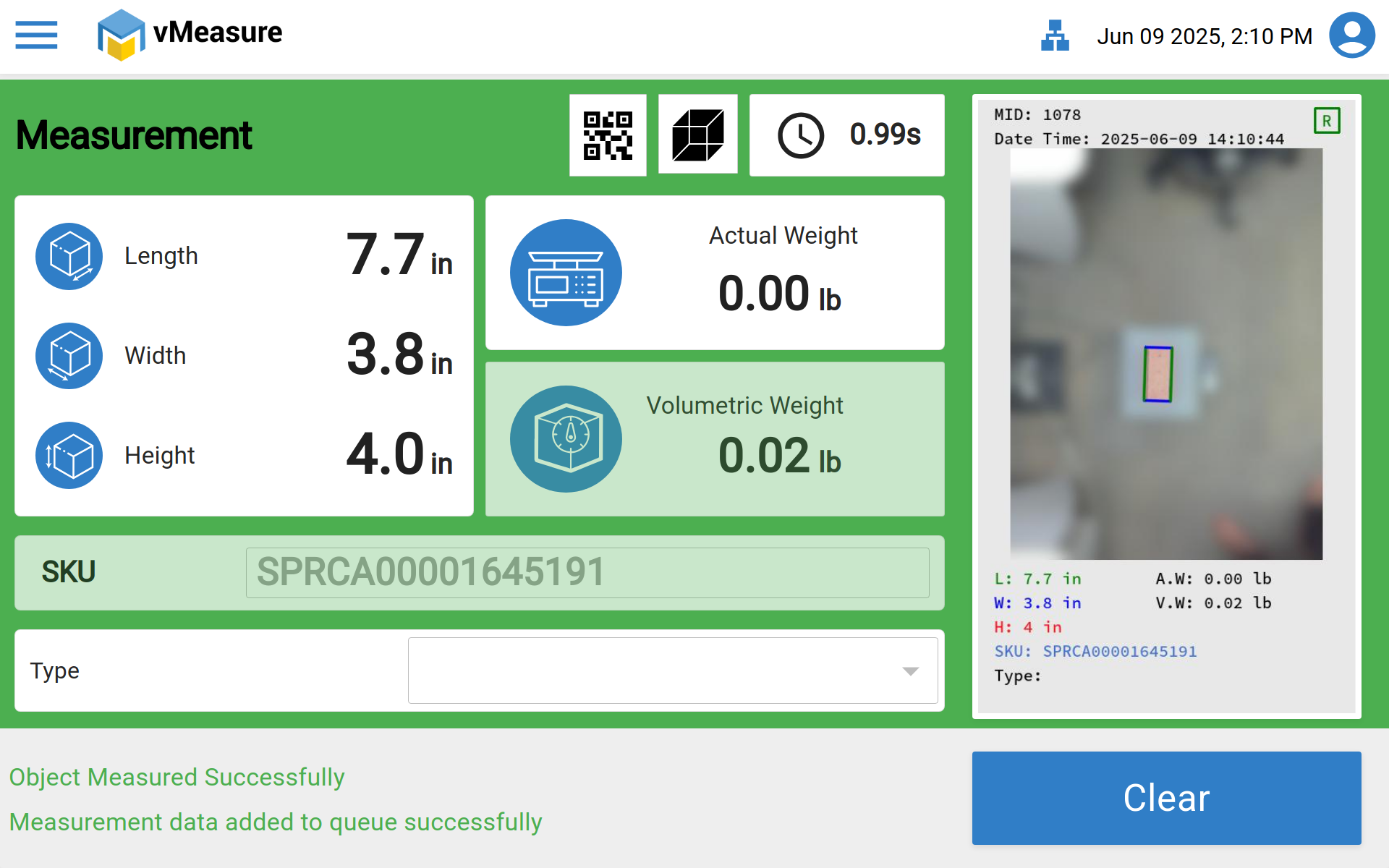
Blur: The item image will be captured clearly, while the area outside the bounding box will be blurred. You can also set a margin offset to adjust the blurred area.
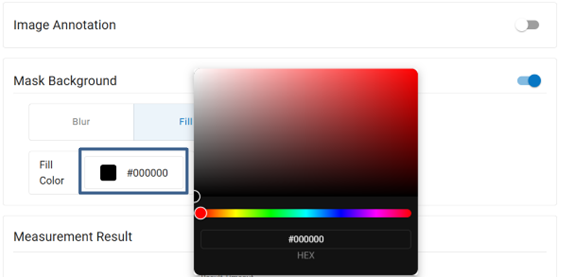
Fill: The area outside the item image will be filled with a solid color of your choice, helping to isolate the item visually.
You can add either a blur around the object or block out the surroundings completely during measurement. You can view the same on forge by checking the Reports page.
NOTE: The MASK BACKGROUND feature is supported only from application version v2.5.0 and above. Please check the application version before assigning it to the workflow.
To enable this feature , please follow the below steps ;
Step 1: Log in to vMeasure Forge using your forge login credentials.
Step 2: Navigate to Workflow.
Step 3: Once on the "Workflows" page, select the workflow which you desire to edit, and click the "Edit" icon.
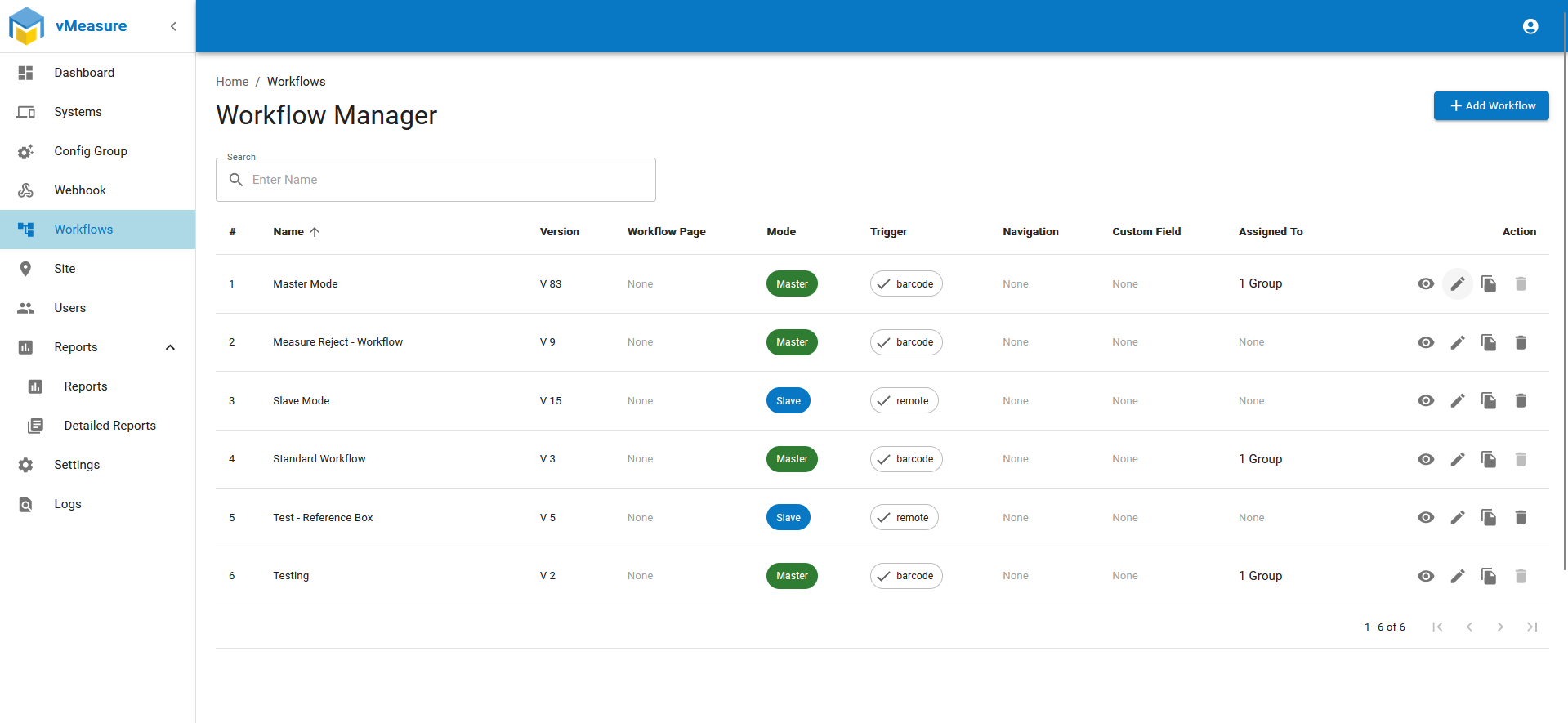
Step 4: Once in "Workflow Form" scroll down and Click on "Next" to go next page.
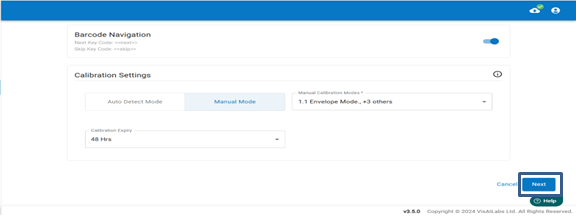
Step 5: Navigate to MASK BACKGROUND and Enable the option.
- You can Choose between 'Blur' and 'Fill' as per your requirement. once selected the option.
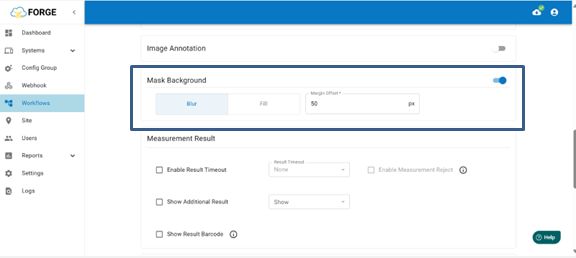
Blur: The item image will be captured, and the outside box image will be blurred. You can set the margin offset(0-50 px).
Fill: The outside item image will be filled with the color you choose.

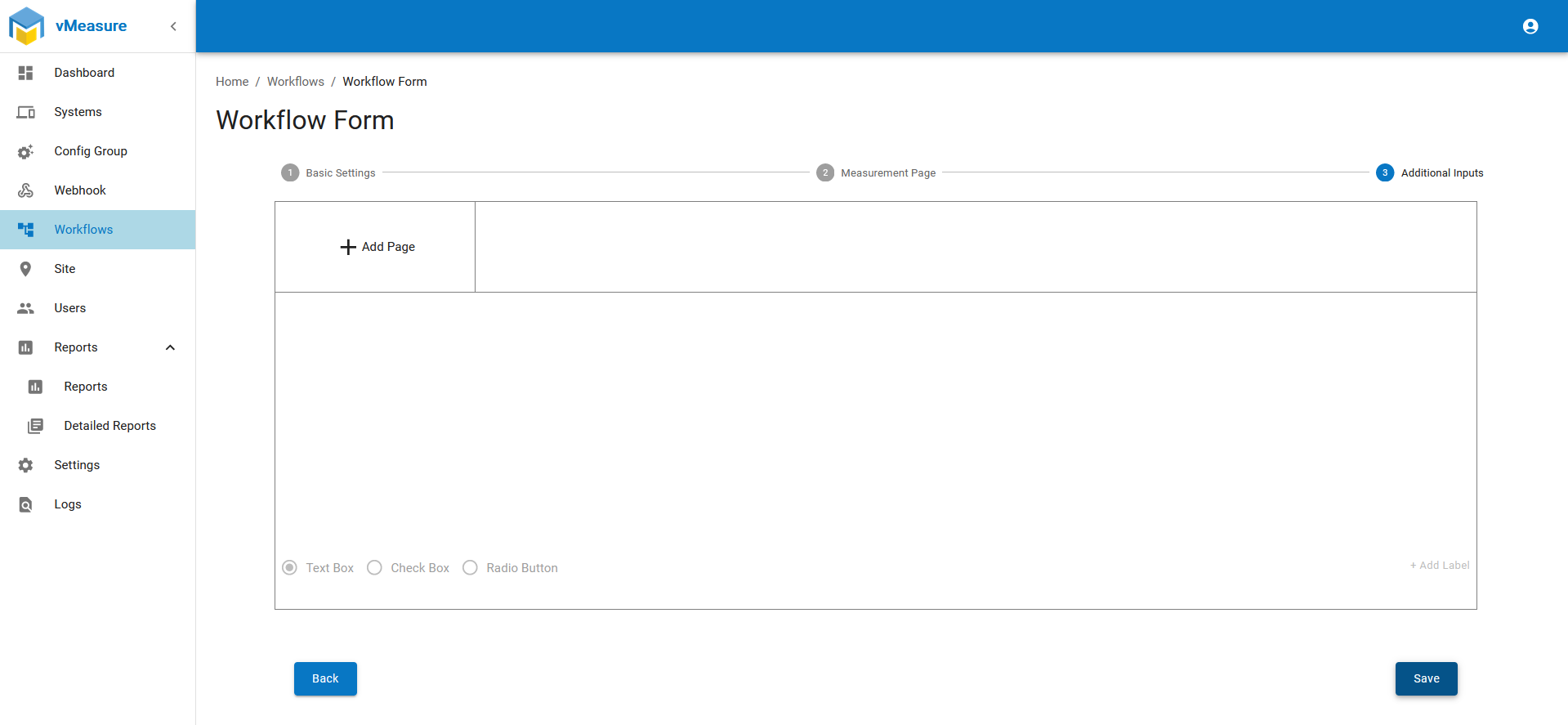
Step 6 : At the bottom right corner, after clicking 'Next,' you will see the 'Save' button. Click the 'Save' button to save the workflow.
Step 7 : After saving the workflow and scan a shipment on device and you can get an output from device and forge as below format.
- From forge you can get a data from reports option by clicking image option.
Fill sample image on forge with 50px Margin Offset :
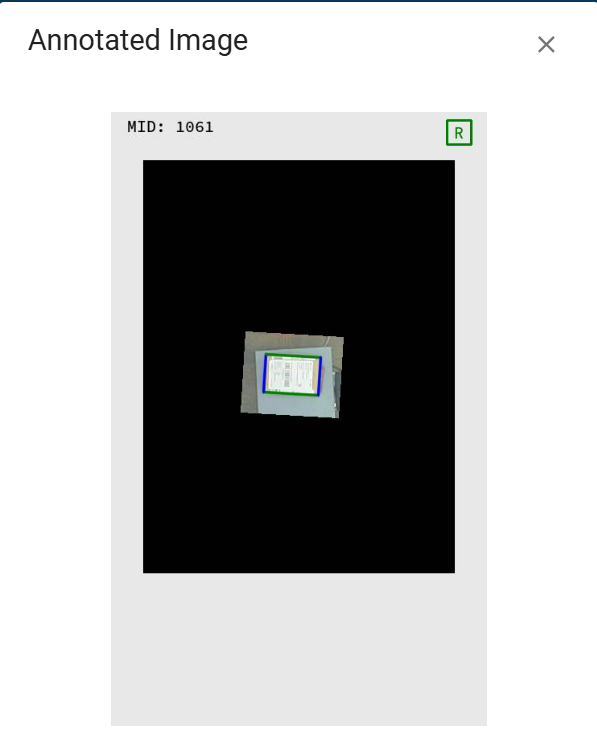
Fill sample image on forge with 0px Margin Offset :
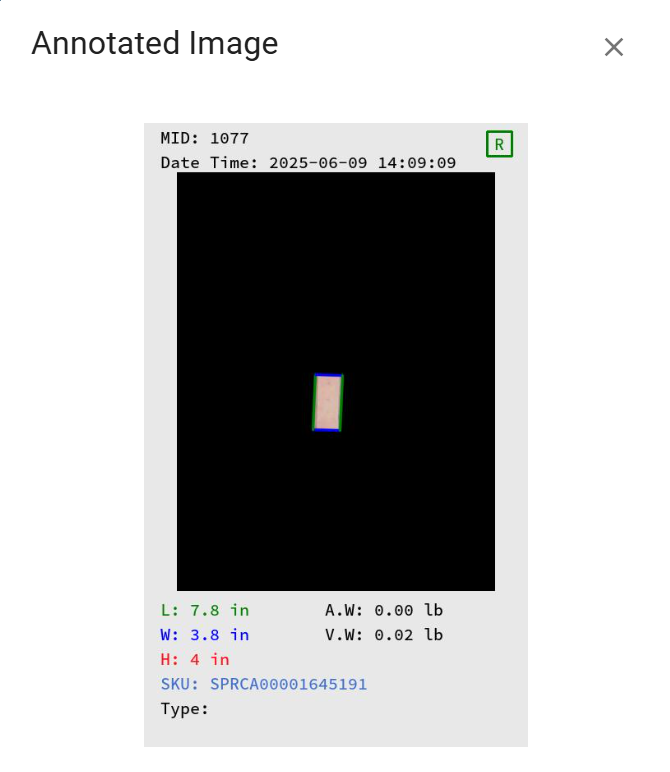
Blur sample image on forge with 50px Margin Offset :
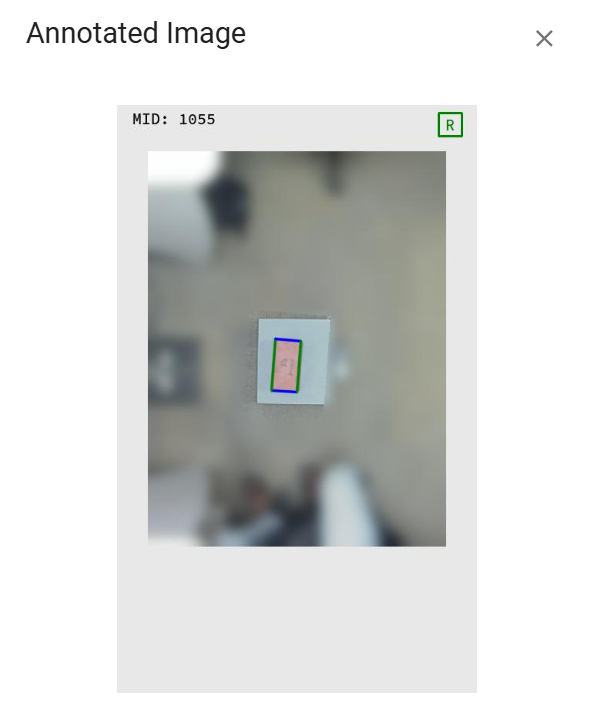
Blur sample image on forge with 0px Margin Offset :
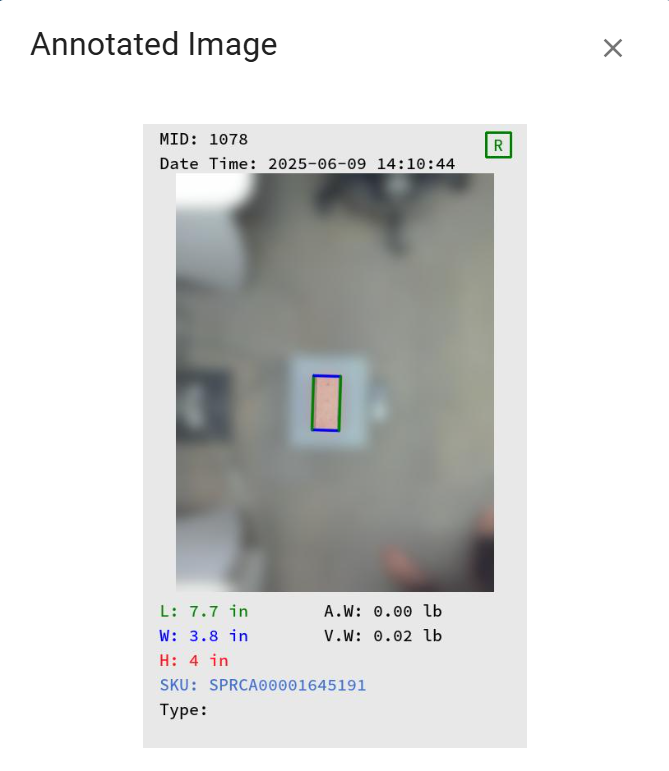
Fill sample image on vMeasure Device with 50px Margin Offset :
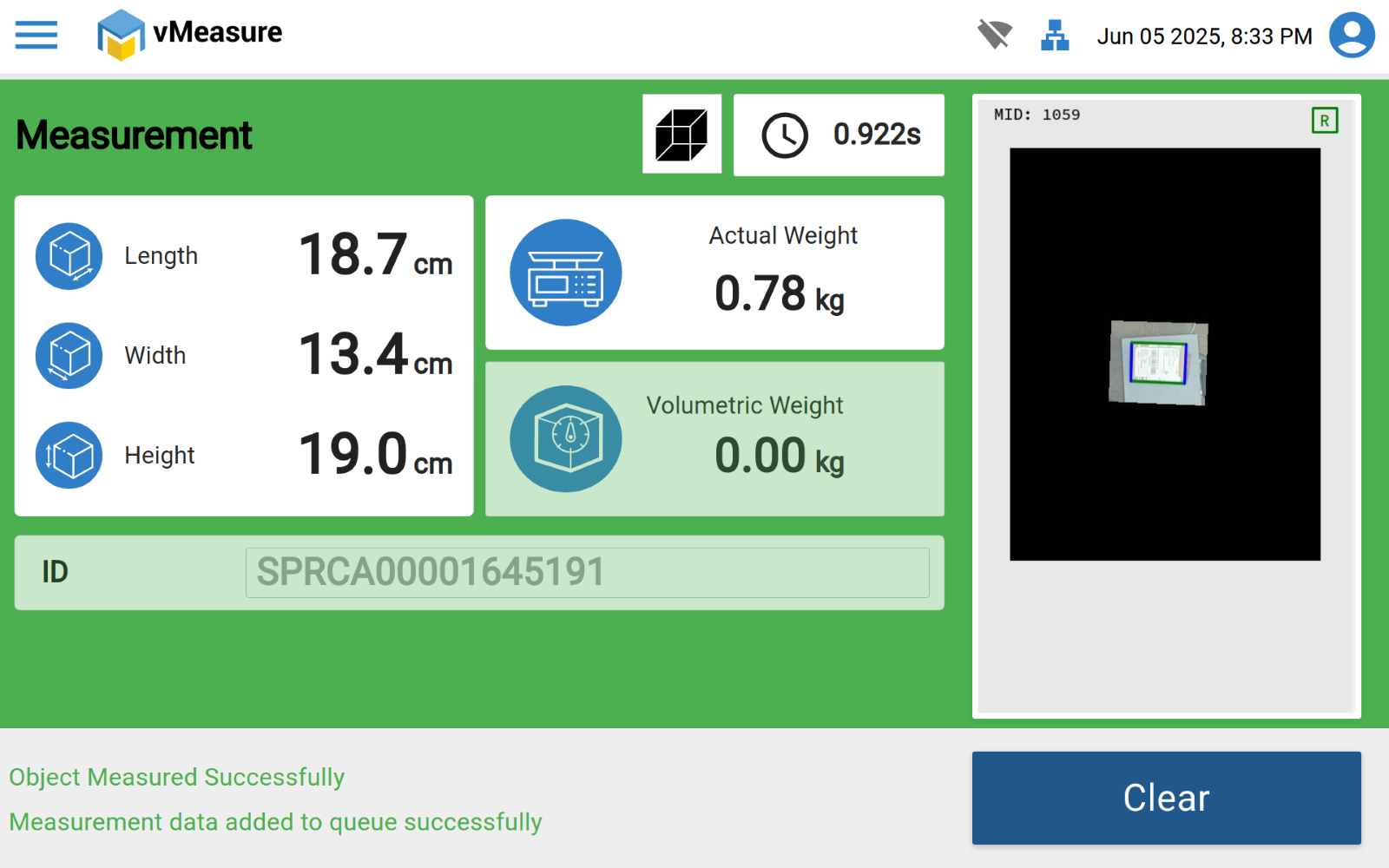
Fill sample image on vMeasure Device with 0px Margin Offset :
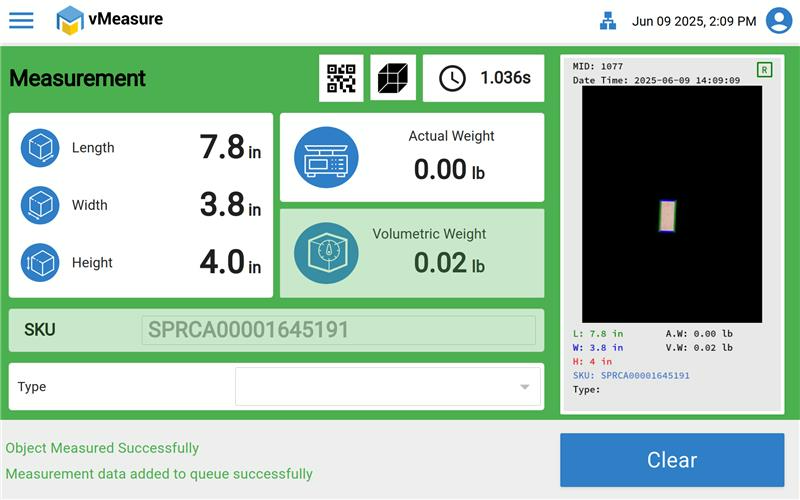
Blur sample image on vMeasure Device with 50px Margin Offset :
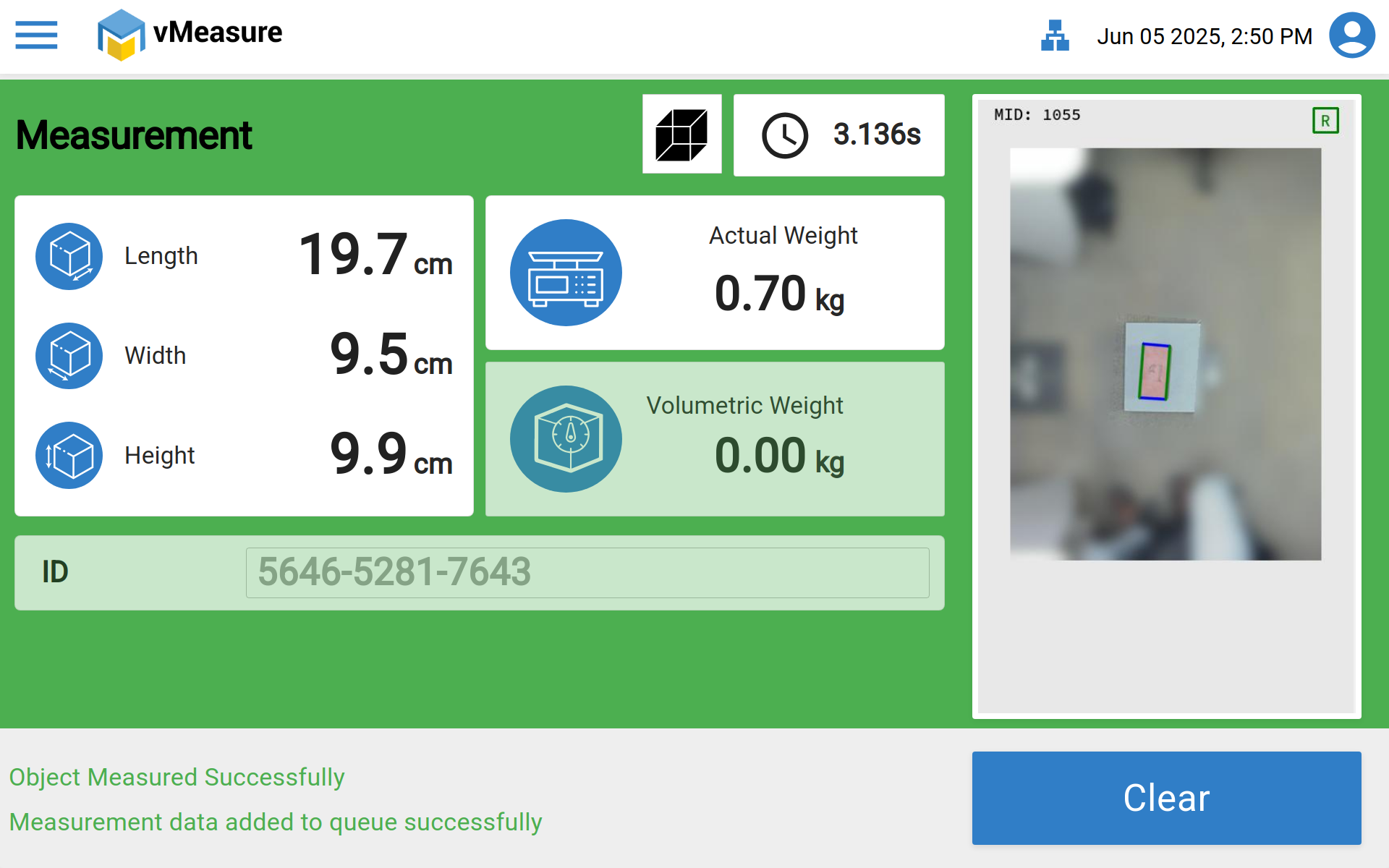
Blur sample image on vMeasure Device with 0px Margin Offset :
Was this article helpful?
That’s Great!
Thank you for your feedback
Sorry! We couldn't be helpful
Thank you for your feedback
Feedback sent
We appreciate your effort and will try to fix the article