Step 1: Connect the PC to the vMeasure Device
Use an RS232-to-USB cable to connect the vMeasure device with the PC (where the UPS application is installed).
USB end → vMeasure Power Box USB port
RS232 end → PC running UPS WorldShip
Cable Link:
Cable1:
https://www.amazon.com/dp/B079LZSF32?ref_=cm_sw_r_cp_ud_dp_GO2UUO10KBSZTKMTH8PE_1
Cable 2:
https://www.amazon.com/dp/B08T994P2H?ref_=cm_sw_r_cp_ud_dp_NA4TAXHWT43F451W6X9R
Step 2: Configure UPS WorldShip Application
Install the UPS WorldShip application on your PC.
Add vMeasure Parcel Ultima settings:
Navigate to:
C:\ProgramData\UPS\WSTDOpen the file: dimensioner.ini
Append the following section:
[vMeasure Parcel Ultima]
InterfaceType=S
DimensionerType=I
BaudRate=9600
DataBits=8
Parity=n
StopBits=1
LbsIndicator=E
KgsIndicator=M
InchIndicator=E
CentimeterIndicator=M
InMotionIndicator=g
StableIndicator=G
StabilityCount=1
RequestCommand=2,77,3,13,10
Sleep=500
TeeterFactor=0.0
AutoMode=1
DataMode=2
SyncMode=0
OutputStringFormat=KKKKKKKKKKKKlllllKKwwwwwKKhhhhhKuKKXXXXXXKK
KKKKKKKUKKKKKKKKKCL
ParserType=1
Save the file.
Open or re-open the UPS WorldShip application
Go to Menu > Tools > System Preferences.
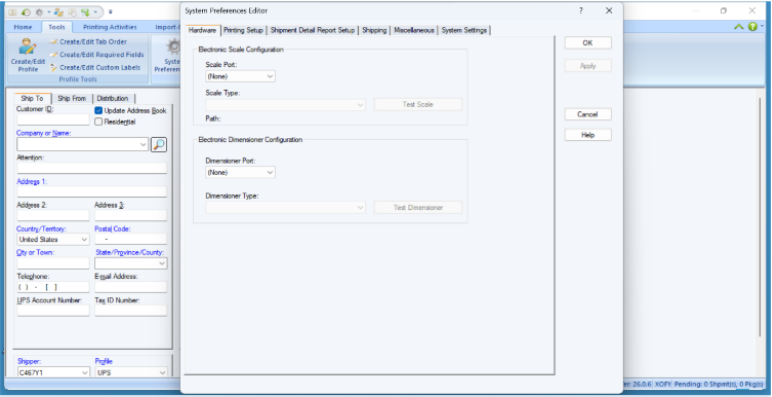
Assign COM Ports:
Select the dimensioner port (must be between COM1 – COM9).
Set Dimensioner Type = vMeasure Parcel Ultima.
Click Apply.
Test the setup:
Click Test Dimensioner.
Click Measure on the vMeasure device.
If successful, click OK to start measuring.
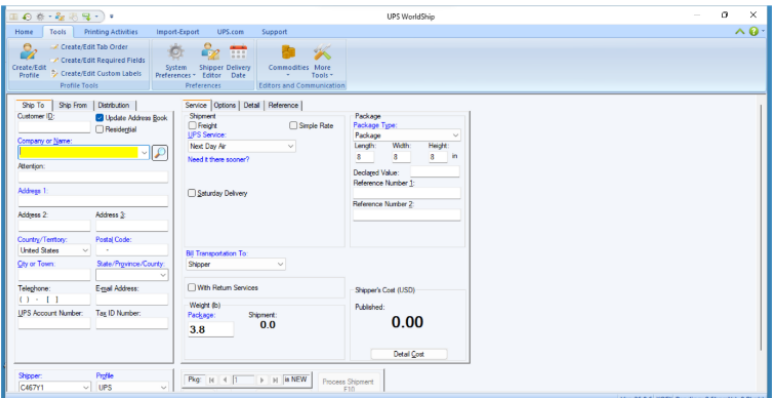
Step 3: Configure the vMeasure Device
Log in to vMeasure device.
Navigate to: External Integrations > UPS Configuration.
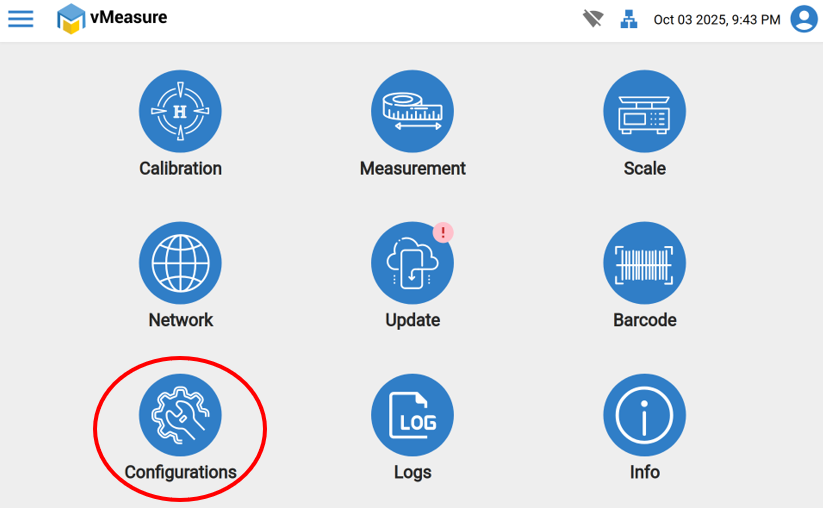
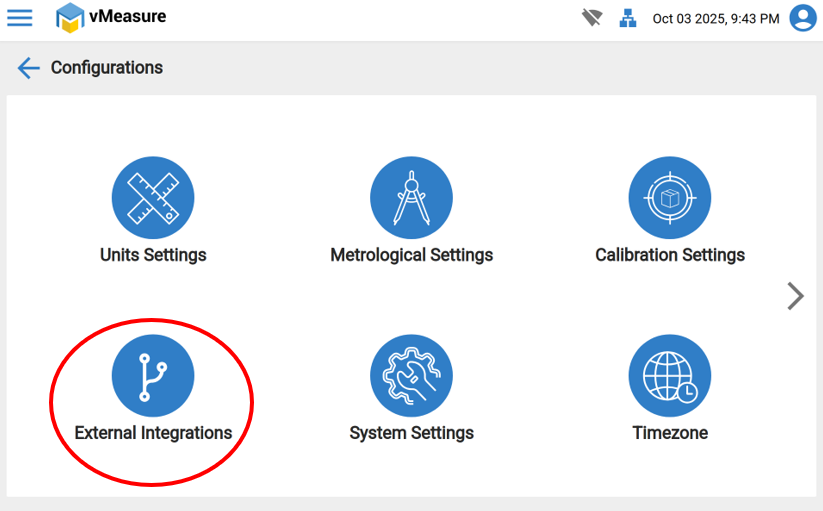
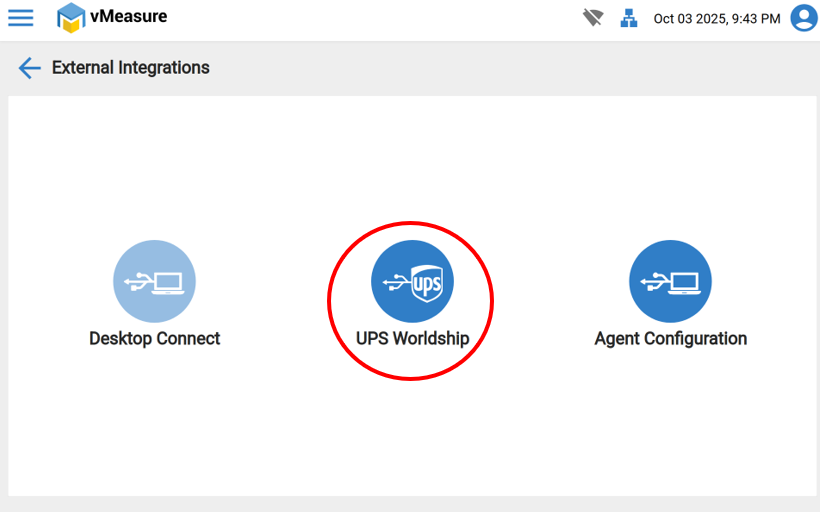
Select the Serial Port (VID/PID) connected to the vMeasure device.
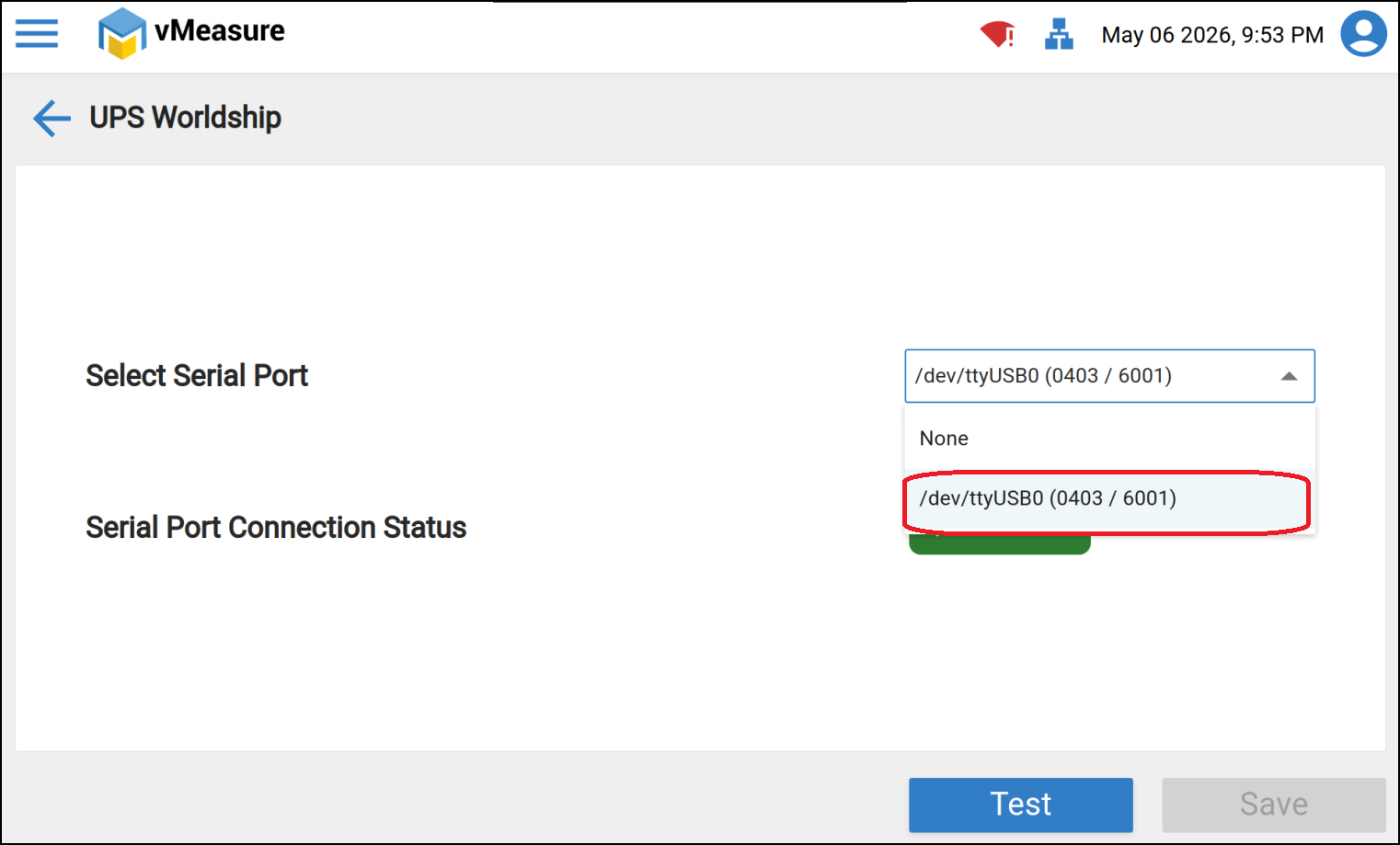
Click Test (ensure UPS WorldShip is waiting for connection).
You should see a message: “Test data written successfully” and the Connectedstatus in UPS WorldShip.
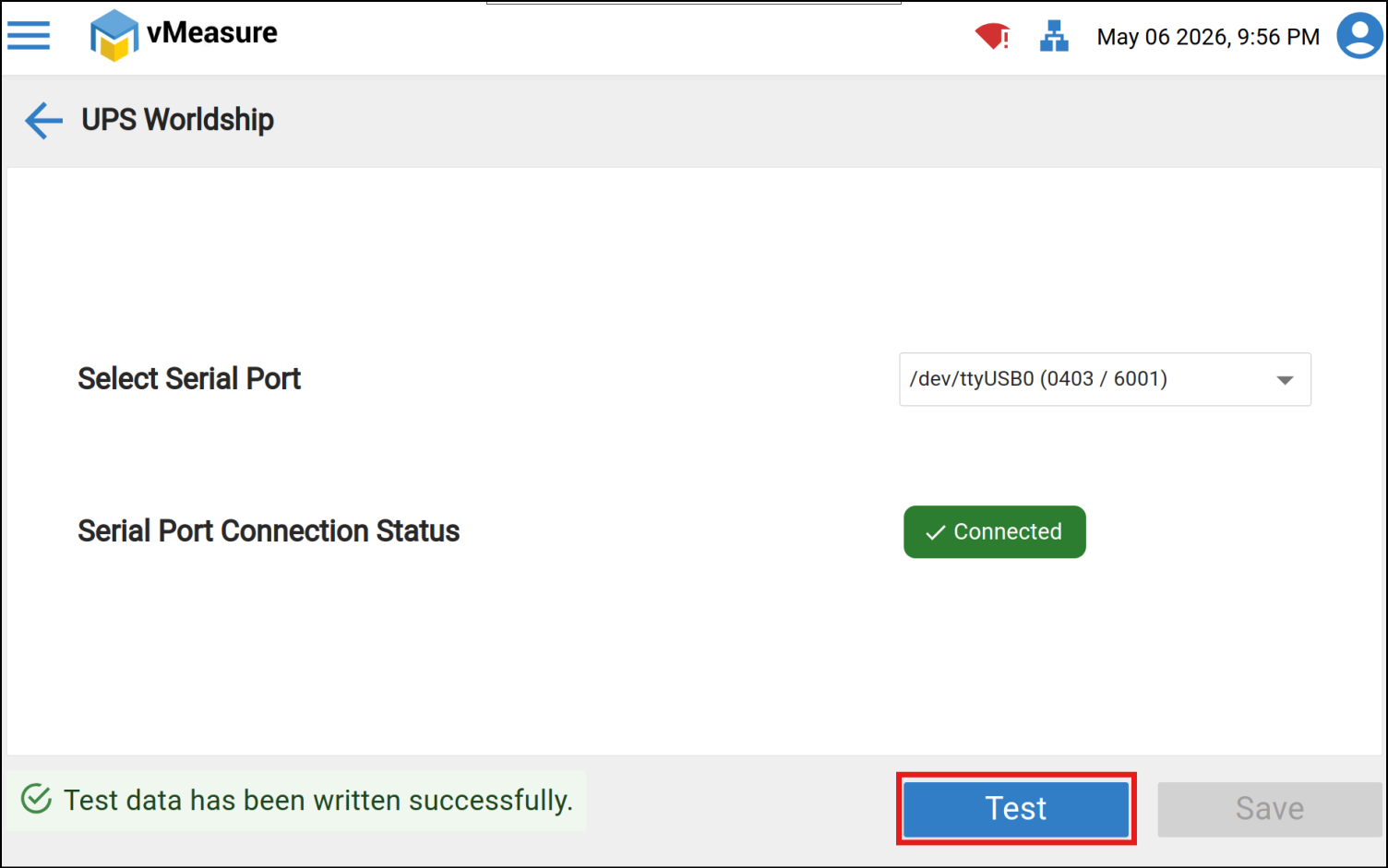
Click Save.
Trigger a measurement on the vMeasure device.
The measurement data will be sent and displayed in UPS WorldShip.
If you need any support, please drop a mail to vmeasure@visailabs.com or Click here to Submit a Ticket.
Was this article helpful?
That’s Great!
Thank you for your feedback
Sorry! We couldn't be helpful
Thank you for your feedback
Feedback sent
We appreciate your effort and will try to fix the article