The steps to integrate the vMeasure system with the UPS WorldShip application are as follows.
Prerequisites:
1. The Measure Desk application is installed on a Laptop/PC.
2. The laptop/PC is connected to the same network as the vMeasure system.
Procedure
The steps to integrate the vMeasure system with UPS WorldShip are as follows.
1. Configure the vMeasure system’s workflow to Slave Mode.
2. Install the Measure Desk application on your laptop/PC.
3. Navigate to the Settings -> USER CONFIG page of the Measure Desk application and click on the Edit button of the User ID field as shown below.
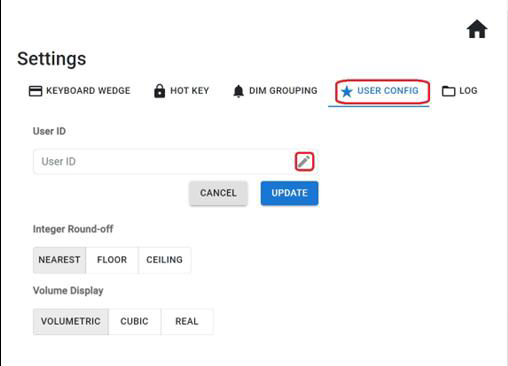
4. Update the User ID with the vMeasure account’s User ID. Refer to the User ID section above for more information.
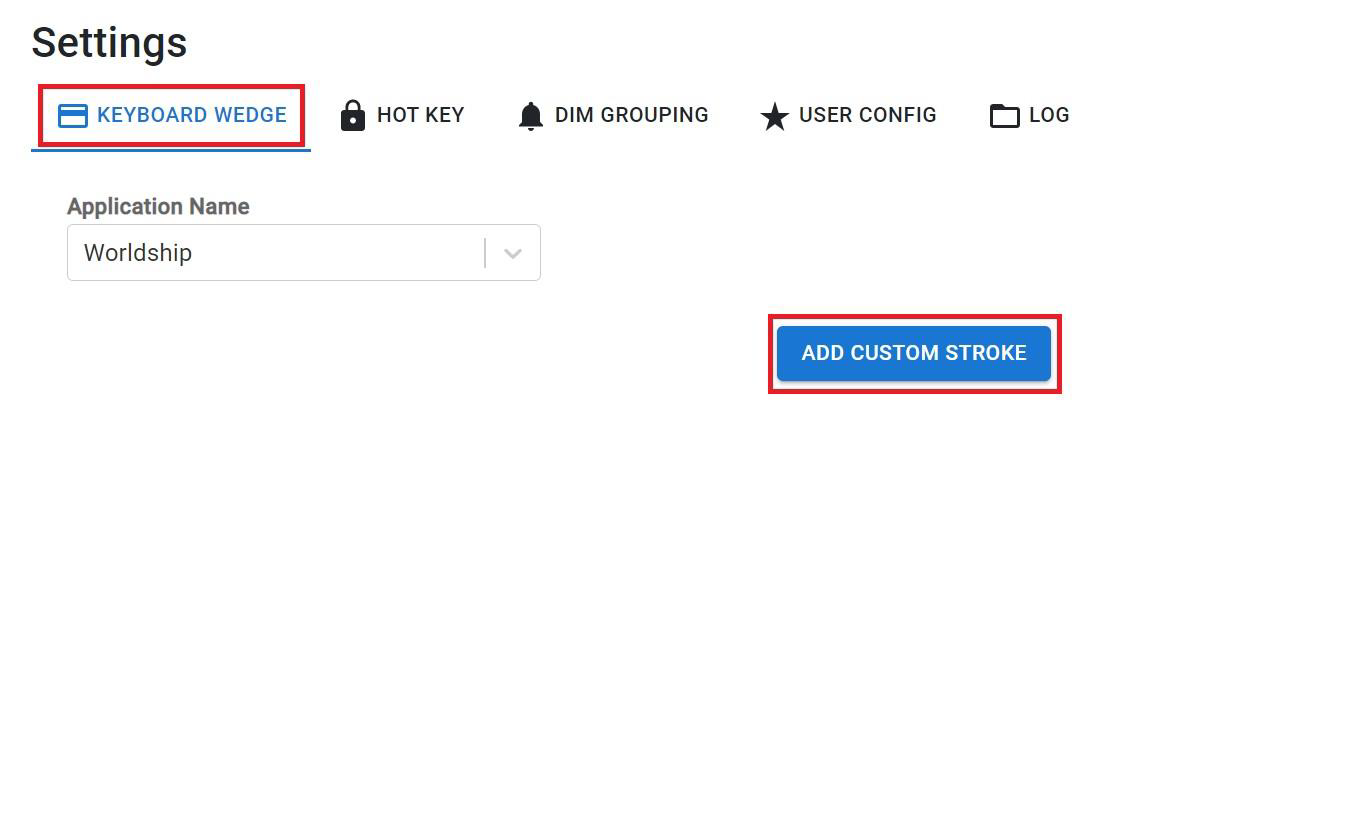
5. Navigate to the KEYBOARD WEDGE tab and click on ADD CUSTOM STROKE button as shown below.
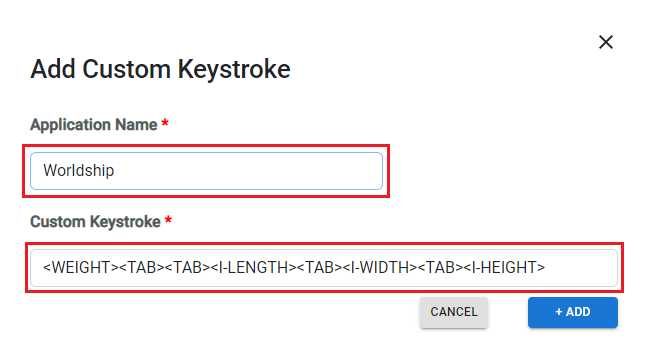
6. Input WorldShip in the Application Name field and input the below keystroke in the Custom Keystroke field as shown below.
<WEIGHT><TAB><TAB><I-LENGTH><TAB><I-WIDTH><TAB><I-HEIGHT>
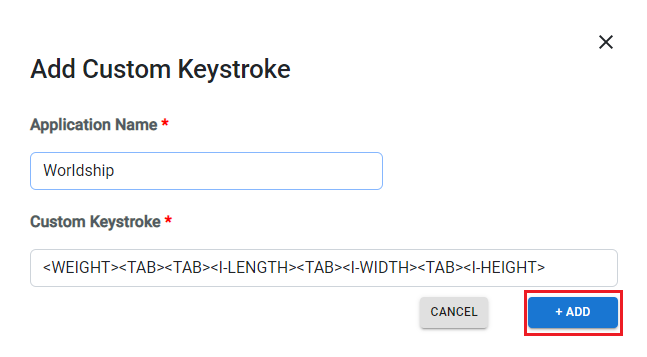
7. Click on + ADD button as shown below.
8. Navigate to the HOT KEY tab as shown below.
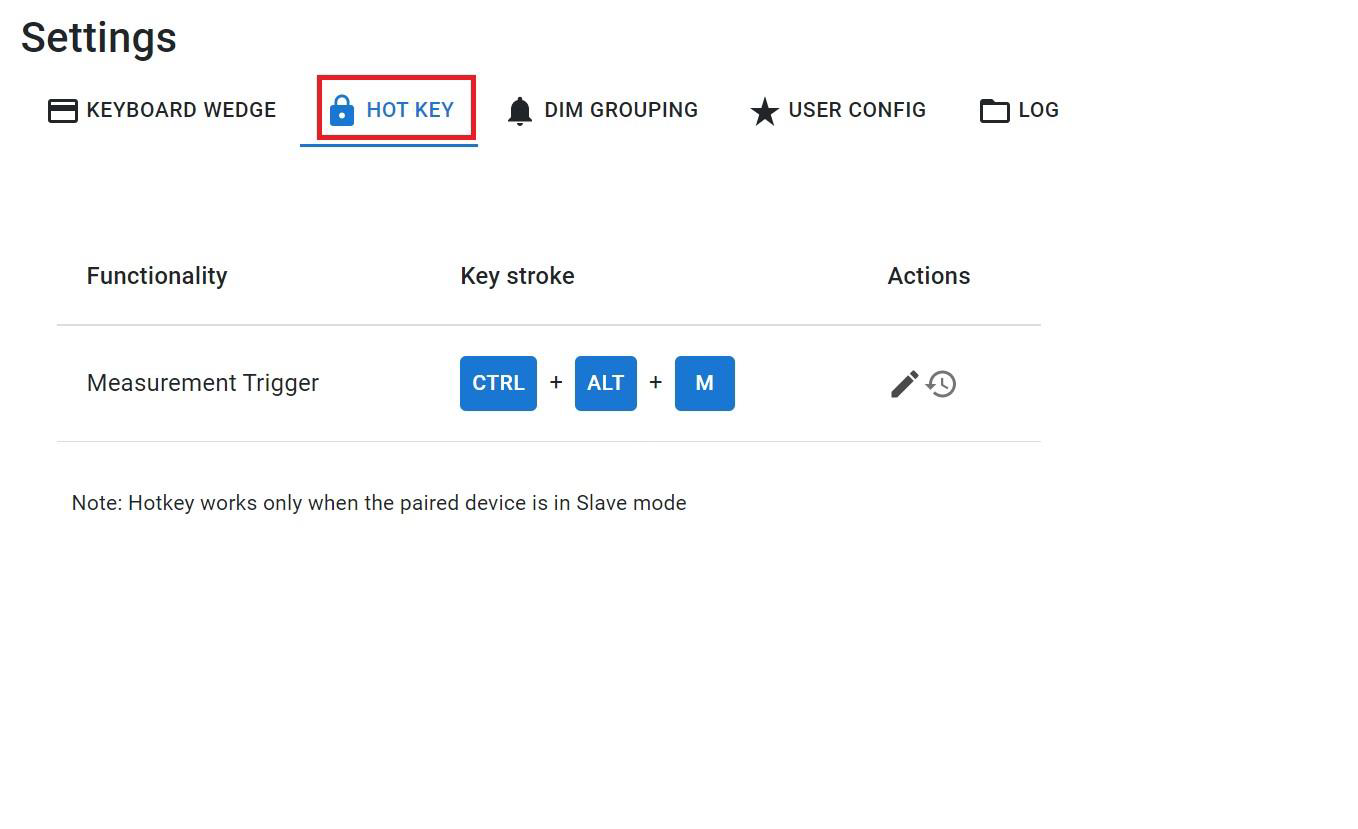
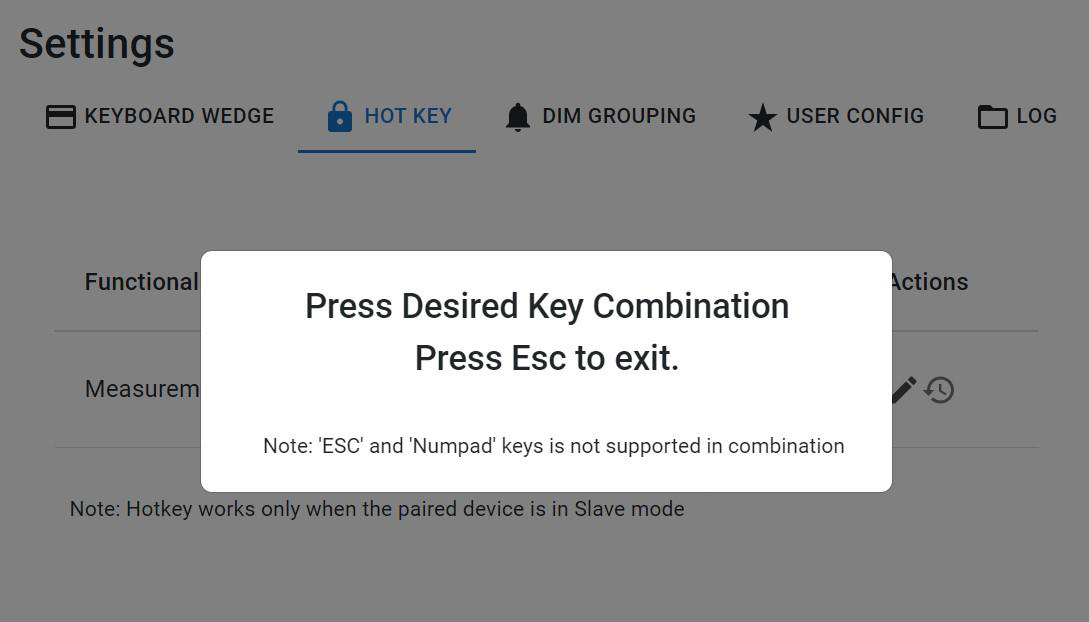
9. By default, the shortcut shall be Ctrl + Alt + M. To change the hotkey, click on the edit button and input the desired measurement trigger shortcut as shown below.
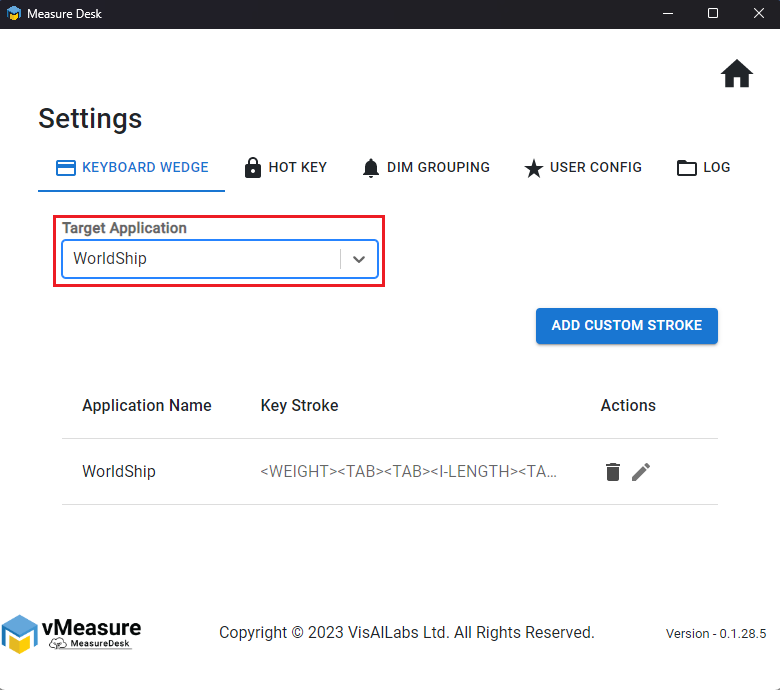
10. Select WorldShip from the Target Application dropdown in the KEYBOARD WEDGE tab as shown below.
11. Navigate back to the Home screen.
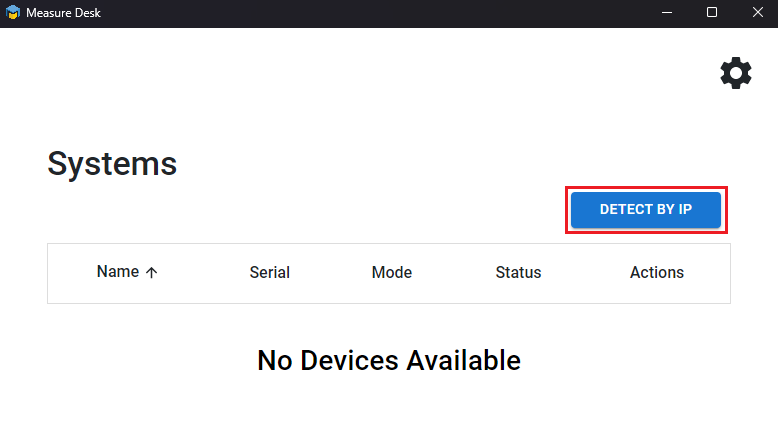
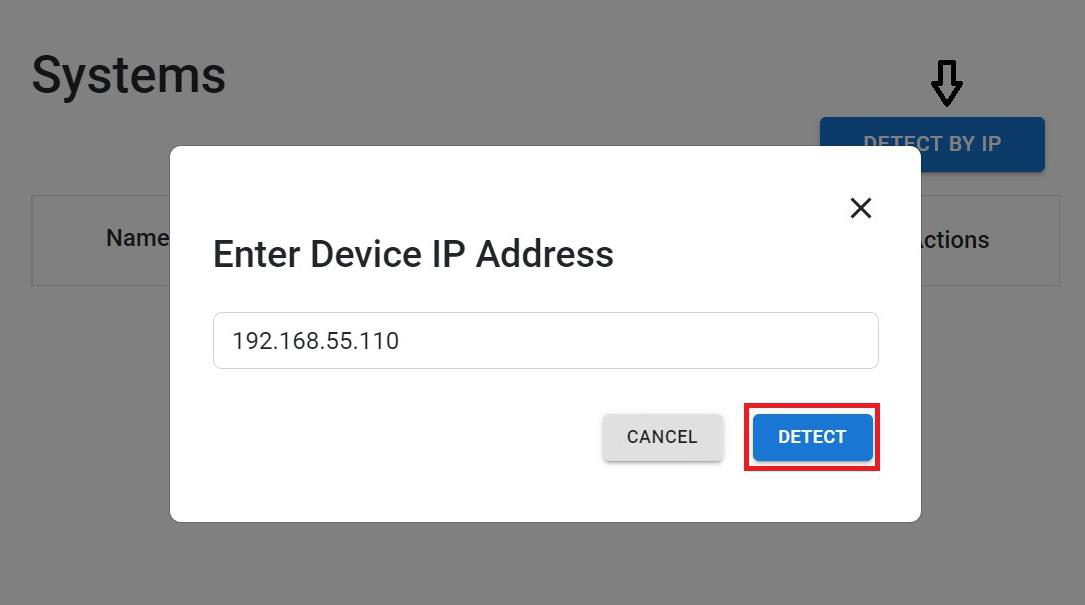
12. Click on the DETECT BY IP button and input the vMeasure system’s IP as shown below.
13. Click on DETECT button as shown below.
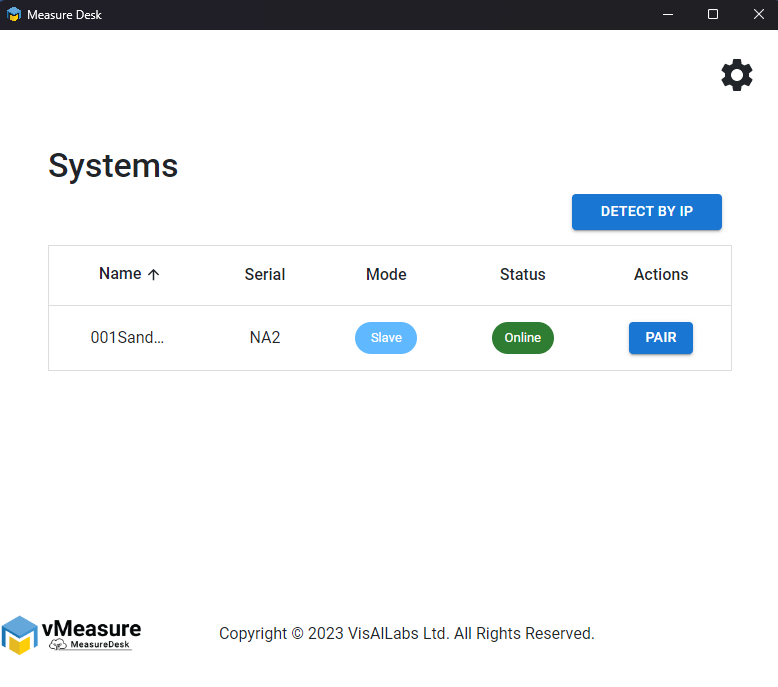
14. From the list of systems, click on the PAIR button as shown below.
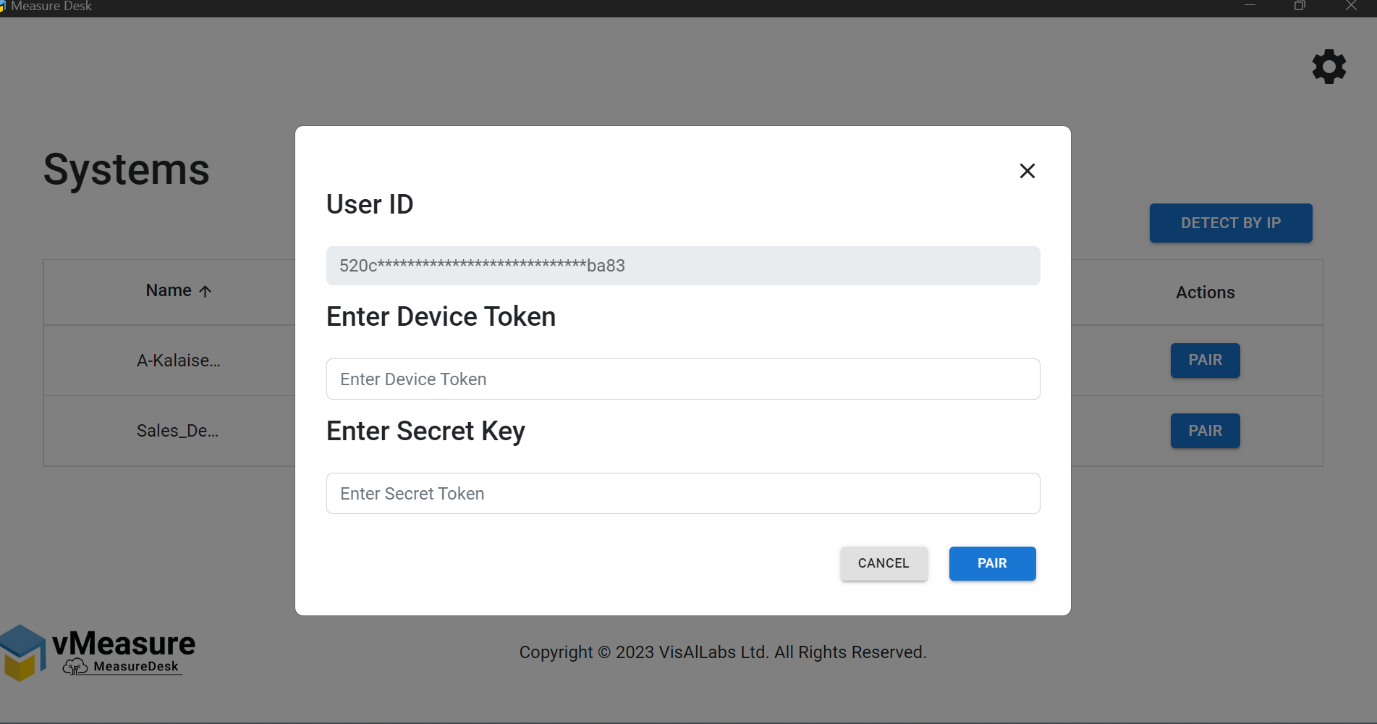
15. Input the vMeasure system’s Secret Key and System Token and click on the PAIR button as shown below. Refer to the Secret Key and System Token sections above for more information.
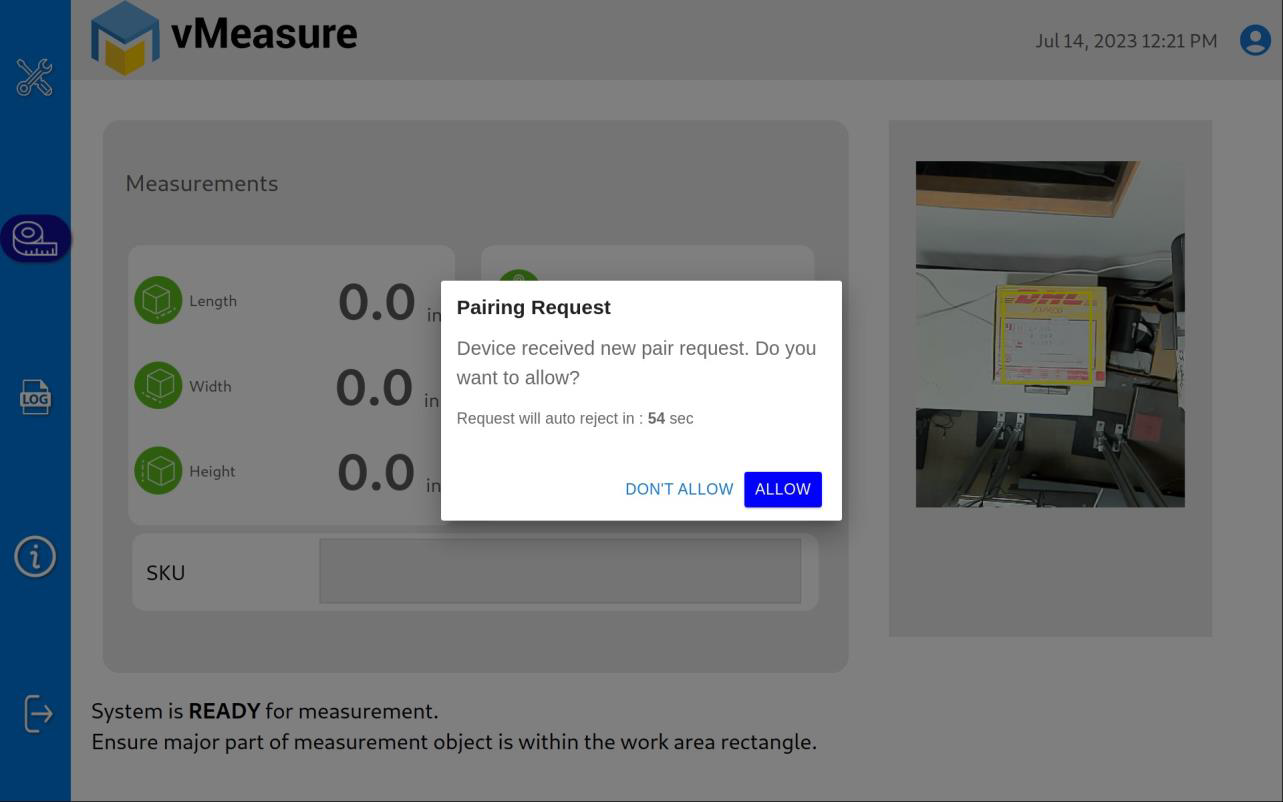
16. The vMeasure system will prompt for pairing confirmation. Click on the Allow button on the prompt to allow pairing of the vMeasure system and Measure Desk application.
17. On the WorldShip application running on the laptop/PC, select Package from the Package Type dropdown.
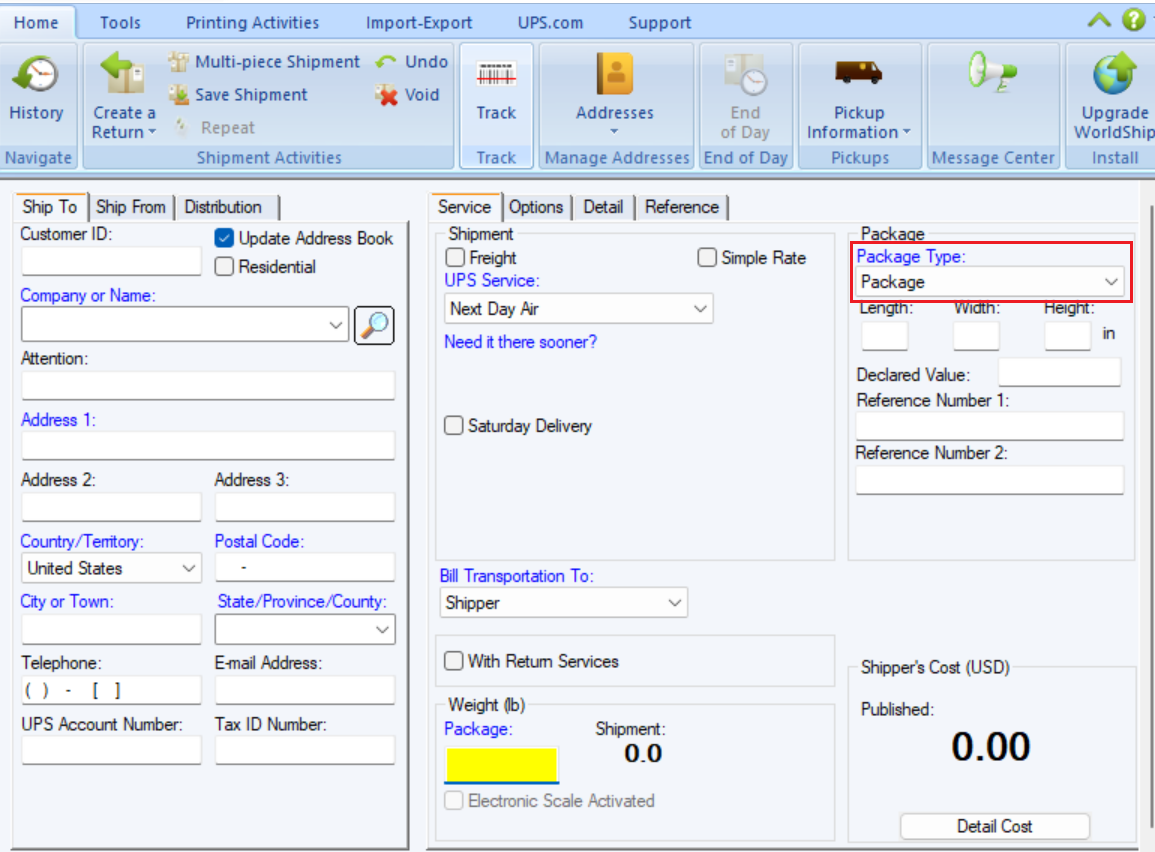
18. Place the cursor on the weight field and input the keystroke configured for the measurement trigger.
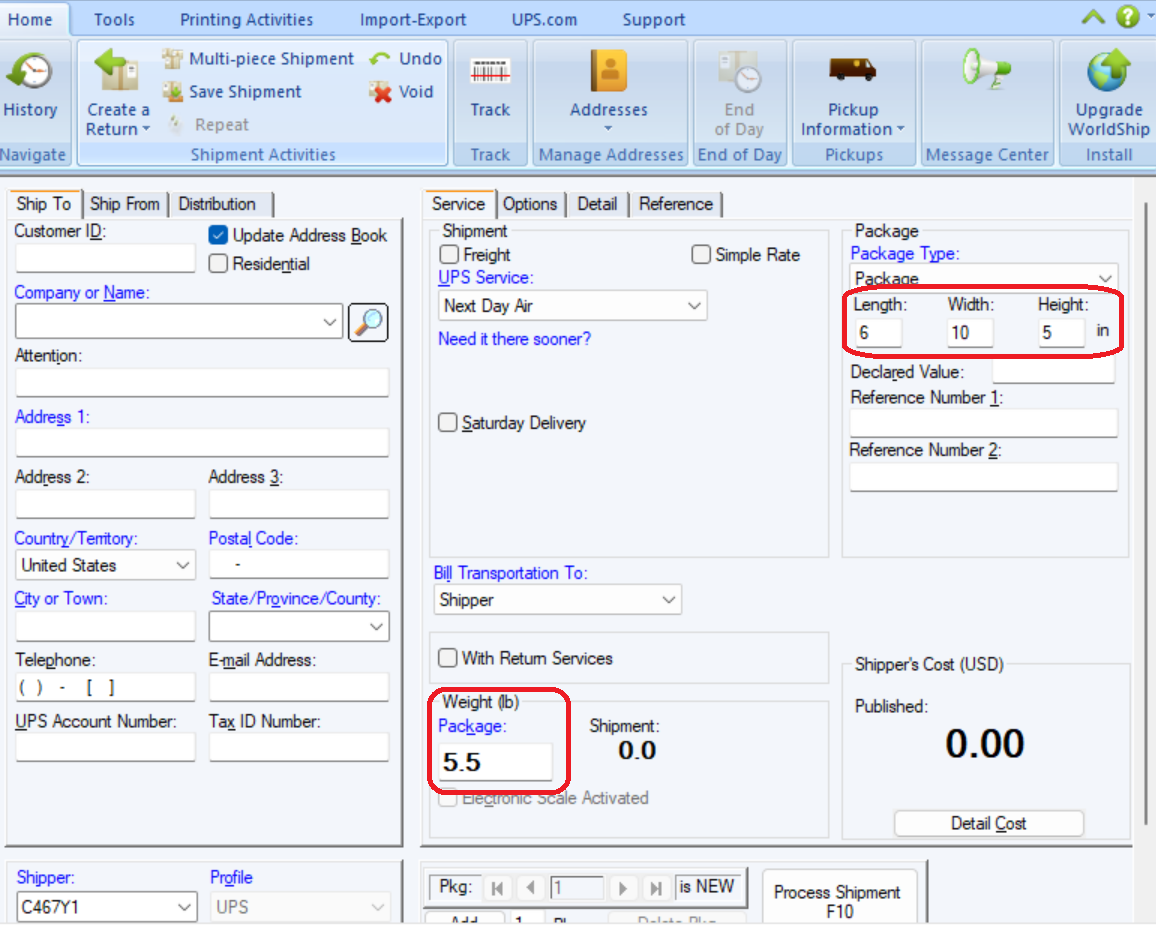
19. The vMeasure system shall capture the measurements and populate the package's length, width, height, and weight as shown below.
Was this article helpful?
That’s Great!
Thank you for your feedback
Sorry! We couldn't be helpful
Thank you for your feedback
Feedback sent
We appreciate your effort and will try to fix the article