Step 1: Login into forge.vmeasure.ai
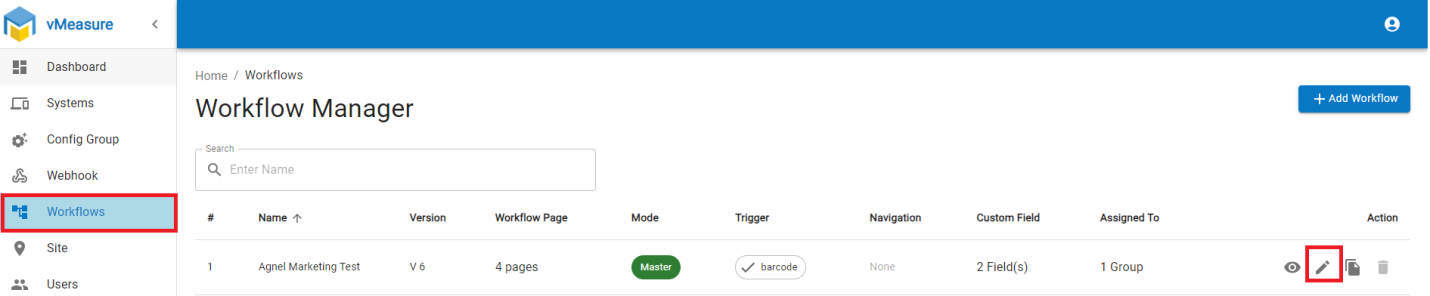
Step 2: Navigate to Workflow, click on the pencil icon, and edit the current workflow.
Step 3: Proceed to next page, navigate to "Measurement Result", click on the check box "Enable Result Timeout ".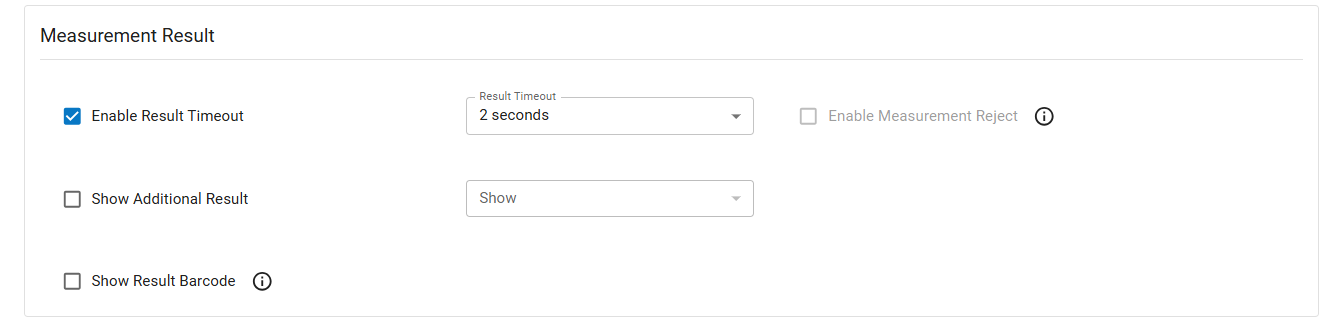
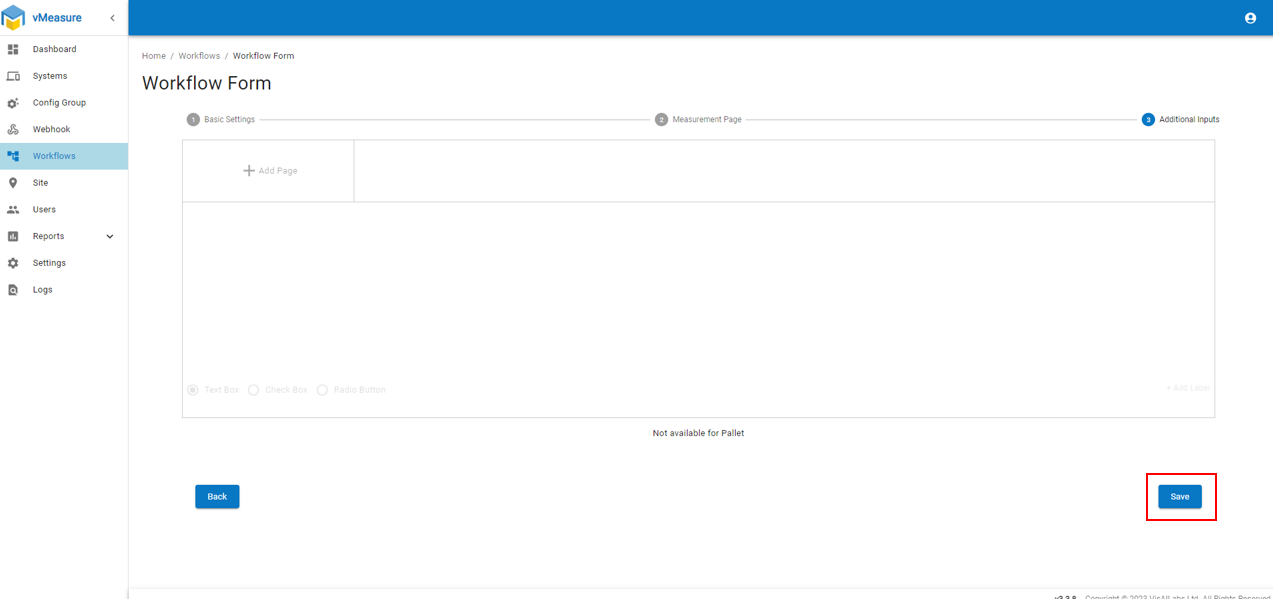
Step 4: Navigate to next page and Save the changes.
Note: A mofication pop-up will be seens on the vMeasure device (Touch screen), accept the pop-up to see the updated workflow changes in the vMeasure device.
Refer : How to create "Config Group"
Refer: How to assign a group to a system.
If you need any support , please drop a mail vmeasure@visailabs.com
Was this article helpful?
That’s Great!
Thank you for your feedback
Sorry! We couldn't be helpful
Thank you for your feedback
Feedback sent
We appreciate your effort and will try to fix the article