Follow the steps below to Add Event Watermark for vAudit on Forge:
Step 1: Log in to forge.vmeasure.ai.
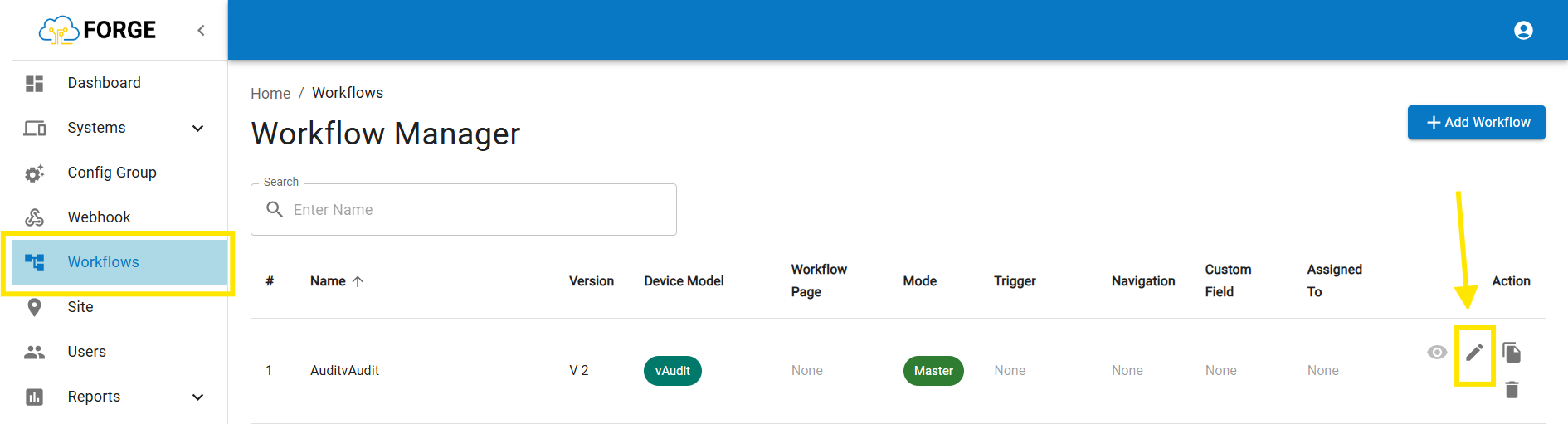
Step 2: Go to "Workflow" and click on the pencil icon to edit the current workflow.
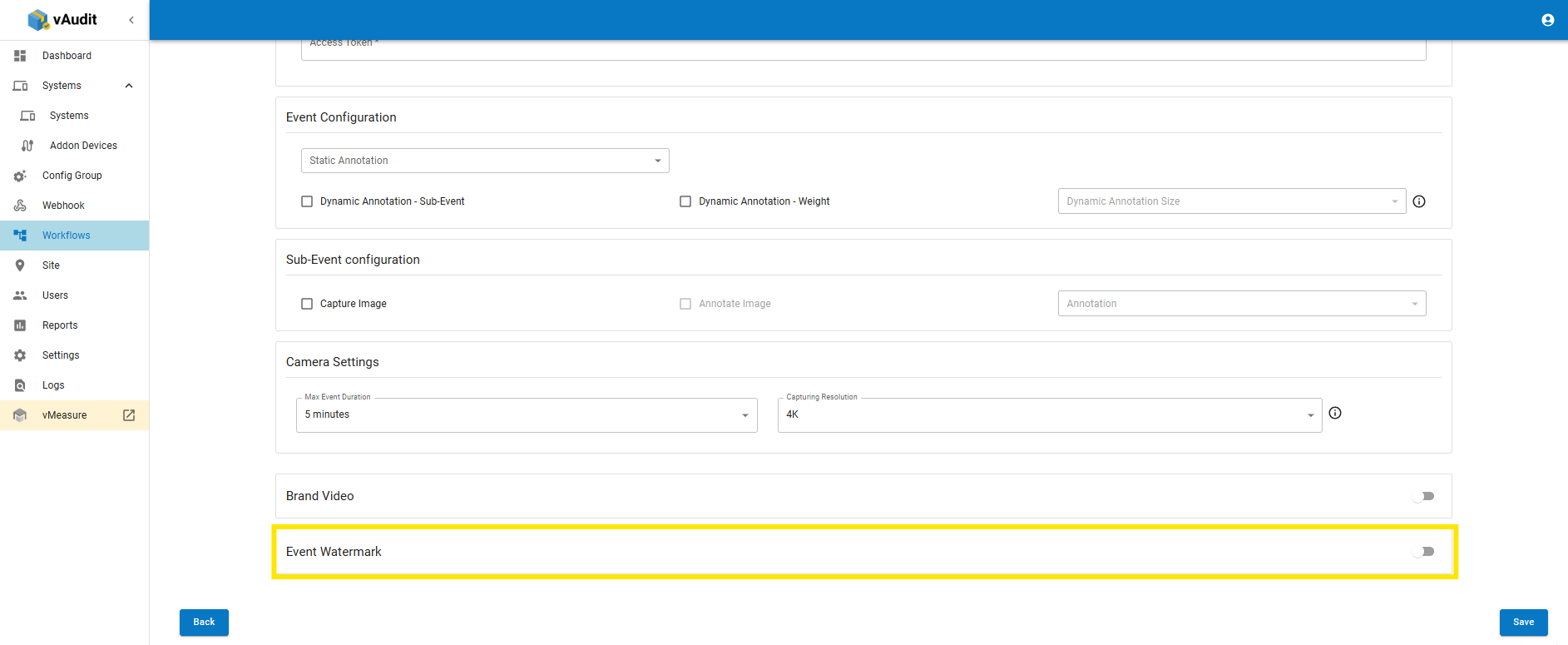
Step 3: Go to the next page and scroll down to find the Event Watermark and turn ON the toggle.
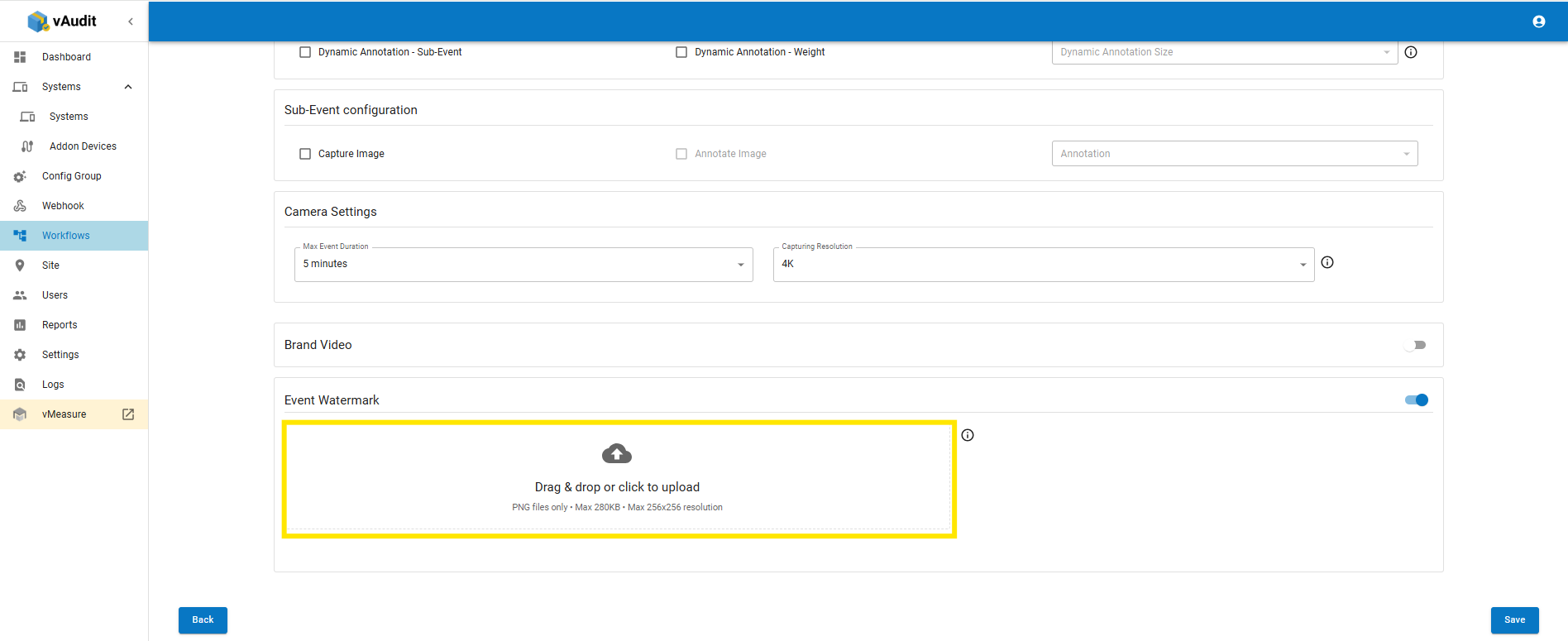
Step 4: Drag & drop or click to upload the Event Watermark image.
Event Watermark resolution: PNG files only • Max 280KB • Max 256x256 resolution
Step 5: Save the workflow, then its automatically apply the updated workflow in device.
If you need any assistance, please email vmeasure@visailabs.com
Was this article helpful?
That’s Great!
Thank you for your feedback
Sorry! We couldn't be helpful
Thank you for your feedback
Feedback sent
We appreciate your effort and will try to fix the article