1. Setup.
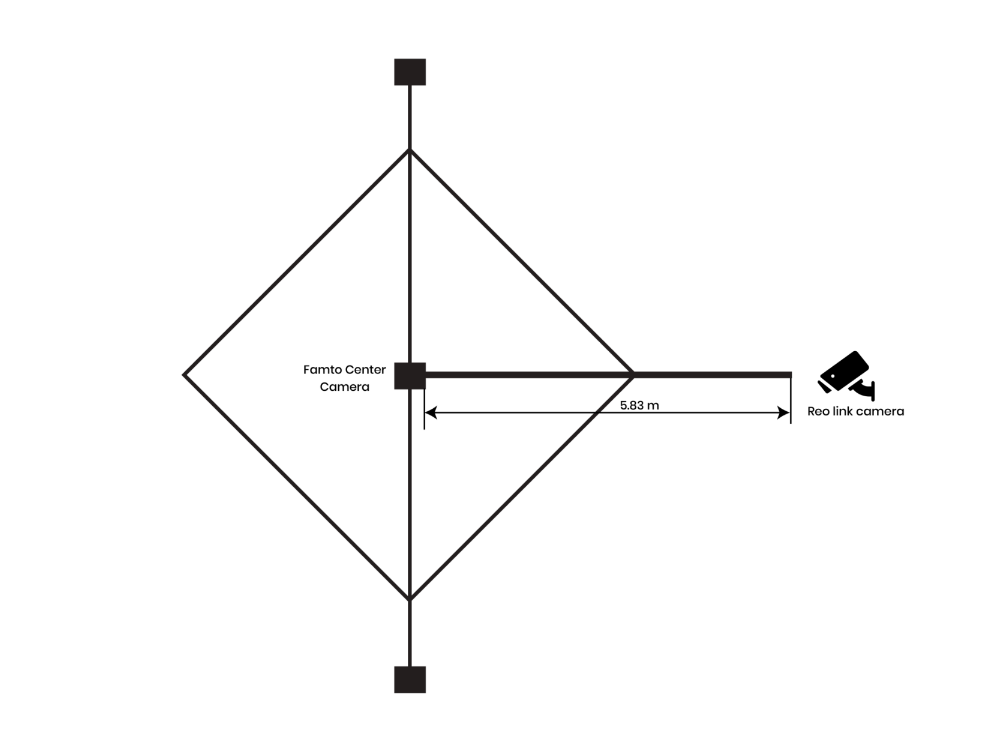
Before starting the calibration process, the ONVIF camera must be positioned and configured according to the following specifications to ensure the entire pallet, including its maximum specified dimensions, is captured within the camera's field of view.
Camera Setup Details:
| Spec Name | Value |
|---|---|
| ONVIF Camera Distance | 5.83 m / 583 cm / 229.53 in (from the center of the pallet camera) |
| ONVIF Camera Angle | 17° (From the wall / Camera Holder ) |
| ONVIF Camera Height | 2.1 m / 210 cm / 82.68 in (From the ground ) |
| Calibration Checker Board Angle | 20° |
| Calibration Target | Checker Board Only |
| Visibility Requirement | Checker board must be visible to both Pallet and ONVIF Cameras |
Reference: Please refer to the top-view setup diagram of the ONVIF camera with the pallet device below
2. Configure the ONVIF Camera in the Pallet Device.
Before calibration, the ONVIF camera must be configured in the pallet device.
Reference: Please refer to the ONVIF Camera Configuration document for the complete configuration procedure.
Document: Click here
3. Calibrate the ONVIF Camera in the Pallet Device.
After successfully configuring the ONVIF camera, follow the steps below to complete the calibration.
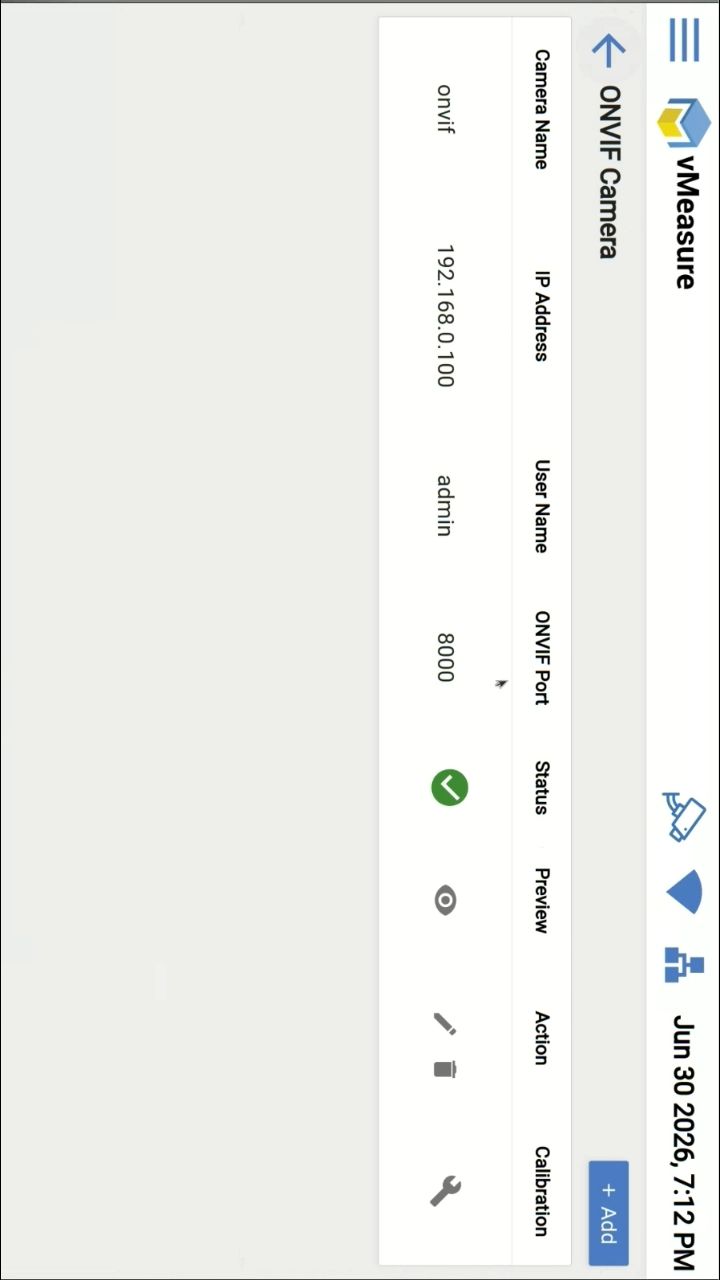
Step 1: Click the Wrench icon in ONVIF Camera page.
Step 2: The "ONVIF Calibration" page will open.
Place the Checker Board in 20° angle at the Center of the camera preview and wait for the alignment to get successful.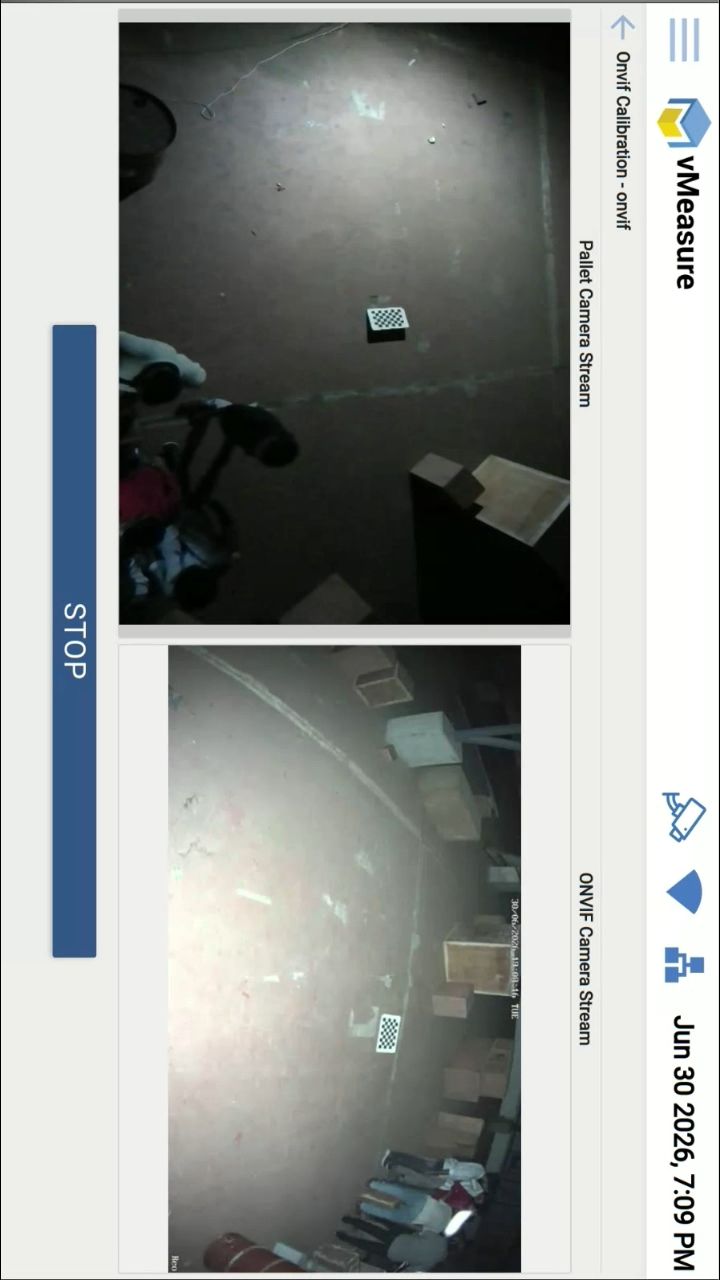
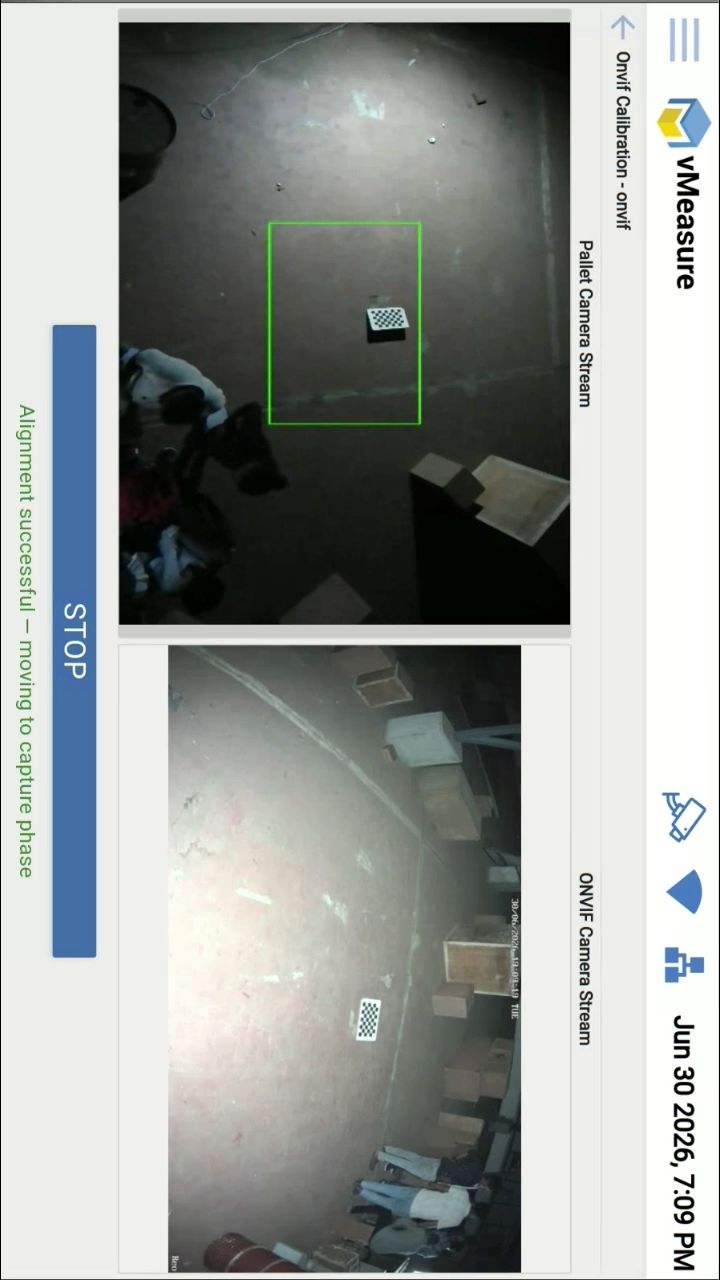
Step 3 : Move the Checker Board to each red calibration box displayed on the screen.
Ensure that the checker board is positioned correctly until each Red box turns green.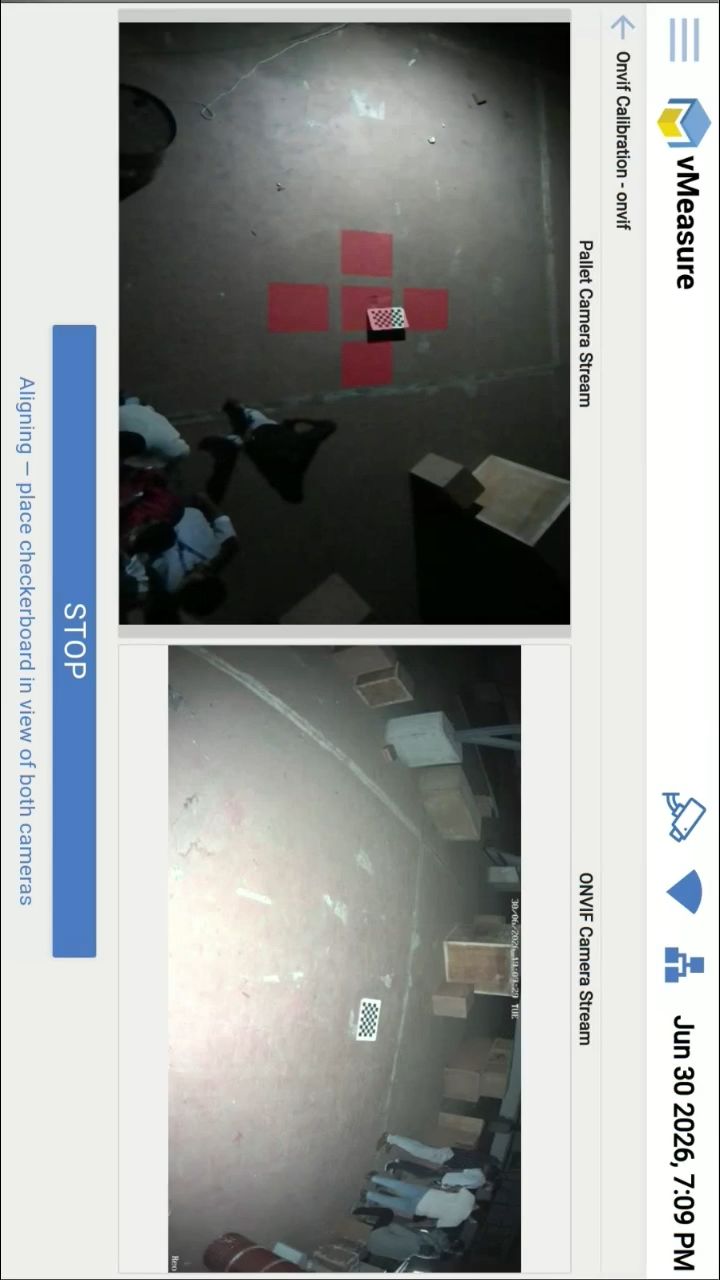
Step 4 : Repeat the process for all five calibration boxes.
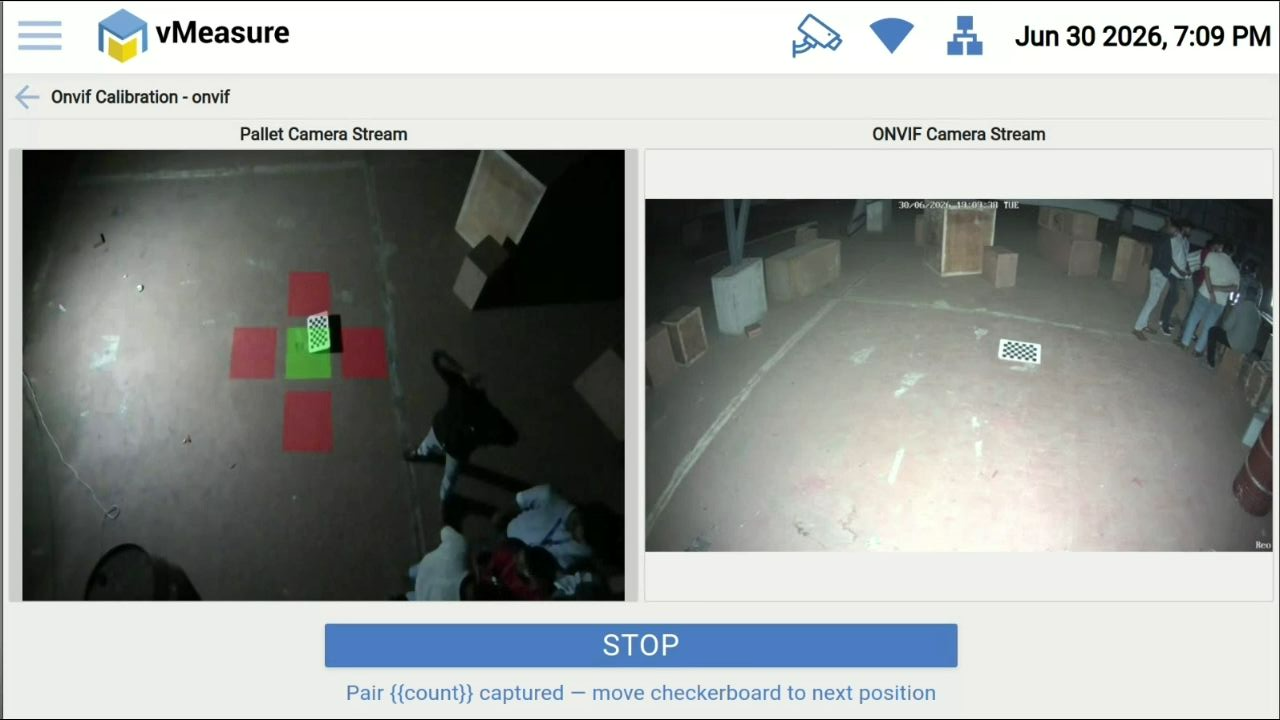
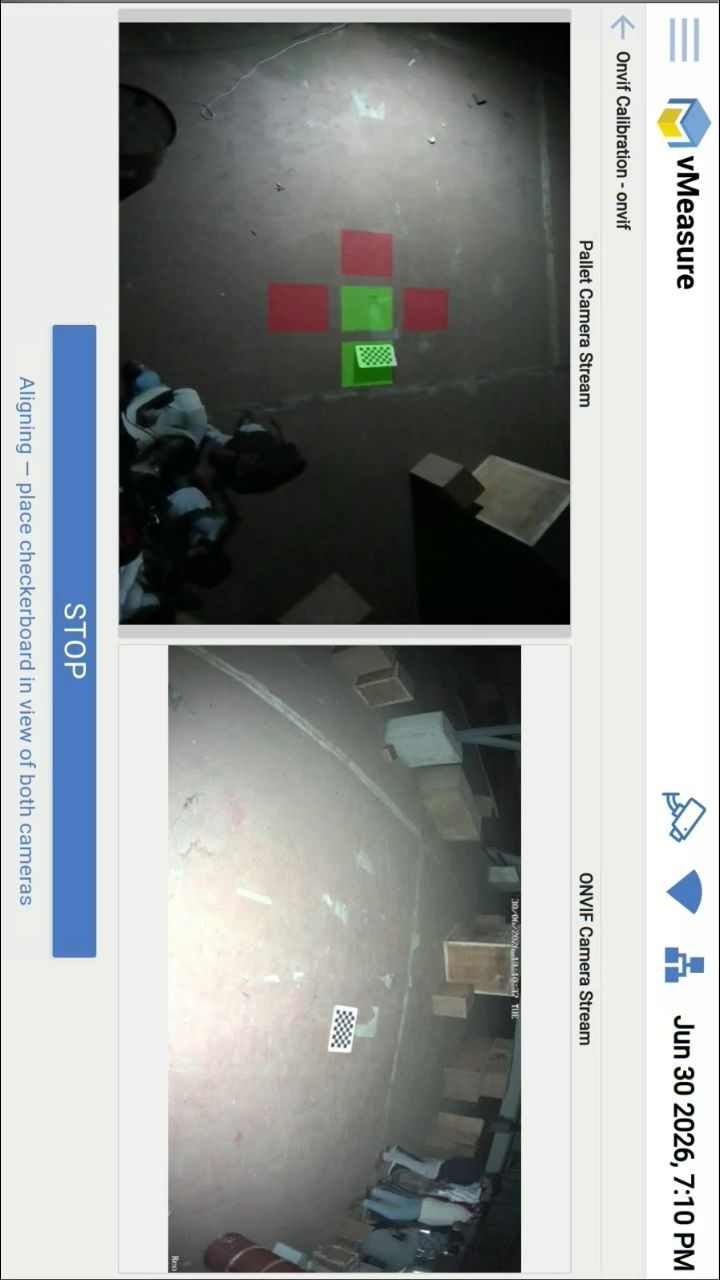
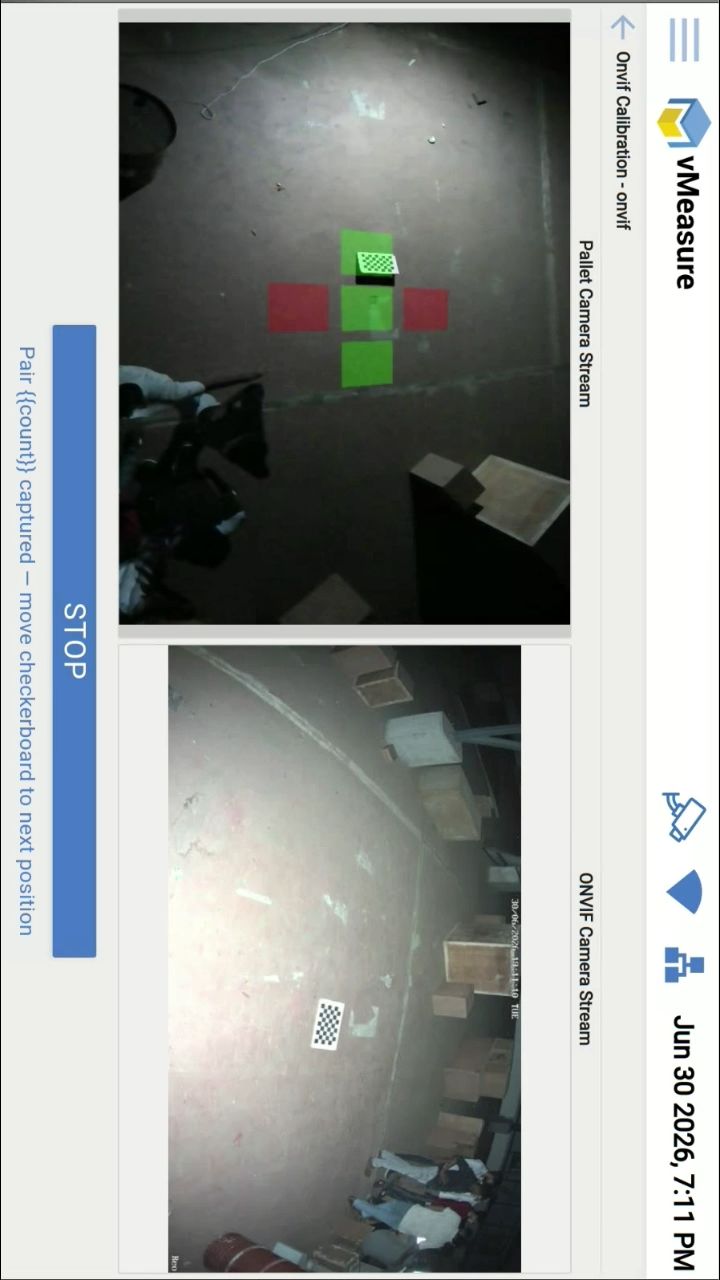
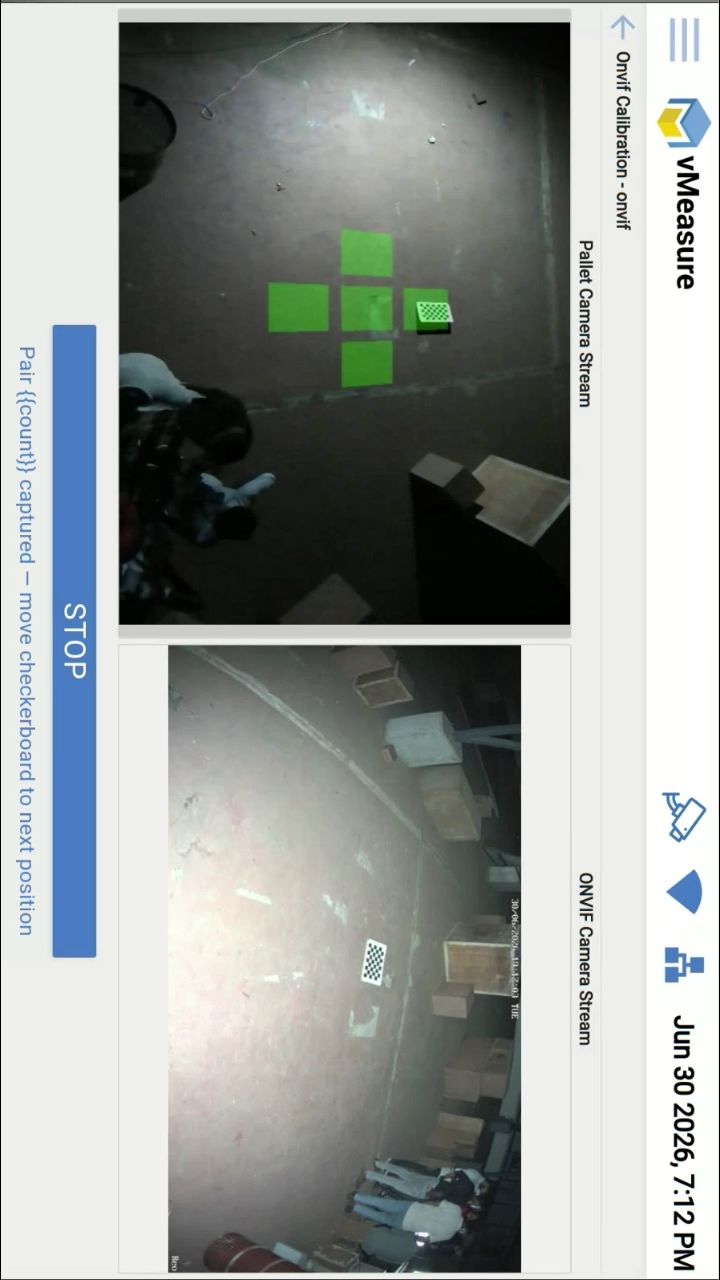
Step 5: Once all five boxes turn green, the ONVIF camera calibration is completed successfully.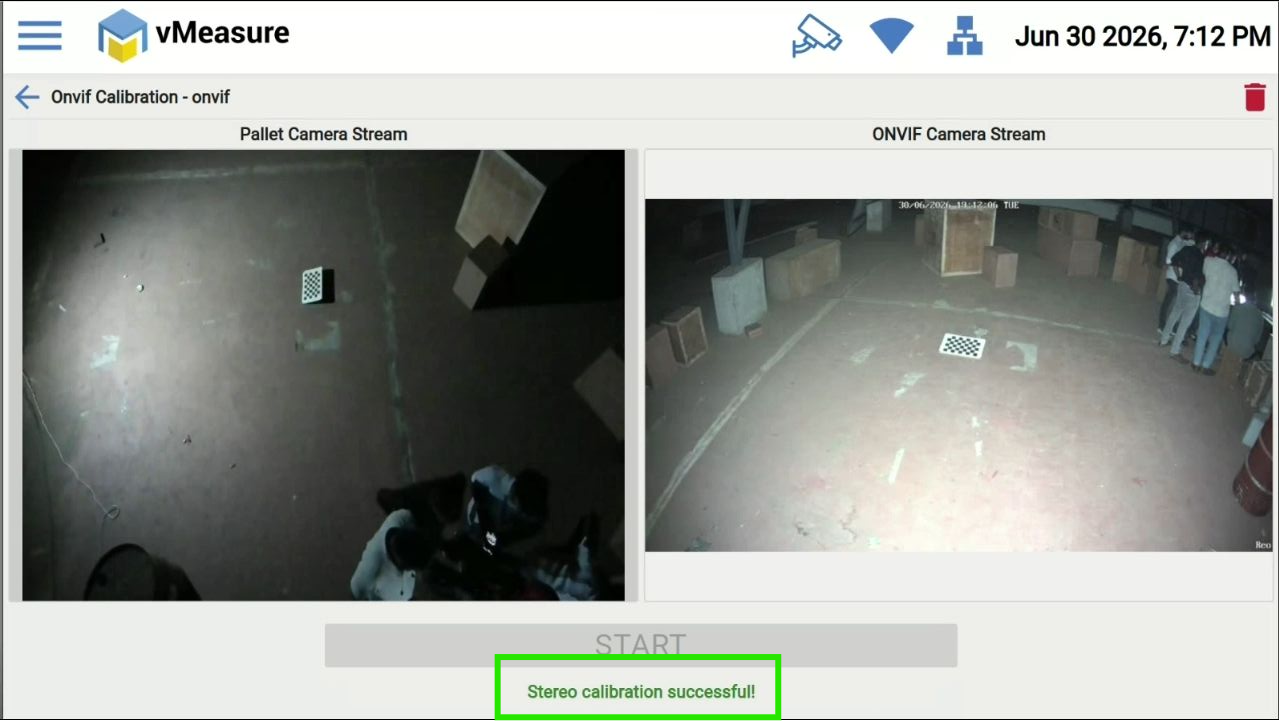
Note : If the calibration fails after following the above procedure, please repeat the calibration by following the same steps mentioned above.
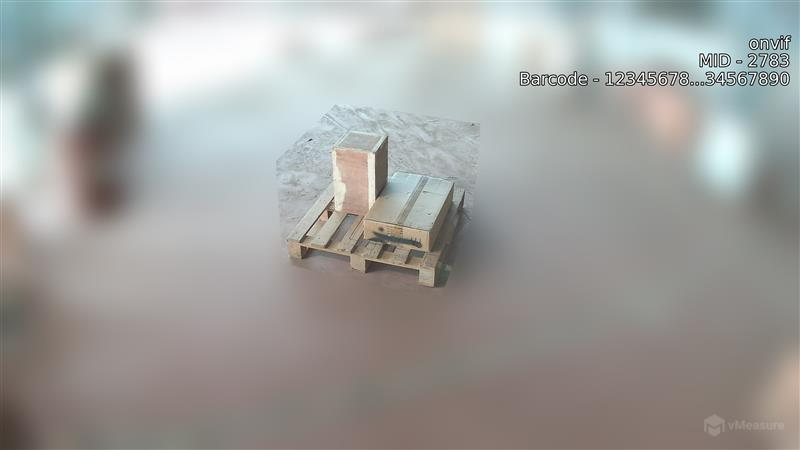
Step 6 : After completing the calibration successfully, capture a few test measurements. The ONVIF camera's blur image will be displayed as shown below.
You can also access this image in the Reports tab under Artifacts in Forge.
Important Notes:
While calibration , the checkboard must be placed in 20° angle frm the ground.
The Checker Board must occupy at least 70% of the red calibration box for successful detection.
Avoid any human movement or disturbance within the camera's field of view during the calibration process.
Ensure the Checker Board remains clearly visible to ONVIF camera /Pallet camera throughout the calibration.
After the ONVIF camera has been successfully calibrated, if its position is changed or disturbed during operation, it must be recalibrated to ensure accurate results.
To Raise the support ticket : https://support.visailabs.com
Was this article helpful?
That’s Great!
Thank you for your feedback
Sorry! We couldn't be helpful
Thank you for your feedback
Feedback sent
We appreciate your effort and will try to fix the article