You need to set up a camera(ONVIF protocol supported) with the vMeasure Pallet device.
Step 1 - Configure the camera to vMeasure application using the provided username and password.
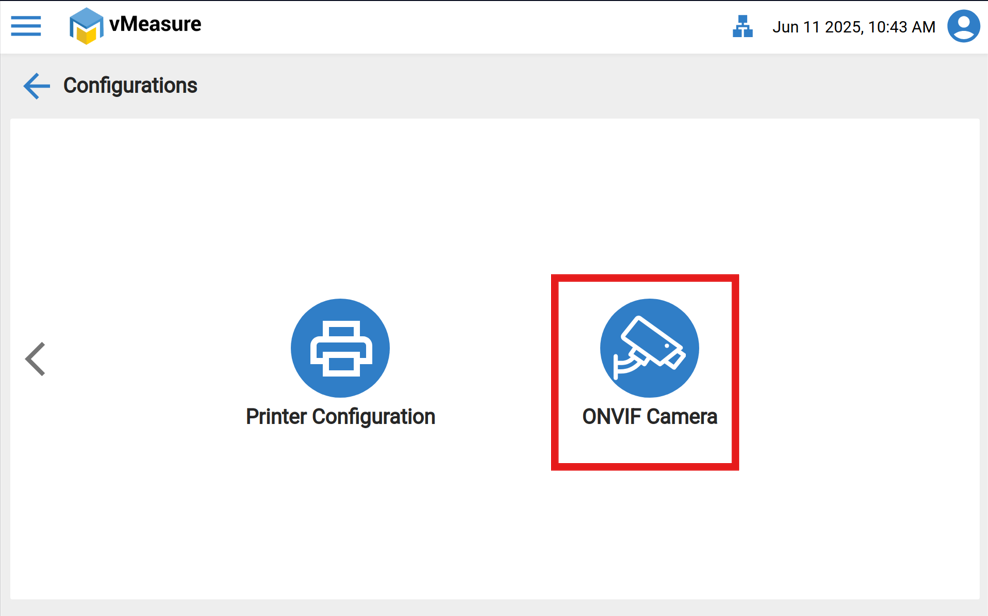
Step 2 - To configure, Go to the vMeasure Pallet deviceMenu page, then click the "Configuration" icon.
Step 3 - Click ONVIF Camera icon.
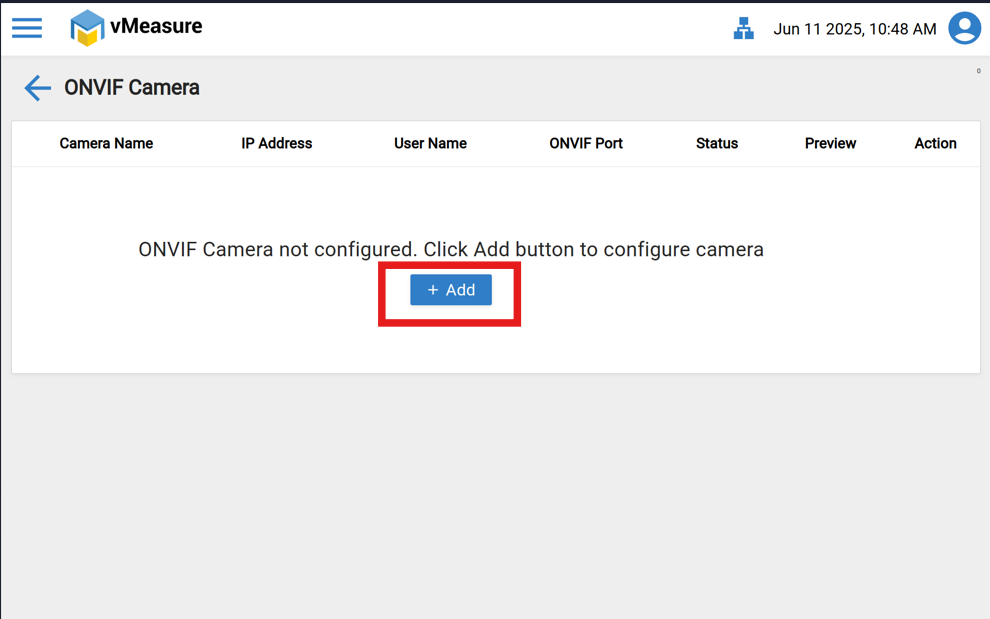
Step 4 - On the ONVIF Camera page, locate the "ADD" button and click on it.
Step 5 - Enter all the required details, such as Camera name, IP address, ONVIF port, Username, and Password, then click "Save."
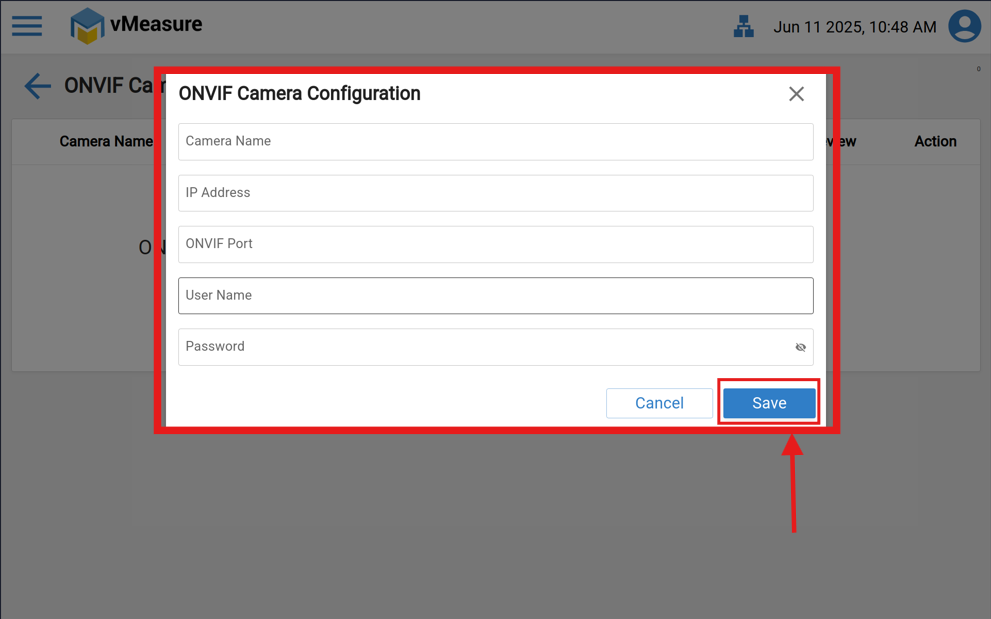
You can find these details in your camera's application page.
NOTE:
- Camera name - You can choose your preferred name.
- IP address - Available in your camera application.
- ONVIF port - The port number is listed in your camera application.
- Username and password - Use the credentials from your camera application.
To download the Camera Application, you can scan the QR code available in the Camera User Manual or find it the Application On Google Play Store.
To Configure the Camera on Android or iOS:
Step 1:
After downloading the camera application on your mobile phone, create a user credential. By default, an admin user is created, but you can set up your own user account for logging into the application.
Step 2:
Navigate to "Add Device" in the camera application and scan the QR code located beside the camera to configure it.
Step 3:
Once the configuration is complete, you can find the required details under "Device Info" in the camera application.
To Raise the support ticket via our Support portal : https://support.visailabs.com
Was this article helpful?
That’s Great!
Thank you for your feedback
Sorry! We couldn't be helpful
Thank you for your feedback
Feedback sent
We appreciate your effort and will try to fix the article