Please follow the below steps to crop the ONVIF camera image in the device:
Step 1: Click on Settings.
Step 2: Navigate to Configuration and click Next.
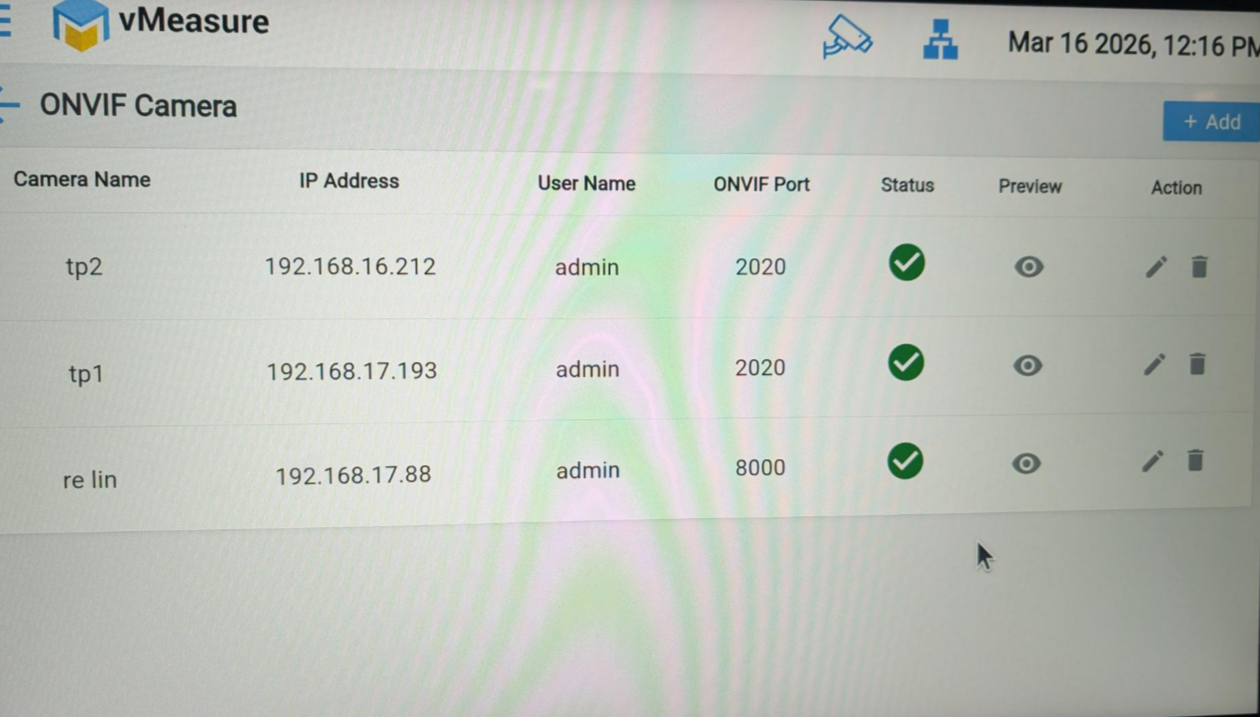
Step 3: Select ONVIF Camera.
Step 4: Once the camera is added, click on the Preview icon for the respective camera.
 Step 5: By default, the option will be Disable Crop. Change it to Enable Crop, adjust the required crop area on the image, and close the preview.
Image 1: 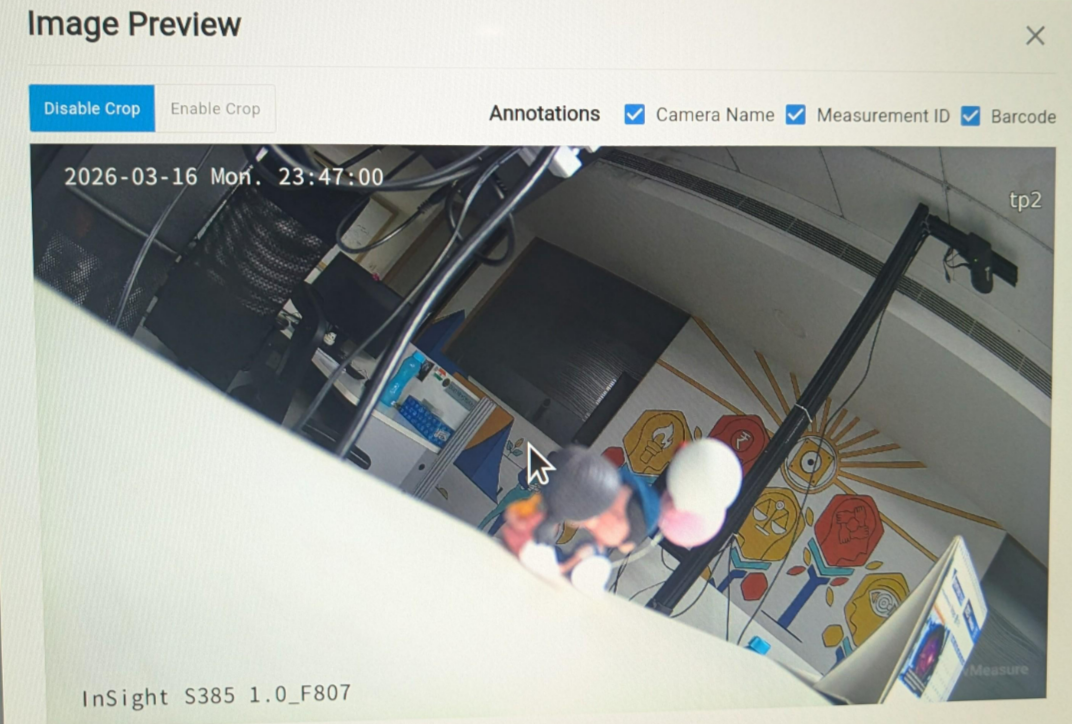
Image 2:
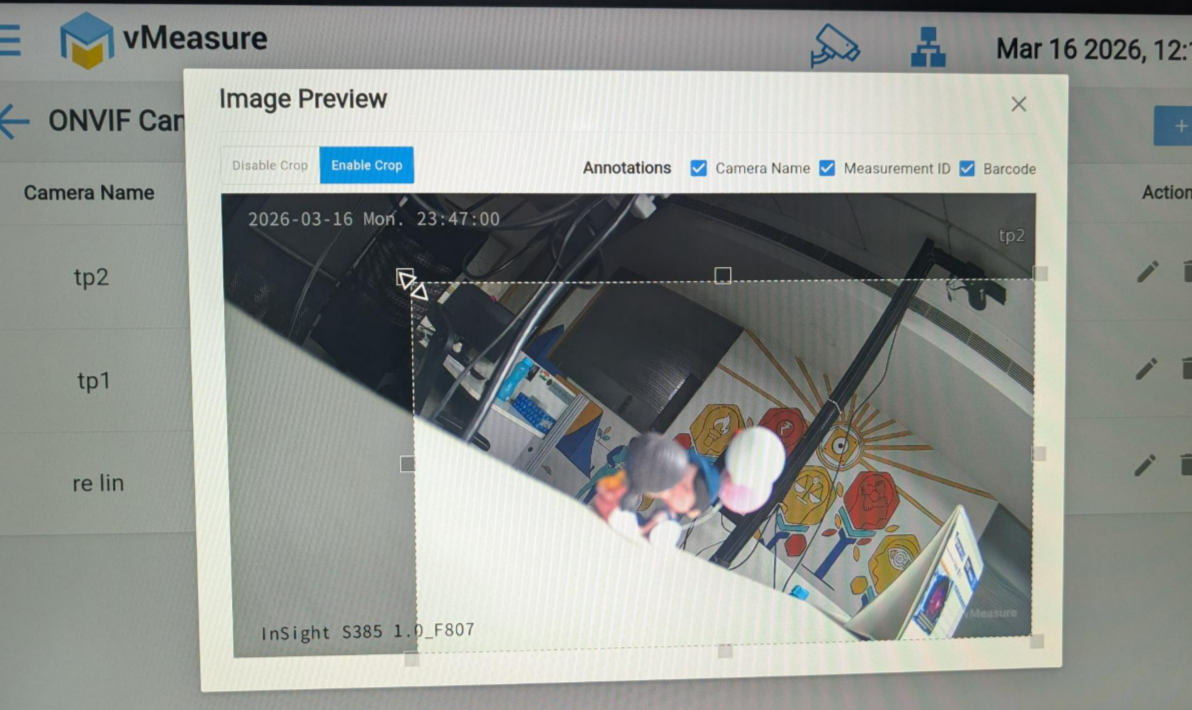
Note: After closing the preview, the cropped image will be reflected in Forge under the Additional Images section.
Was this article helpful?
That’s Great!
Thank you for your feedback
Sorry! We couldn't be helpful
Thank you for your feedback
Feedback sent
We appreciate your effort and will try to fix the article