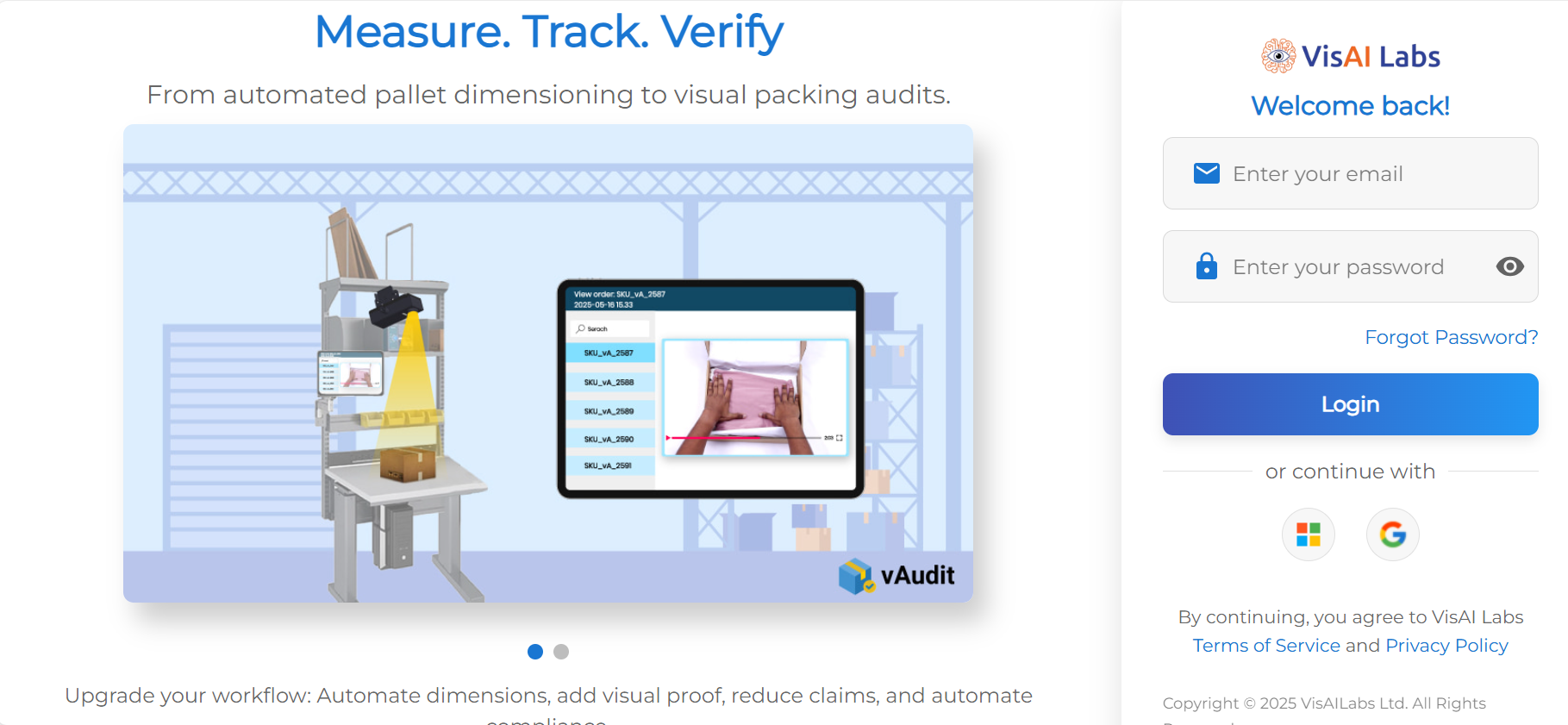
1. Open forge.vmeasure.ai and login using your credentials.
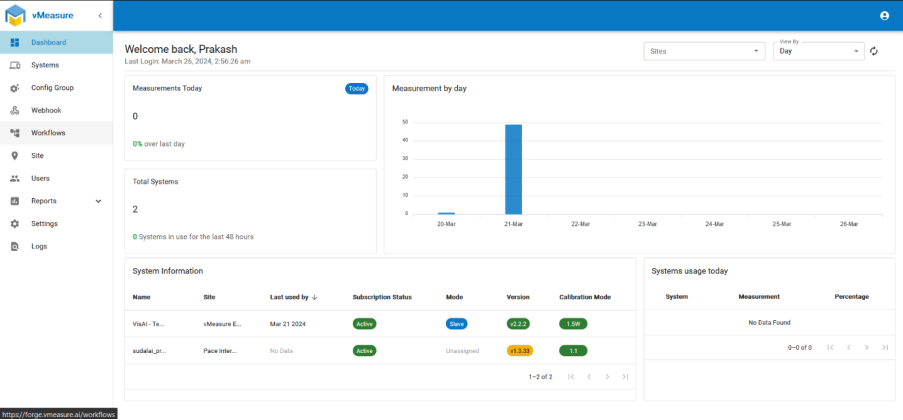
2. Once on the Dashboard page go to ‘Workflows’ and select the workflow currently assigned to the device.
3. Now edit the workflow by hitting the edit icon (Here we are using the Test1234 workflow).

4.Go to next page and enable measurement trigger and set the delay after trigger as required.

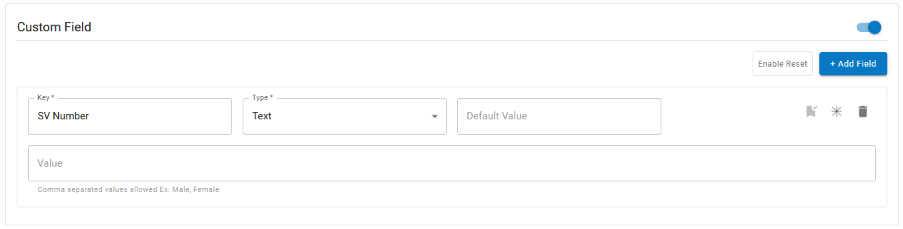
5. Now enable “Custom Fields” press “Add Field”.

6.Now in Key enter “SV Number” and set the type as Text.
7. Now go to the next page and save the Workflow to save the current changes made.
If you need any support , please drop a mail to vmeasure@visailabs.com.
Was this article helpful?
That’s Great!
Thank you for your feedback
Sorry! We couldn't be helpful
Thank you for your feedback
Feedback sent
We appreciate your effort and will try to fix the article