Please follow the instructions below to switch the camera view on the Measurement page preview from Camera 1 to Camera 2:
Step 1: Log in to your vMeasure device.
Step 2: Click on "Hamburger button" in left top of the screen & go to Configurations Page & choose the Camera option.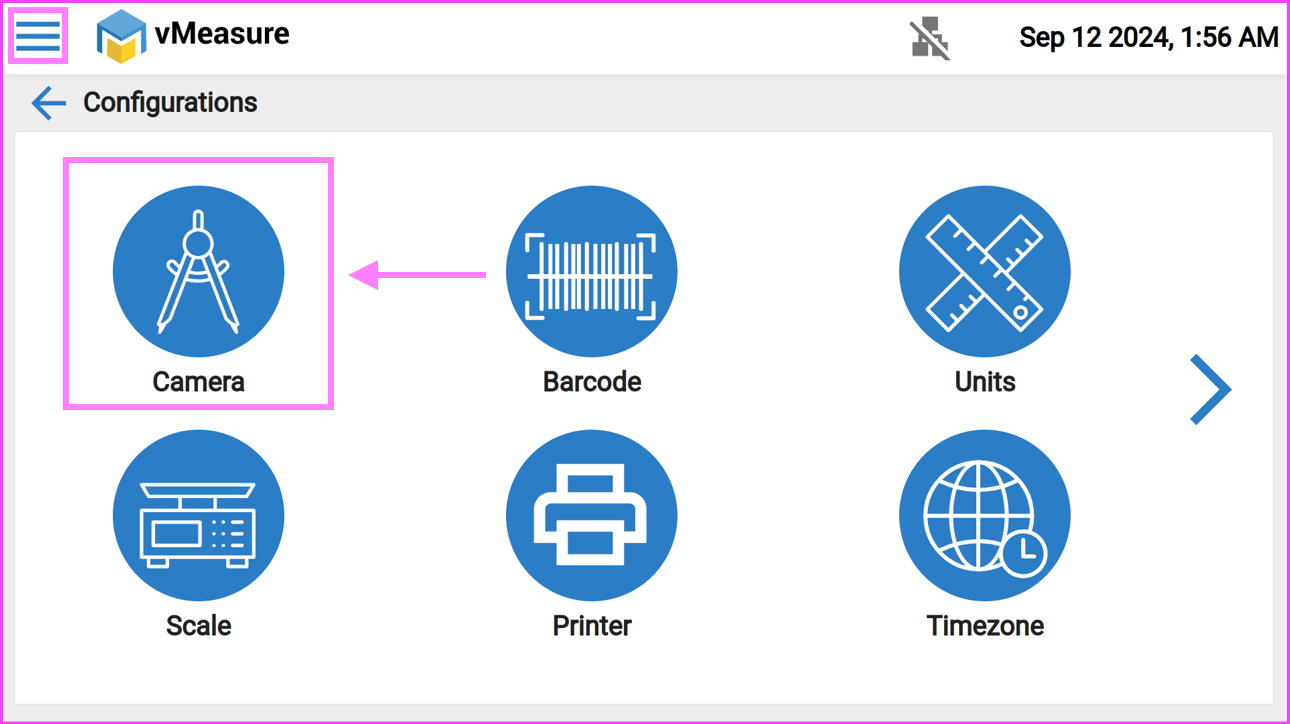
Step 3: On the Camera Configuration page, choose the Camera View (Camera 1 or Camera 2) that you want to display in the Measurement page preview.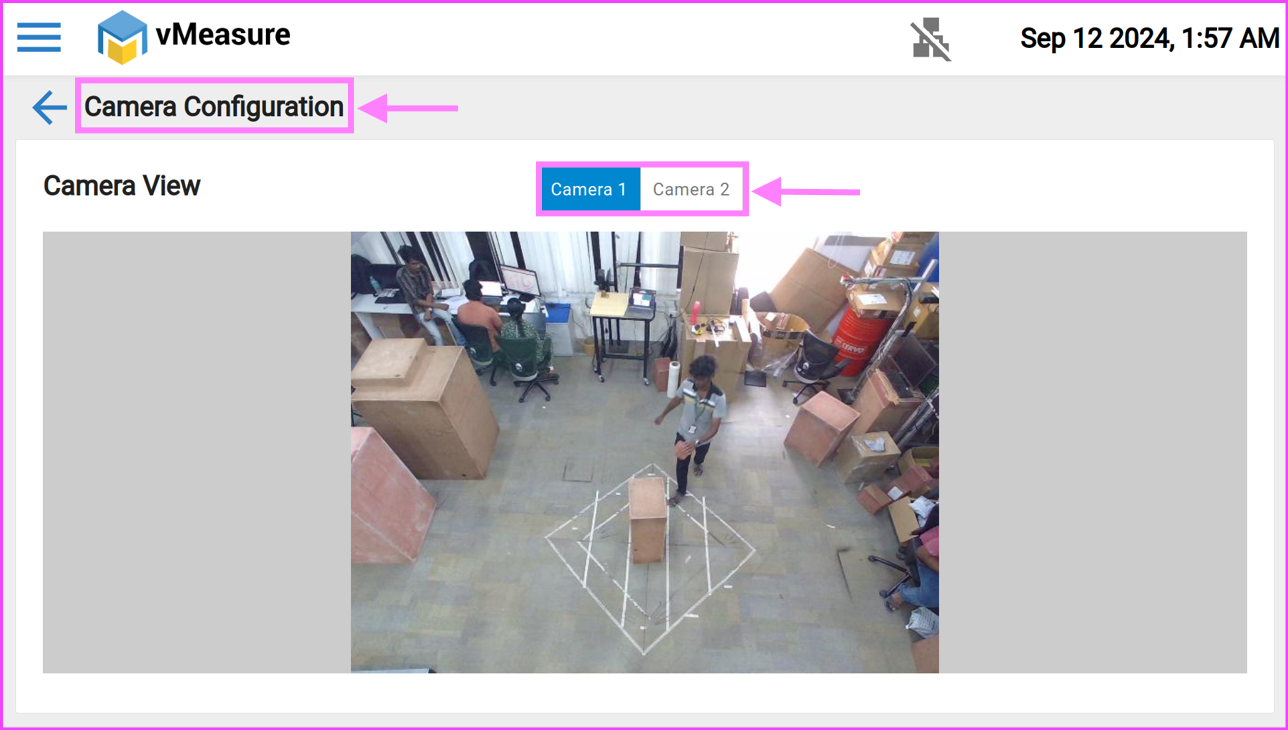
If you need any support , please drop a mail to vmeasure@visailabs.com or Click here to Submit a Ticket.
Was this article helpful?
That’s Great!
Thank you for your feedback
Sorry! We couldn't be helpful
Thank you for your feedback
Feedback sent
We appreciate your effort and will try to fix the article