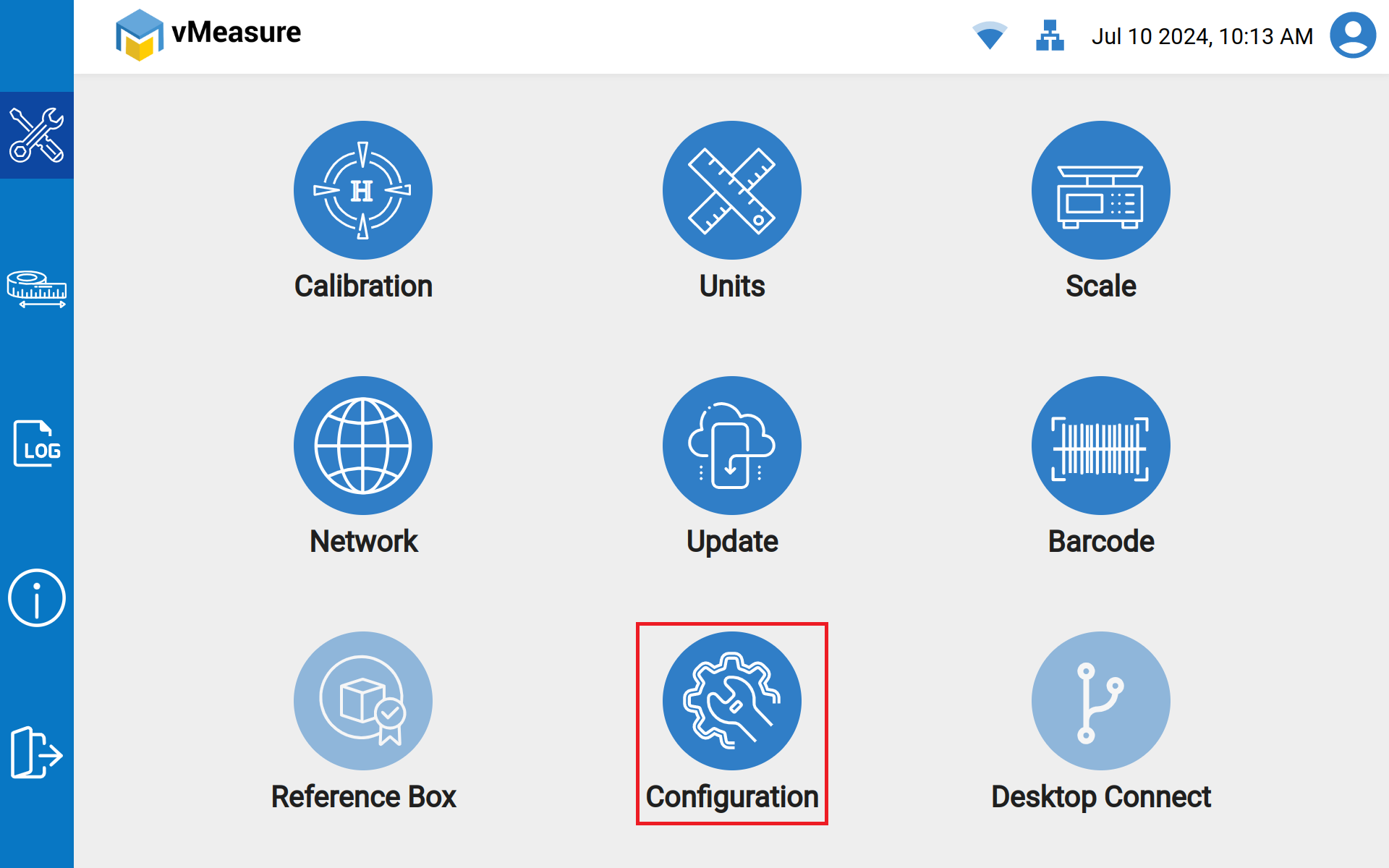
Step 1: Navigate to Configuration.
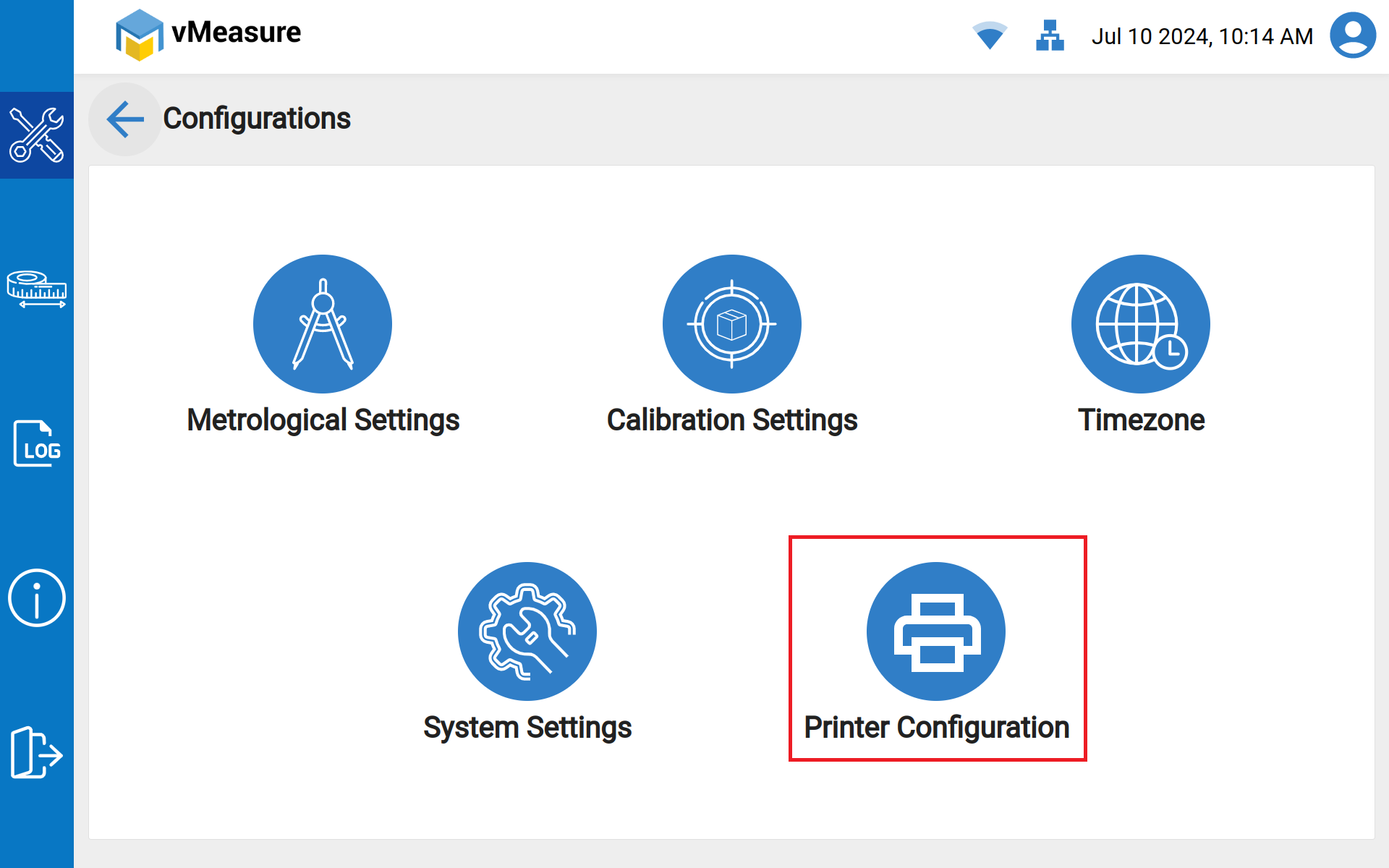
Step 2: Connect Zebra Printer(ZD220) and Navigate to Printer Configuration.
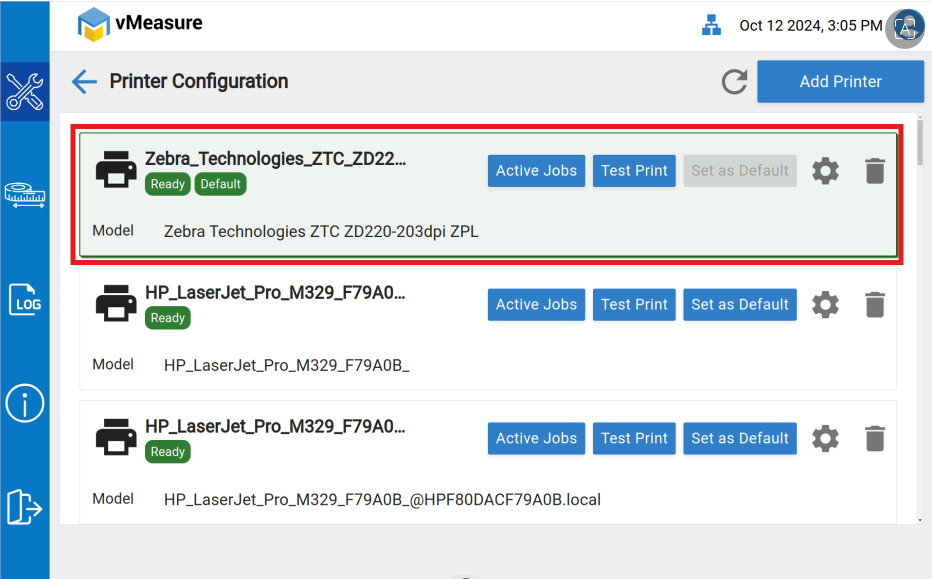
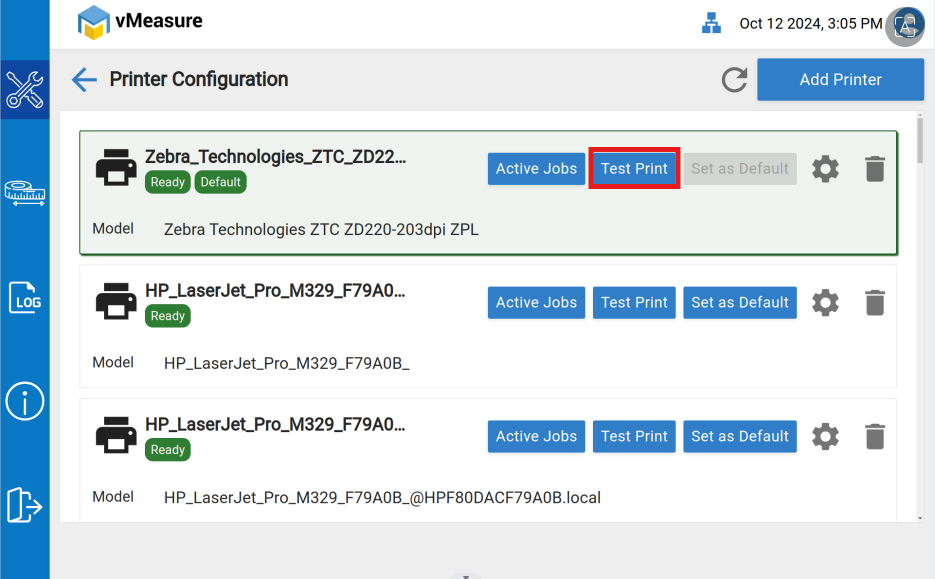
Step 3: On Printer Configuration, you should find the model connected to the vMeasure device, for example here we are using a Zebra Technologies ZTC ZD220-203dpi ZPL or search for your printer model.
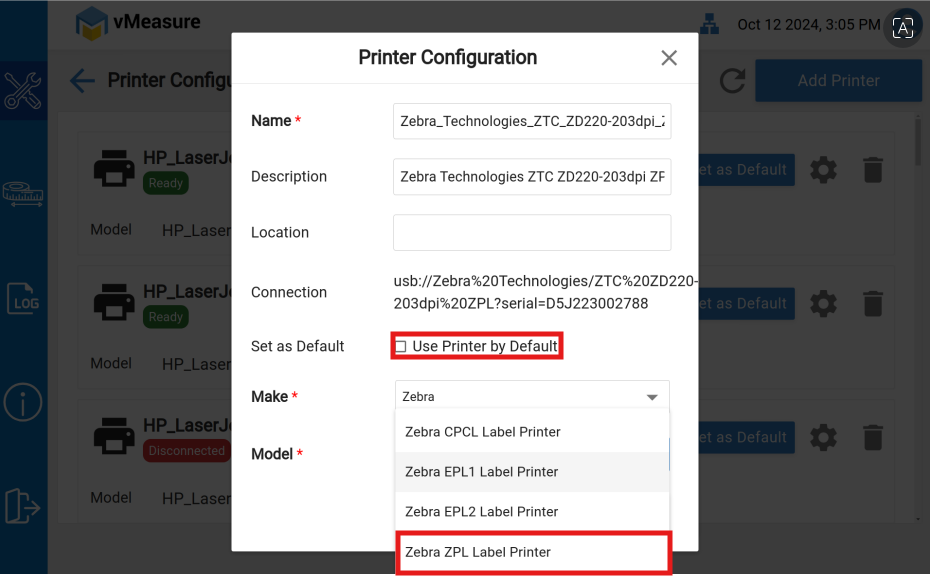
If you are not able to find the model, click on Add Printer and you will find the connected printer, and click to configure it.
Enable Set as Default and choose model-> Zebra EPL2 Label Printer / Zebra ZPL Label Printer.
Step 4: Click on Test Print icon on the connected printer. Observe as the test printout is generated and ejected from the printer.
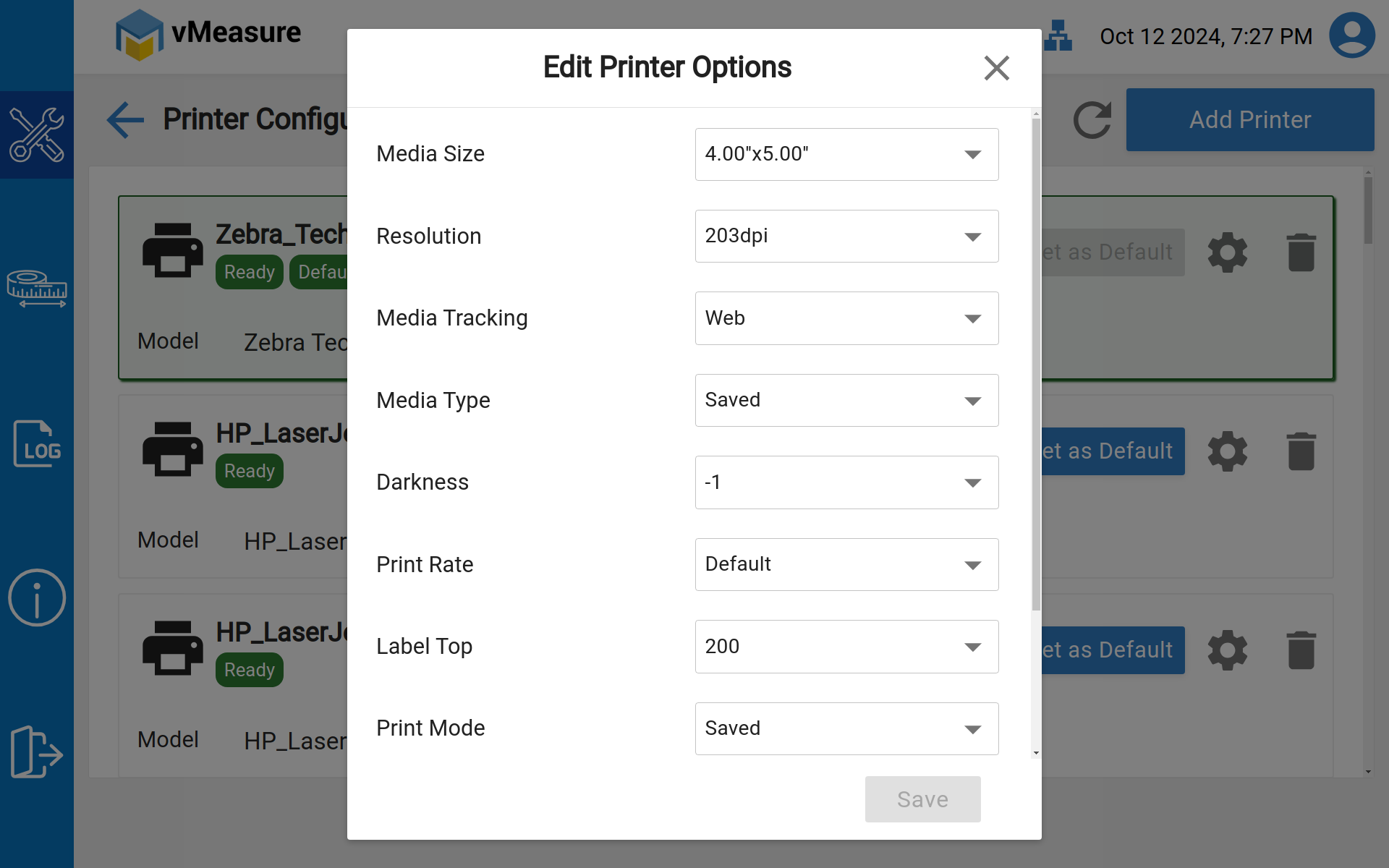
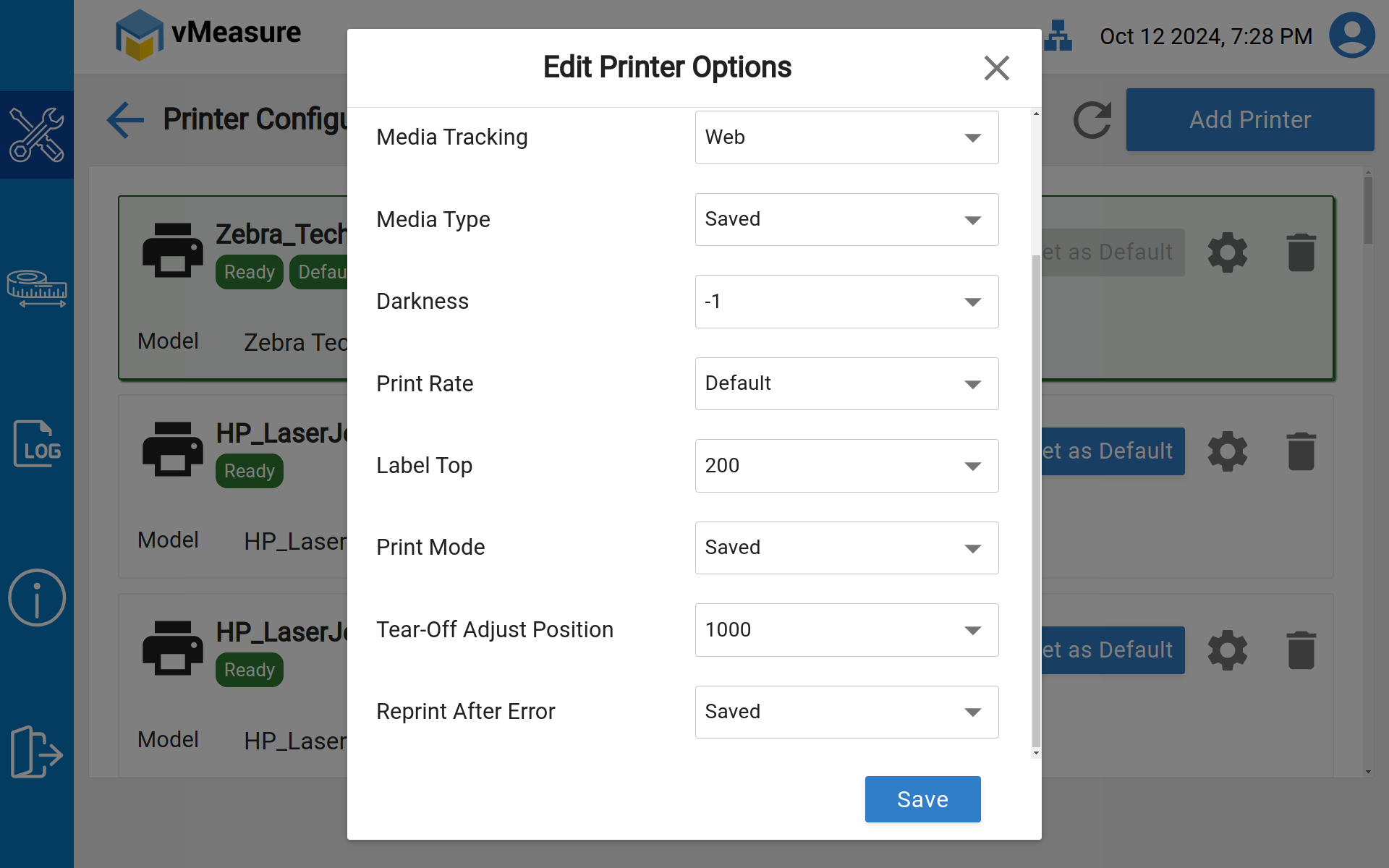
Note: You can also change the size of the label printing by clicking on the Settings icon->Media Size in the selected printer,
Make the necessary changes and save it.
If you need any support, please drop a mail to vmeasure@visailabs.com
Was this article helpful?
That’s Great!
Thank you for your feedback
Sorry! We couldn't be helpful
Thank you for your feedback
Feedback sent
We appreciate your effort and will try to fix the article