Steps to Connect Automated Barcode camera with VHU
Please follow the steps below to connect the Automated Barcode camera with VHU:
Steps to Connect:
Step 1: Log in to https://forge.vmeasure.ai/login.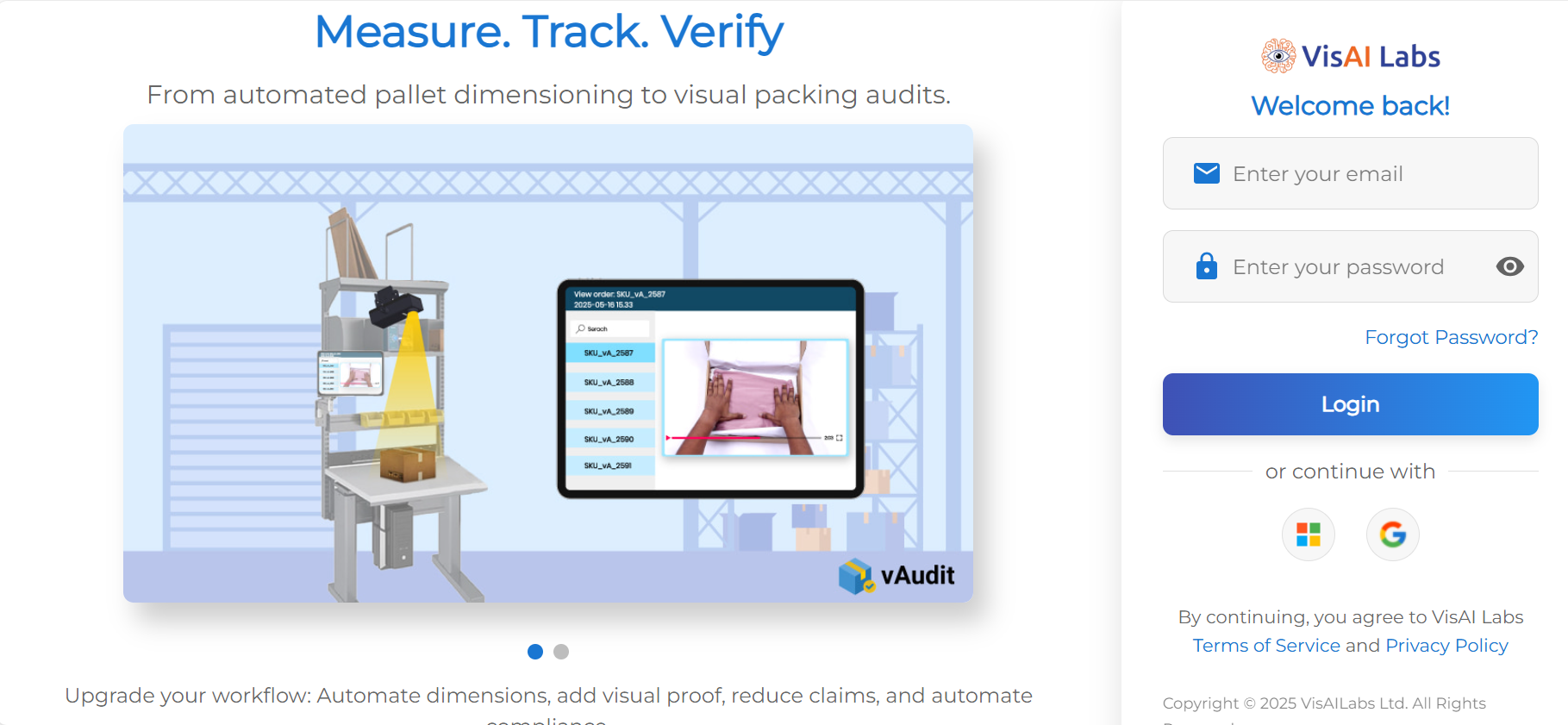
Step 2: Navigate to "System".
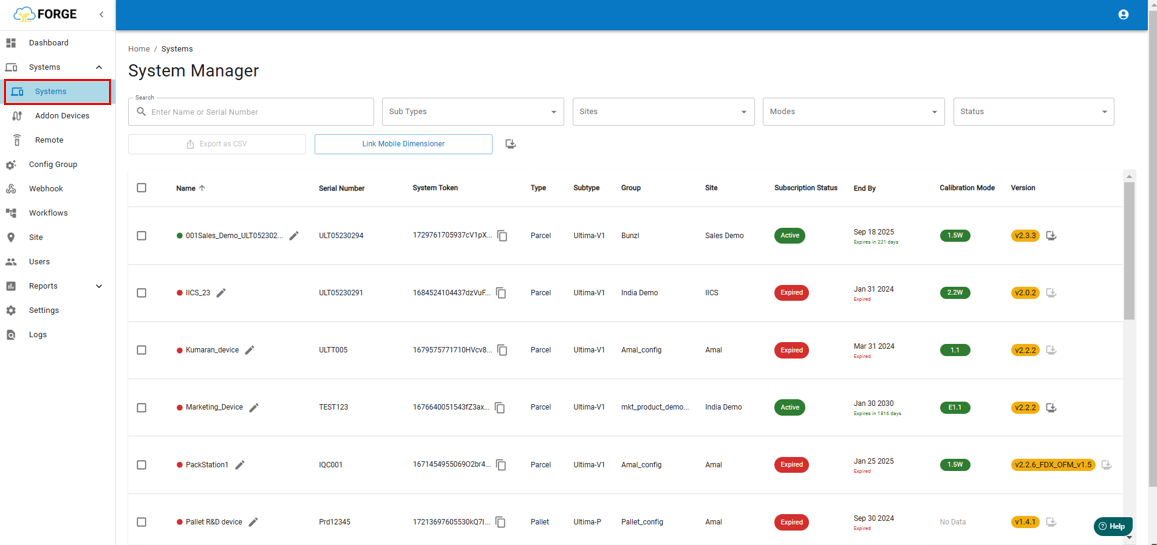
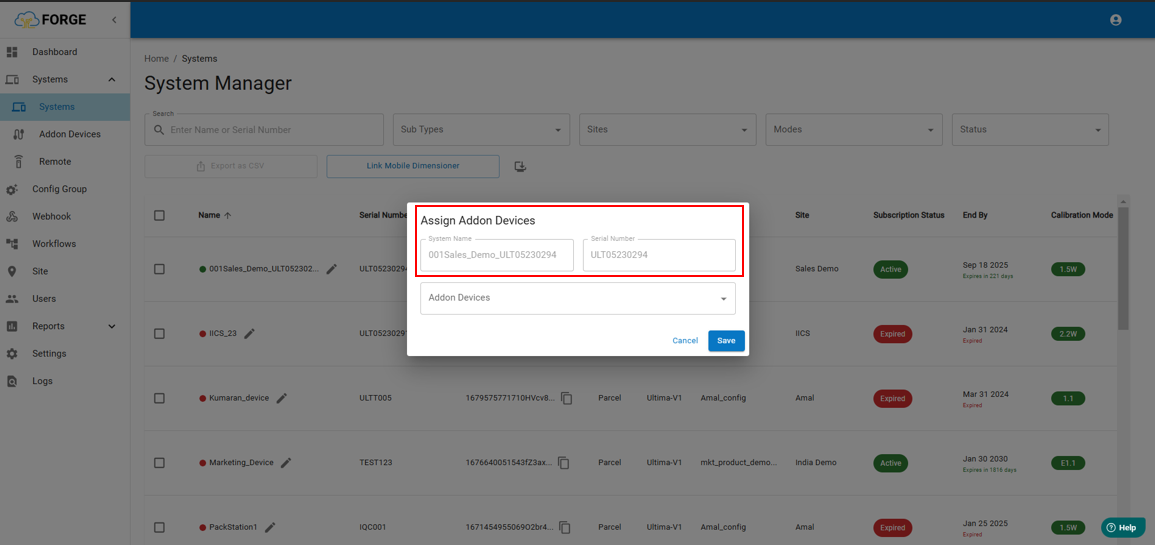
Step 3: Click on "Assign Addon Device".

Step 4: By default, the System Name and Serial Number will be visible.
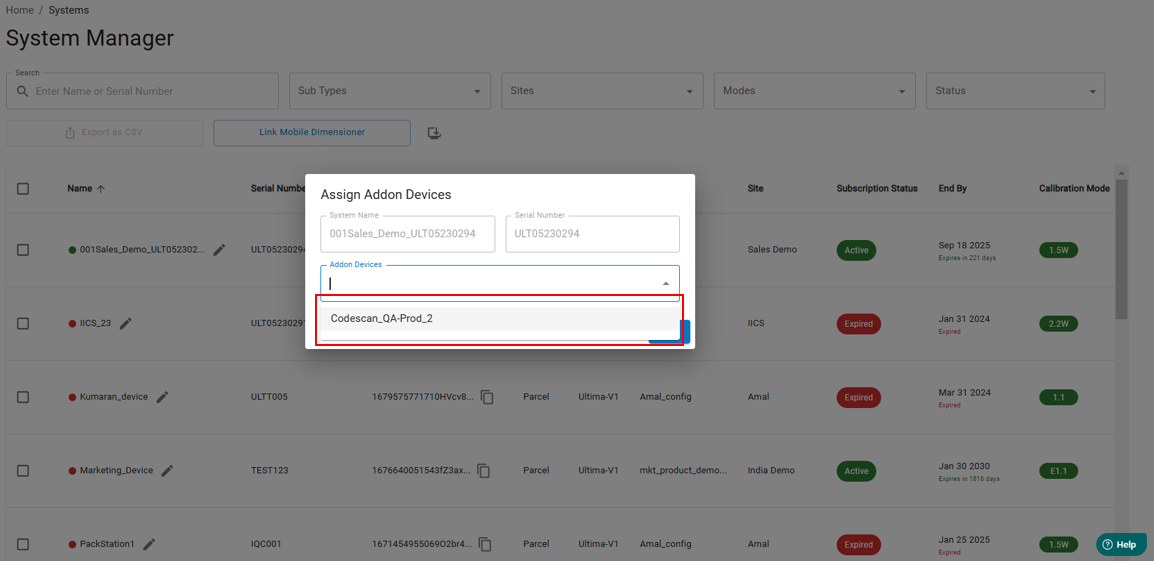
Step 5: Select Addon Device from the dropdown and click on "Save"
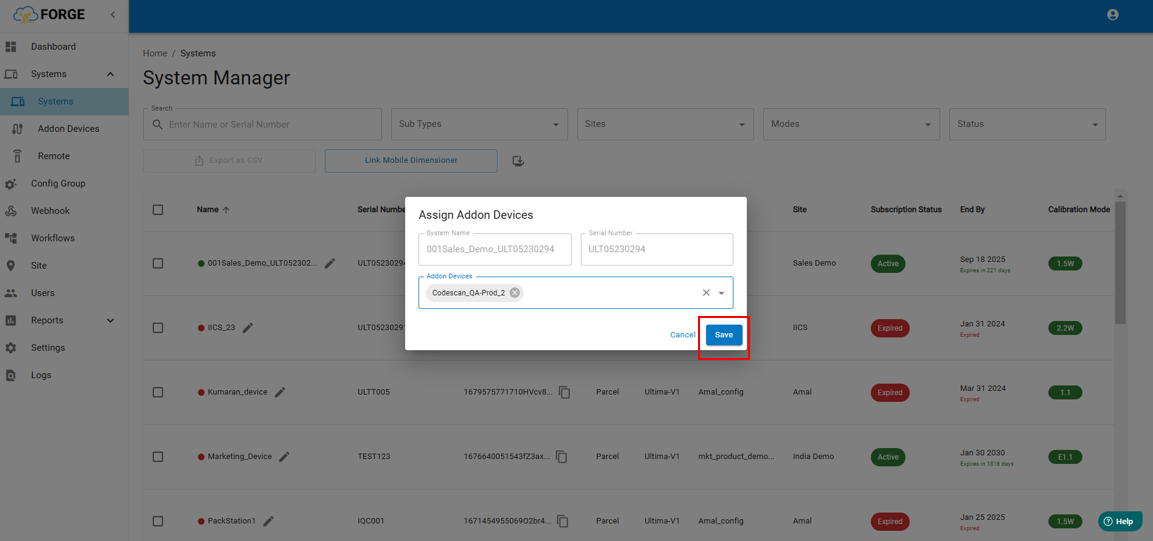
Step 6: Once the above steps are completed, log out and log back into the vMeasure device.
Step 7: You will see a connectivity symbol between the VHU and Automated Barcode Reader.
If Barcode scanner is linked: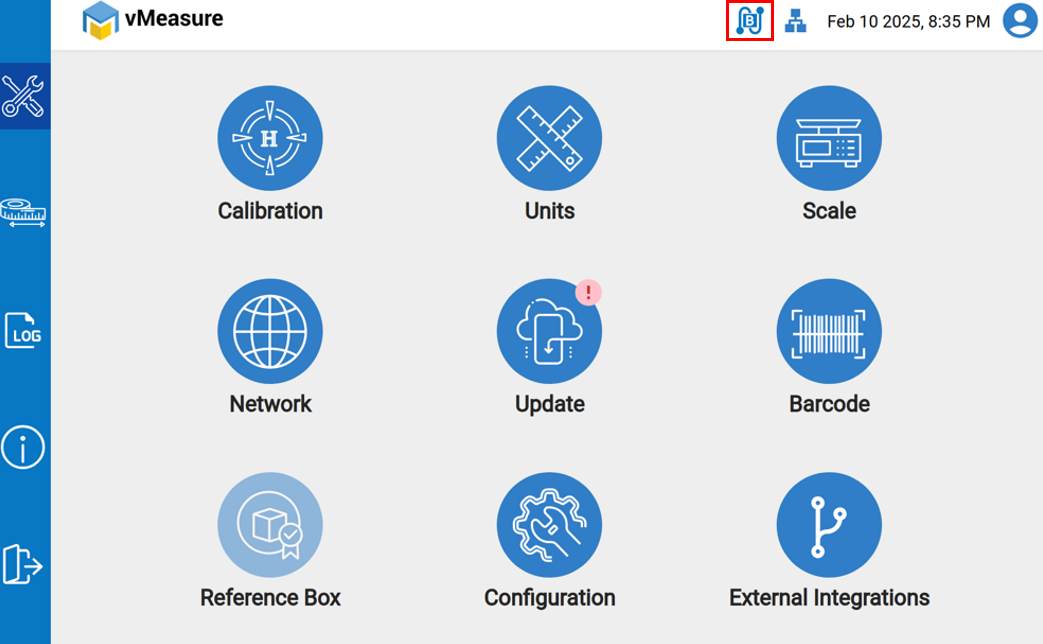
If Barcode scanner is not linked:
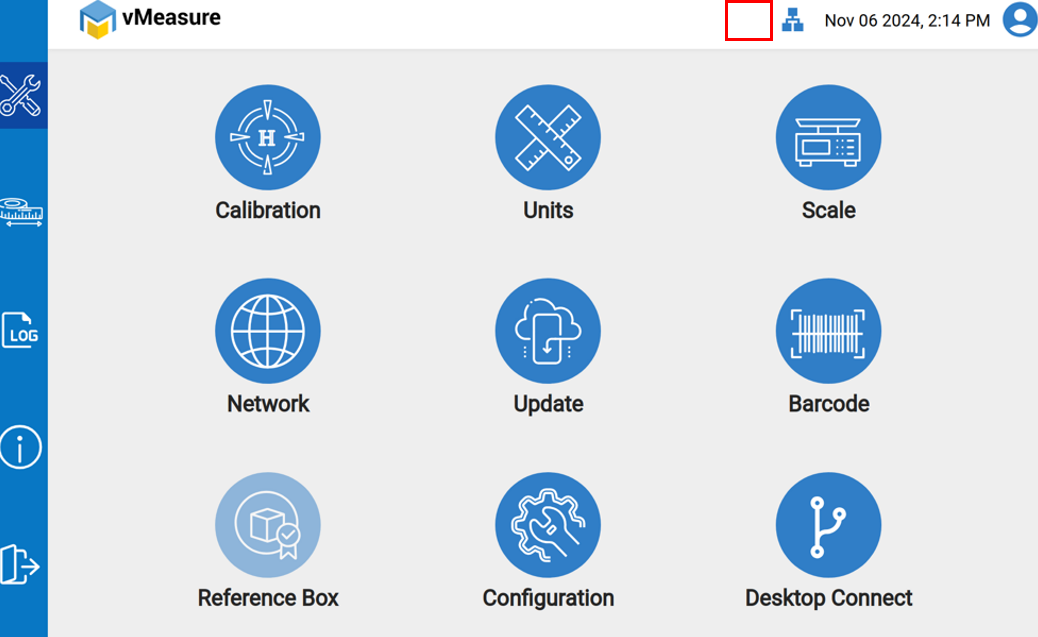
Note:
- Ensure the network (Ethernet or Wi-Fi) is connected to the Automated Barcode Reader.
If you need any support , please drop a mail to vmeasure@visailabs.com or click here to Submit a Ticket.
Was this article helpful?
That’s Great!
Thank you for your feedback
Sorry! We couldn't be helpful
Thank you for your feedback
Feedback sent
We appreciate your effort and will try to fix the article