Automated Barcode Scanner is an additional device which can be used to automate the process of scanning the barcode on the shipments and hence reducing the overall effort in day-to-day operations.
Items included in package for Automated Barcode Scanner:-
- Automated Barcode Scanner with frame
- Addition Mini HDMI to HDMI cable
- Additional USB type-B to type-A cable
- DC power adapter with frame.
The Automated Barcode Scanner can be installed using a single 4mm Allen key.
Follow the below steps to complete the installation process:
- Disconnect all the cables in the VHU and remove it by loosening all the 4mm Allen key bolts from the armpole of the vMeasure device.
- Now take the frame of the Automated Barcode Scanner, and slide it into the armpole of the vMeasure device.
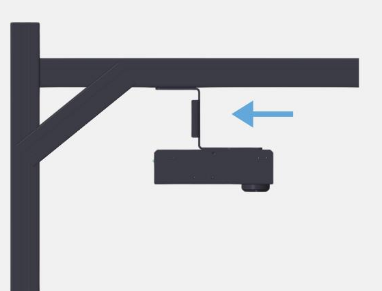
- Now once the Automated Barcode scanner is in, slide the VHU and position it so that the Automated Barcode Scanner does not cover the Cameras in the VHU, once the position is confirmed tighten all the 4mm Allen key bolts in the armpole.
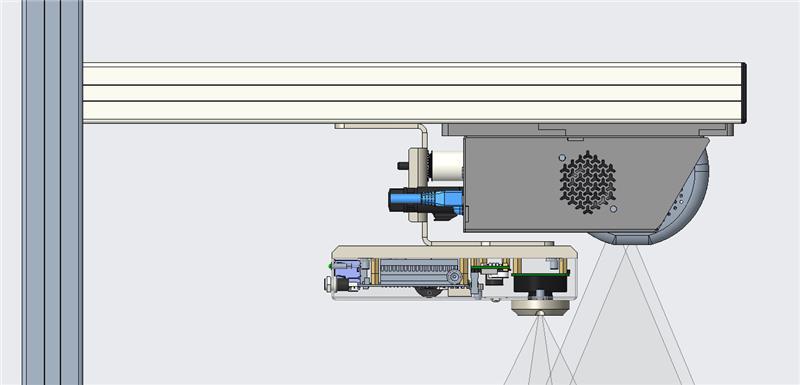 Automated Barcode Scanner position relative to the VHU
 - Now connect all the wires in the VHU, and connect all the cables in the Automated Barcode Scanner. You can place the power adapter on the device using the provided frame.
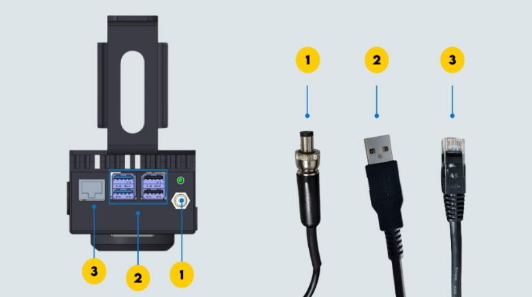
1-Ethernet port and cable
2-USB port and cable
3-DC power port and cable
Now since your installation is done, you can connect to the Automated Barcode Scanner either by using an ethernet cable or by connecting it to site Wi-Fi. You can find the steps in below linked KB articles.
How to configure network in the Automated Barcode Scanner
How to connect Automated Barcode Scanner to the vMeasure device
Was this article helpful?
That’s Great!
Thank you for your feedback
Sorry! We couldn't be helpful
Thank you for your feedback
Feedback sent
We appreciate your effort and will try to fix the article