If the barcode scanner is not getting detected, please follow the steps below to resolve the issue.
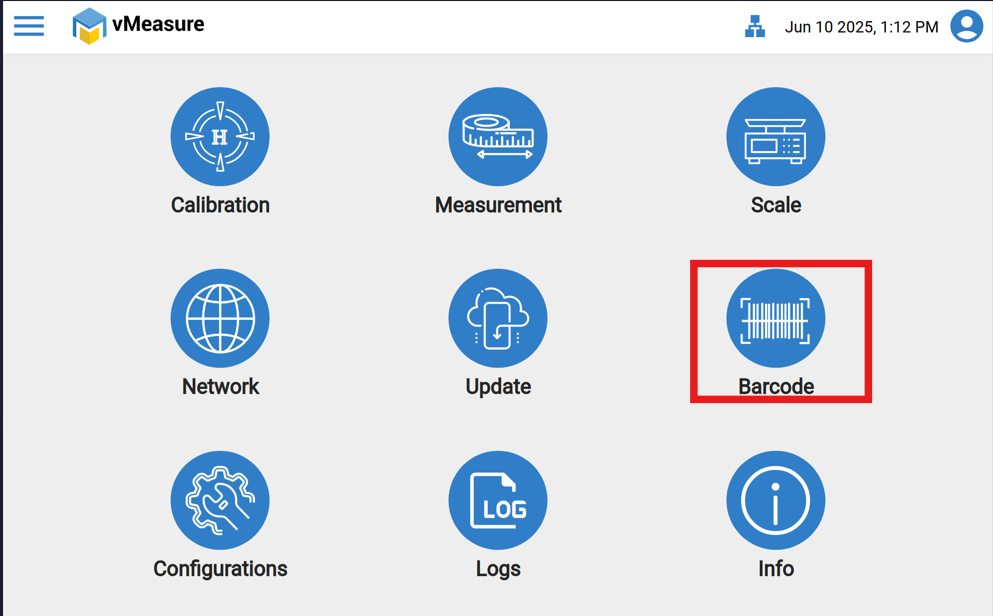
Step 1: Navigate to Barcode Settings
Click the three-line menu button (≡) on the screen.
Go to the Barcode section.
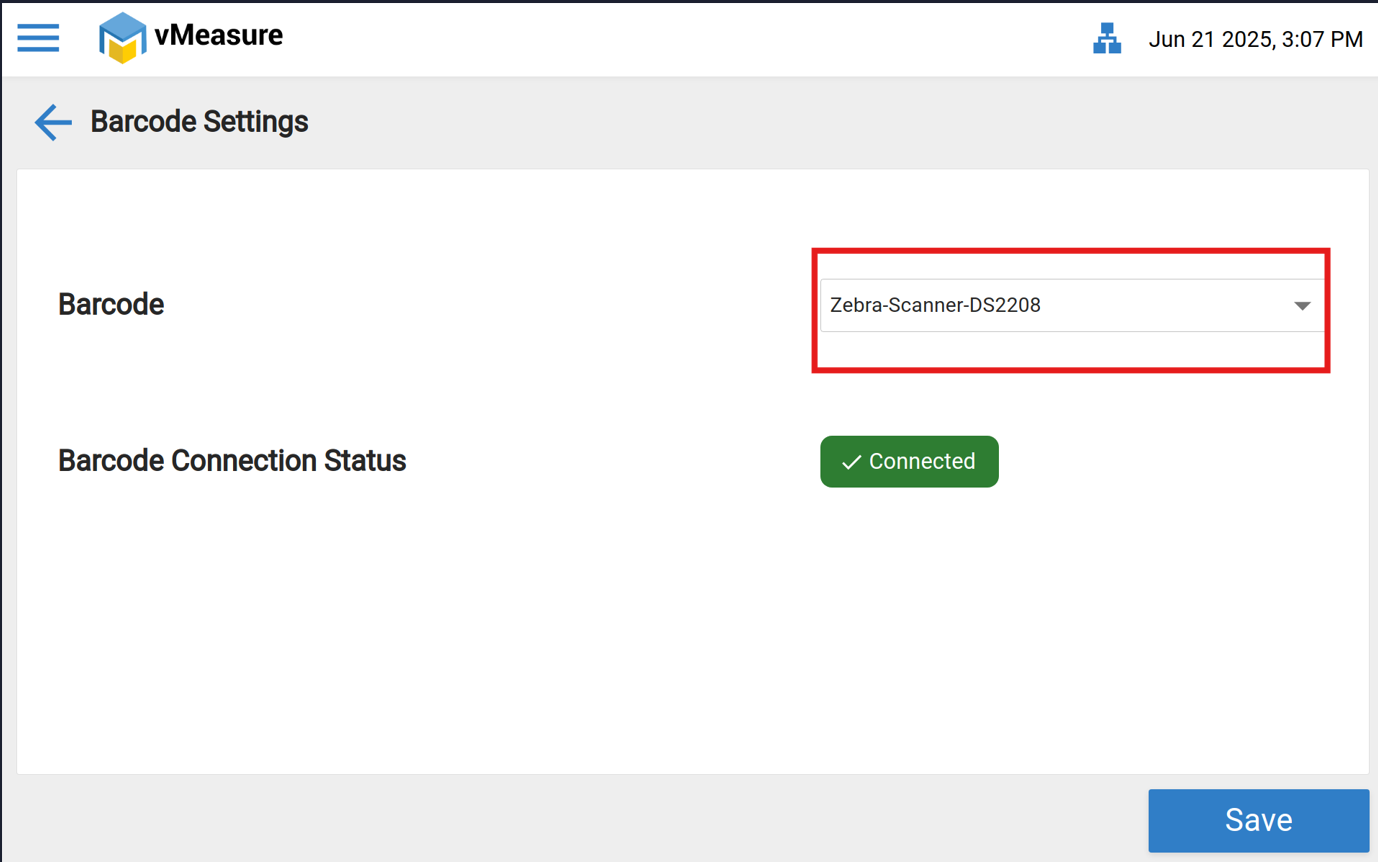
Step 2: Select the Barcode
Choose the appropriate barcode name from the list.
Click the Save button.
If the issue persists, proceed with the following checks:
Note: Before moving to the next steps, ensure the physical condition of the barcode scanner and its cables are intact (no cuts, bends, or damage).
Step 3: Check USB Connection
Ensure the barcode scanner's USB is properly connected to the PHU or USB Hub.
Then repeat Step 1 and Step 2.
If still not connected :
Step 4: Try a Different USB Port
Connect the barcode scanner to a different USB port.
Again, follow Step 1 and Step 2.
If still not connected :
Step 5: Test with a Laptop
Connect the barcode scanner to a laptop.
Open Notepad.
5.1: Scan the default barcode provided in the scanner manual.If the scanner outputs characters in Notepad, the device is functional.
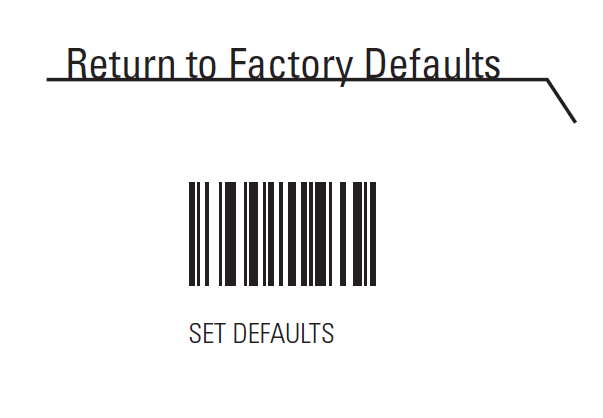
5.2: Then scan any sample barcode and check whether the data appears in Notepad.
If data does not appear, proceed to check the cable:
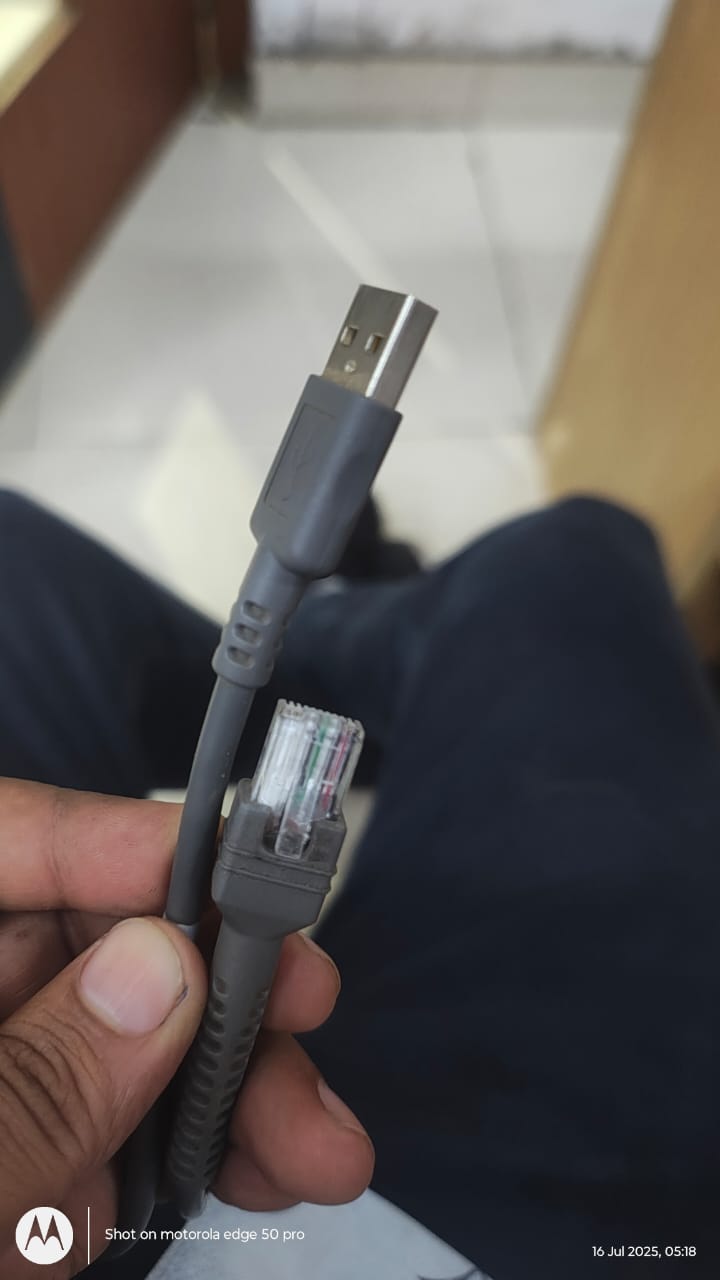
Step 6: Verify Ethernet-USB Cable of barcode scanner.
Disconnect the current Ethernet-to-USB cable from the scanner.
Connect it to another working barcode scanner.
If the second scanner also fails, the issue is with the cable — replace the cable.
If the second scanner works, then the issue lies in the original barcode scanner — consider replacing or repairing the device.
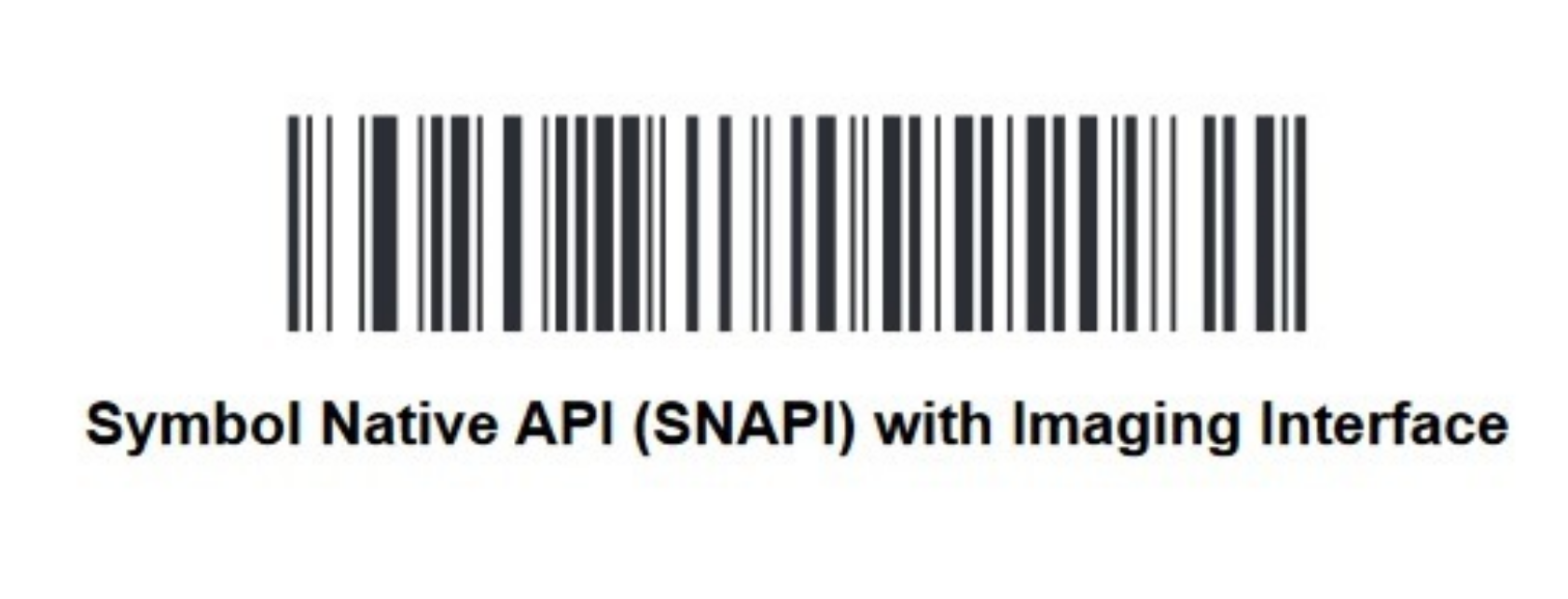
Step 7: Scan the “SNAPI Mode” barcode to switch the scanner communication mode to SNAPI.
If you need any support , please drop a mail to vmeasure@visailabs.com or Click here to Submit a Ticket.
Was this article helpful?
That’s Great!
Thank you for your feedback
Sorry! We couldn't be helpful
Thank you for your feedback
Feedback sent
We appreciate your effort and will try to fix the article