Step 1: Connect the Symbol Barcode Scanner to the vMeasure device.
Step 2: Scan the “Default Mode” barcode to reset the scanner to its default settings.
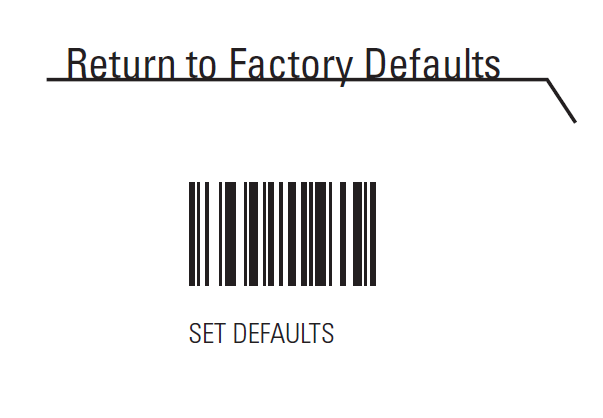
Step 3: Scan the “SNAPI Mode” barcode to switch the scanner communication mode to SNAPI.
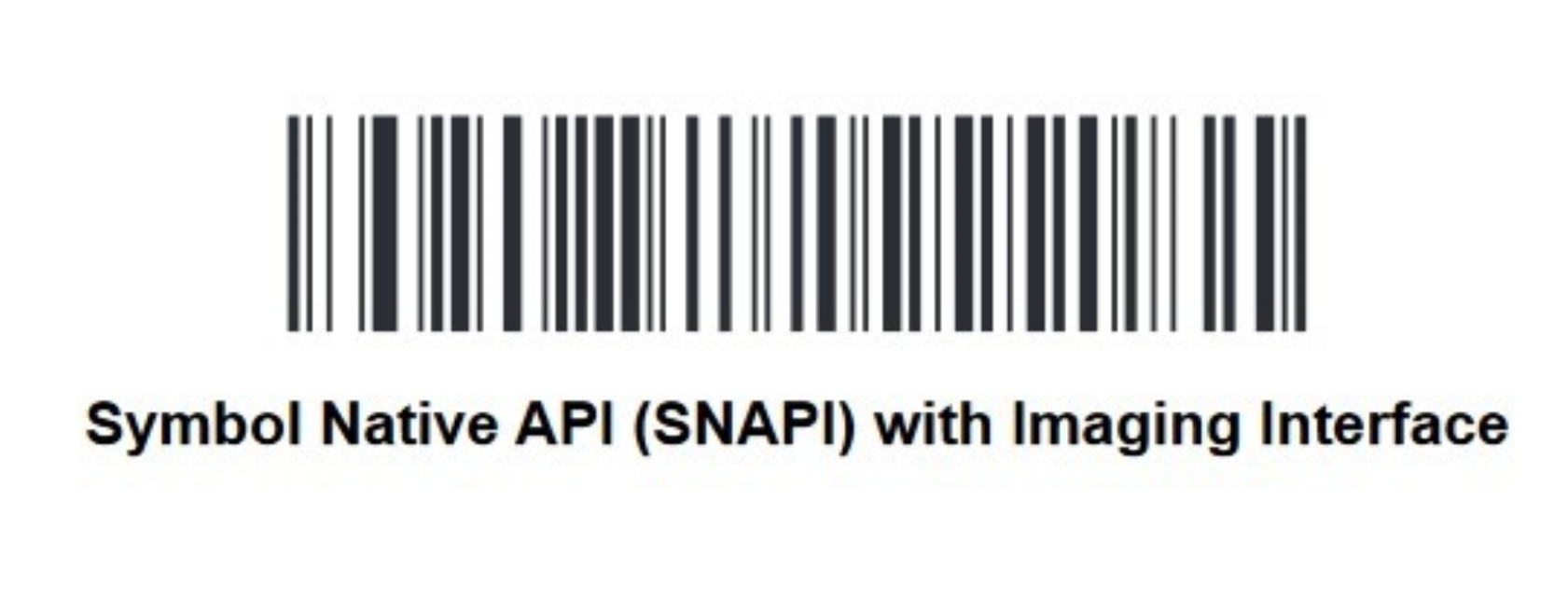
Step 4: Remove the barcode scanner from the device and reconnect it to the vMeasure device.
Step 5: Once the above steps are completed, go to the barcode settings and save the configuration:
Settings > Barcode > Select Zebra Scanner – DS2208 (ensure the correct model is chosen).
Note:
Please take a printout of the barcodes before scanning them for proper detection.
If you need any support , please drop a mail to vmeasure@visailabs.com
Was this article helpful?
That’s Great!
Thank you for your feedback
Sorry! We couldn't be helpful
Thank you for your feedback
Feedback sent
We appreciate your effort and will try to fix the article