Step 1:
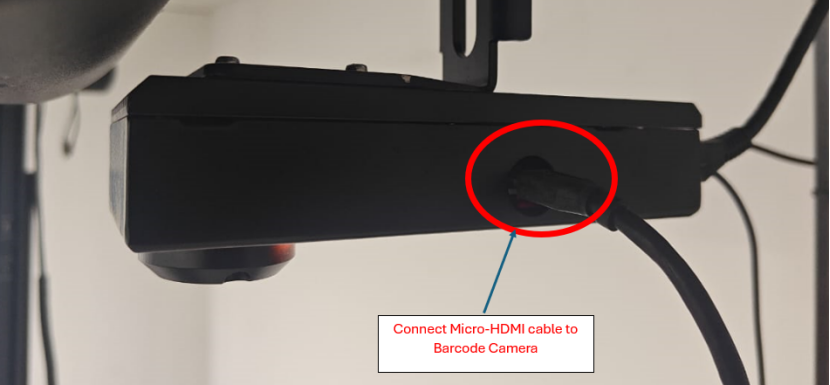
Connect the HDMI cable to the vMeasure display and plug the other end (Micro HDMI) into the Automated Barcode Scanner.
Step 2:
Power on the device.
Important:
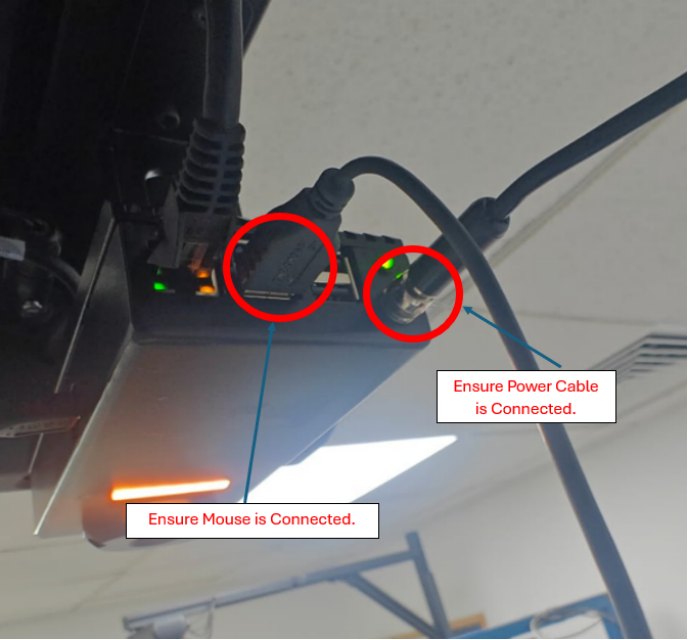
Before powering on, ensure that both the power cable and USB mouse are properly connected to the Automated Barcode Scanner.
Step 3:
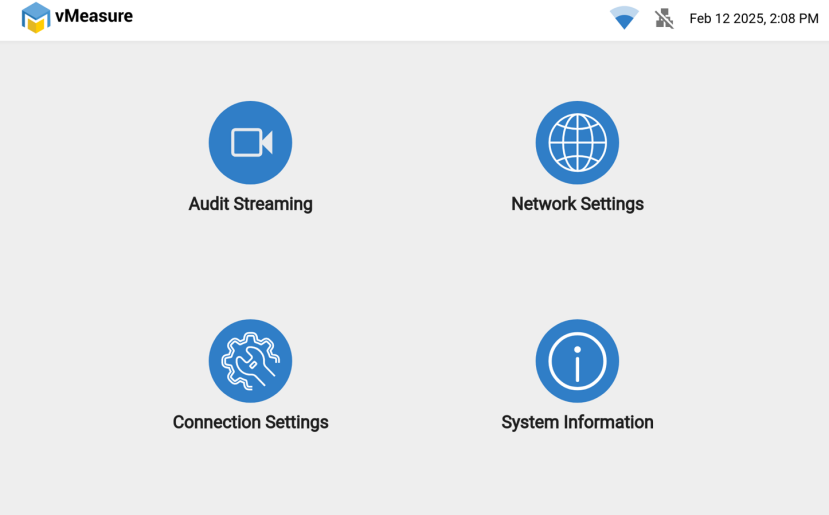
Once the device boots up, it will open the configuration page, where you’ll see the interface related to the Automated Barcode Scanner functions.
Step 4: Final Step
After completing the Automated Barcode Scanner configurations:
Disconnect the Micro HDMI cable from the Automated Barcode Scanner and connect it to the vMeasure (VHU) to switch the display back.
If you need any support , please drop a mail to vmeasure@visailabs.com or Click Here to Summit a Ticket.
Was this article helpful?
That’s Great!
Thank you for your feedback
Sorry! We couldn't be helpful
Thank you for your feedback
Feedback sent
We appreciate your effort and will try to fix the article