Steps to Switch Display Using HDMI Switcher
Required Cables for Setup:
HDMI to Micro HDMI Cable – 2 Nos
HDMI to HDMI Cable – 1 No
Connection Steps:
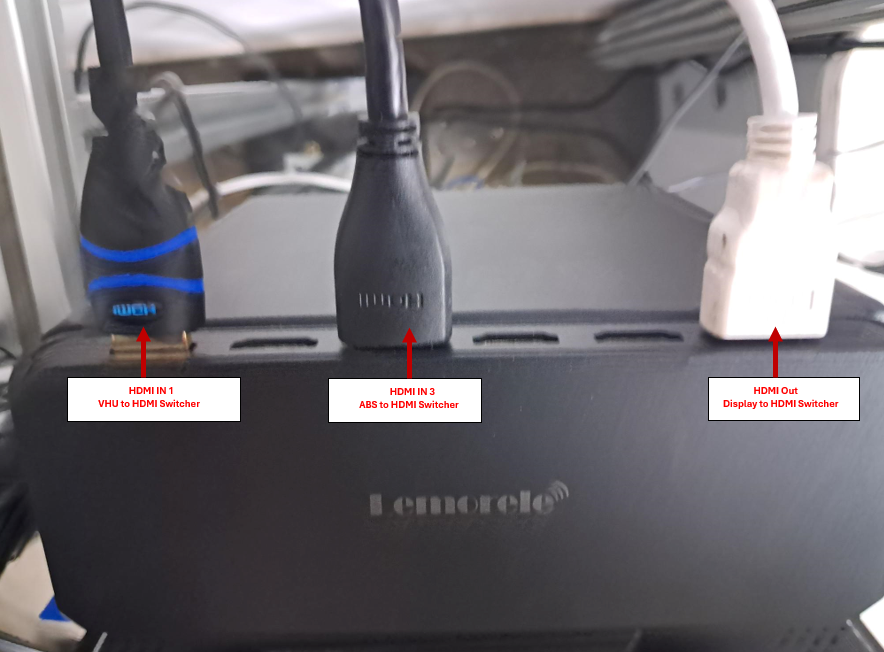
Step 1: Connect one end of a Micro HDMI cable to the VHU, and the other end to the HDMI Switcher (HDMI In 1).
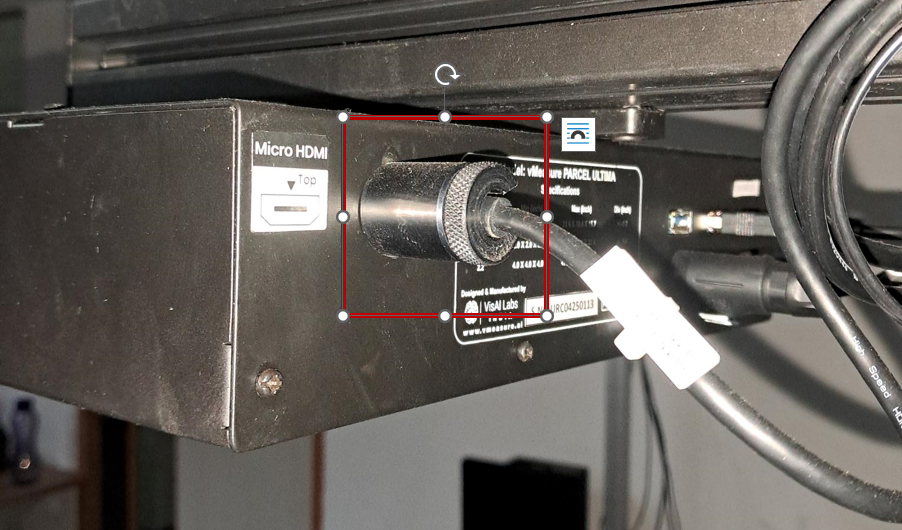
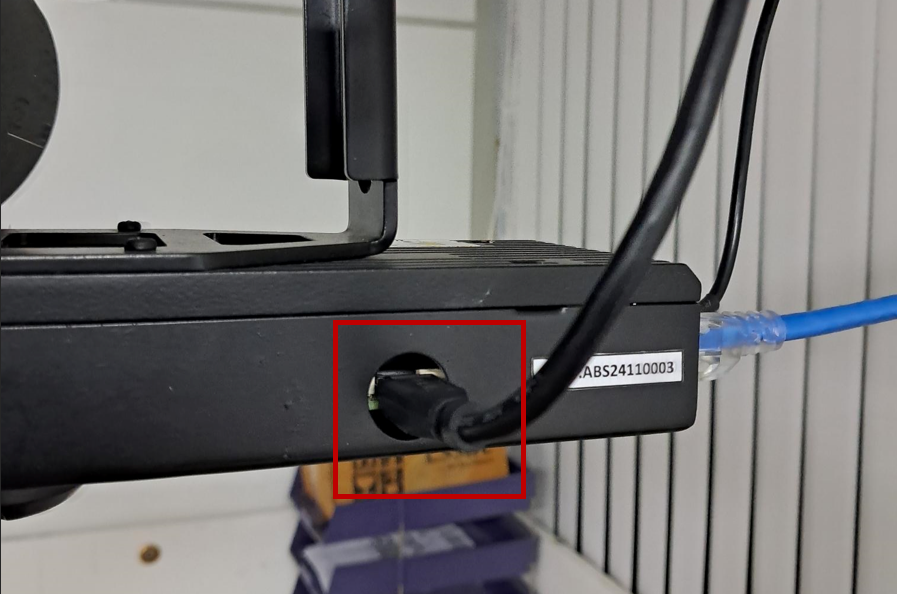
Step 2: Connect another Micro HDMI cable to the ABS (Automatic Barcode Scanner), and the other end to the HDMI Switcher (HDMI In 3).
Step 3: Use the HDMI to HDMI cable to connect the HDMI Switcher (HDMI Out) to the vMeasure Display.
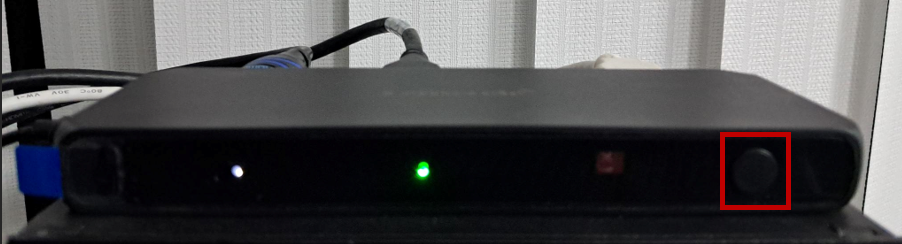
Step 4: To switch the display between VHU and ABS, press the input selection button on the HDMI Switcher, as shown in the image.
If you need any support , please drop a mail to vmeasure@visailabs.com or Click Here to Summit a Ticket.
Was this article helpful?
That’s Great!
Thank you for your feedback
Sorry! We couldn't be helpful
Thank you for your feedback
Feedback sent
We appreciate your effort and will try to fix the article