Troubleshooting display issues involves checking physical connections and verifying hardware functionality.
Here’s a step-by-step guide to diagnose and fix common display problems:
Basic Checks:
Check Power and Connections:
- Ensure the display is powered on.
- Verify that all cables (HDMI, Power Cable) are securely connected to the display and the VHU (Vision Head Unit).
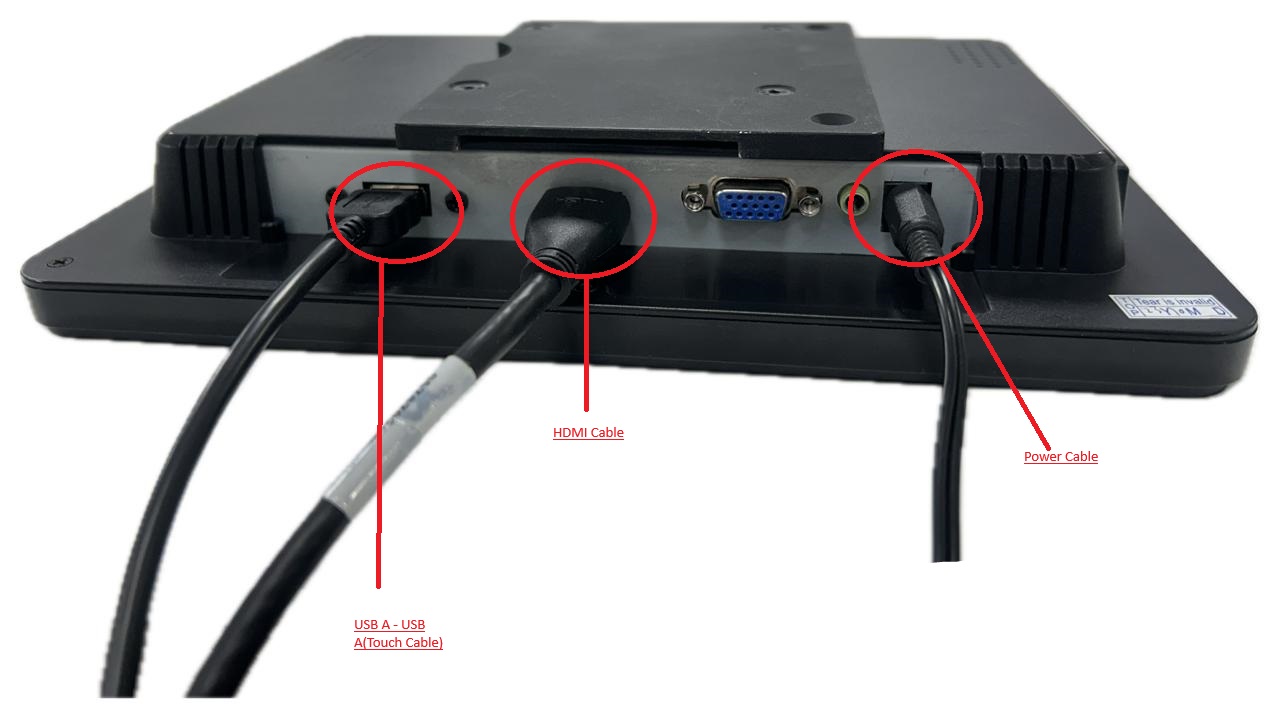 Top-willing Display
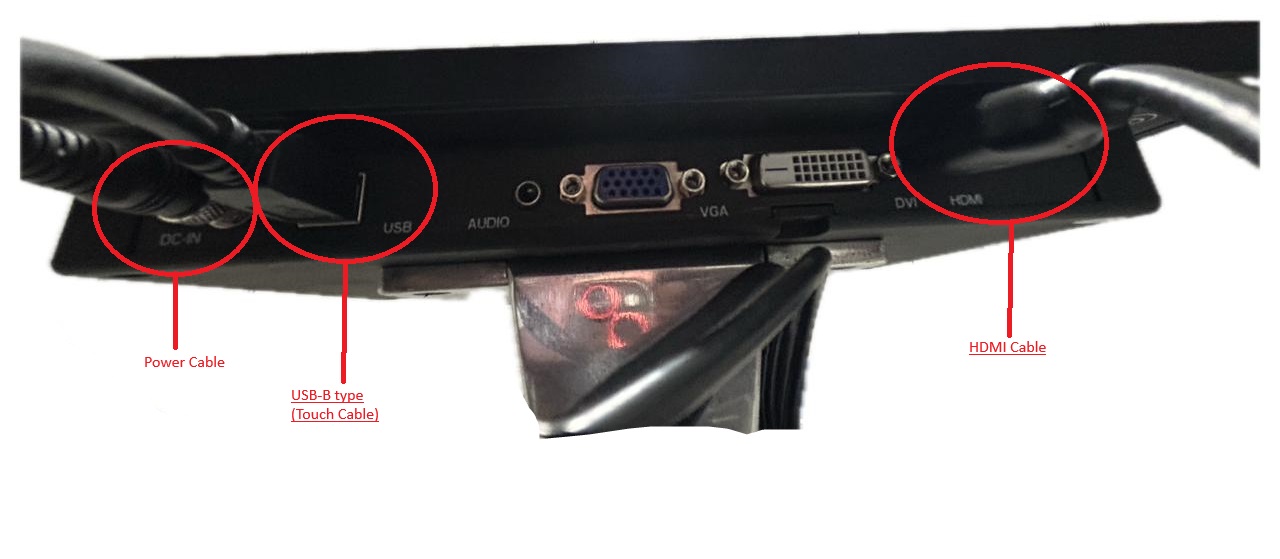
Fay-Tech Display
- Try using a different HDMI cable to rule out cable faults.
Check Input Source:
- Ensure the display is set to the correct input source (e.g., HDMI1, VGA). This is only applicable for Fay-Tech Display.
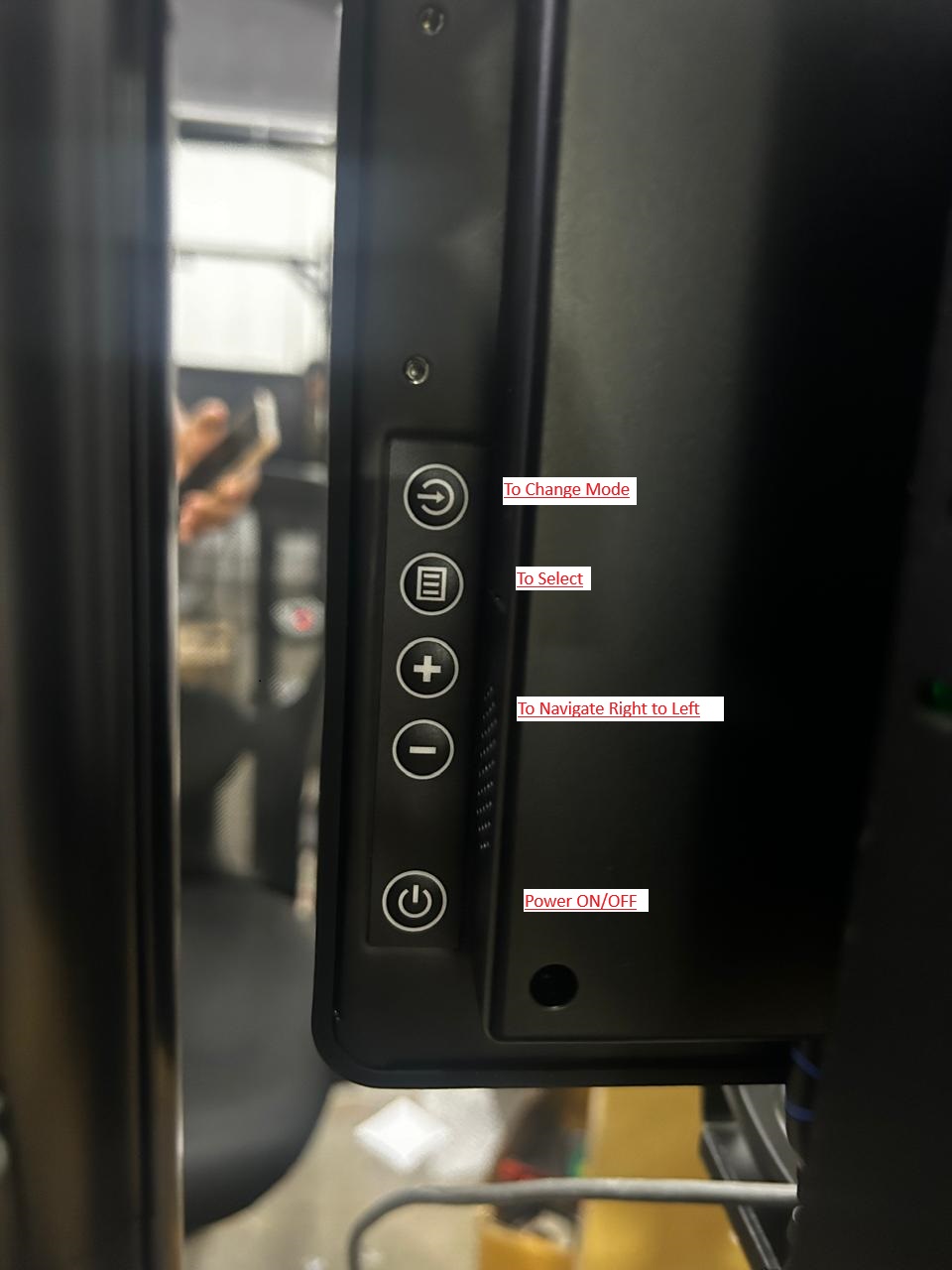
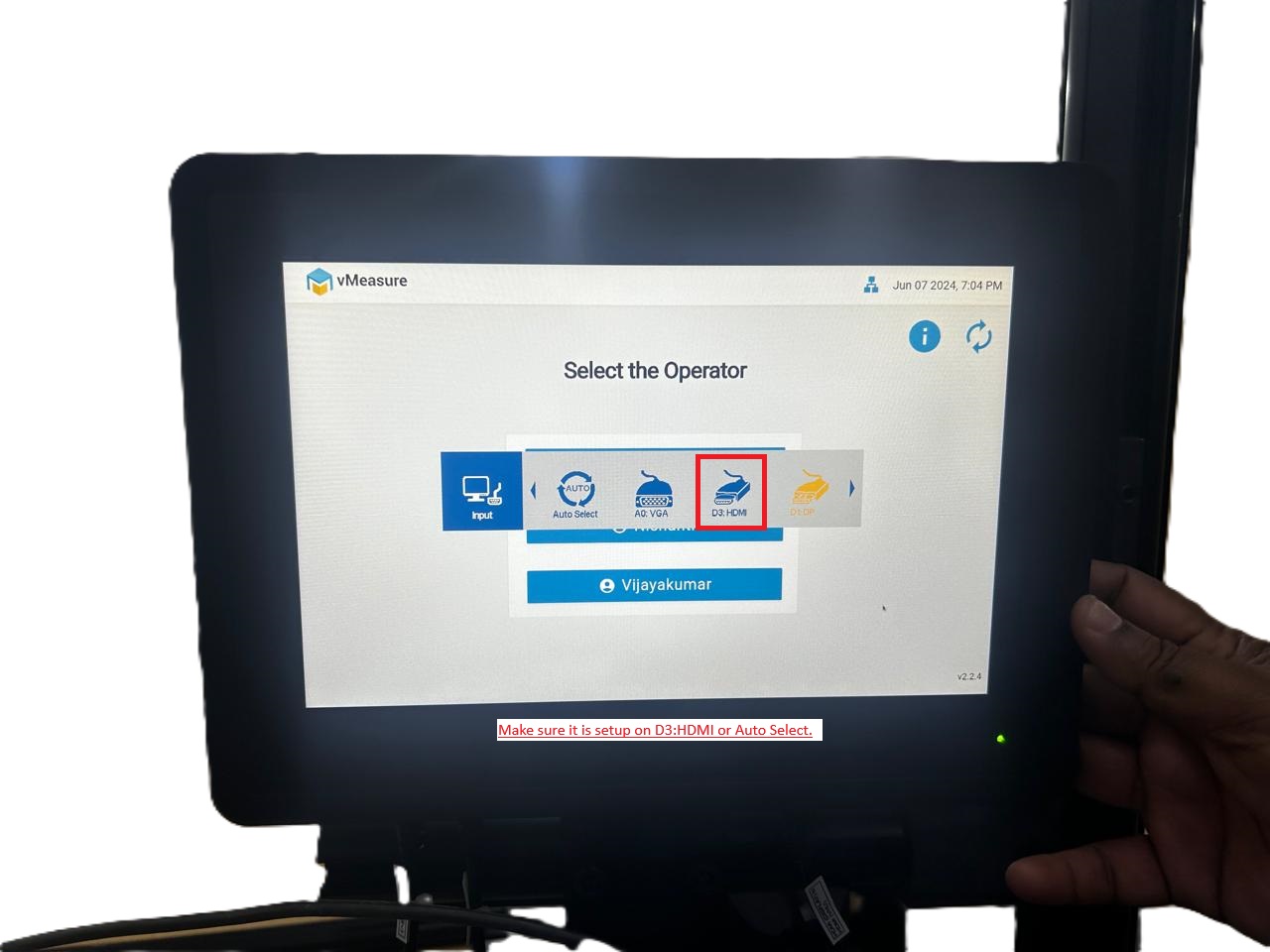
Link to Change VGA to HDMI: Helpdesk : vMeasure Support (freshdesk.com)
Restart Devices:
- Restart your computer and monitor.
Check for External Damage:
- Inspect the monitor for any visible damage.
Hardware Checks:
Test with Another Monitor:
- Connect your VHU to the Standard monitor to determine if the issue is with the display or the VHU (Vision Head Unit).
Test the Display with Another Device:
- Connect the monitor to a different device (e.g.,a laptop) to see if the issue persists.
Contact Support:
- If none of the above steps resolve the issue, contact the manufacturer’s support for further assistance.
vMeasure Support Mail Id: vmeasure@visailabs.com
Tech Support Mail Id: vmtechsupport@visailabs.com
Was this article helpful?
That’s Great!
Thank you for your feedback
Sorry! We couldn't be helpful
Thank you for your feedback
Feedback sent
We appreciate your effort and will try to fix the article