Here are steps to help you troubleshoot common problems with a Vision Head Unit:
Basic Checks:
Check Power Supply:
- Ensure the head unit is properly connected to the power supply.
Inspect Connections:
- Ensure all cables (power, HDMI, USB, Ethernet Cable) are securely connected.
- Check for any visible damage to the wires and connectors.
Reboot the Device:
- Reboot the device if the software doesn't boot-up
Application not bootup but green LED light glow:
Step:-1
- Make sure the power cable (5V Evalta connector) is properly connected.
- Please check the power cable output voltage using a Multimeter in DC voltage. There will be two pins in the power cable indicated with numbers 1 & 2. (Number 1 is positive & Number 2 is Negative). Refer Video titled- "VHU Voltage Check"
- Make sure the Green light & Red IR light of VHU are glowing.
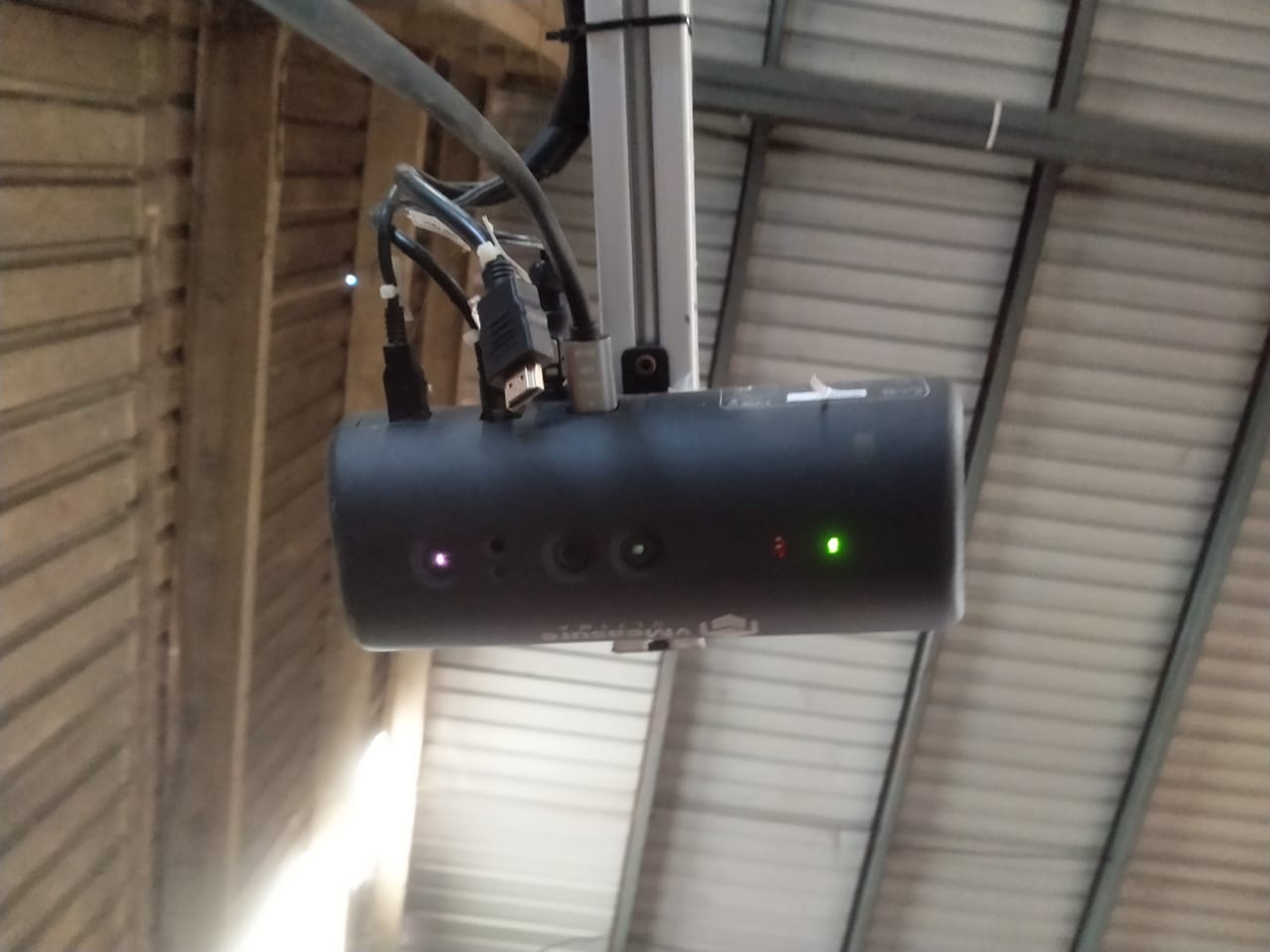
Make sure the green light inside the VHU (Pi board) is glowing. Refer video titled- "pi LED"
Reconnect all cables both VHU & Display end, then reboot the device.
Disconnect the HDMI cable at the VHU end and connect the HDMI cable to the Laptop to test screen mirroring, and see if mirroring works. If doesn`t work try with a different HDMI cable.
If mirroring works then follow the next steps. If mirroring doesn`t work follow display troubleshooting steps.
Check if the Barcode scanner is turning on with light & sound.
Connect the mouse directly to the VHU USB slot & check if the red light is glowing in the mouse.
Step:- 2
Is "PI LED" is blinking??
Find the LED from the right side air exhauster. Refer video titled- "pi LED"
Step:- 3
If we know the static IP, ping the IP & check if "pi" is responding.
Make sure to connect the vMeasure device & laptop on the same network.
ping <vMeasure system IP>
Check the response
Contact the vMeasure admin team.
Was this article helpful?
That’s Great!
Thank you for your feedback
Sorry! We couldn't be helpful
Thank you for your feedback
Feedback sent
We appreciate your effort and will try to fix the article