Purpose
This document explains the procedure for safely replacing an existing Vision Head Unit (VHU) with a new VHU on a vMeasure device.
Tools Required
- 4 mm Allen key
Replacement Procedure
Step 1: Turn Off the Device
Turn OFF the main power supply of the vMeasure device before starting the replacement process.
Warning: Ensure the device is completely powered off before disconnecting any cables.
Step 2: Disconnect the Old VHU
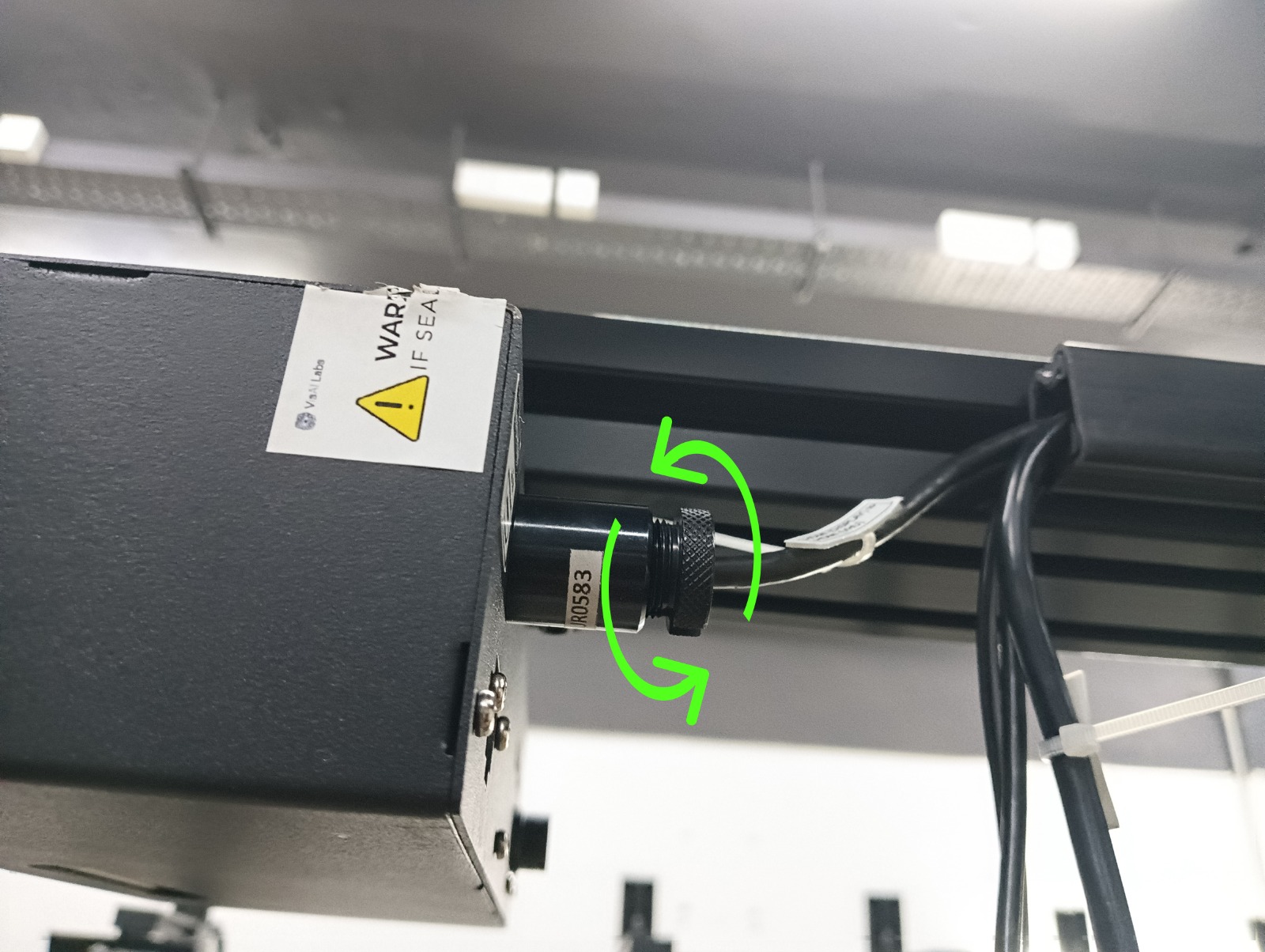
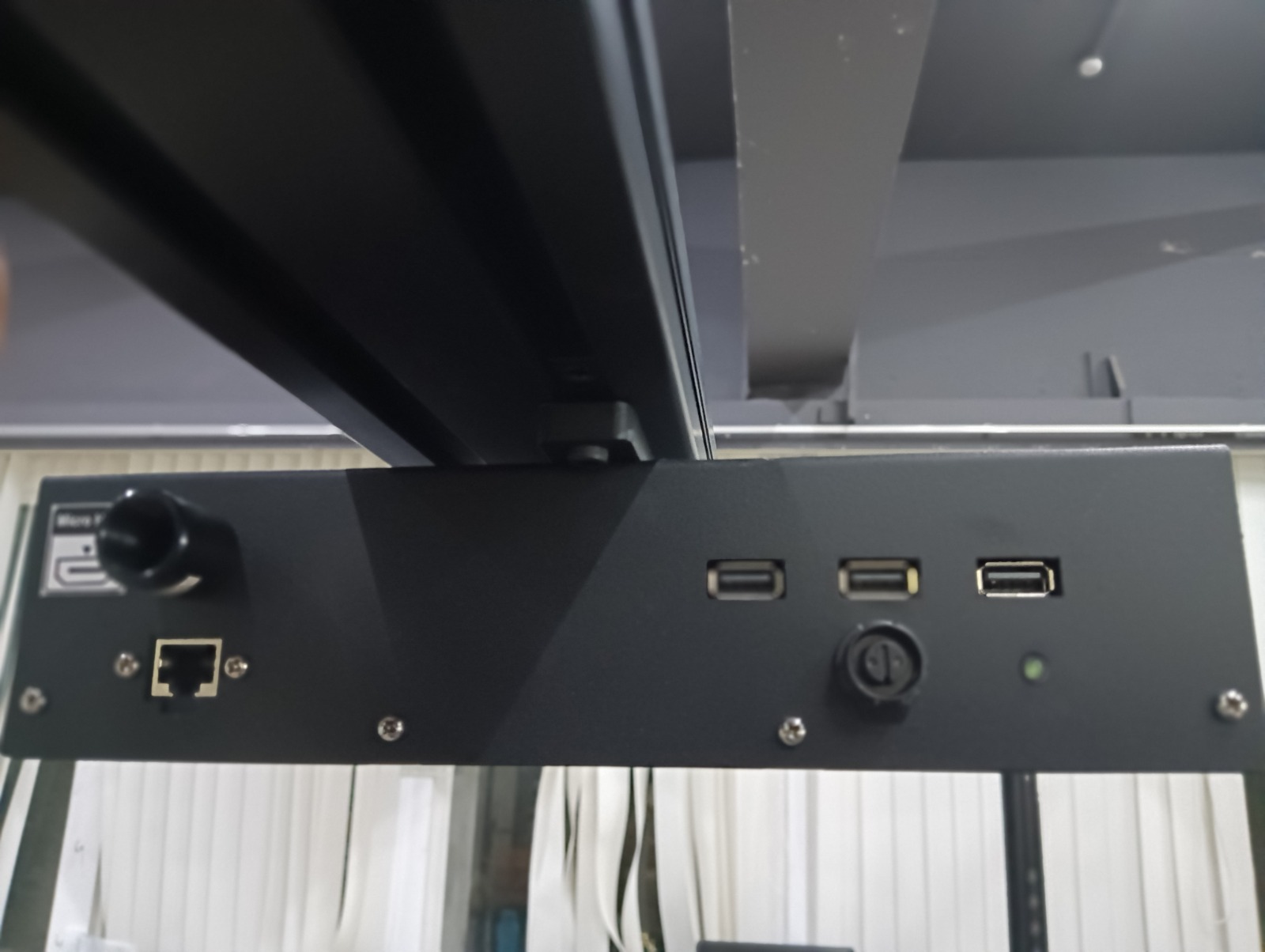
Carefully disconnect all cables connected to the old Vision Head Unit (VHU).
Note:
- Before removing the Micro-HDMI cable, unscrew the locking cap securing the connector.
- Remove all remaining cables carefully to avoid damaging the connectors.
Step 3: Remove the Old VHU
Using a 4 mm Allen key, loosen the two T-nut screws securing the VHU to the horizontal mounting pole.
Once both screws are loosened, carefully slide the VHU out of the mounting bracket.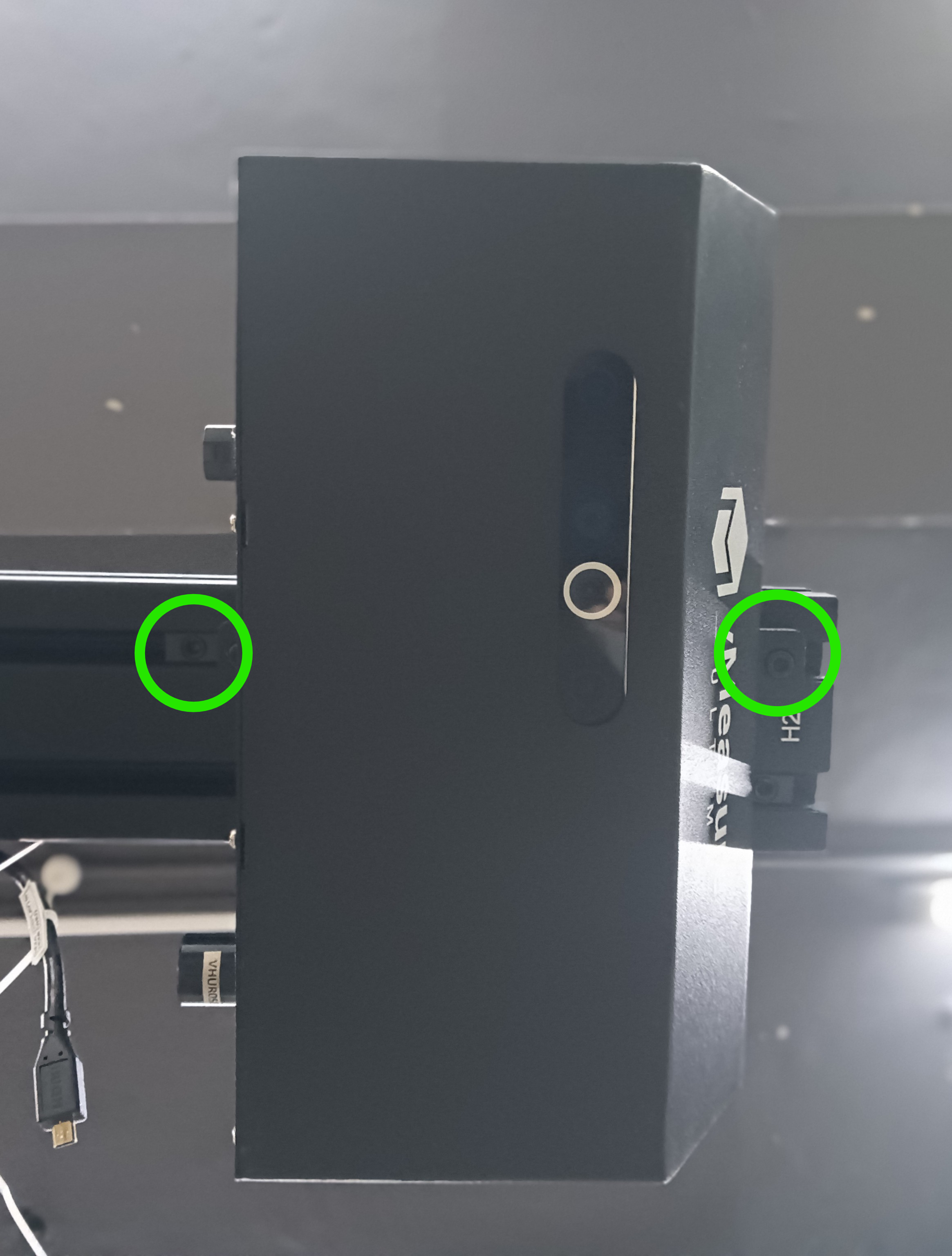
Step 4: Install the New VHU
Mount the new Vision Head Unit onto the horizontal pole in the same orientation as the previous VHU.
After positioning it correctly, tighten both T-nut screws securely using the 4 mm Allen key.
Important: Ensure the VHU is firmly secured and aligned properly before reconnecting the cables.
Step 5: Reconnect All Cables
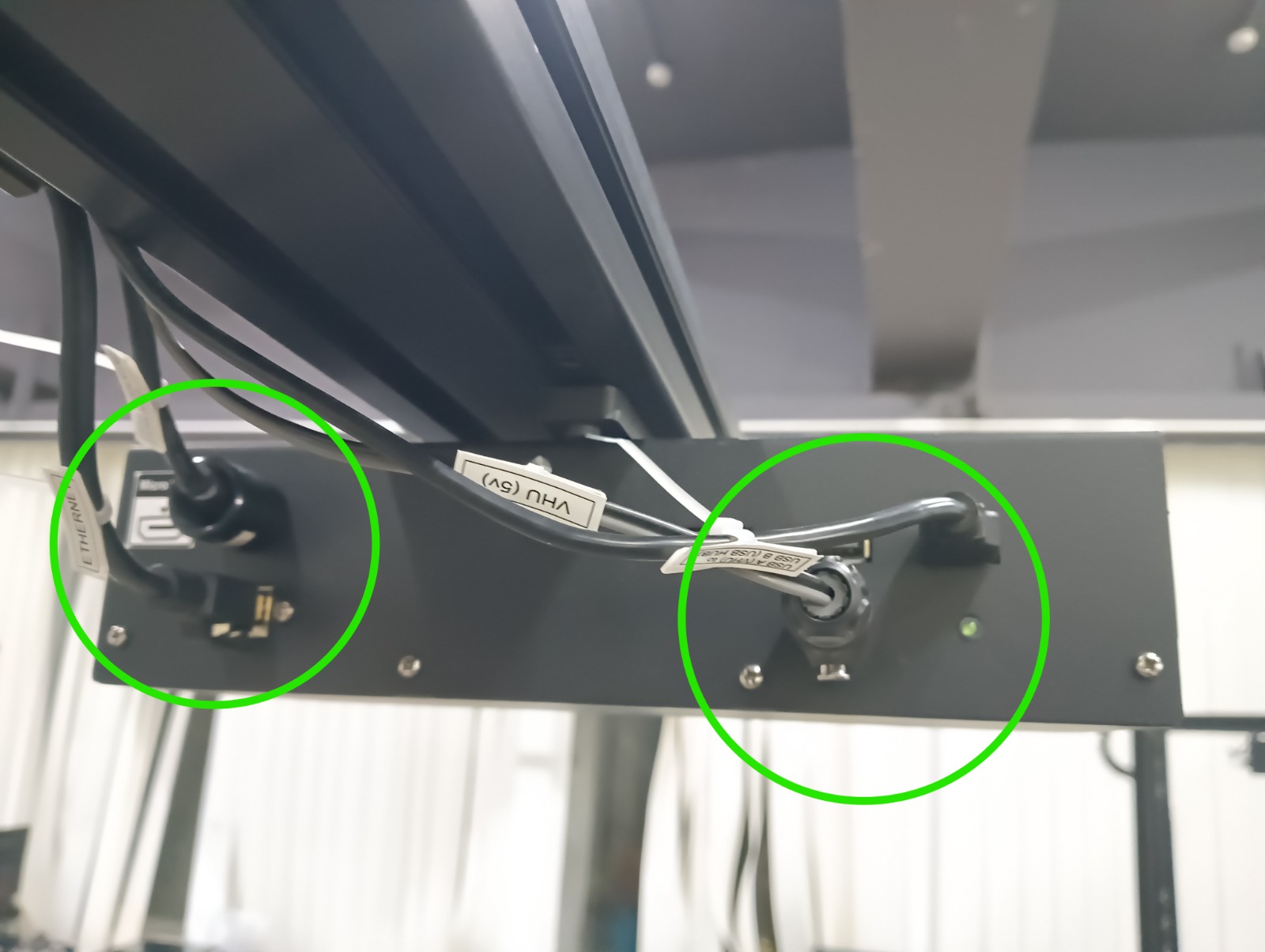
Reconnect each cable to its designated port on the new VHU.
| Label | Cable | Connector Type |
|---|---|---|
| A | Power Box Cable | USB Type-A |
| B | Ethernet Cable | RJ45 |
| C | VHU Power Cable | Evelta Connector |
| D | Display Cable | Micro-HDMI |
Ensure every connector is fully inserted. Tighten the locking cap on the Micro-HDMI connector after connecting it.
Step 6: Power On the Device
Turn ON the main power supply of the vMeasure device.
Allow the VHU to boot completely and verify that:
- The VHU powers on successfully.
- The display is functioning correctly.
- The Ethernet connection is established.
- The VHU is detected by the system and operating normally.
Ensure every connector is fully inserted. Tighten the locking cap on the Micro-HDMI connector after connecting it.
If you need any support , please drop a mail to vmeasure@visailabs.com or Click here to Submit a Ticket.
Was this article helpful?
That’s Great!
Thank you for your feedback
Sorry! We couldn't be helpful
Thank you for your feedback
Feedback sent
We appreciate your effort and will try to fix the article