What is "Network Test"?
This feature is specifically designed to check the network connectivity using the “TEST” icon, based on the network connectivity test results we can identify the connectivity status.
There are two ways to get into this page.
1. Click on "i" icon in the Select operator page, Click on "Test".
2. After log-in into device, Settings > Network settings, Click on "Test".
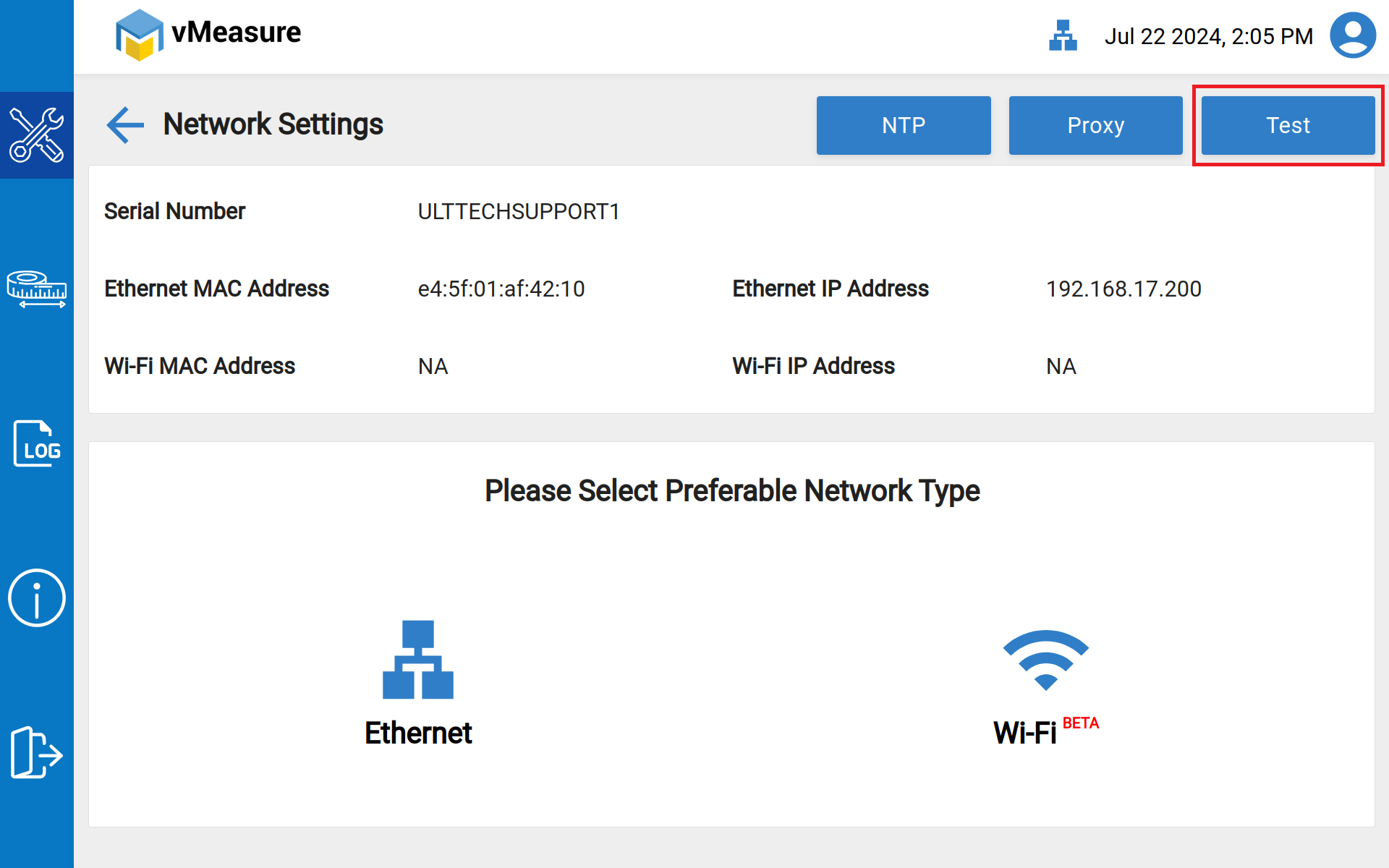
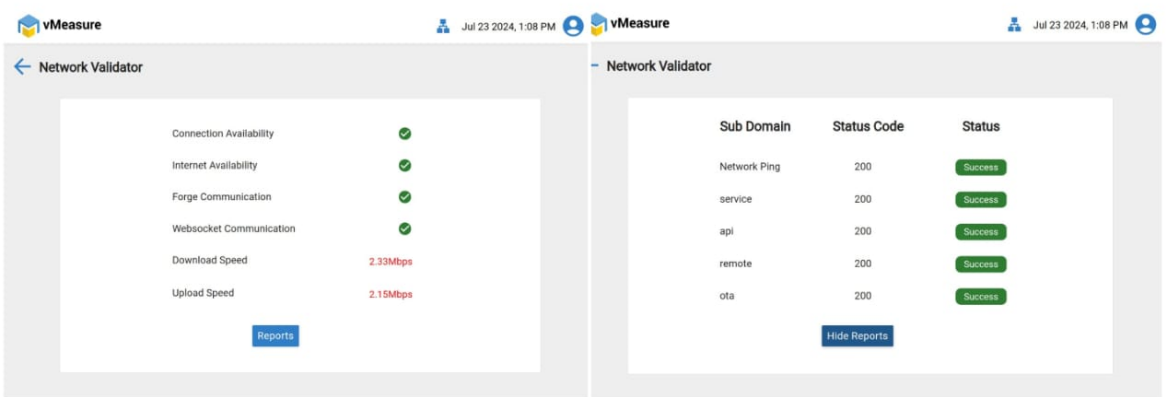
Below are the few Scenarios of Network test results and its reasons.
- If all the Test results are in green as below, which means the network connectivity is working fine in vMeasure device.
- If Test results are as below, which means the connection is detected but there is no internet availability in source (Ethernet/Wi-Fi).
How to Troubleshoot: Check the Internet connection from the source (Ethernet/Wi-Fi) by connecting to another device (Laptop).
KB Article - How to save the Network configuration in device.
KB Article - How to troubleshoot Wi-Fi network issue.
KB Article - How to Switch DHCP to Static IP configuration.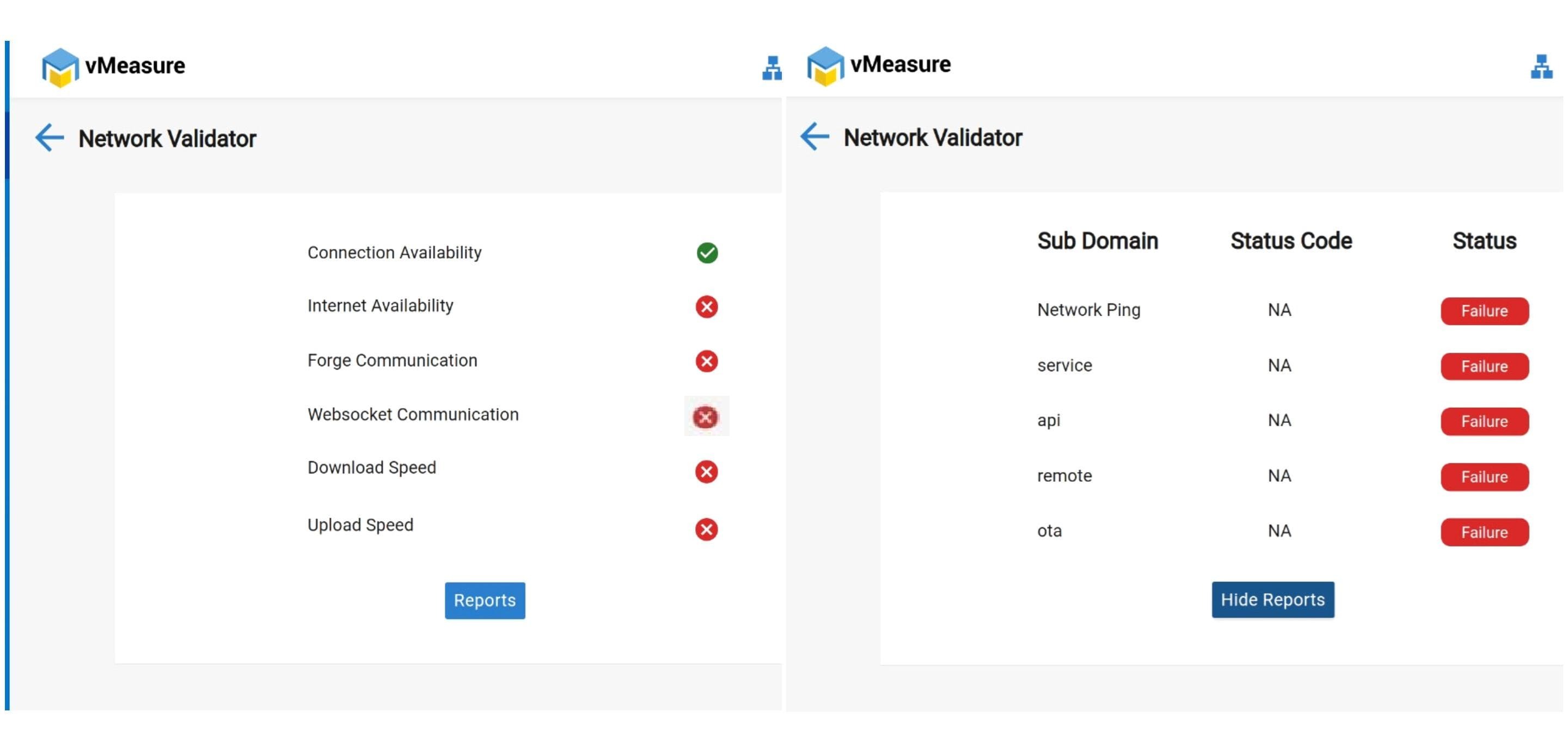
- If Test results are as below, which means the connection itself is not detected from source (Ethernet/Wi-Fi).
How to Troubleshoot:
KB Article: How to troubleshoot Ethernet Network Connectivity Issue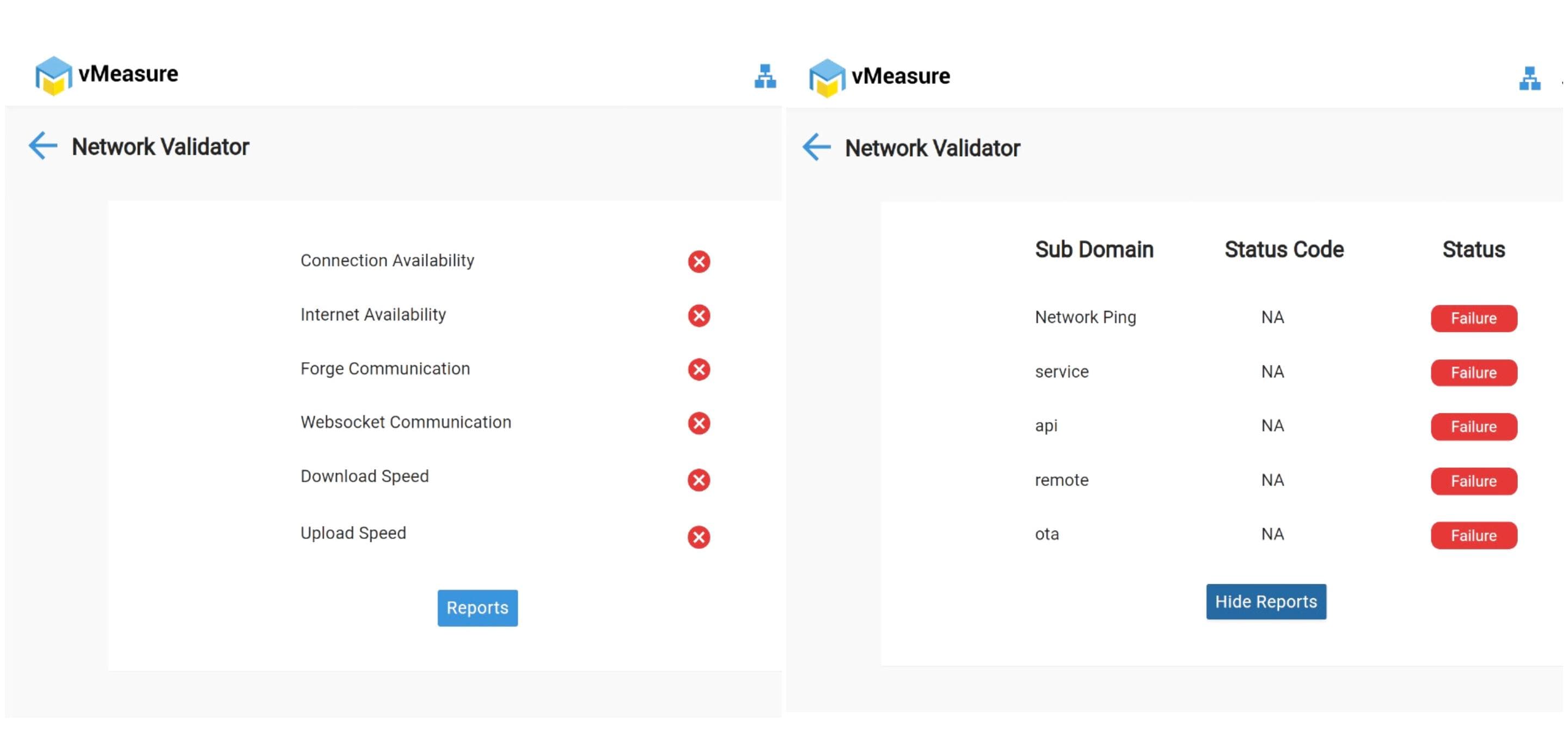
- If Test results are as below, which means the connection is detected & Internet is available but Forge URL's are blocked in Clients firewall/network.
How to Troubleshoot: Ensure that Forge URL's are whitelisted on your Network/Firewall.
KB Article: vMeasure Forge URL's & Ports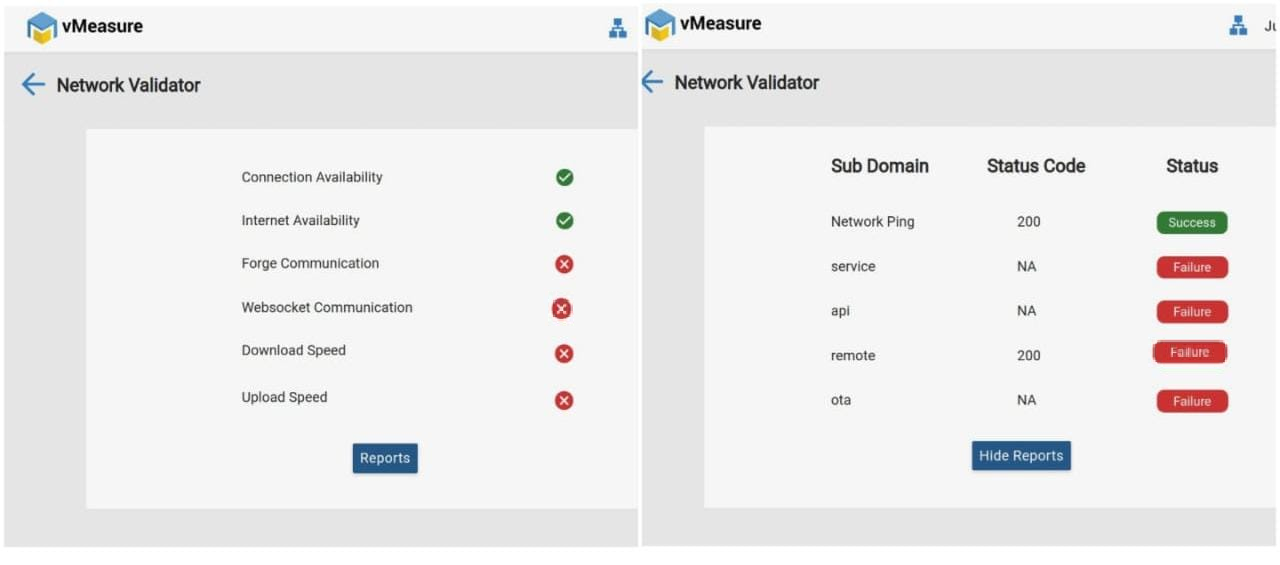
If you need any support , please drop a mail to vmeasure@visailabs.com or Click here to Submit a Ticket.
Was this article helpful?
That’s Great!
Thank you for your feedback
Sorry! We couldn't be helpful
Thank you for your feedback
Feedback sent
We appreciate your effort and will try to fix the article