If your Zebra scanner is not connecting to the vMeasure device, please follow these steps:
USB Connection Issues
- Loose or Faulty Cable: Ensure that the RJ45 to USB-A cable is securely plugged into both the barcode scanner and vMeasure device. Try a different USB port on the vMeasure device.
- Port Issue: The USB port on your system may not be functioning correctly. Test the port by connecting another device to see if it works.
- Device Not Recognized: If the scanner is not detected, try restarting your vMeasure device. Some systems may require a reboot for new devices to be recognize.
Physical or Hardware Issues
- Scanner Malfunction: If the scanner still won't connect after checking the above steps, there might be a hardware issue (e.g., damaged USB port, malfunctioning Bluetooth/Wi-Fi module). If you suspect a hardware problem, contact Zebra Support for a warranty claim or repair.
- Damage to Scanner: If the scanner was dropped or exposed to physical damage (water, excessive heat, etc.), internal components may have been affected. Inspect the scanner for any visible signs of damage.
Troubleshooting Checklist:
USB:
- Check the cable and port.
- Go to the barcode menu on the vMeasure device and try saving the barcode by selecting the appropriate model from the barcode list.
- Restart the vMeasure device.
- Test with another USB port in vMeasure device
Factory Reset:
- If configuration settings are suspected to be an issue, perform a reset (Set Factory Default) to default settings.
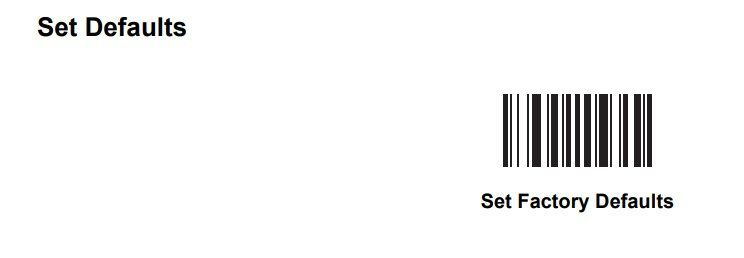
- If configuration settings are suspected to be an issue, perform a reset (Set Factory Default) to default settings.
Physical Inspection:
- Check the barcode scanner & cable for damage.
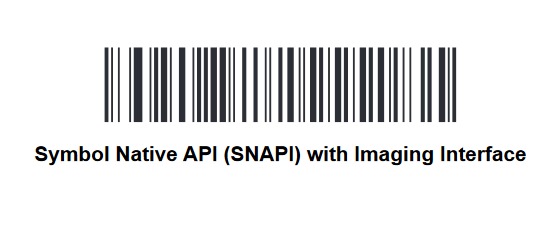
To change the barcode scanner from HID mode to SNAPI mode.
| If you need any support , please drop a mail to vmeasure@visailabs.com or Click here to Submit a Ticket. |
Was this article helpful?
That’s Great!
Thank you for your feedback
Sorry! We couldn't be helpful
Thank you for your feedback
Feedback sent
We appreciate your effort and will try to fix the article