Prerequisites
Connect the scanner to the PHU USB port using the appropriate cable (USB - RJ45, as applicable).
Ensure the barcode scanner is properly powered on.
Configuration Steps
Step 1:
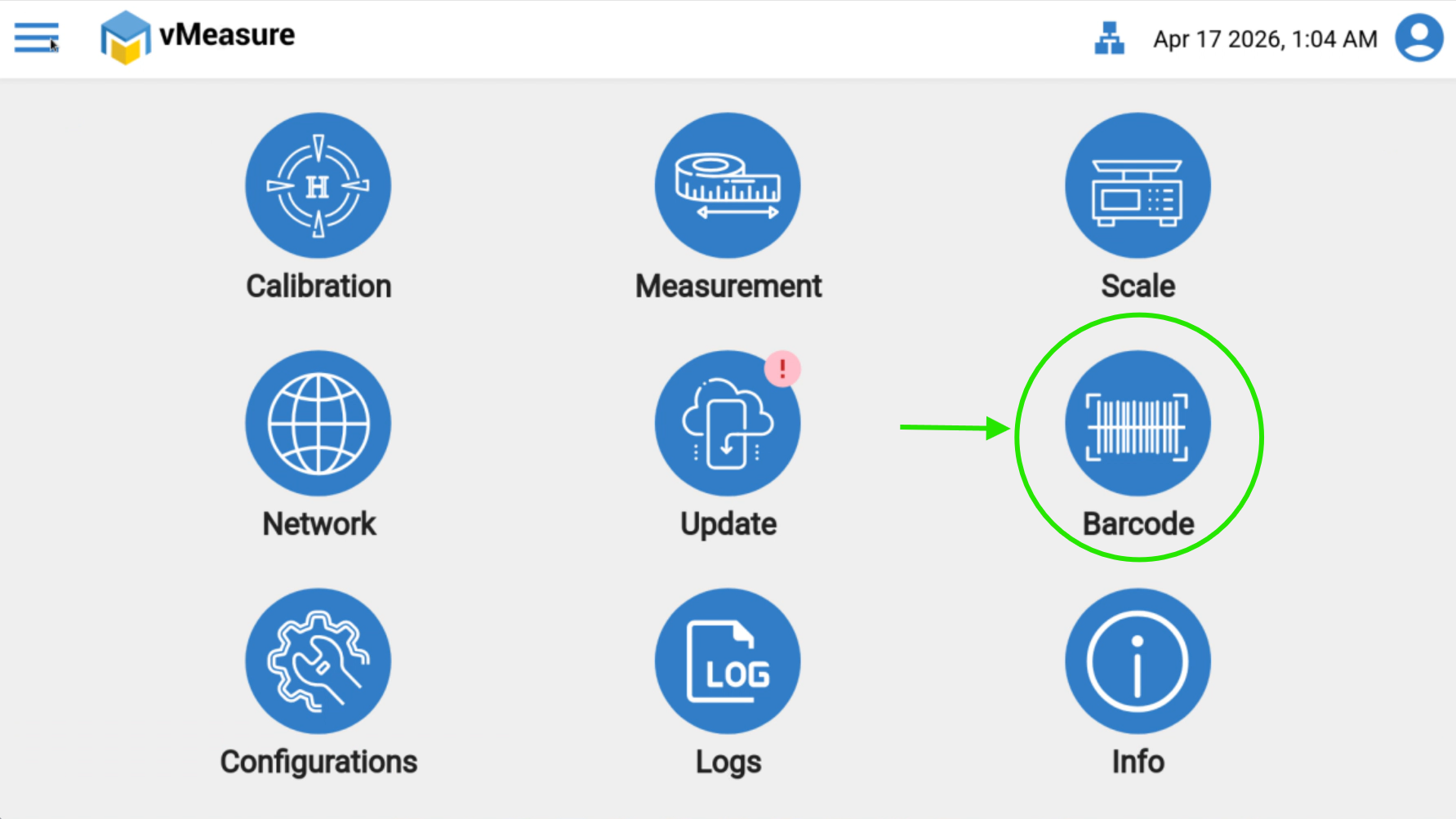
Click on Settings and navigate to Barcode.
Step 2:
Click on Manual Barcode Reader.
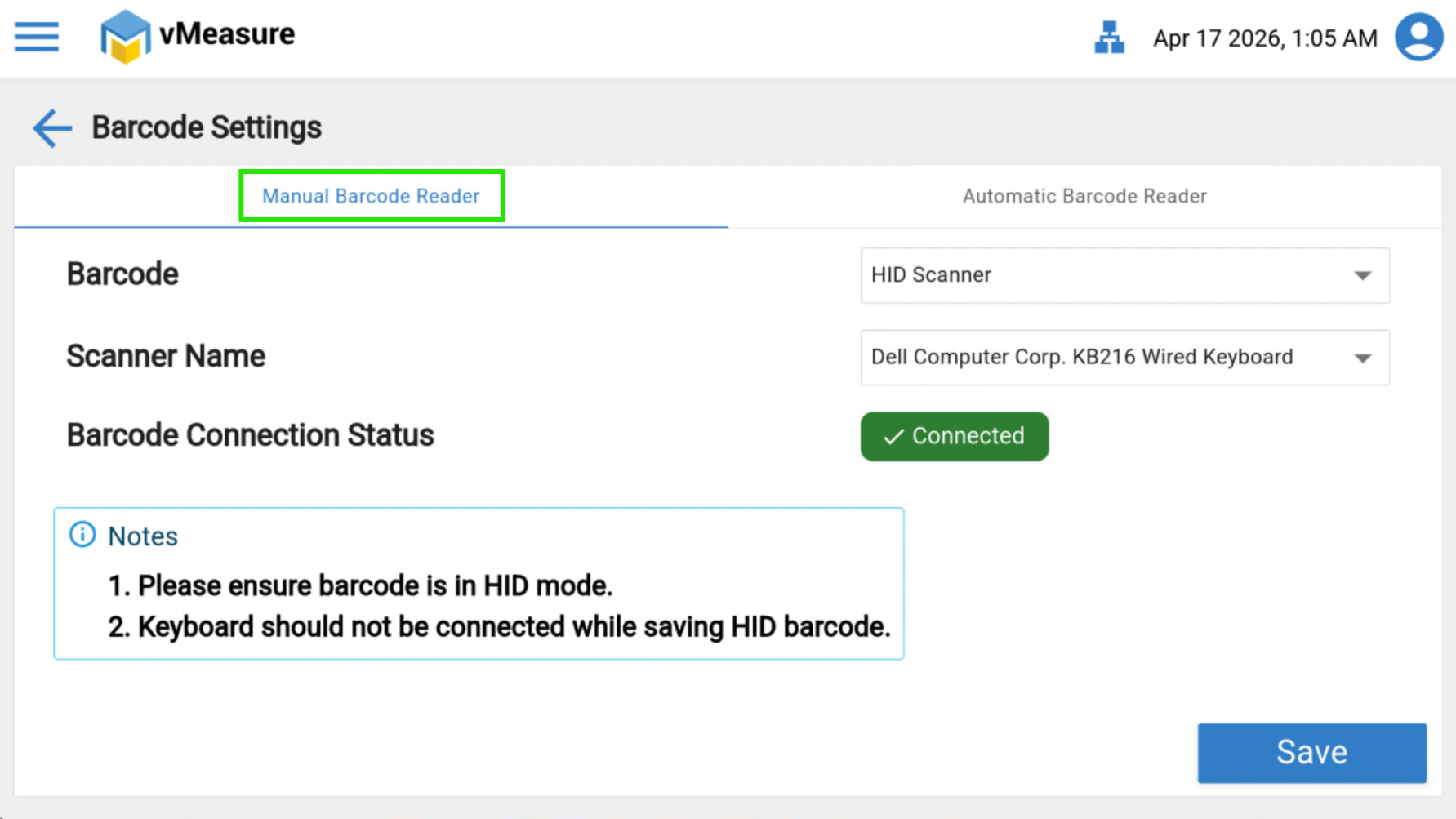
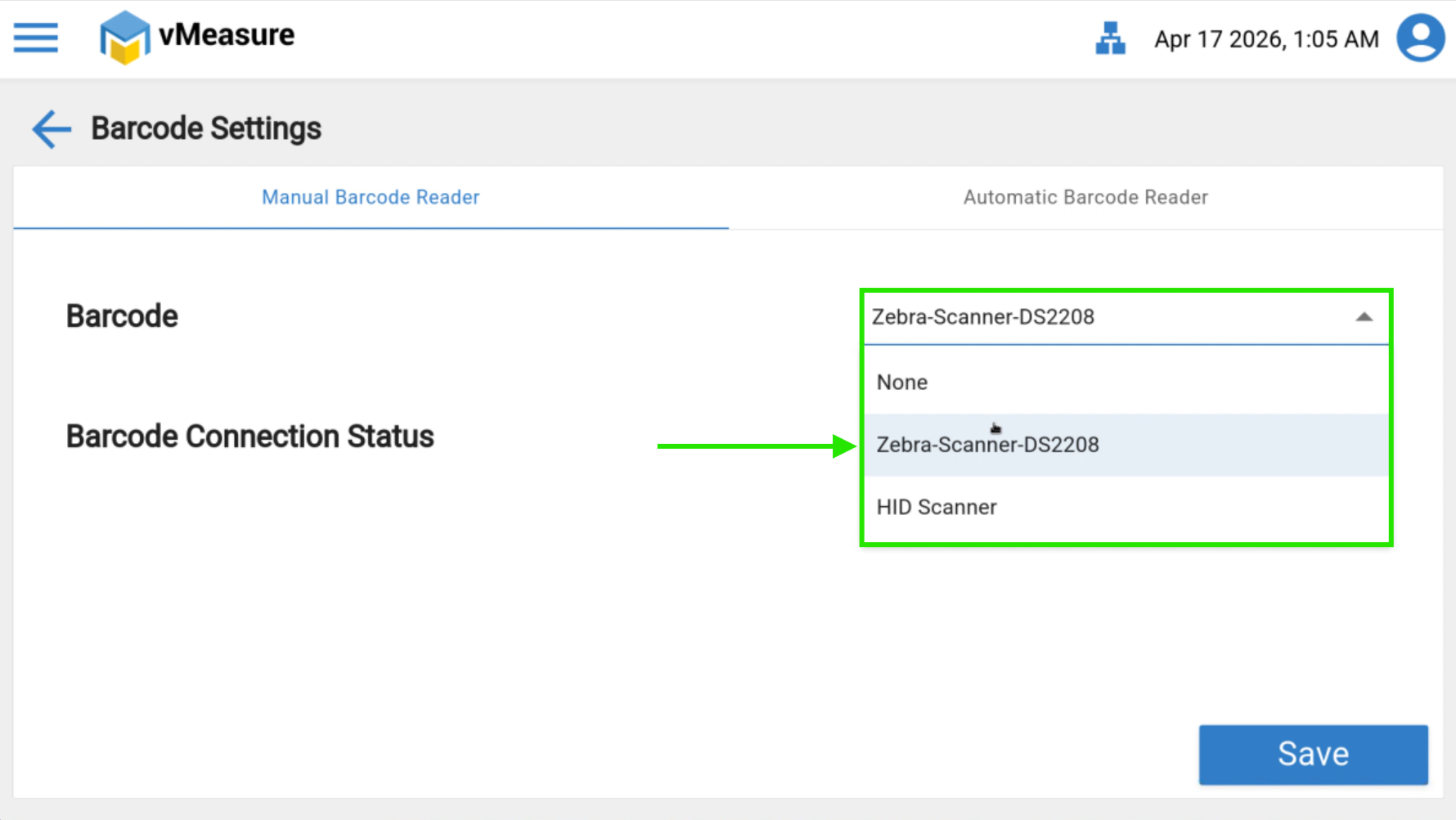
Select the appropriate Barcode Model from the Barcode dropdown list.
Step 3:
Zebra Scanner Configuration
If you are using a Zebra Scanner, select DS2208 from the Barcode dropdown & Click on Save.
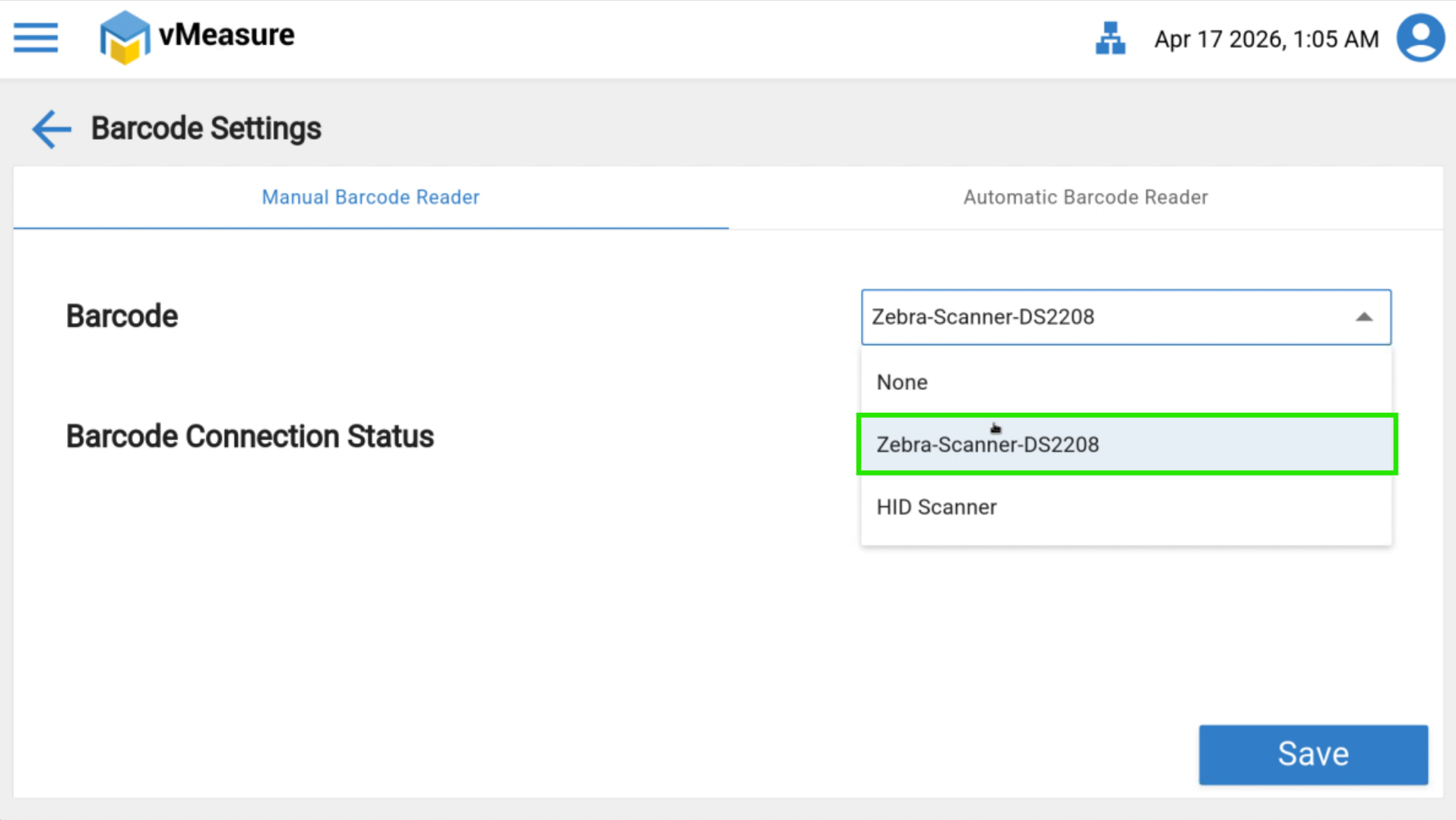
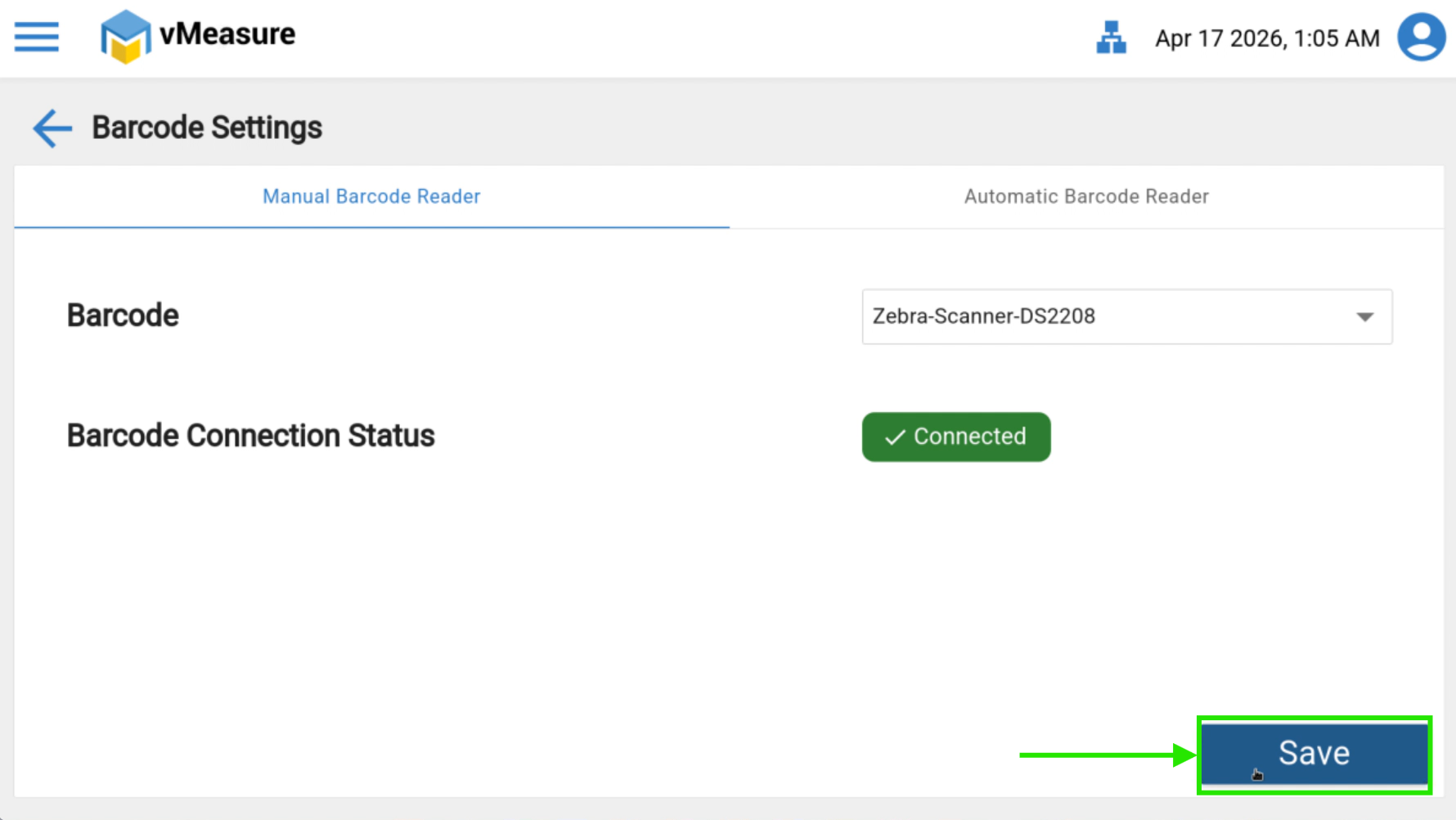
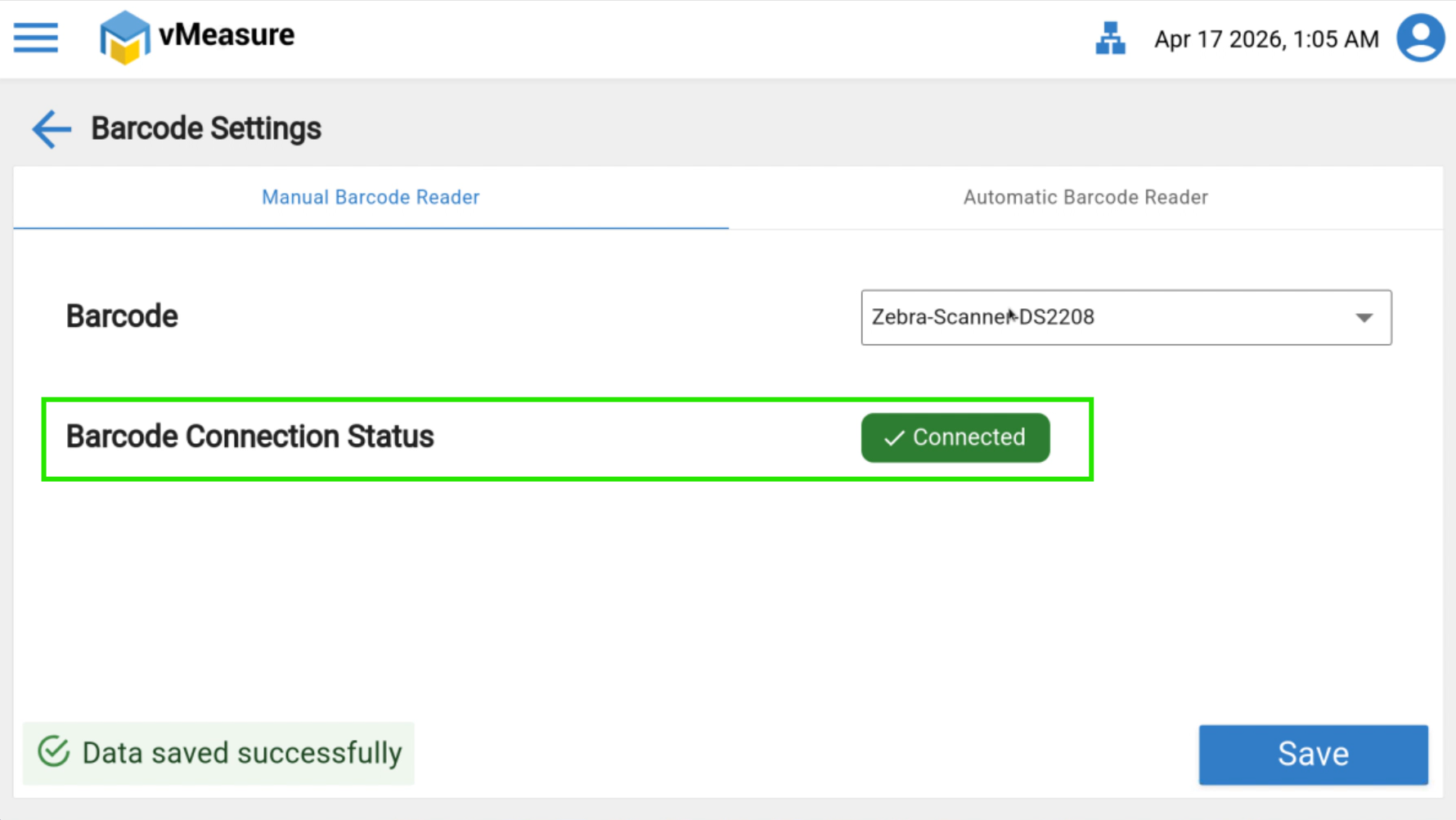
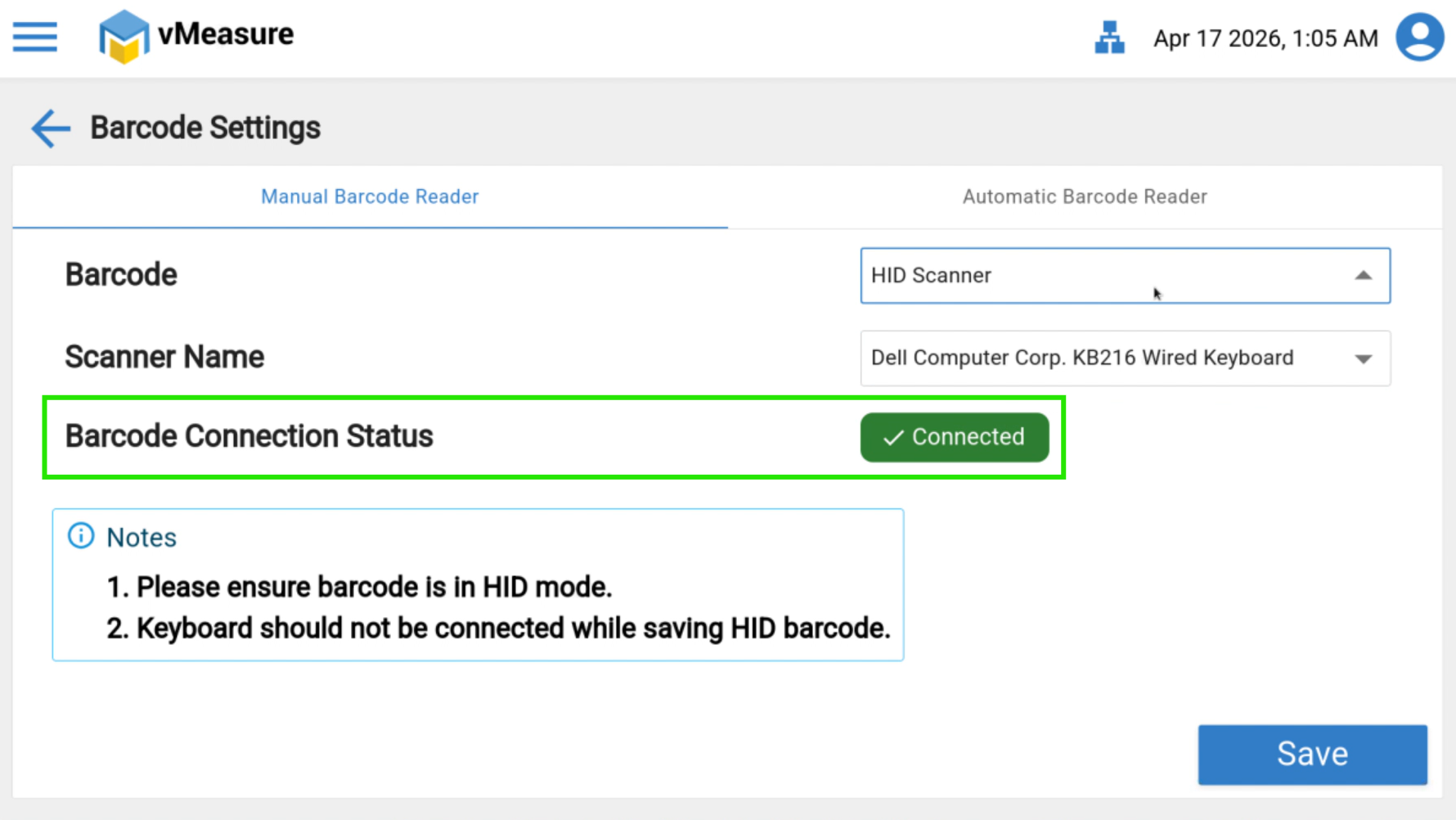
Verify that the Barcode Connection Status shows Connected.
HID Protocol Scanner Configuration
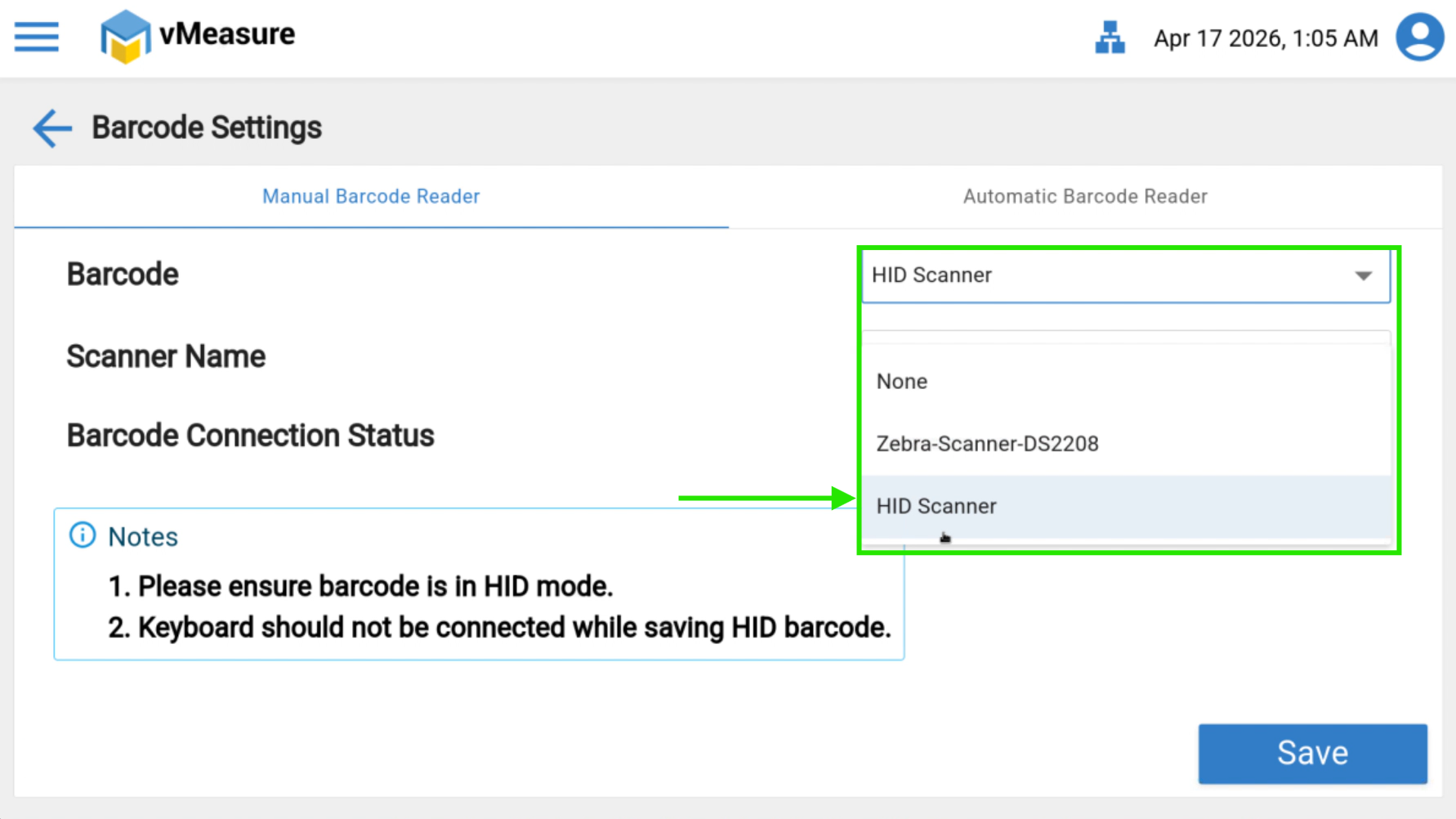
If you are using an HID protocol scanner:
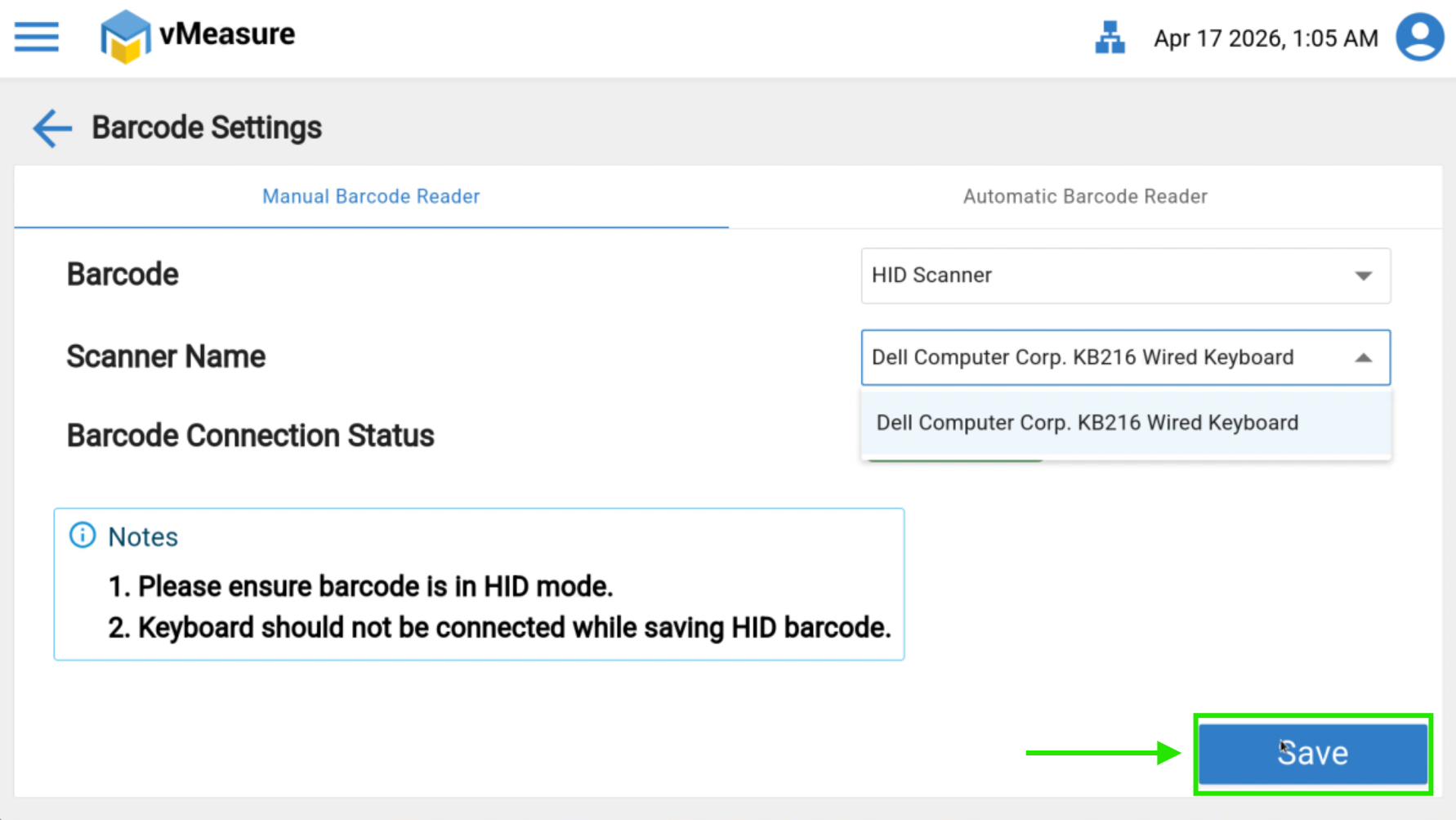
Select HID from the Barcode dropdown.
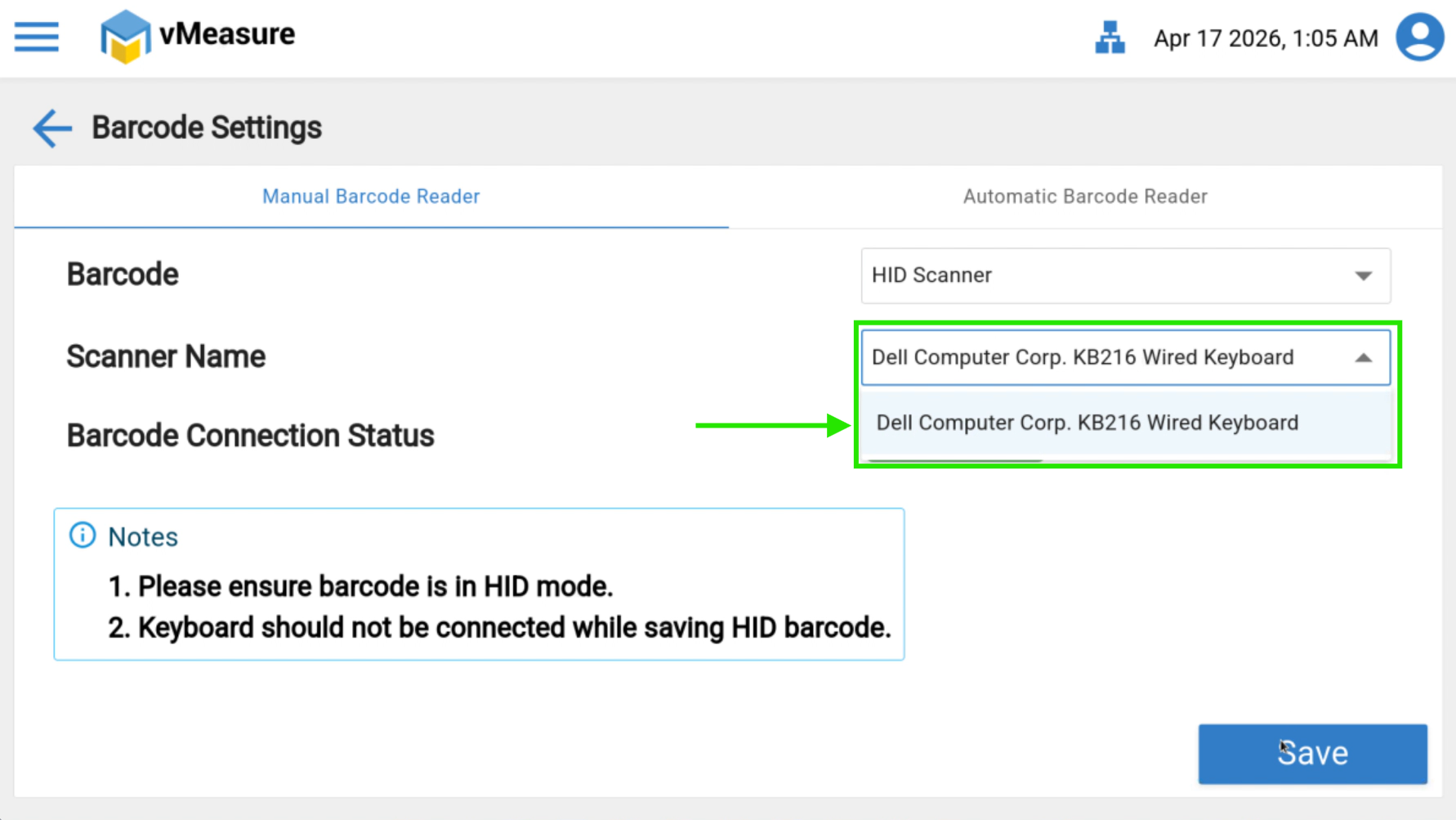
Choose the correct Scanner Name & Click on Save.
Verify that the Barcode Connection Status shows Connected.
Troubleshooting (If Status Is Not Connected)
If the barcode reader is not connected, perform the following checks:
Verify the cable connection between the scanner and the system (PHU USB Port)
Ensure the USB cable is not damaged and is firmly connected.
Restart the Turbo application and check the connection status again.
If using an HID scanner, confirm that the correct scanner name is selected.
Test the scanner on another system to rule out hardware issues.
Expected Result
After successful configuration, the Barcode Connection Status should display Connected, and the scanner should start reading barcodes normally.
If you need any support , please drop a mail to vmeasure@visailabs.com or Click here to Submit a Ticket.
Was this article helpful?
That’s Great!
Thank you for your feedback
Sorry! We couldn't be helpful
Thank you for your feedback
Feedback sent
We appreciate your effort and will try to fix the article