Prerequisites
Connect the scanner to the system using the appropriate USB cable to PHU USB Port.
Ensure the automatic barcode scanner is powered on.
Configuration Steps:
Step 1:
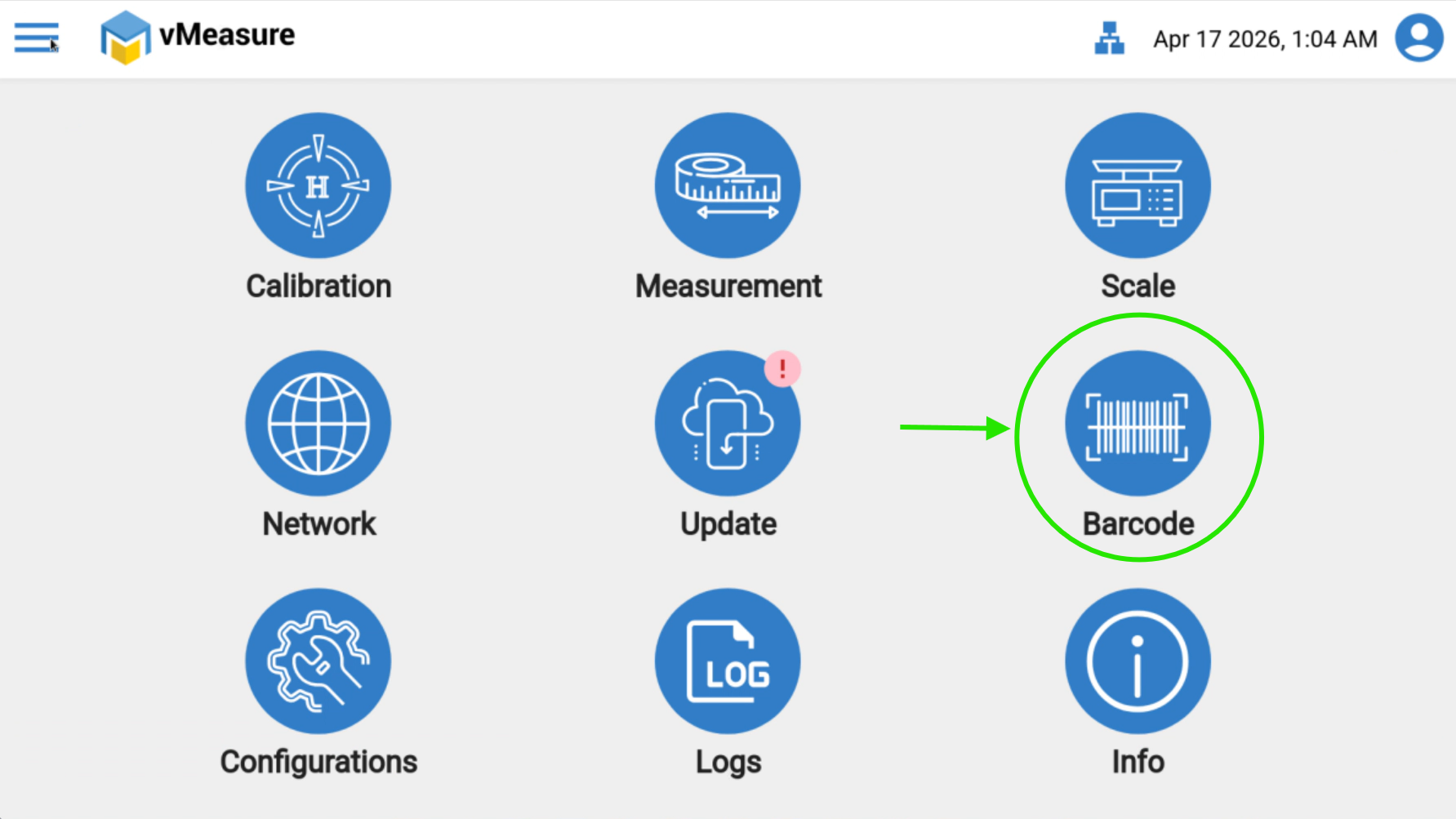
Click on Settings and navigate to Barcode option.
Step 2:
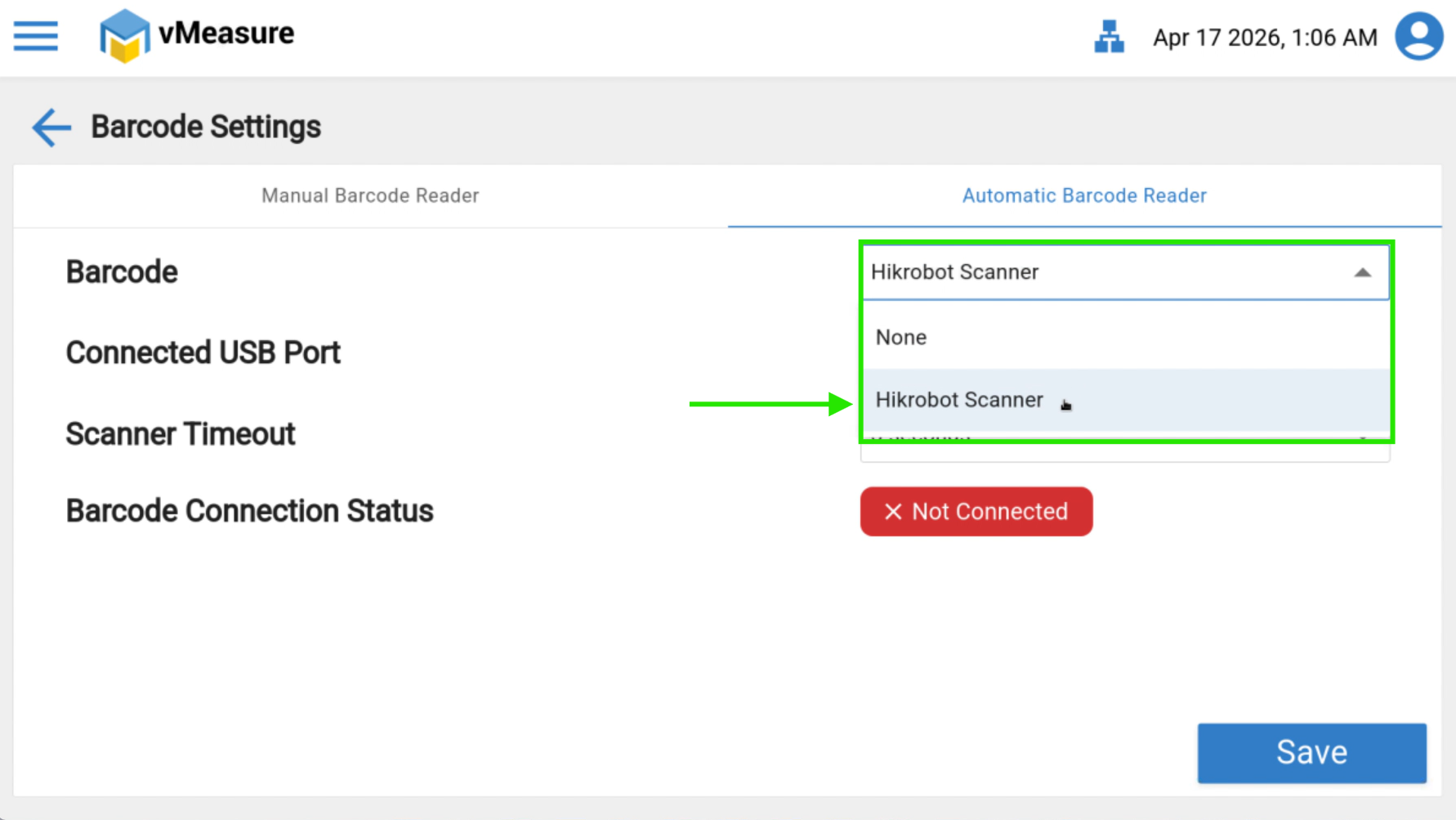
Select Automatic Barcode Reader from the Barcode list.
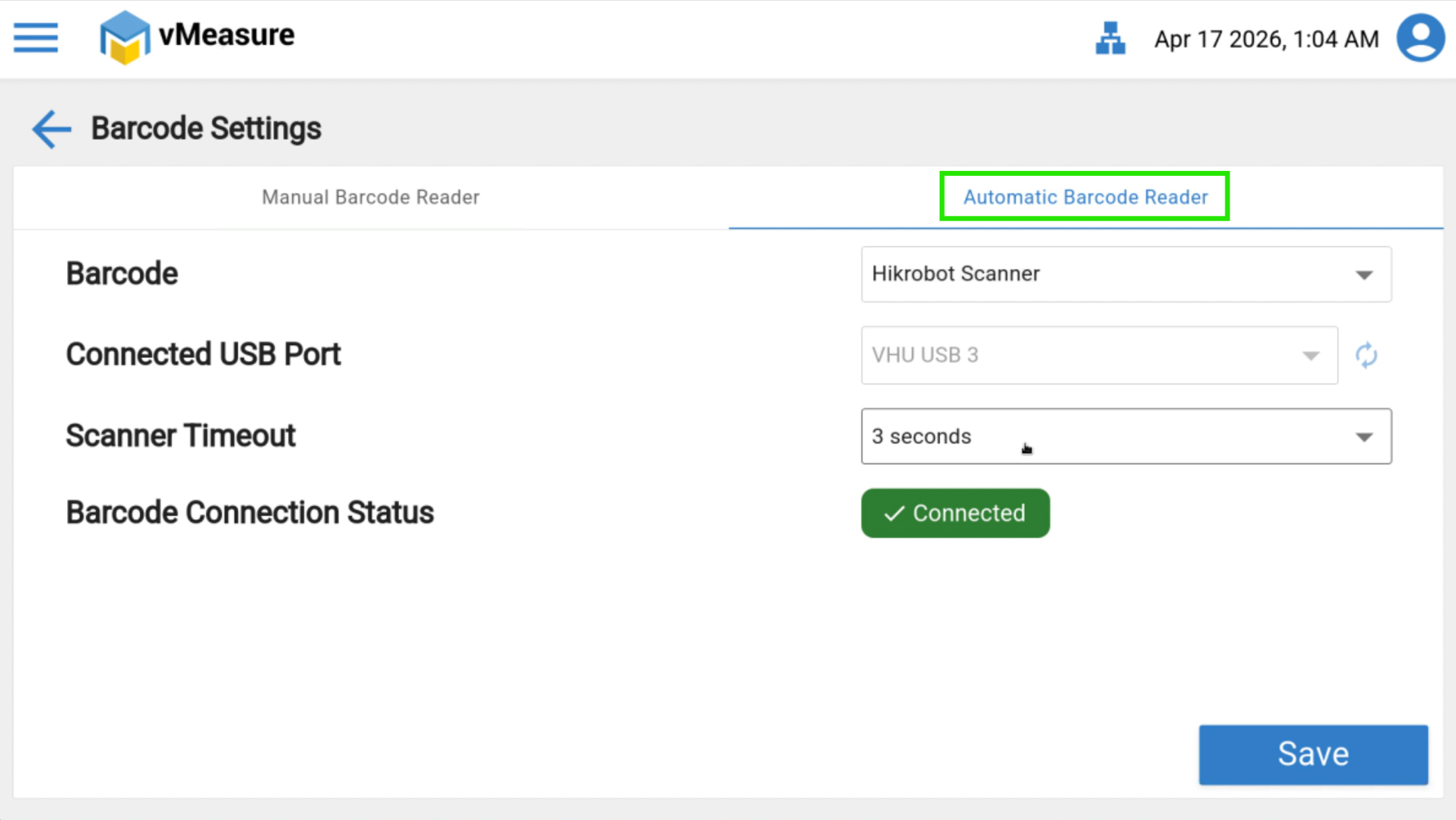
Note: Currently, only the Hikrobot Scanner is supported.
Step 3:
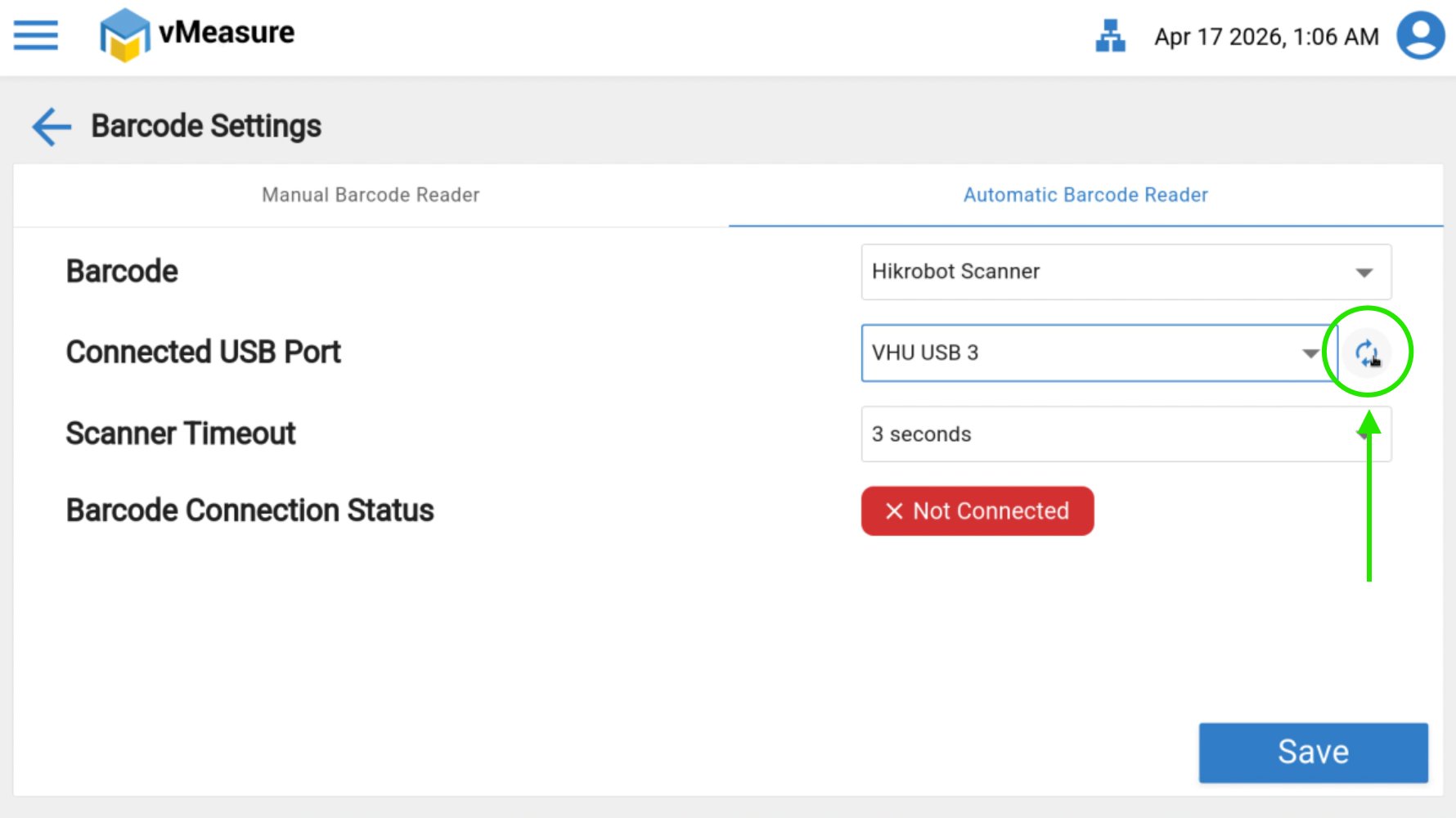
Verify that the connected USB Port is displayed correctly.
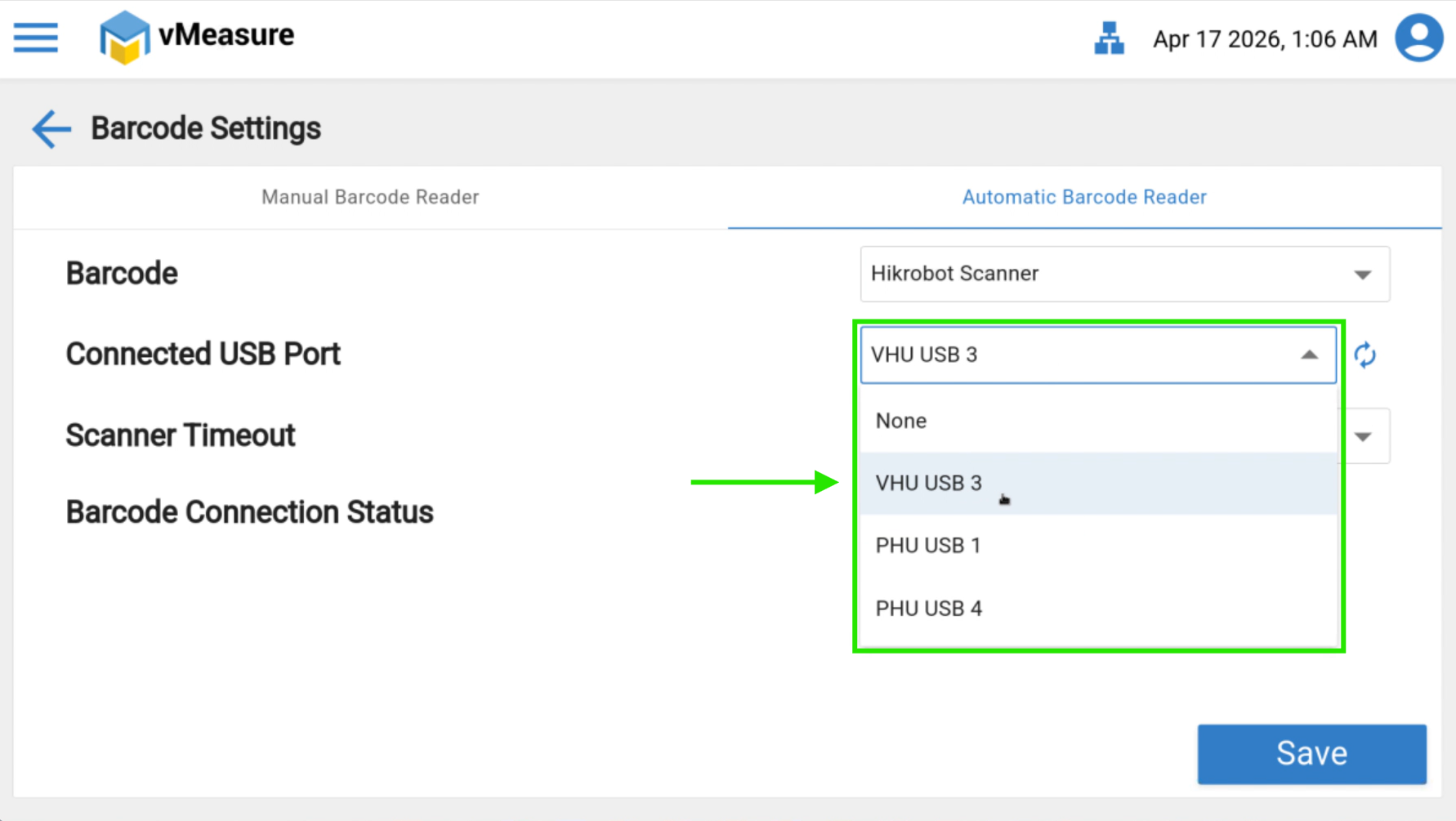
If the USB port is not visible or incorrect, click Refresh and recheck.
Step 4:
Select the appropriate Scanner Timeout value from the dropdown list based on your operational requirement.
Scanner Timeout: Manual barcode scanner (if applicable) will work after the set timer, if we wanna scan it manaully. Manual Barcode scanner do not work with-in the configured timer.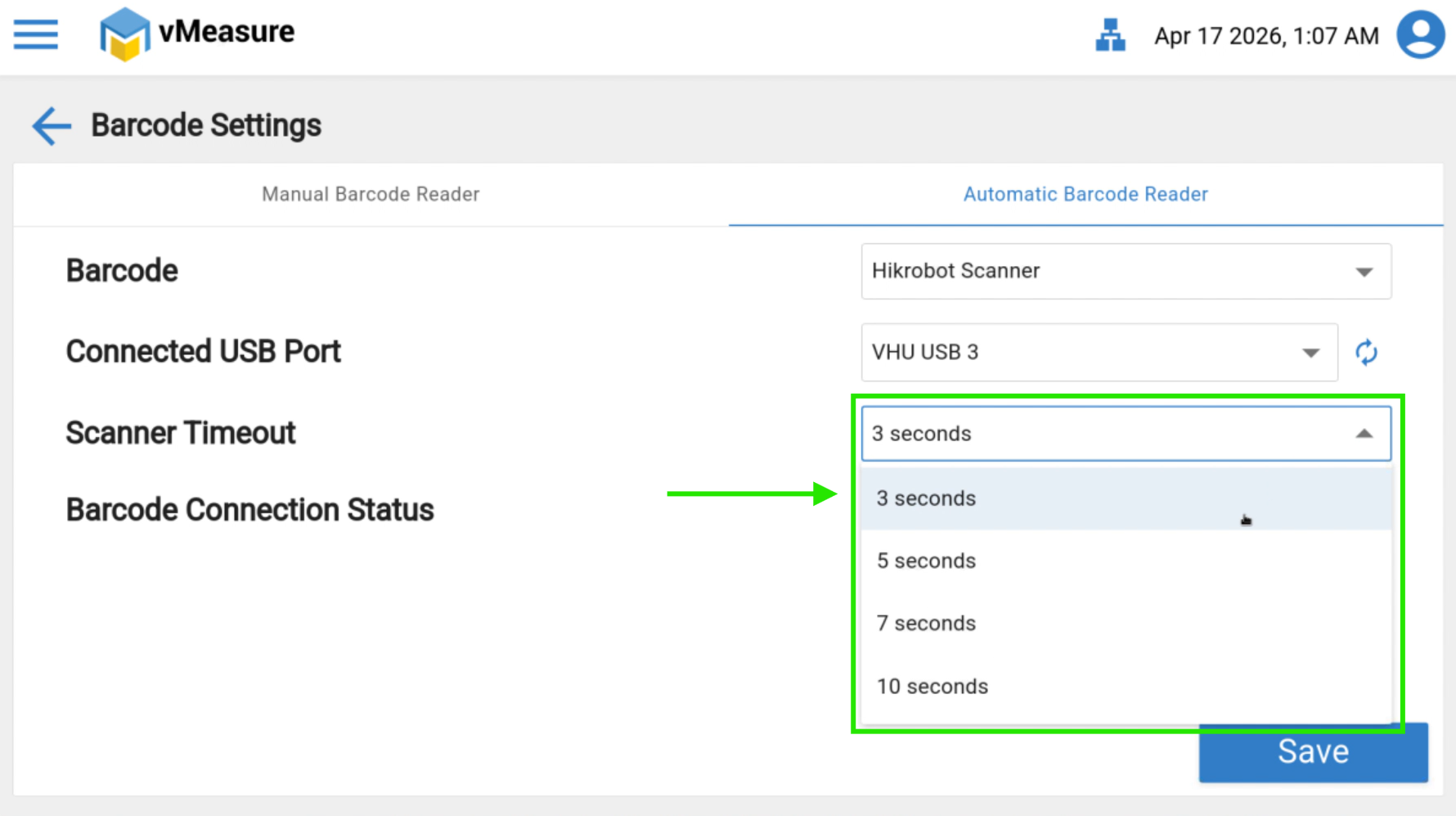
Step 5:
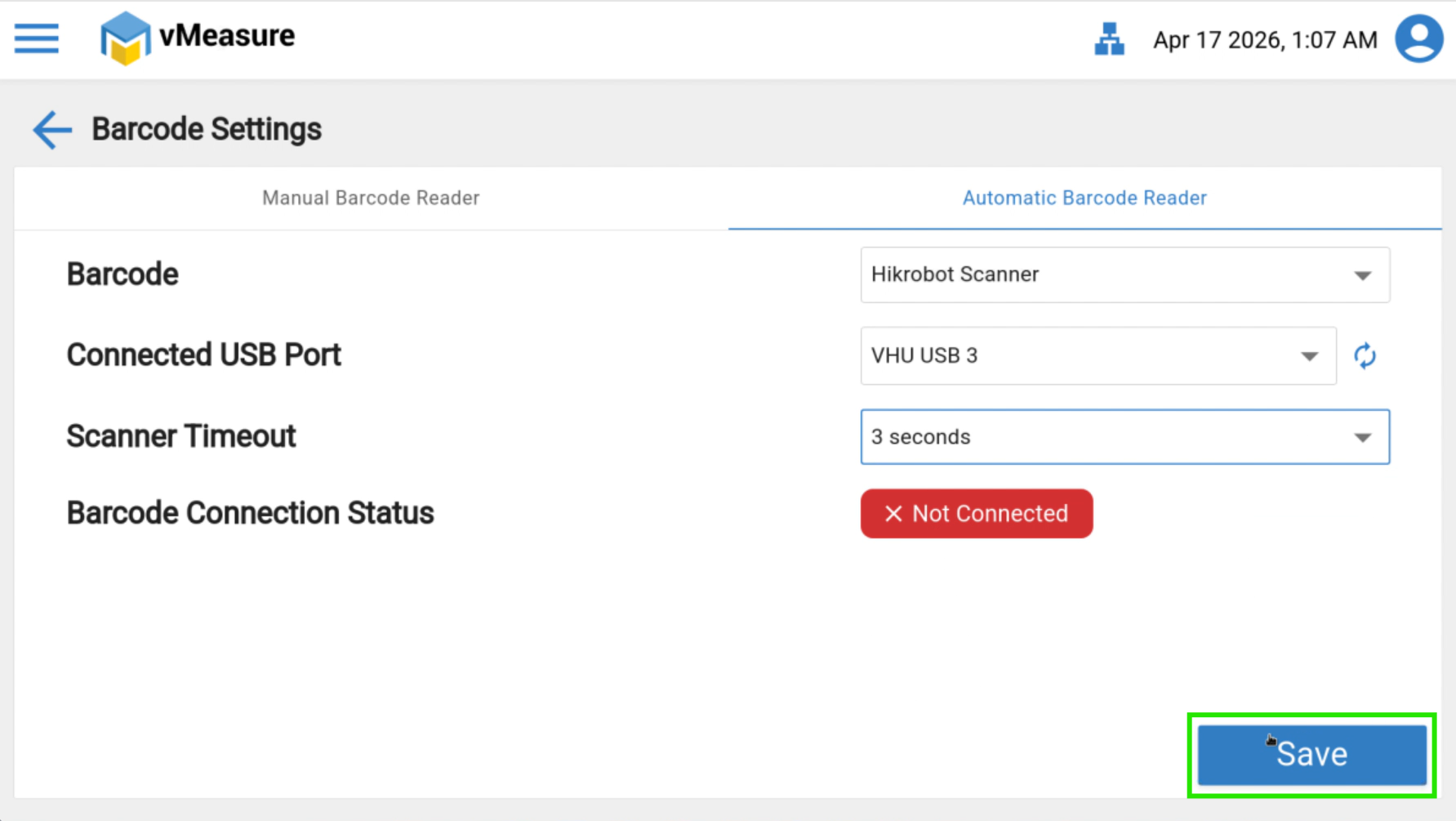
Place a parcel with a visible barcode within the scanner's reading area and ensure that the barcode is successfully detected by the scanner. (Check the U1 light in Hikrobot camera, it should be blinking when barcode is placed under it). Then click on Save.
Verify that the Barcode Connection Status shows Connected.
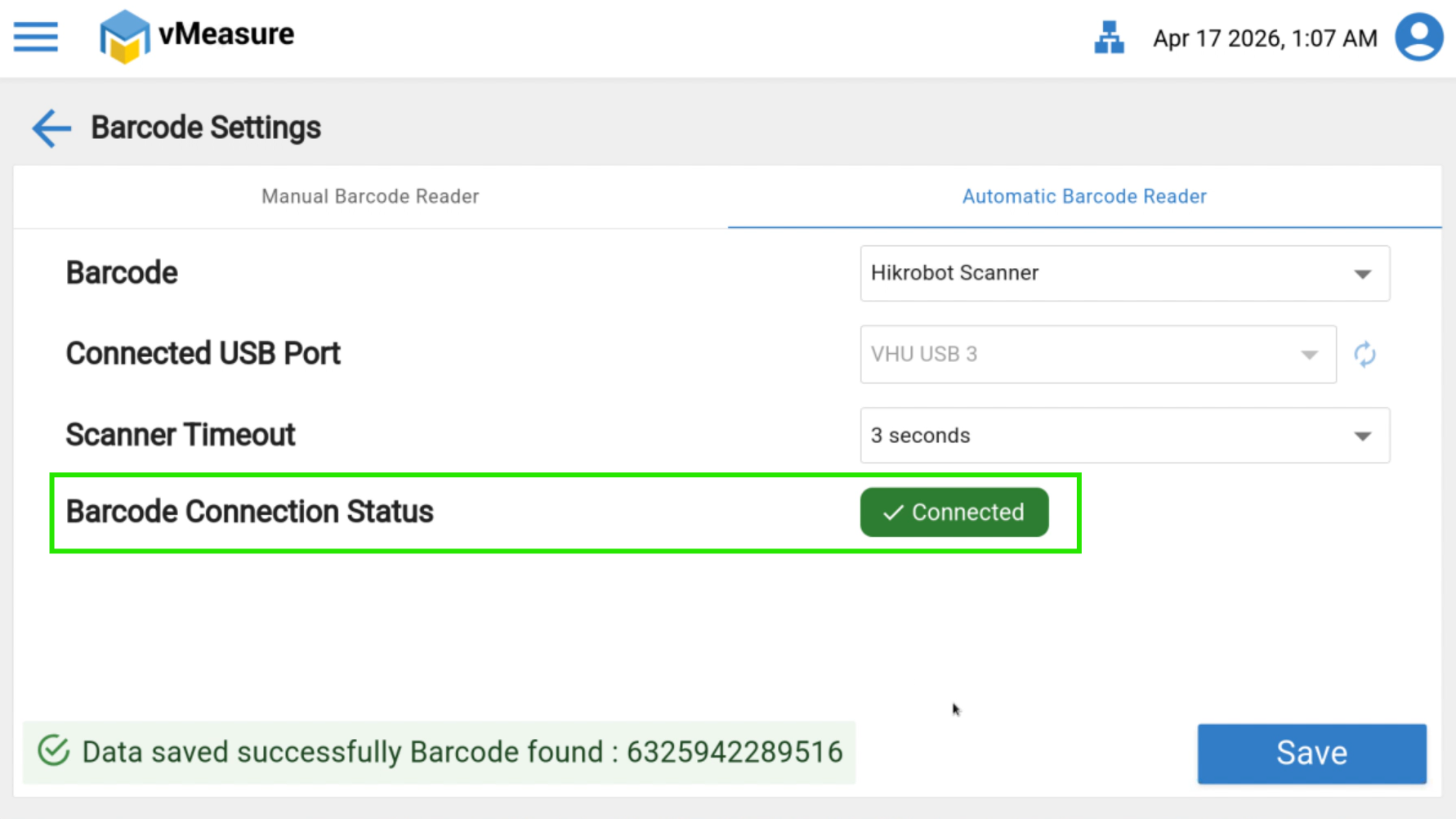
Troubleshooting (If Status Is Not Connected)
If the barcode reader is not connected, perform the following checks:
Verify the physical cable connection between the scanner and the system.
Ensure the USB cable is not loose or damaged.
Confirm that the same USB port is detected and selected in the Barcode settings.
Check if the U1 light in Hikrobot camera is blinking,
Restart the Turbo application and recheck the connection status.
Was this article helpful?
That’s Great!
Thank you for your feedback
Sorry! We couldn't be helpful
Thank you for your feedback
Feedback sent
We appreciate your effort and will try to fix the article