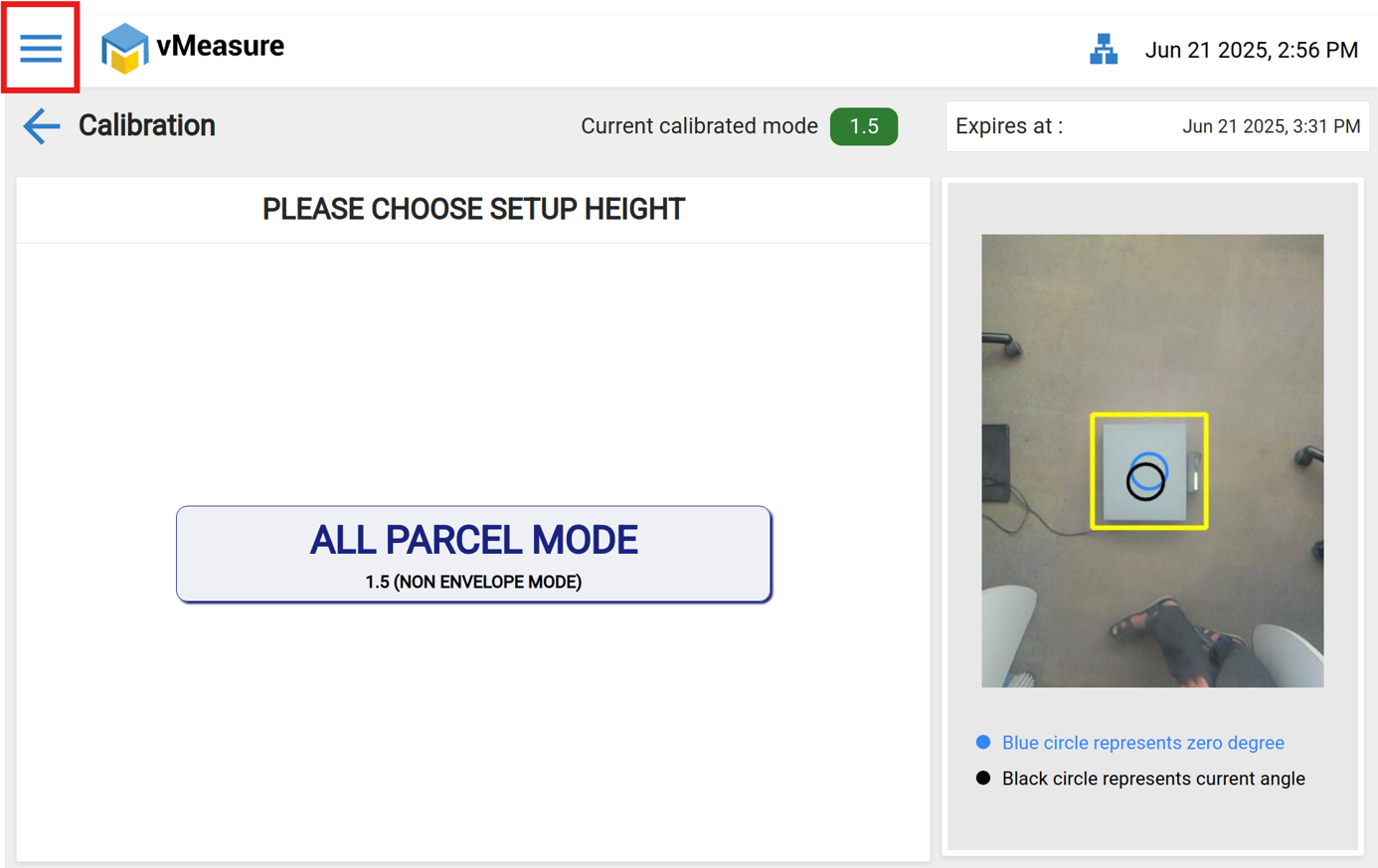
Step 1: Click the Three dots button.
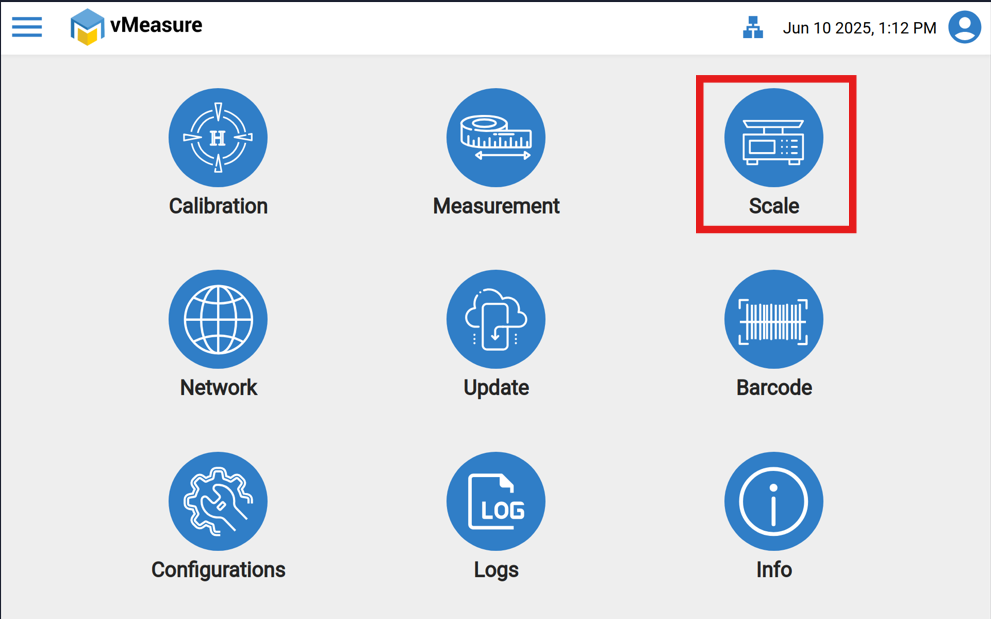
Step 2: Click the Scale button.
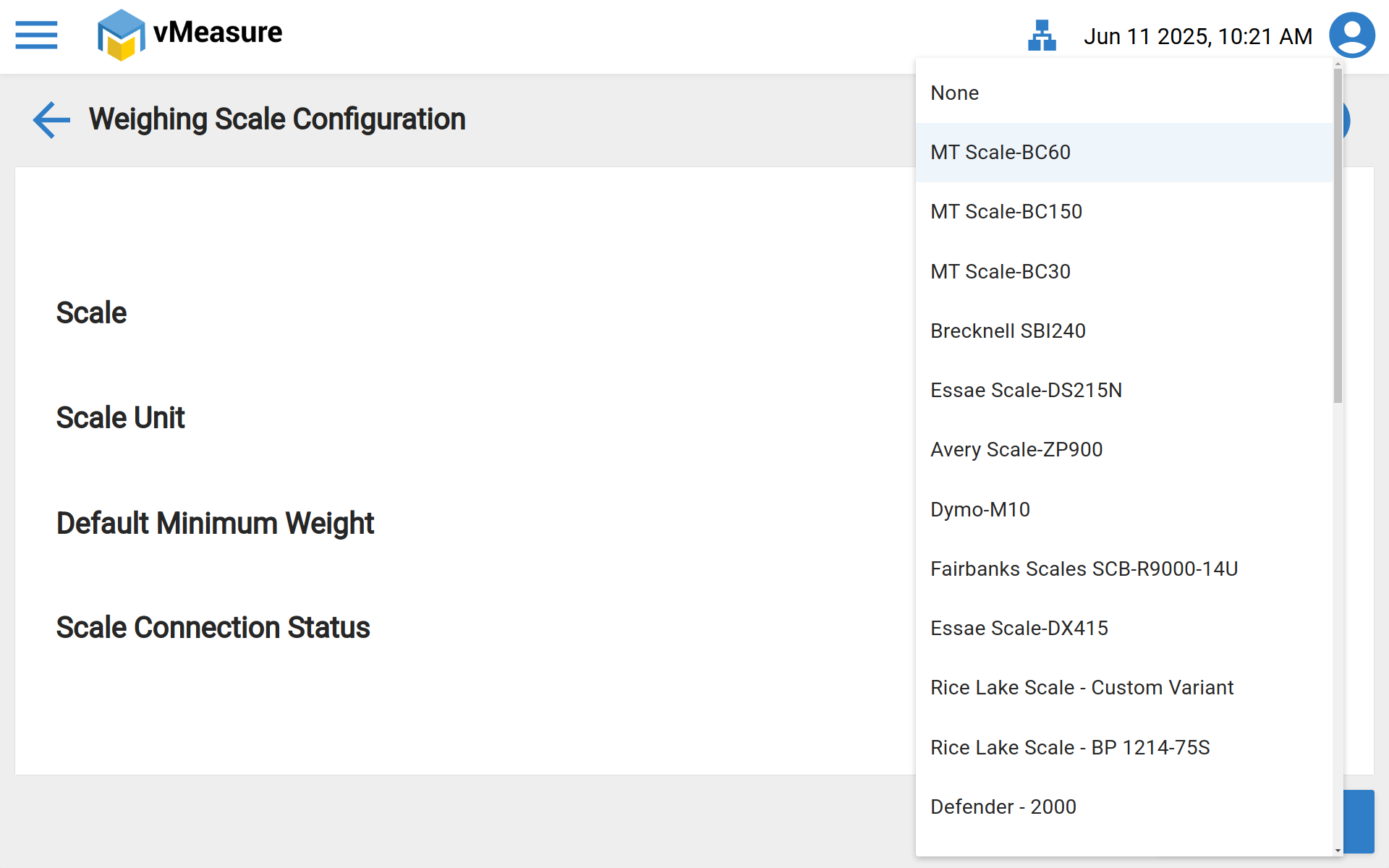
Step 3: After selecting the scale, ensure that the Scale Unit matches on both the vMeasure device and the weighing scale. Once confirmed, Save the settings.
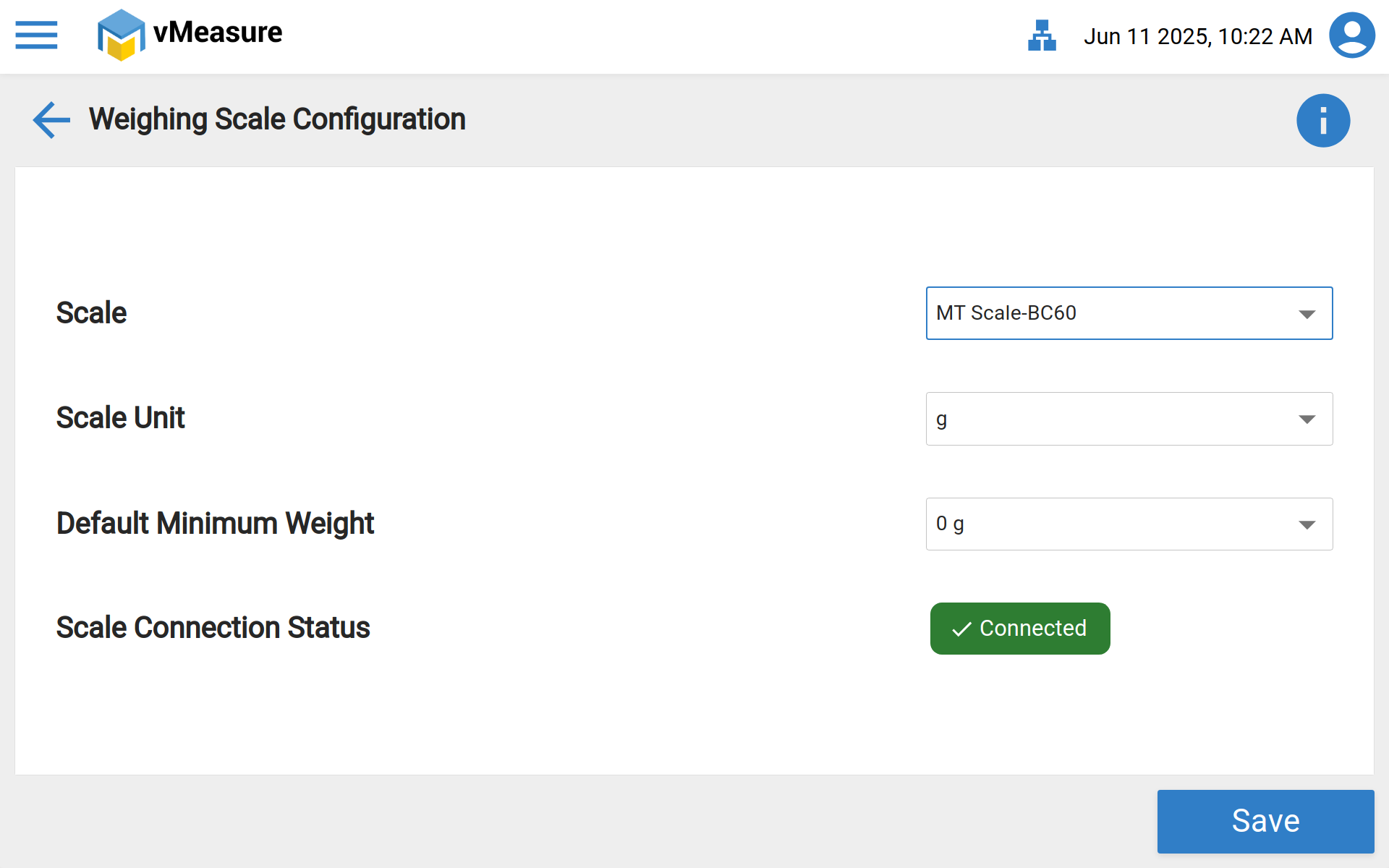
Step 3: After selecting the scale, ensure that the Scale Unit matches on both the vMeasure device and the weighing scale. Once confirmed, Save the settings.
Note:
The scale connection status must show as "Connected." If it displays "Not Connected," the calibration will fail. Please ensure that the weighing scale is at a "ZERO" reading before starting the calibration process.
If the scale is not being used or not connected, you will need to select the "None" option in the Scale settings. Please follow the steps below to do this:
If you need any support , please drop a mail to vmeasure@visailabs.com.
Was this article helpful?
That’s Great!
Thank you for your feedback
Sorry! We couldn't be helpful
Thank you for your feedback
Feedback sent
We appreciate your effort and will try to fix the article