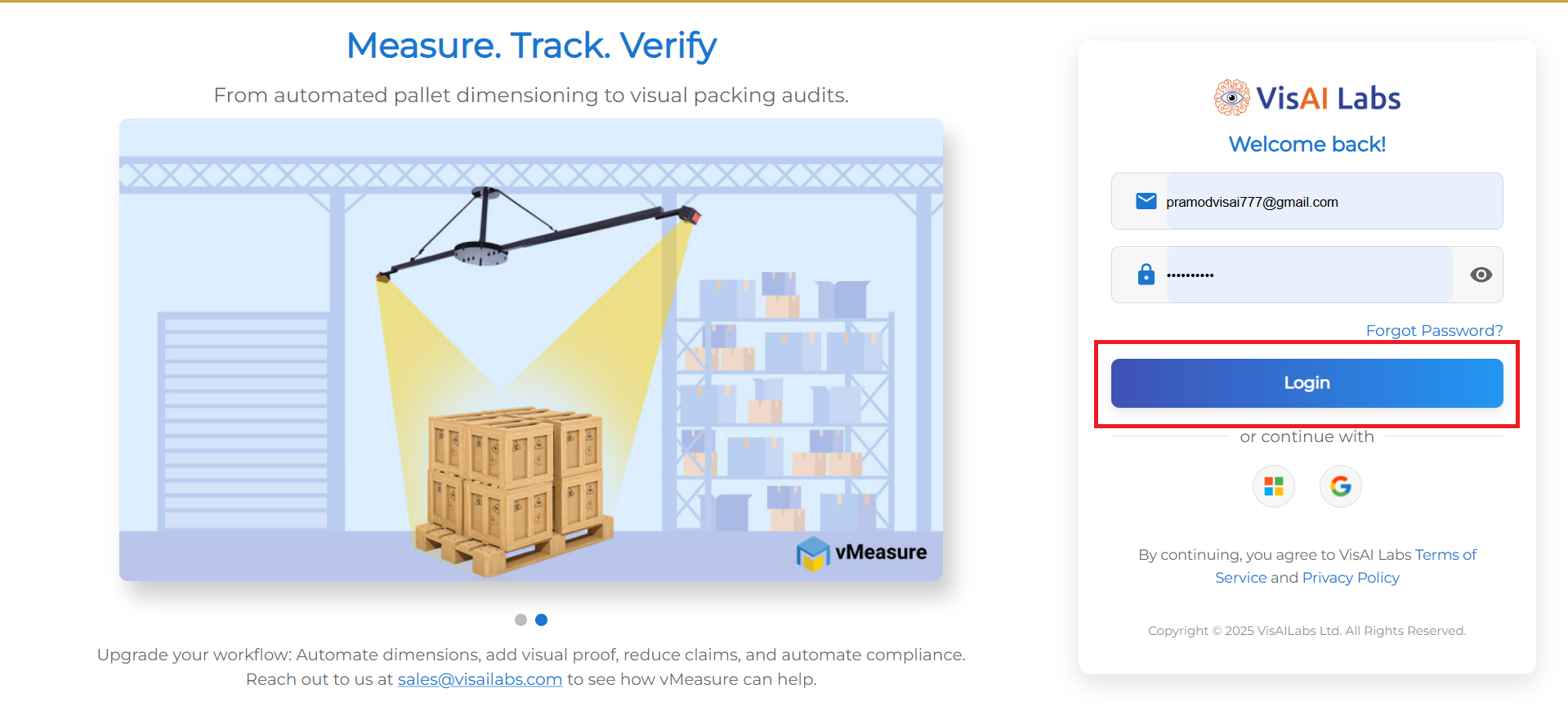
1. Open https://forge.vmeasure.ai/ and login with the mail id and password.
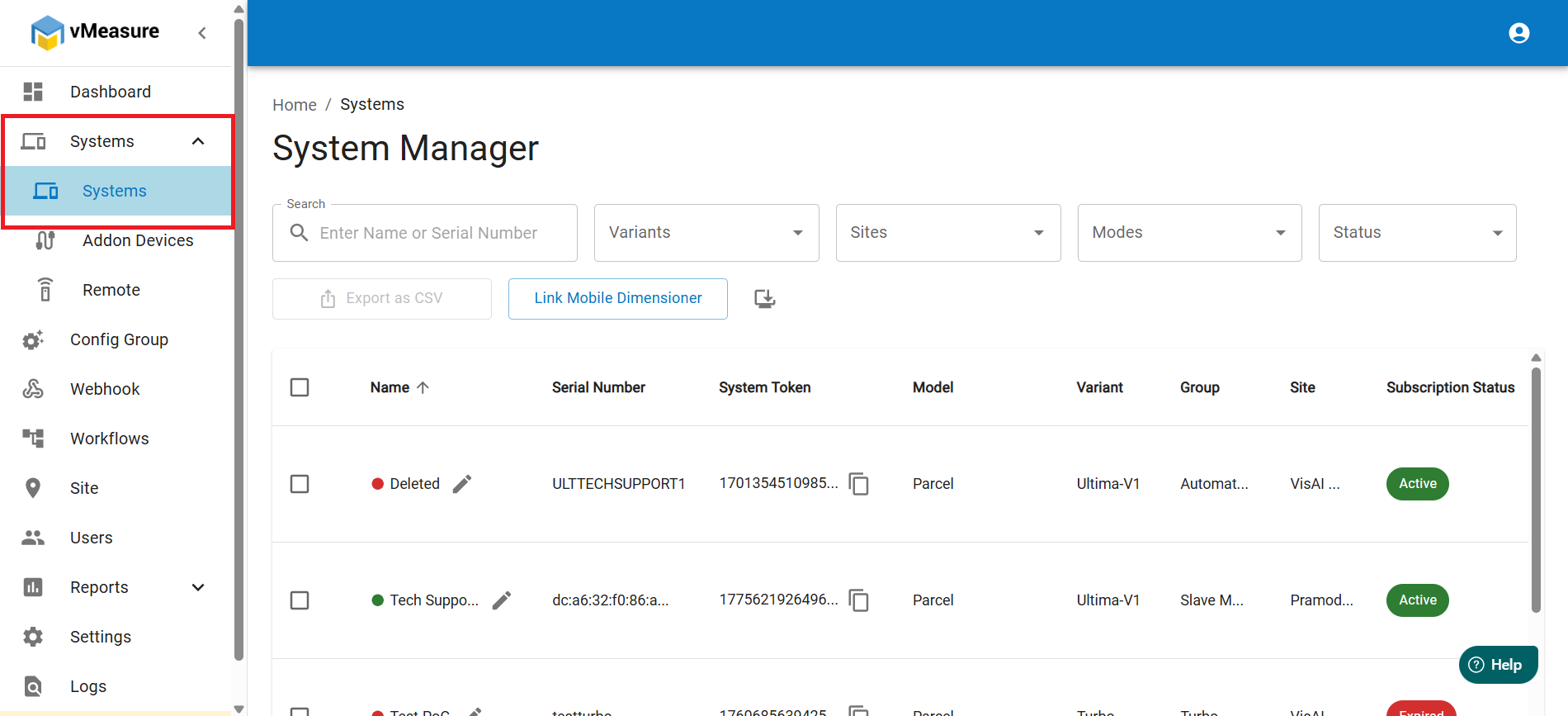
2. In the vMeasure page, on the left pane, navigate to Systems and click on the drop down menu and select Systems.
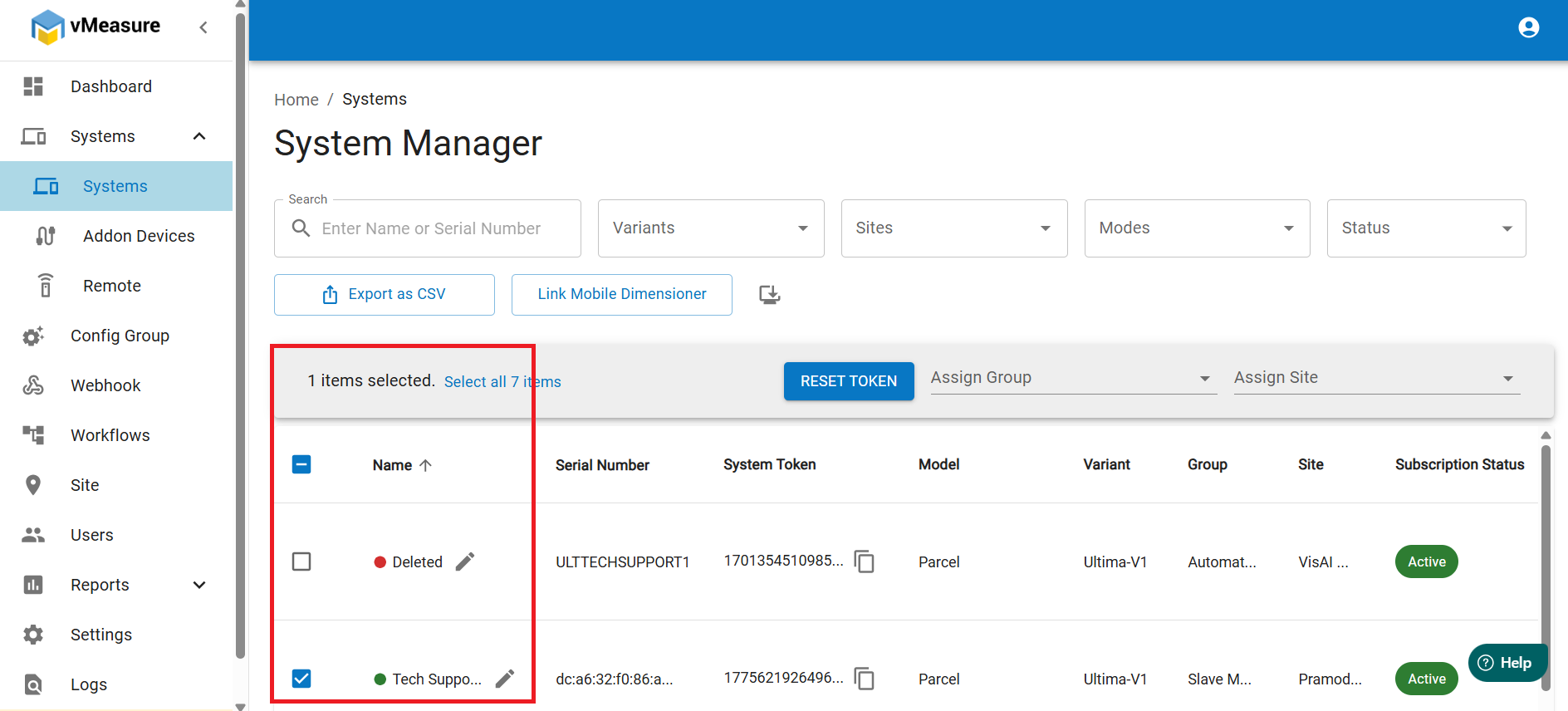
3.In the Systems page, you will see a list of systems with checkboxes near to the system name.
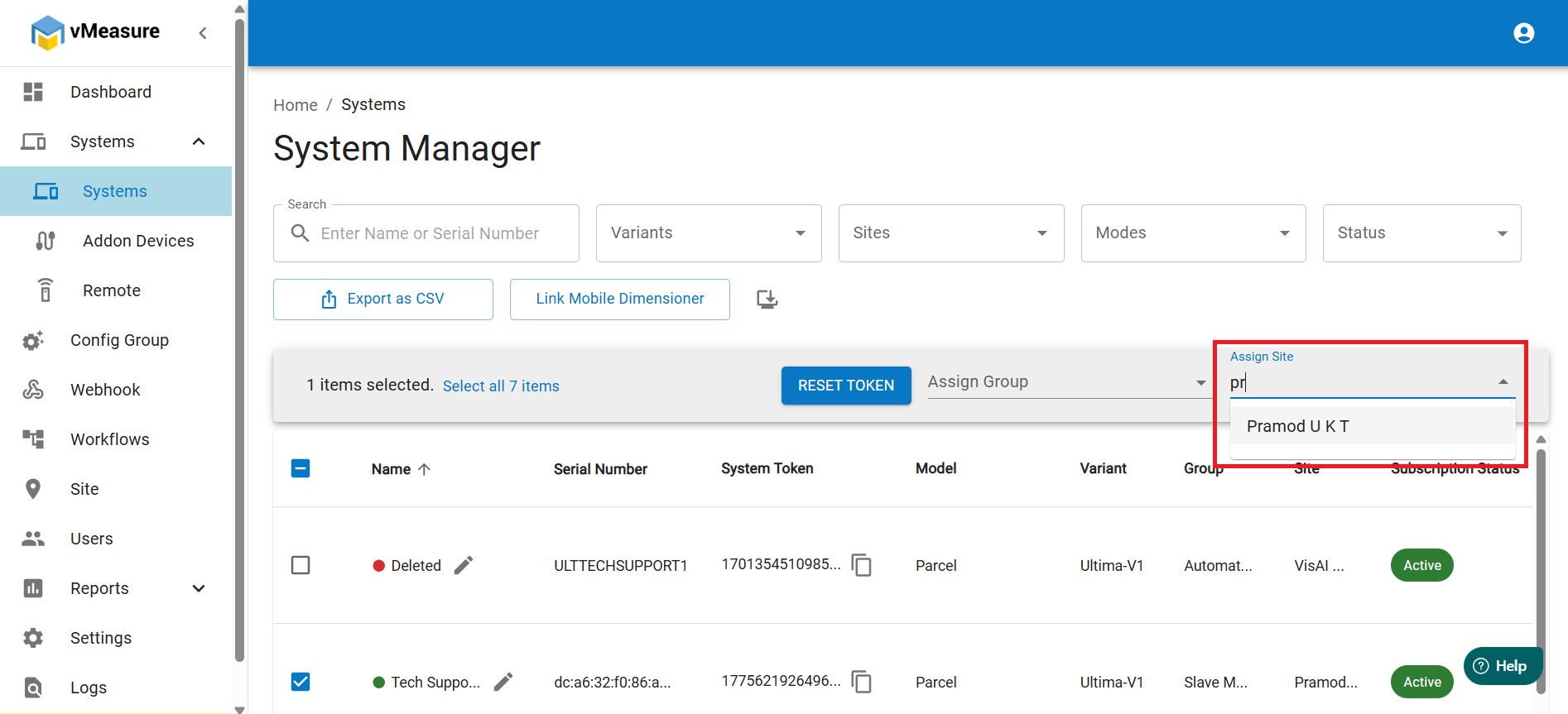
4. Select the desired system and you will see an option as Assign Site with a dropdown near to it.
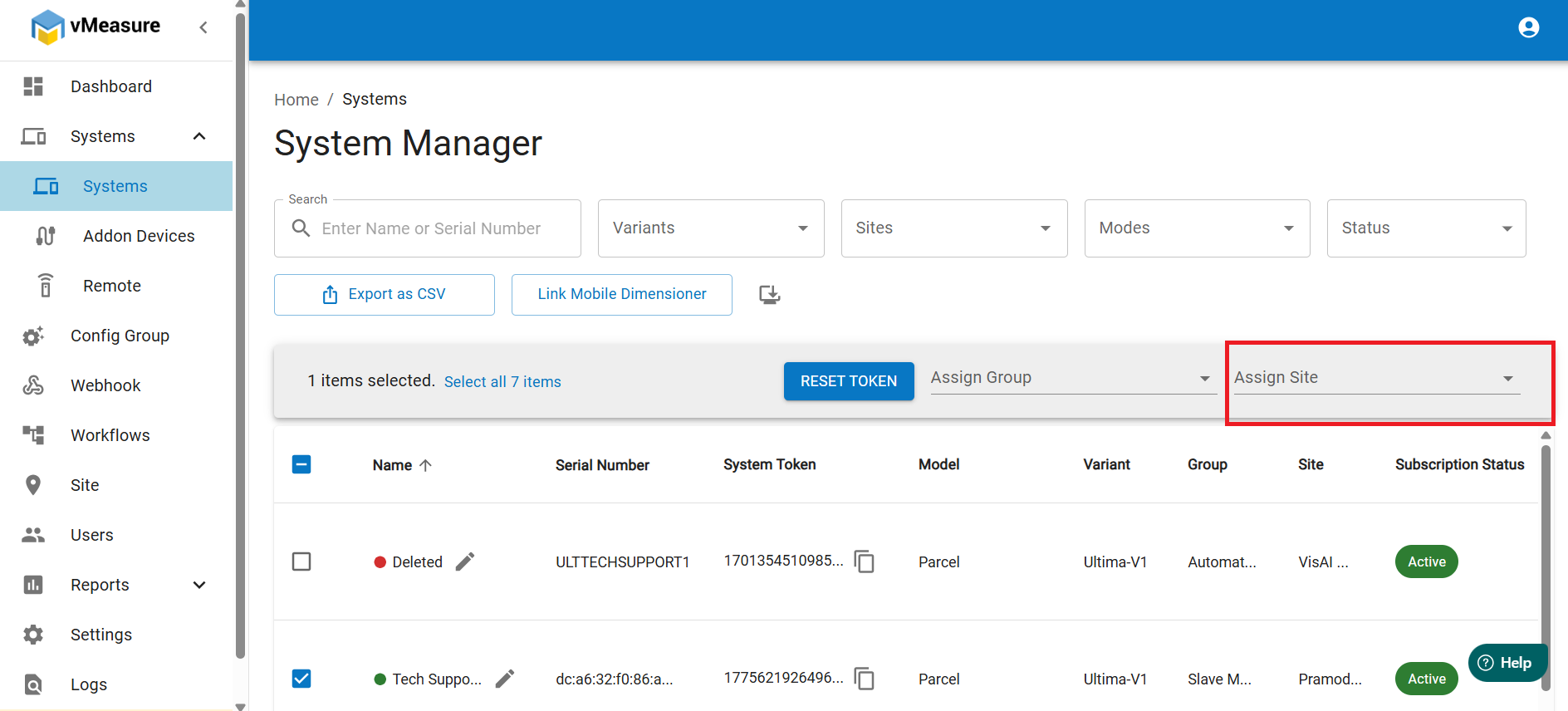
5. Enter a few characters of the Site name and you will see the dropdown will automatically show the site names related to the name you entered.
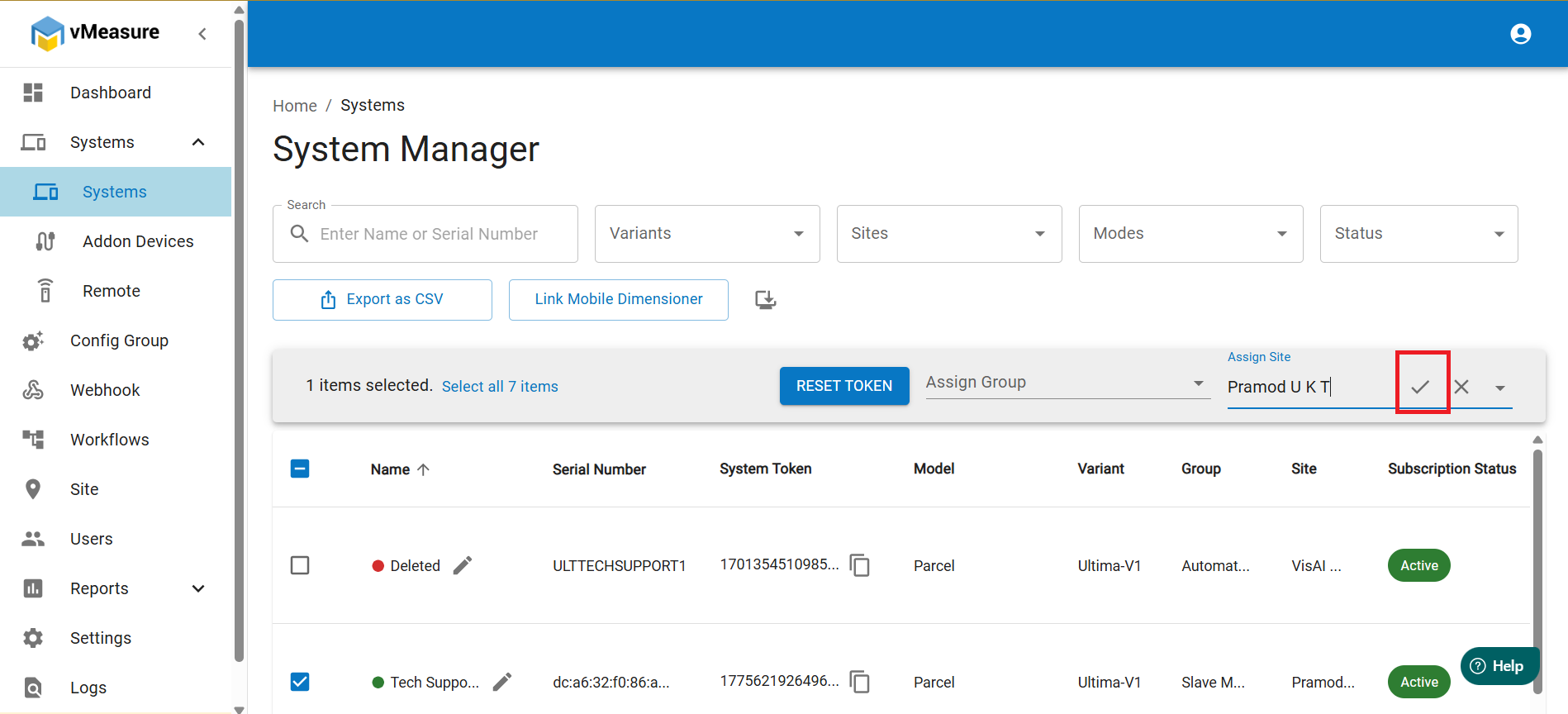
6. After selecting the site, you will see a tick mark beside the name of the site. Click on the tick mark and you will see a pop up with the confirmation to assign the site to the system. Click on Yes.
7. After clicking on Yes, you will see a pop up as Successfully modified. This message confirms that the site has been added to the system.
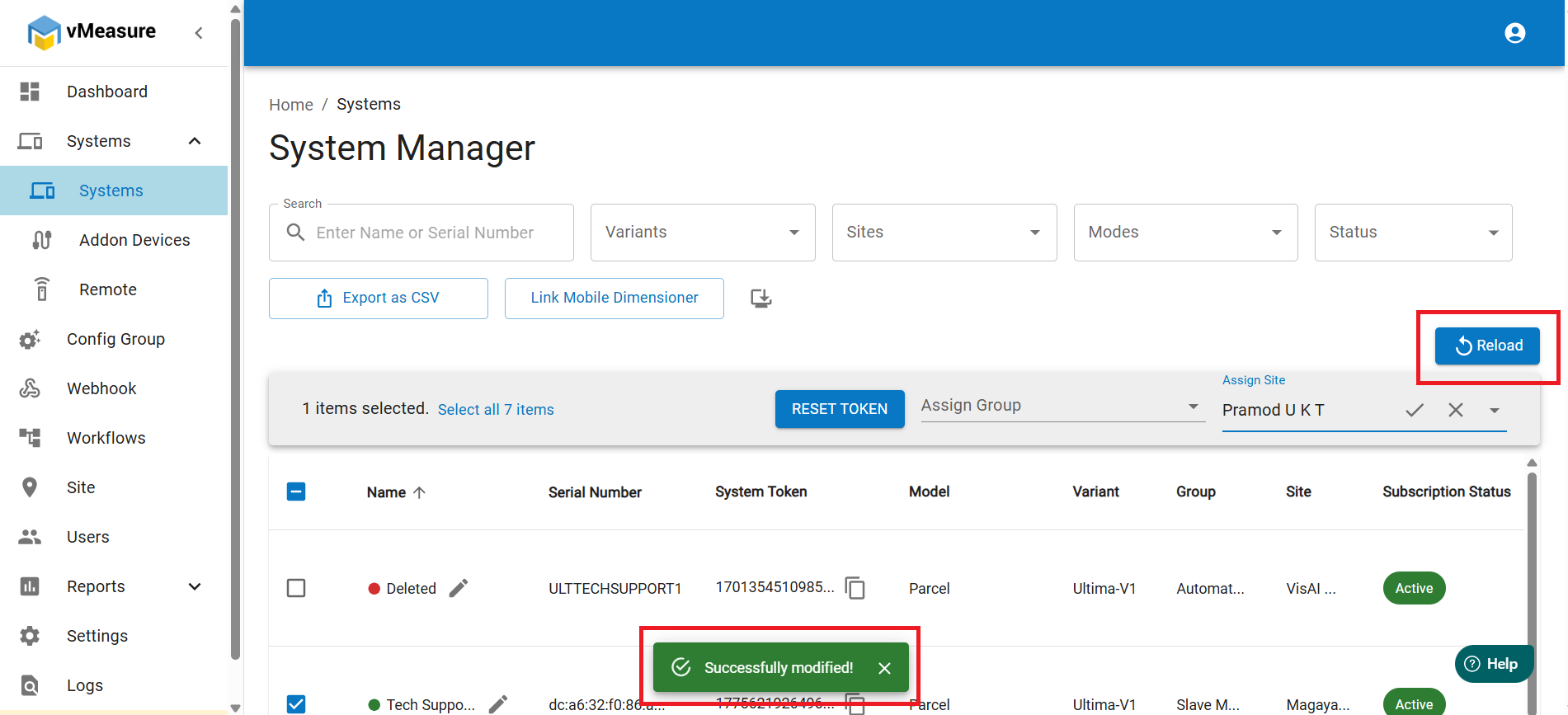
8. But after the success message, you will still see the old site assigned to the site. To reflect the changes, click on the reload button above the site name.
9. After clicking on the reload button, the page will refresh and you will see the new site has been assigned to the system.
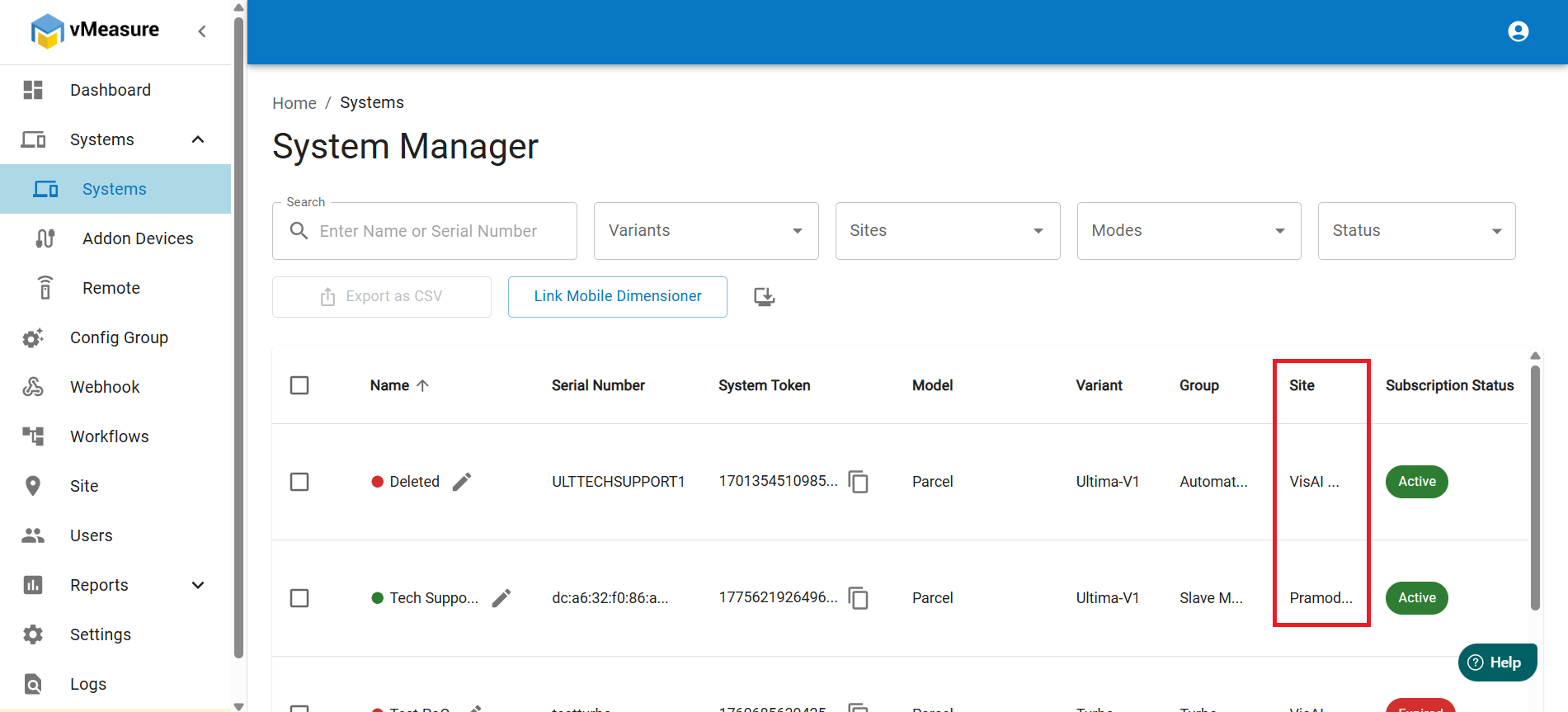
10. Now you have successfully assigned a site to a system.
Was this article helpful?
That’s Great!
Thank you for your feedback
Sorry! We couldn't be helpful
Thank you for your feedback
Feedback sent
We appreciate your effort and will try to fix the article