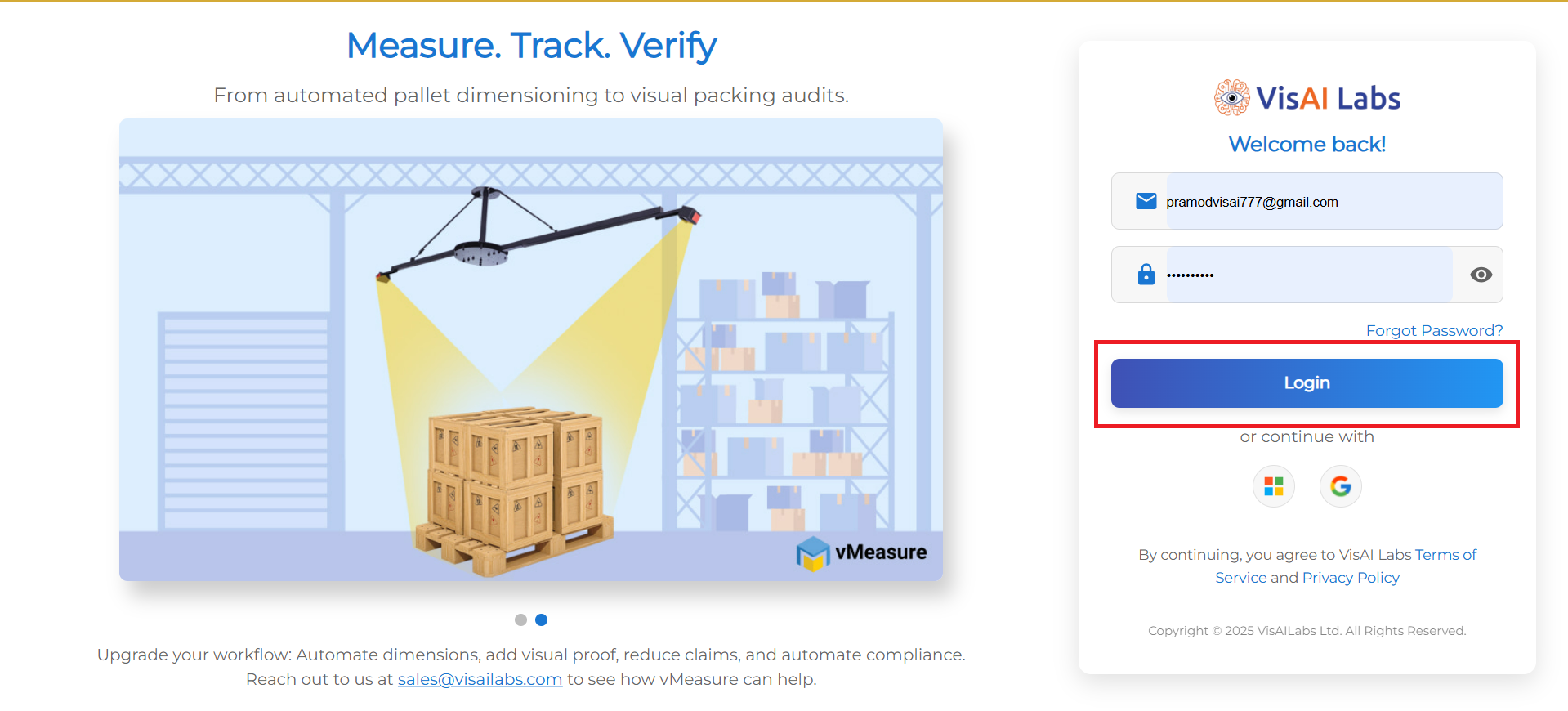
1. Open https://forge.vmeasure.ai/ and login with the mail id and password.
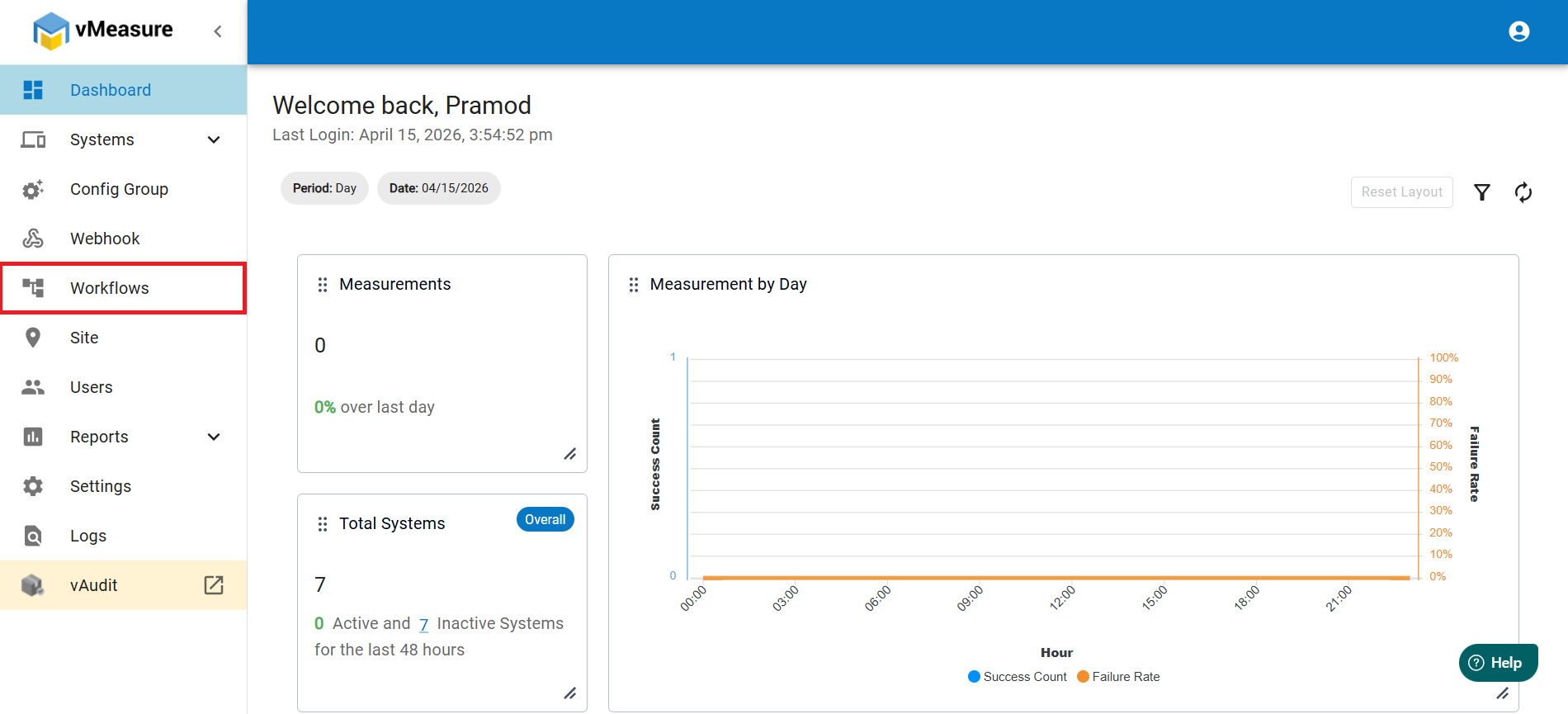
2. In the vMeasure page, on the left pane, navigate to Workflows.
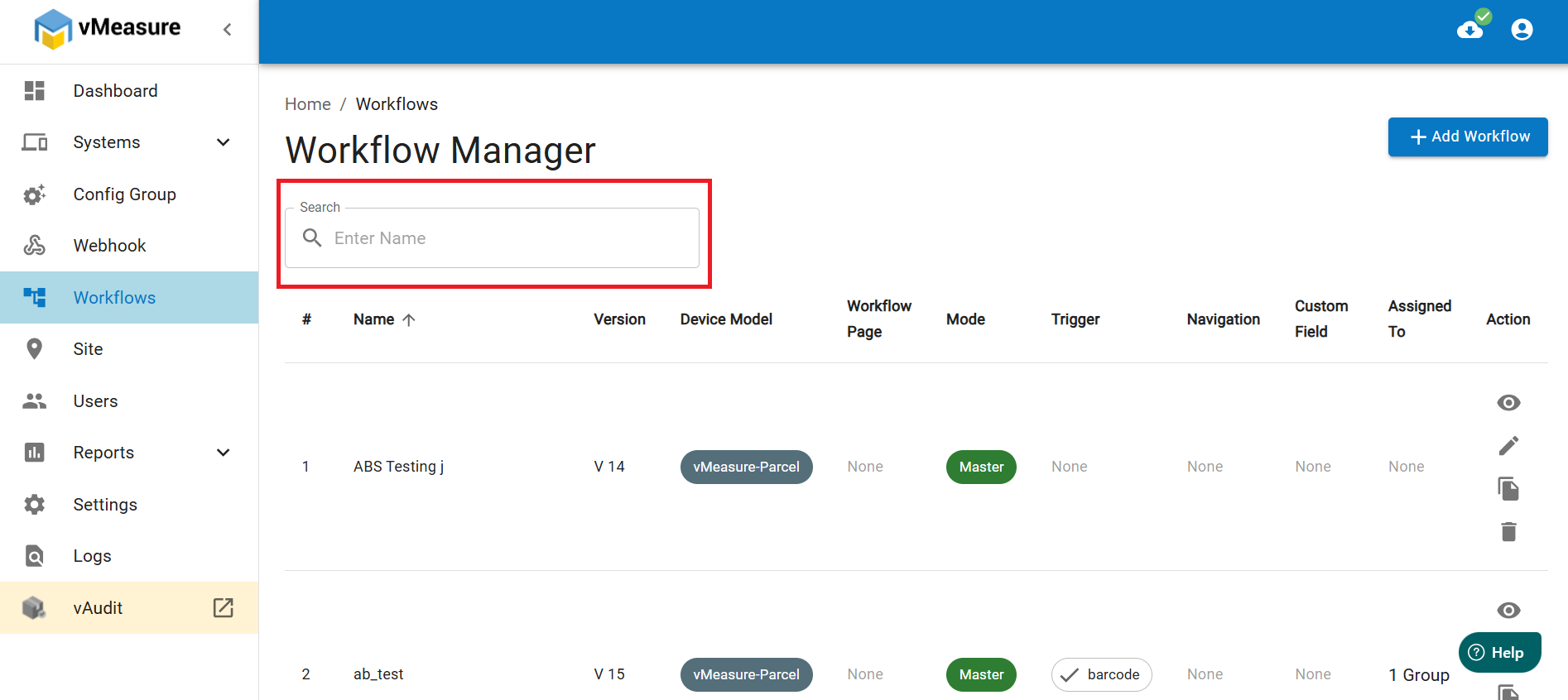
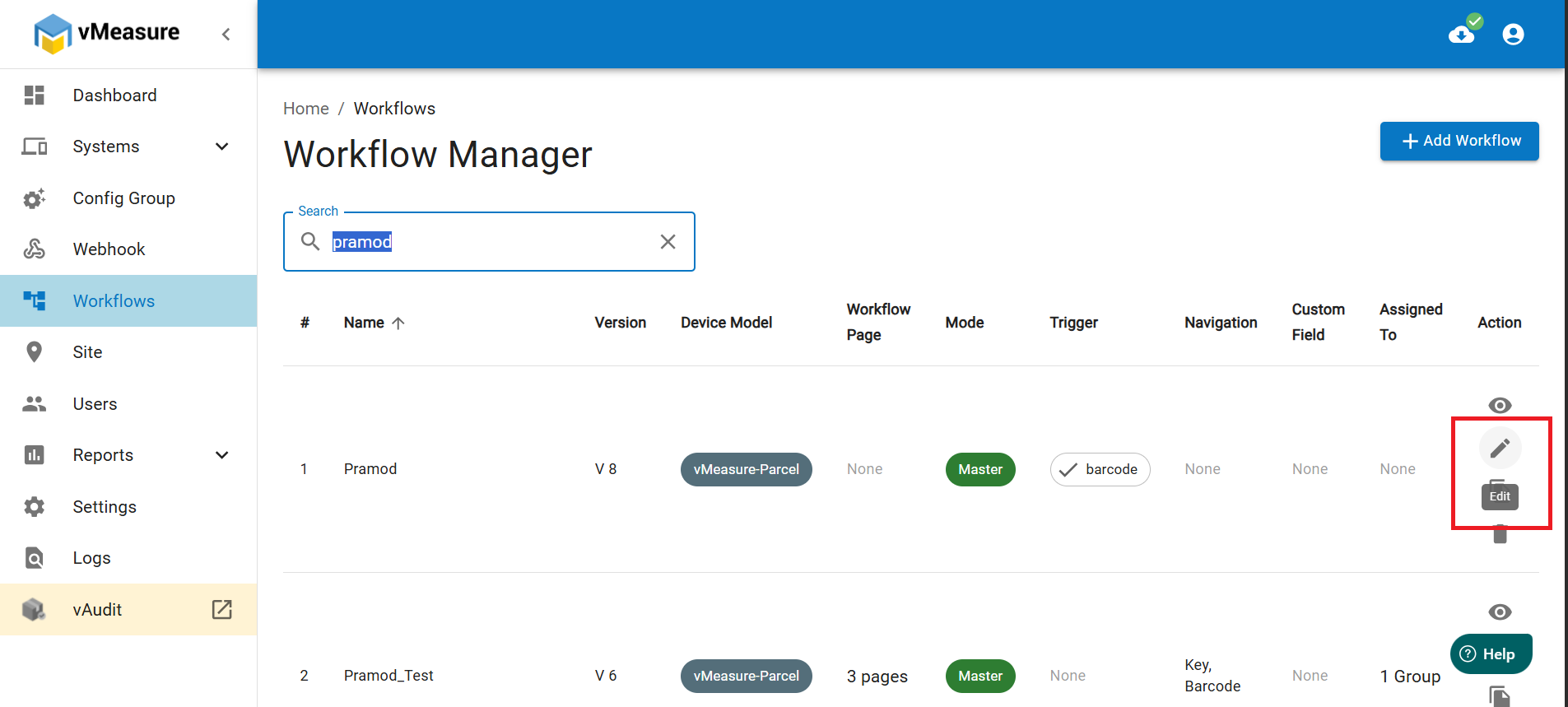
3. In the Workflow page, click on the search box to search for your workflow.
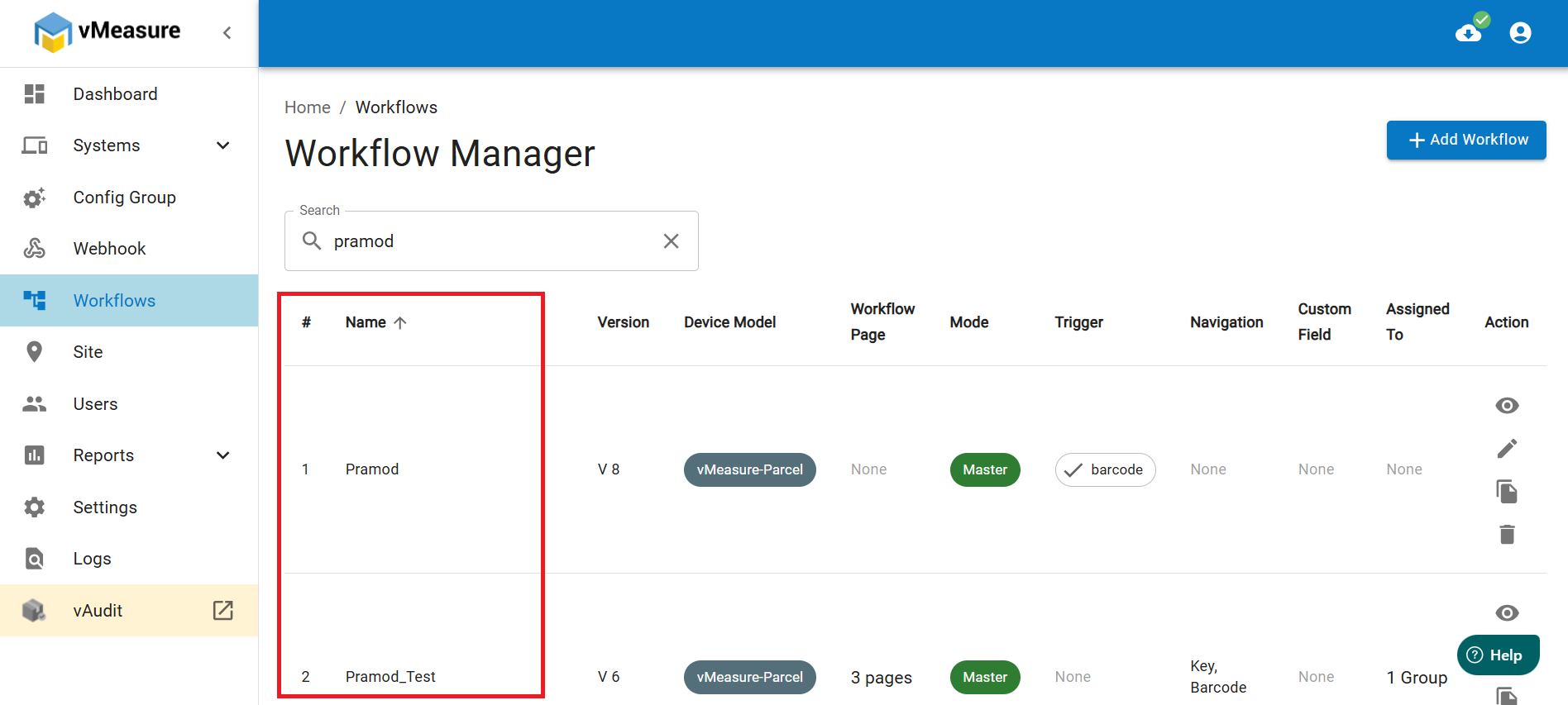
4. Enter a few character of your workflow name and it will display the list of workflows based on the keywords you typed.
5. Click on the pencil icon of the desired workflow you want to edit.
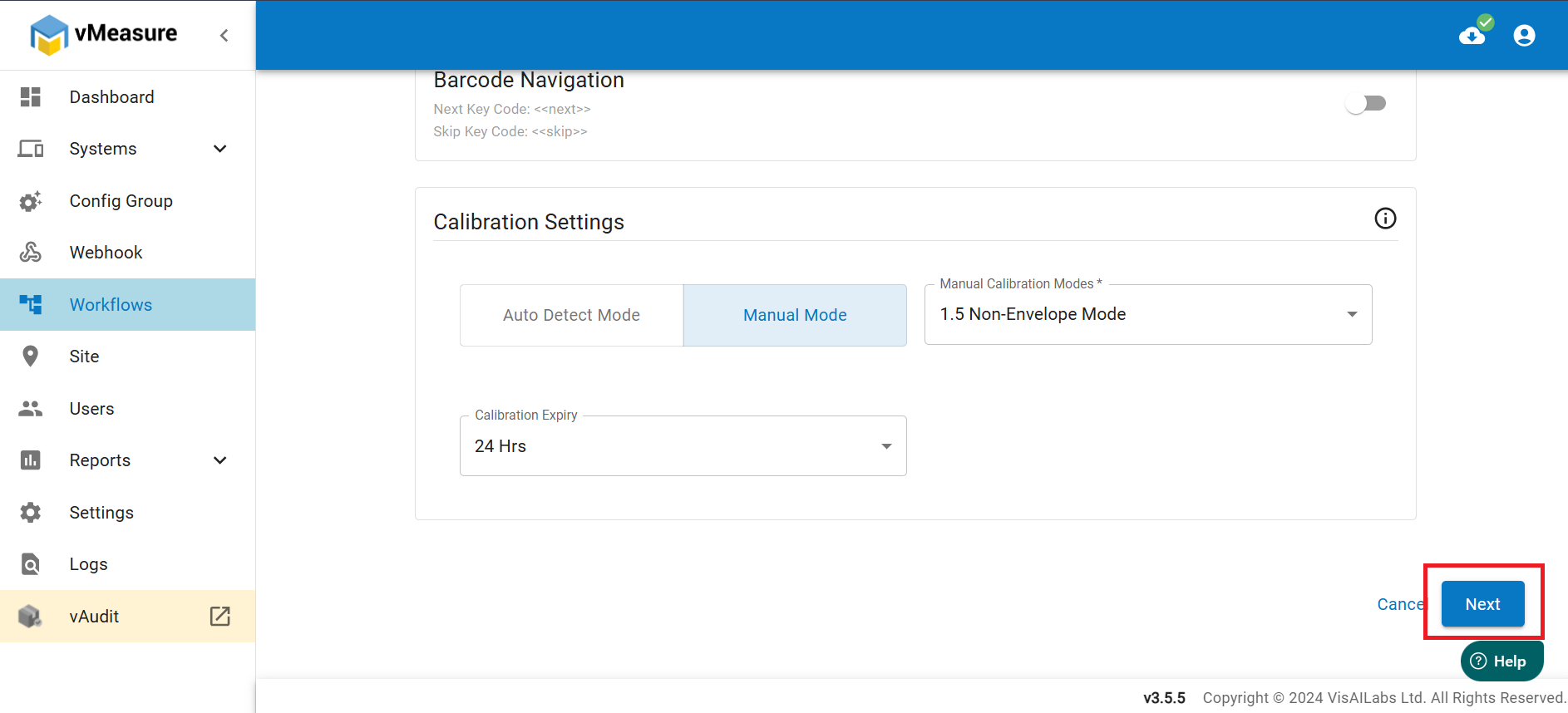
6. Scroll Down and click on Next.
7. In the next page, look for Smart Measurement and turn on the toggle.
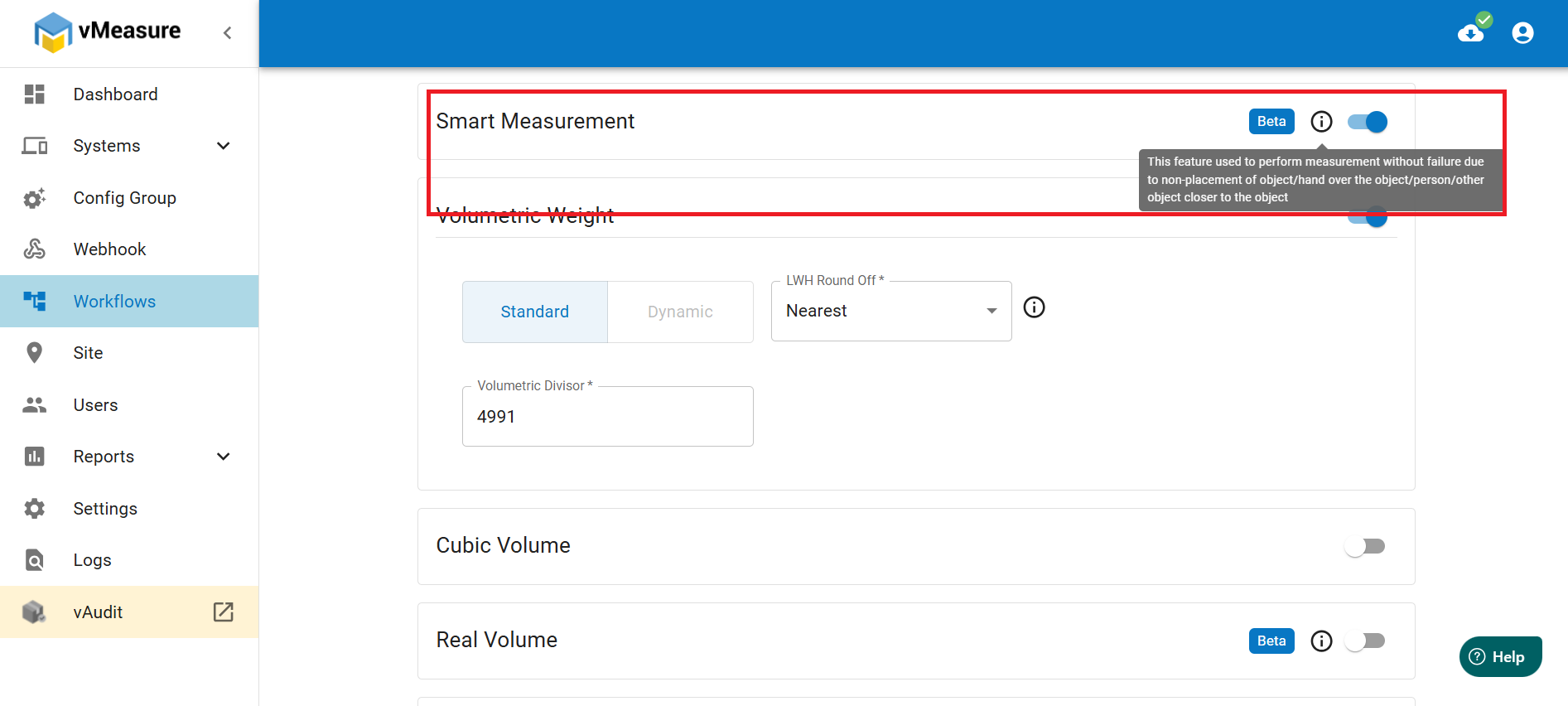
8. Smart Measurement allows you to perform measurement without failure due to any kind of intervention either by any object or anything else.
9. Scroll Down and click on Next.
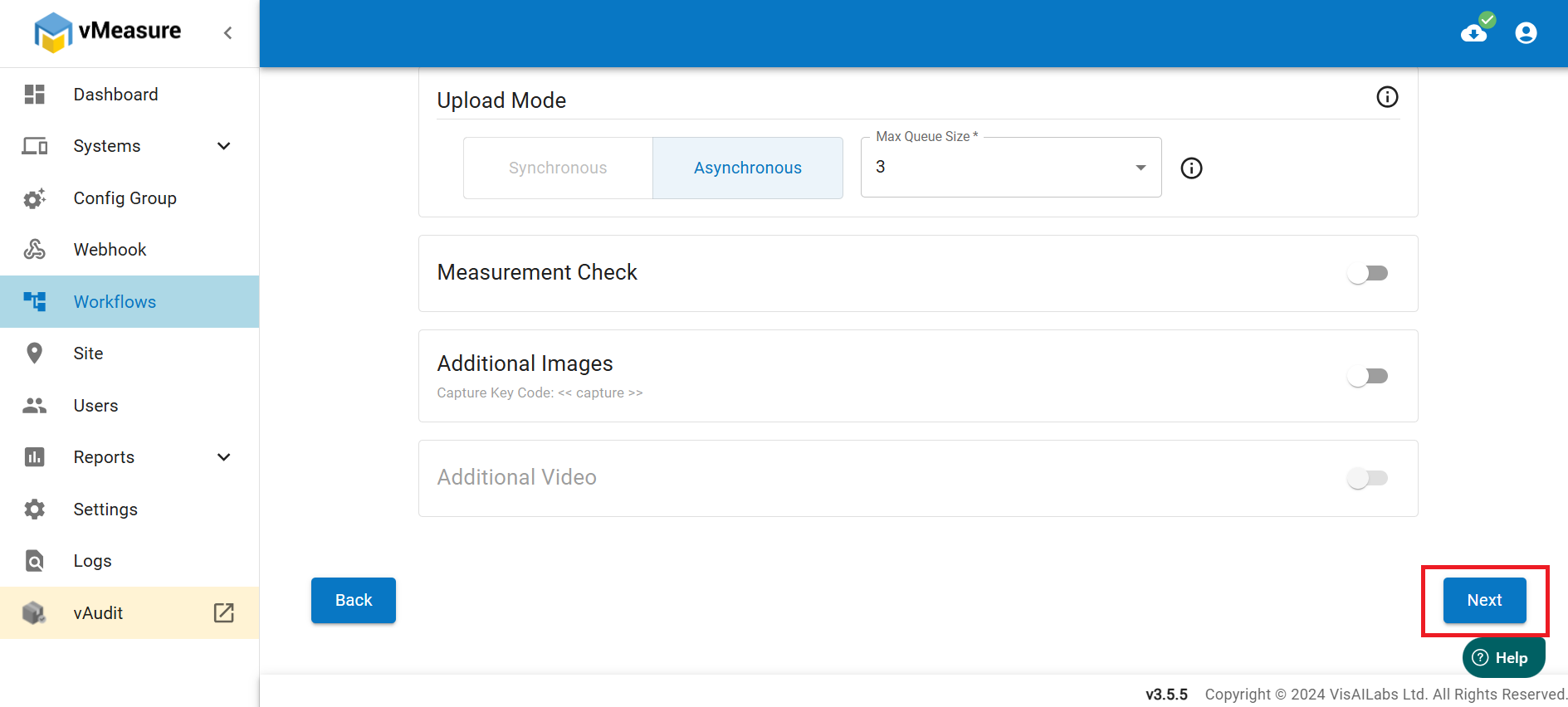
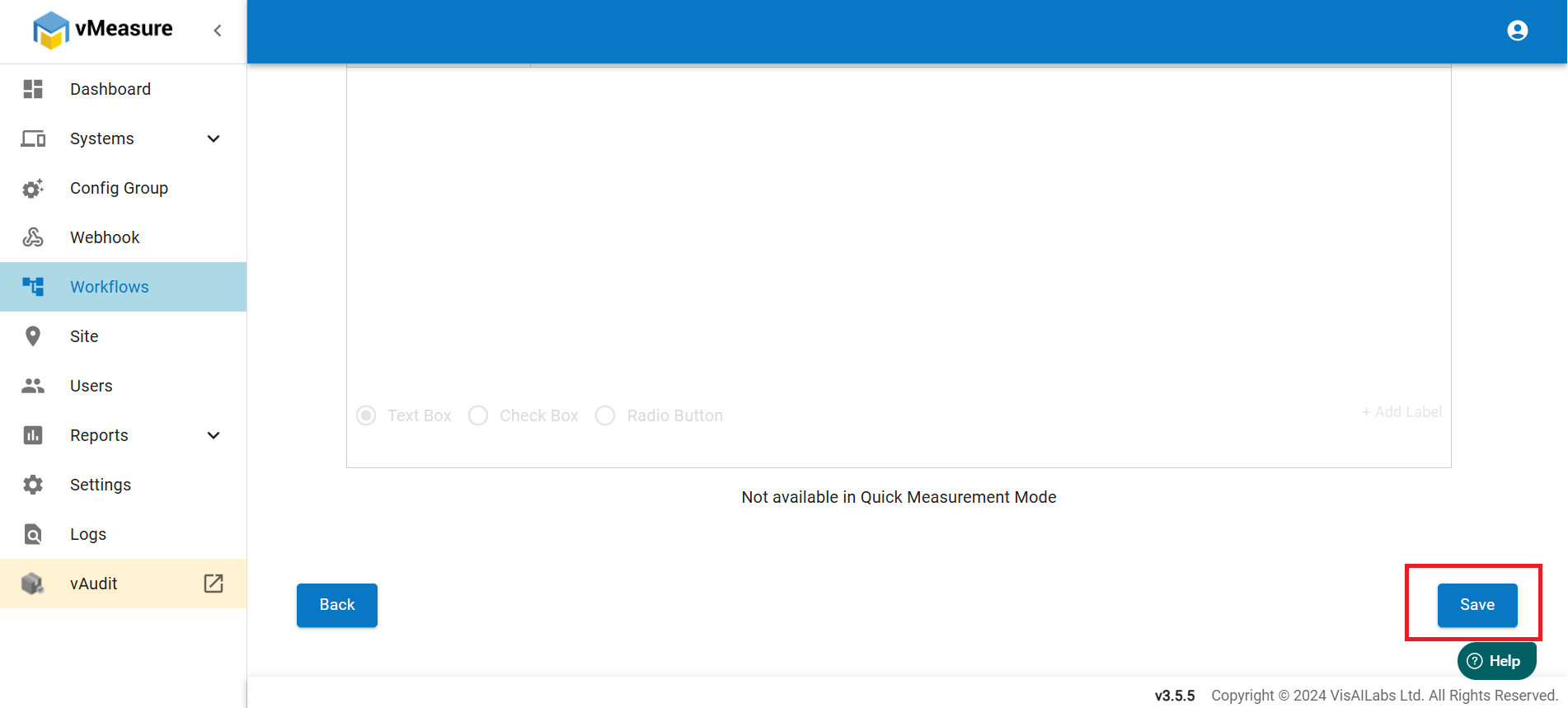
10. In the next page, you will see Additional Pages, skip that and scroll down and click on Save.
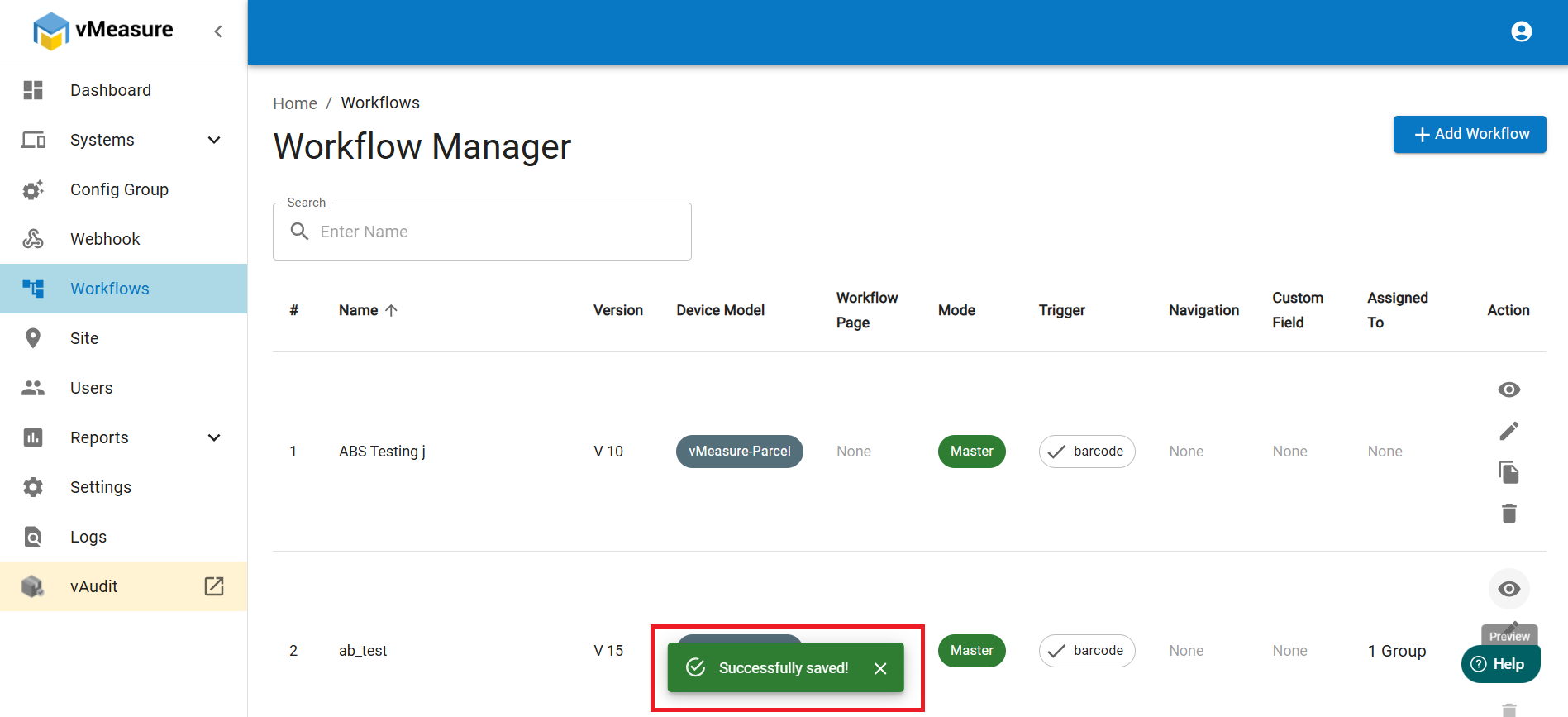
11. After saving the changes, you will see a message as Successfully Saved.
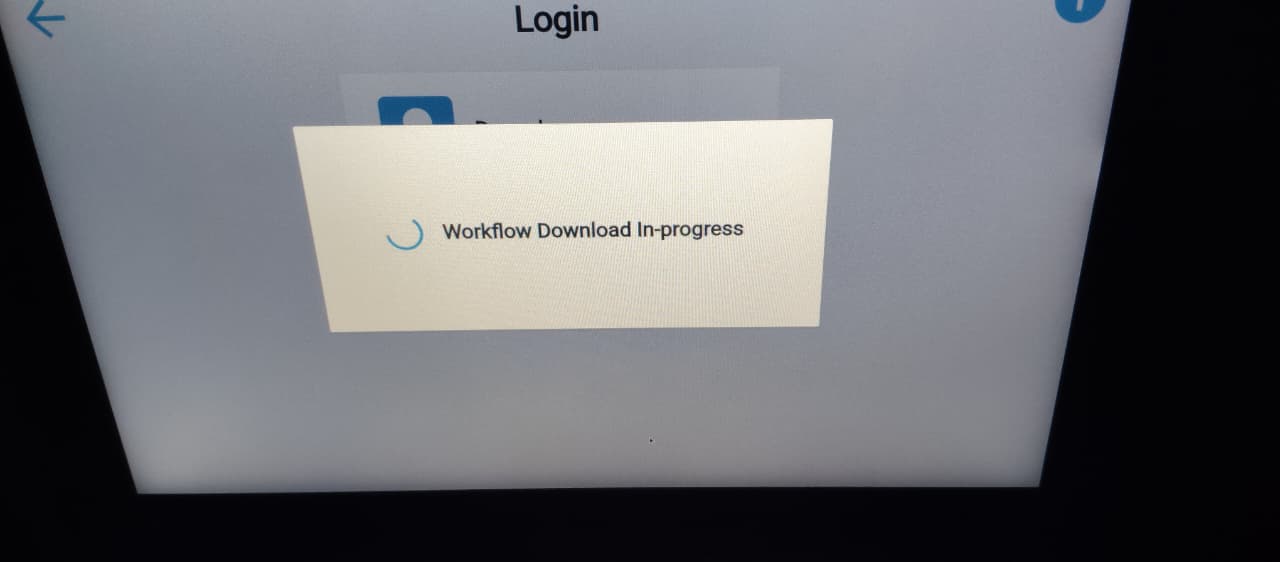
12. Now you have enabled Smart Measurement on your workflow. In the device, you will see a pop-up for updating the workflow, click on Yes and the workflow download will start and completed within few minutes.
Was this article helpful?
That’s Great!
Thank you for your feedback
Sorry! We couldn't be helpful
Thank you for your feedback
Feedback sent
We appreciate your effort and will try to fix the article