Before enabling the measurement check feature, it is essential to add the reference box in Forge. The reference box is used to validate the accuracy and functionality of the vMeasure device during triggered measurement checks after failures.
How to add reference box in Forge : How to add reference box.
How to enable Measurement Check in Forge.
Step 1: Login to https://forge.vmeasure.ai/login
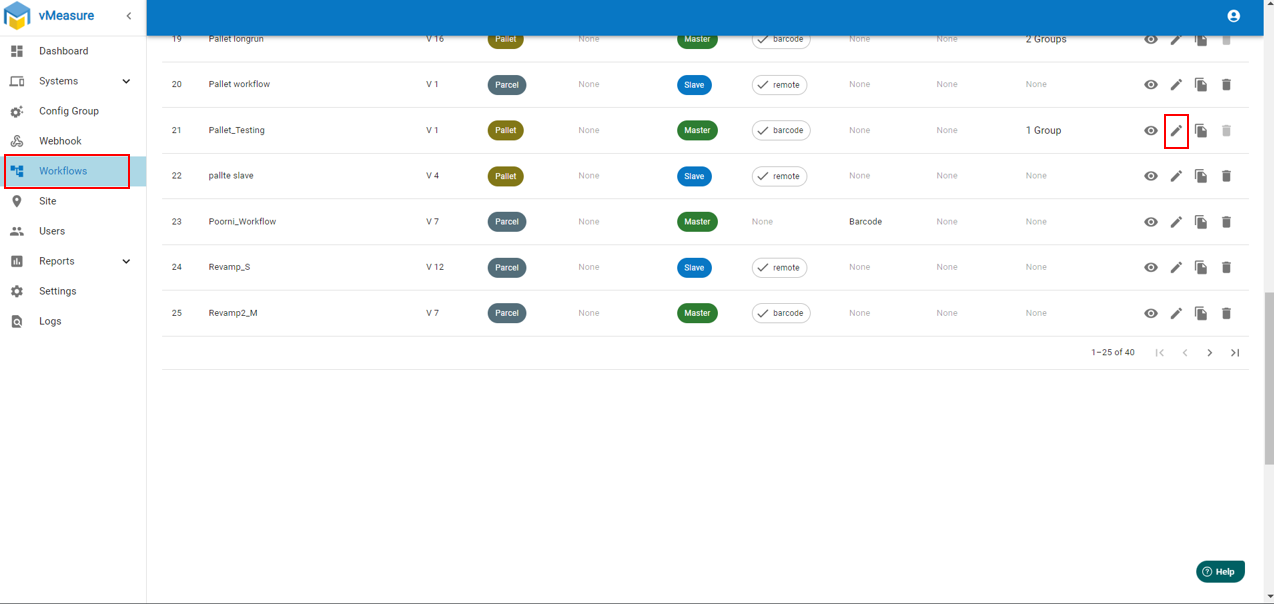
Step 2: Navigate to desired "Workflow" and click on "Edit"
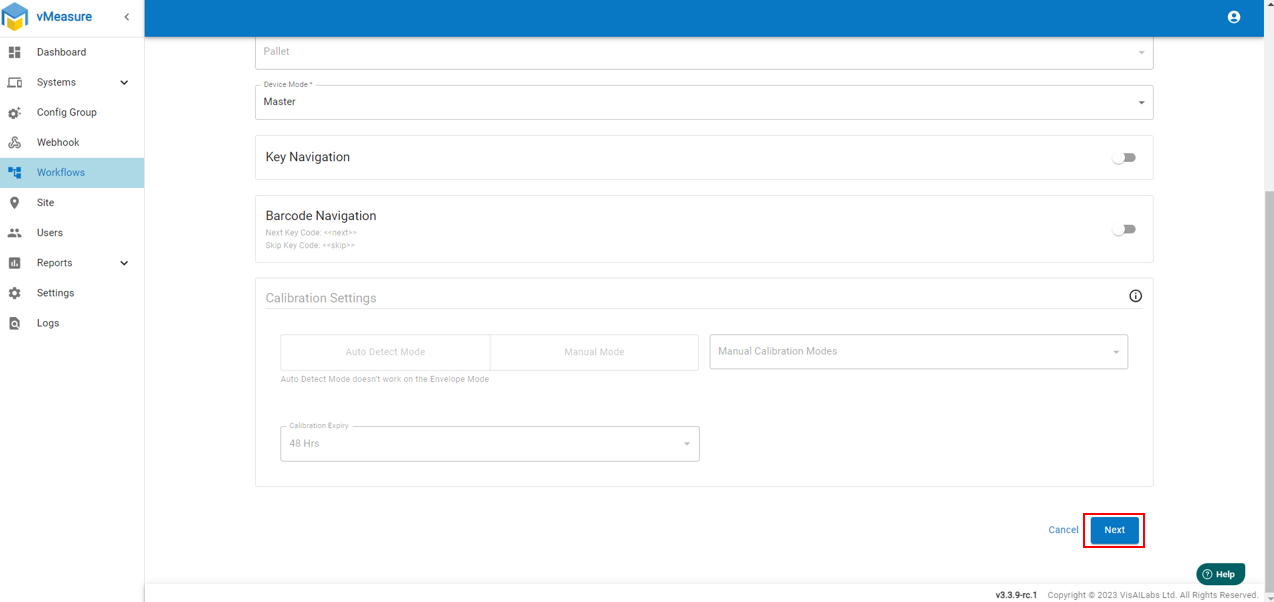
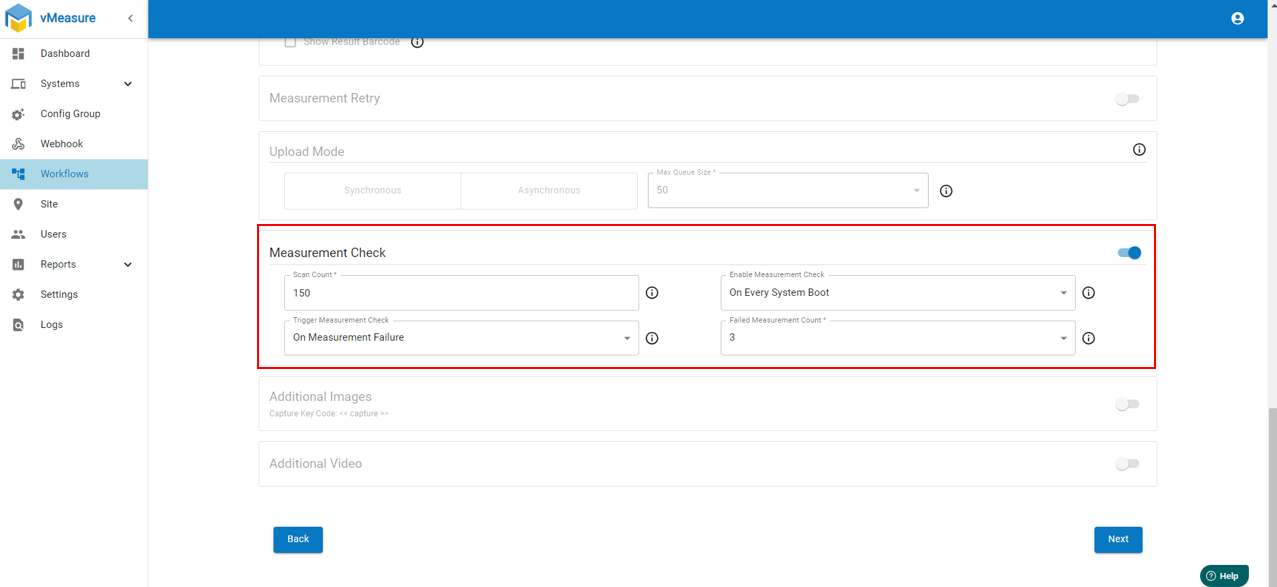
Step 3: Click on "Next" and go to "Measurement Check" and enable.
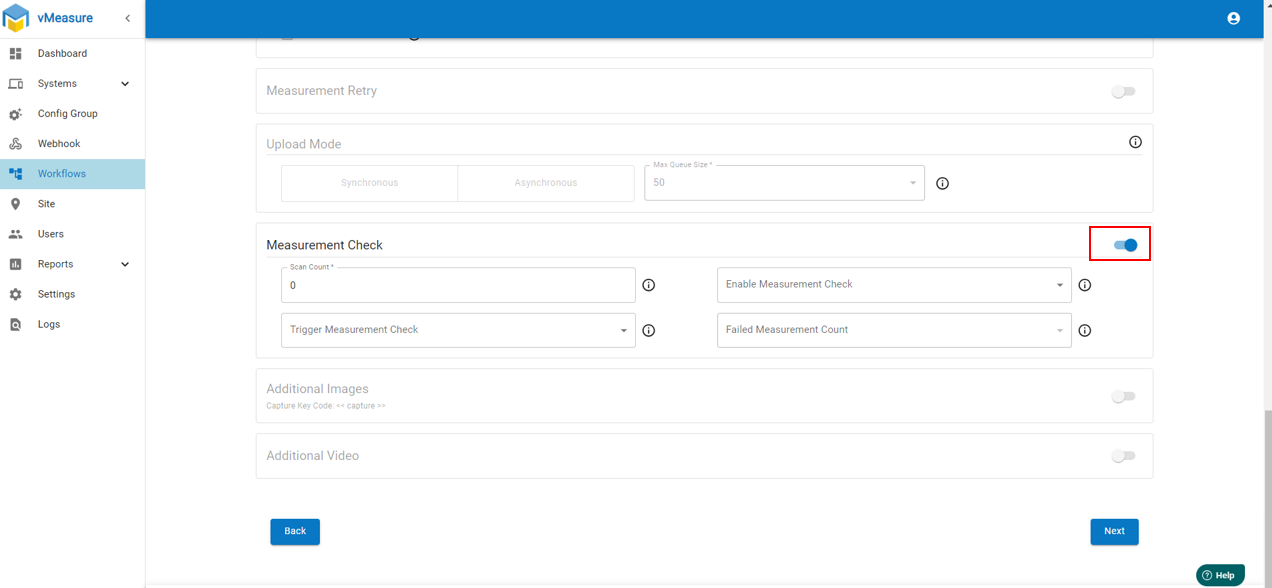
Note : Need to fill required details such as Scan Count, Trigger Measurement Check, Enable Measurement Check, Failed Measurement Count.
Scan Count :
After shipment, perform a series of scans to test device functionality. You may want to set a target Scan Count (e.g., 50-100 scans) to verify that the device can perform consistently.
Ensure the device produces accurate and consistent readings by comparing the data output with known standards or reference measurements.
Enable Measurement Check :
To ensure that the vMeasure device is functioning properly, performing a measurement check on every reboot or login.
This check ensures that the device is properly calibrated and that the sensors and software are working as expected, minimizing any data inaccuracies right from the start.
Trigger Measurement Check: (On Measurement Failure)
Enabling a triggered measurement check that prompts the user to scan a reference box when a failure is detected in the vMeasure device is an excellent approach to ensure both the device's accuracy and functionality. The reference box serves as a known standard, and scanning it can help verify whether the device is operating correctly.
Failed Measurement Count:
After 3 consecutive failures the device will ask for to scan reference box.
Below attached image for you reference.
Step 4: Click on "Next" and "Save" the workflow.
Note: After saving the workflow changes in Forge, device fetches and synchronizes the latest configuration updates made in Forge.
If you need any support , please drop a mail to vmeasure@visailabs.com or Click here to Submit a Ticket.
Was this article helpful?
That’s Great!
Thank you for your feedback
Sorry! We couldn't be helpful
Thank you for your feedback
Feedback sent
We appreciate your effort and will try to fix the article