Follow the steps below to enable the manual barcode scanner
Step -1: Navigate to Barcode option.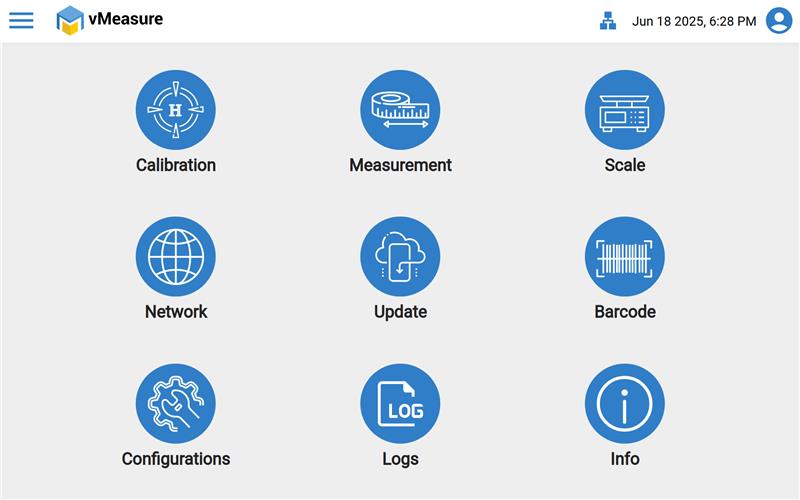
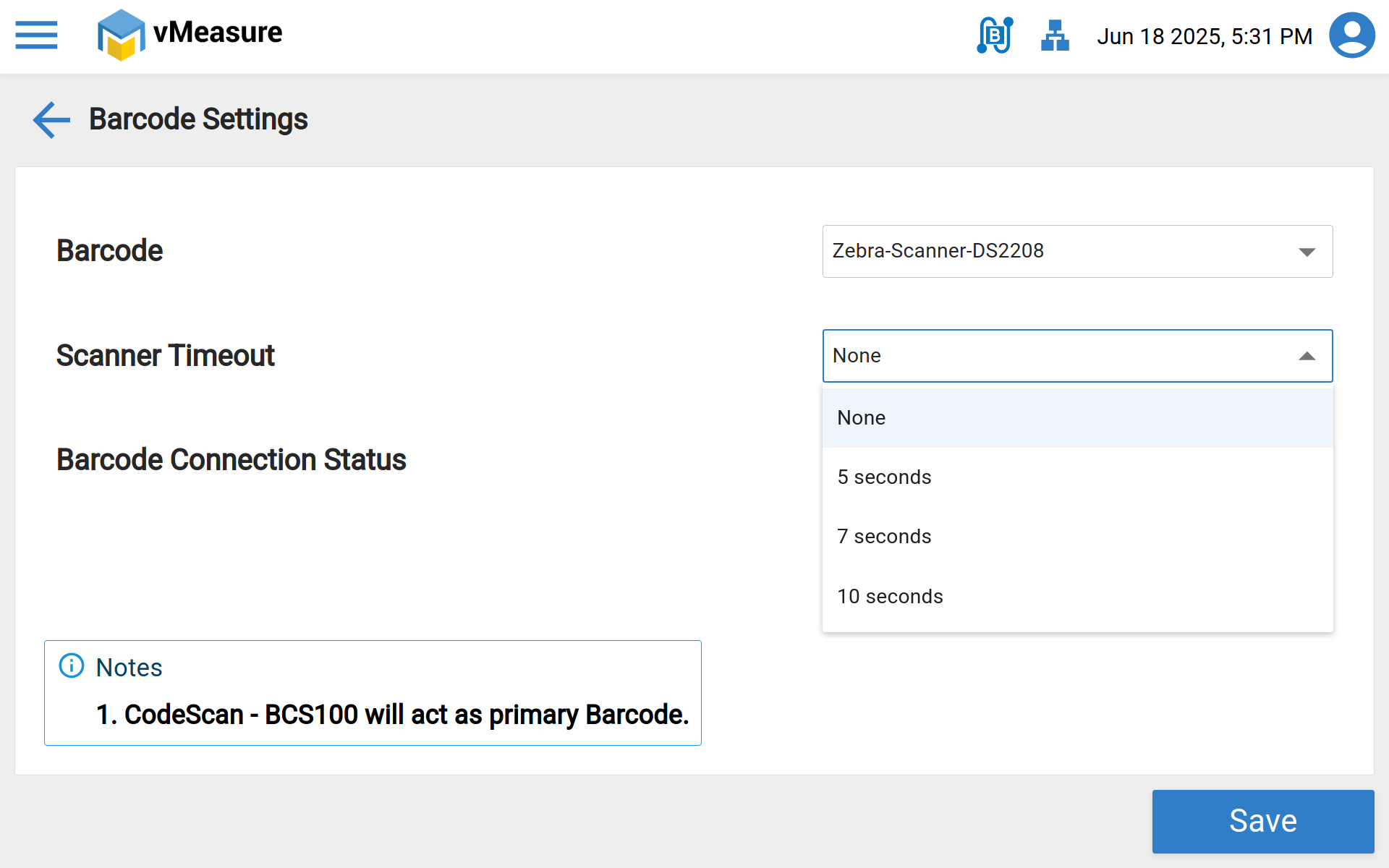
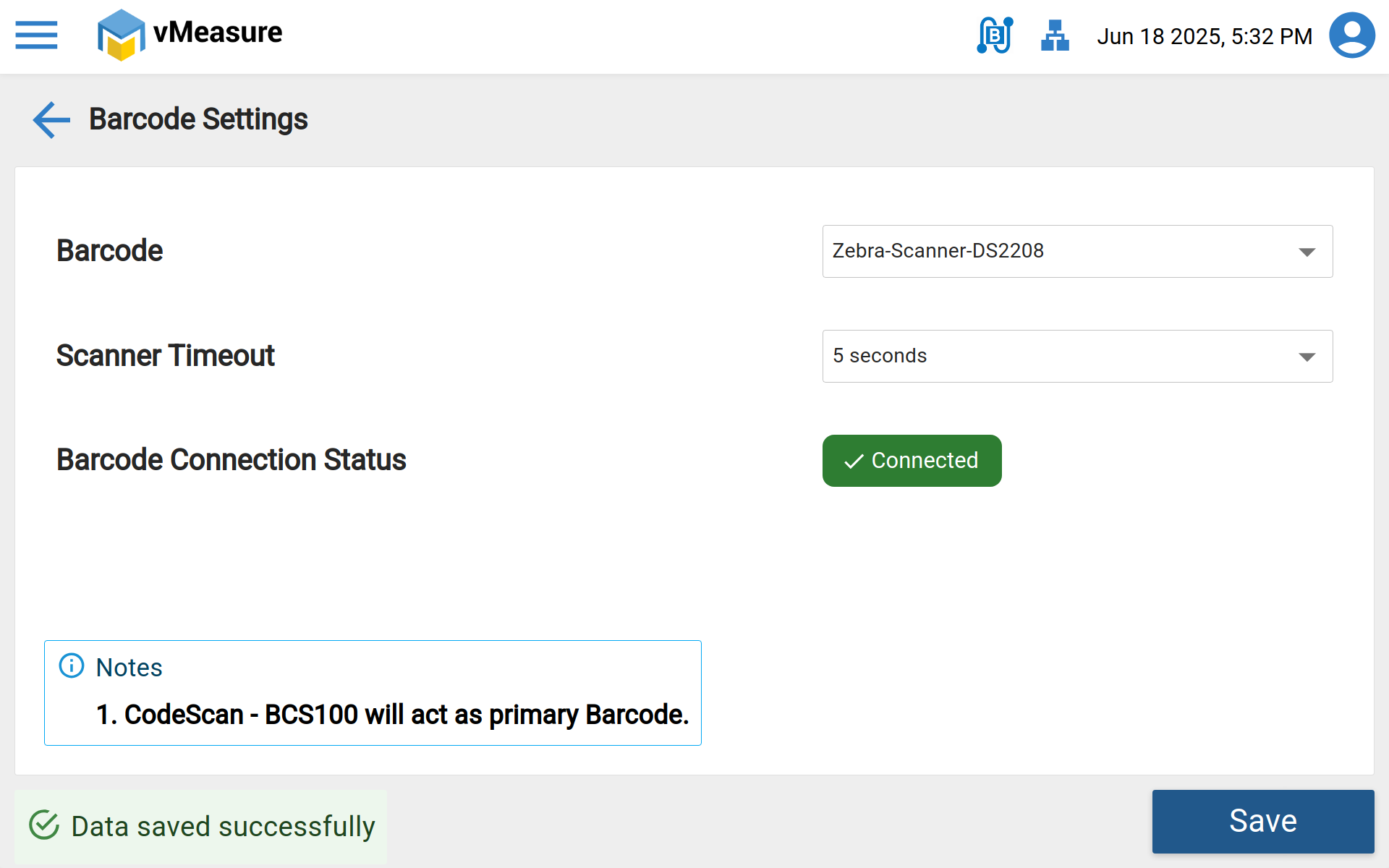
Step -2: Select the appropriate barcode scanner from the list and select the "Scanner Timeout" & save the settings.
Scanner Timeout Description:
This setting allows the manual barcode scanner to operate alongside the automated scanner after a specified delay. The timeout countdown begins when the measurement page is active and the previous measurement has been cleared.
None – The manual barcode scanner works simultaneously with the automated scanner without any delay.
5, 7, 10 Seconds – The manual barcode scanner becomes active after the selected timeout duration has elapsed.
Note: Below screenshot refers the measurement screen post 5 seconds delay.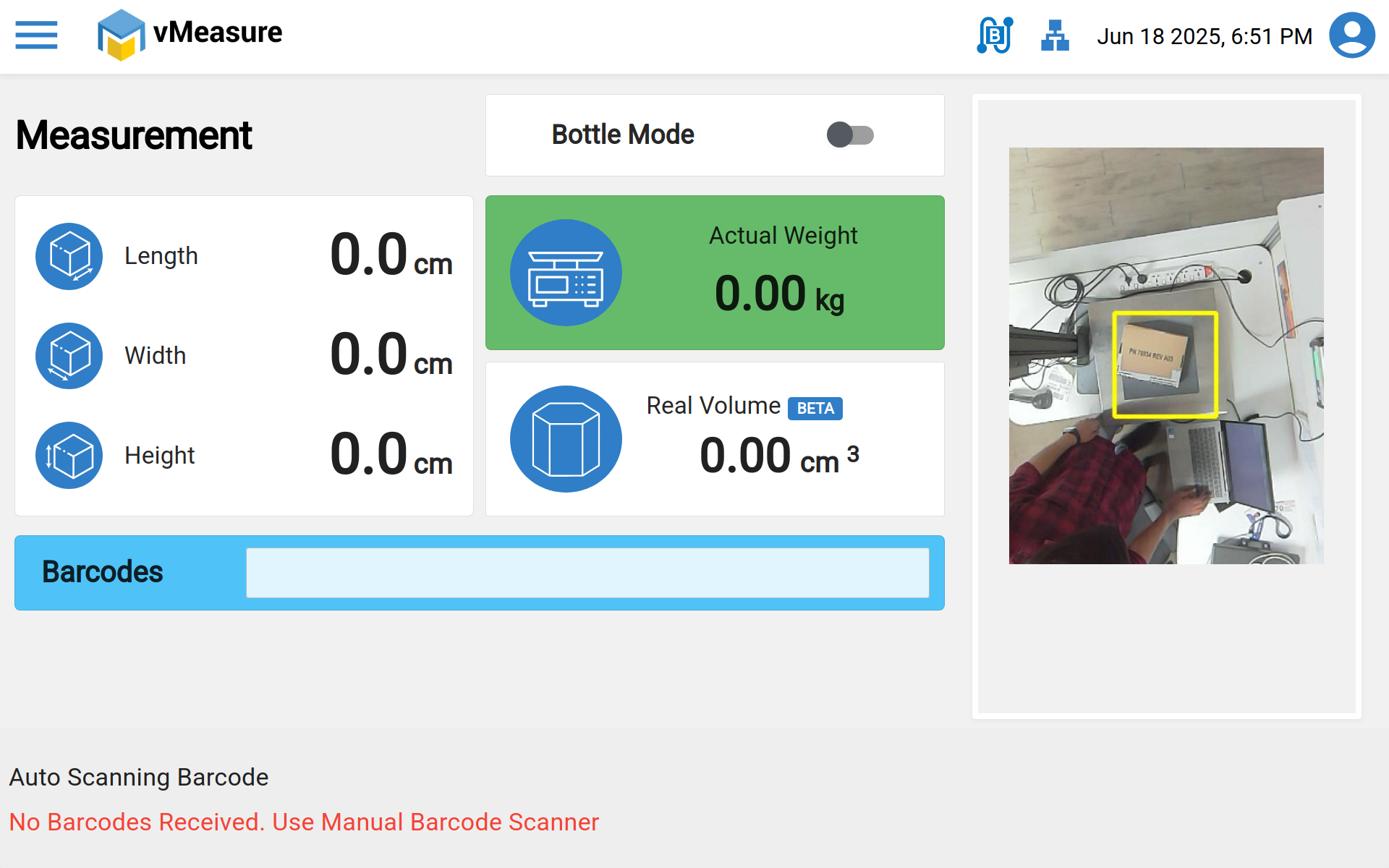
If you need any support , please drop a mail to vmeasure@visailabs.com or Click here to Submit a Ticket.
Was this article helpful?
That’s Great!
Thank you for your feedback
Sorry! We couldn't be helpful
Thank you for your feedback
Feedback sent
We appreciate your effort and will try to fix the article