Note: These steps are only applicable for Custom-Build Applications
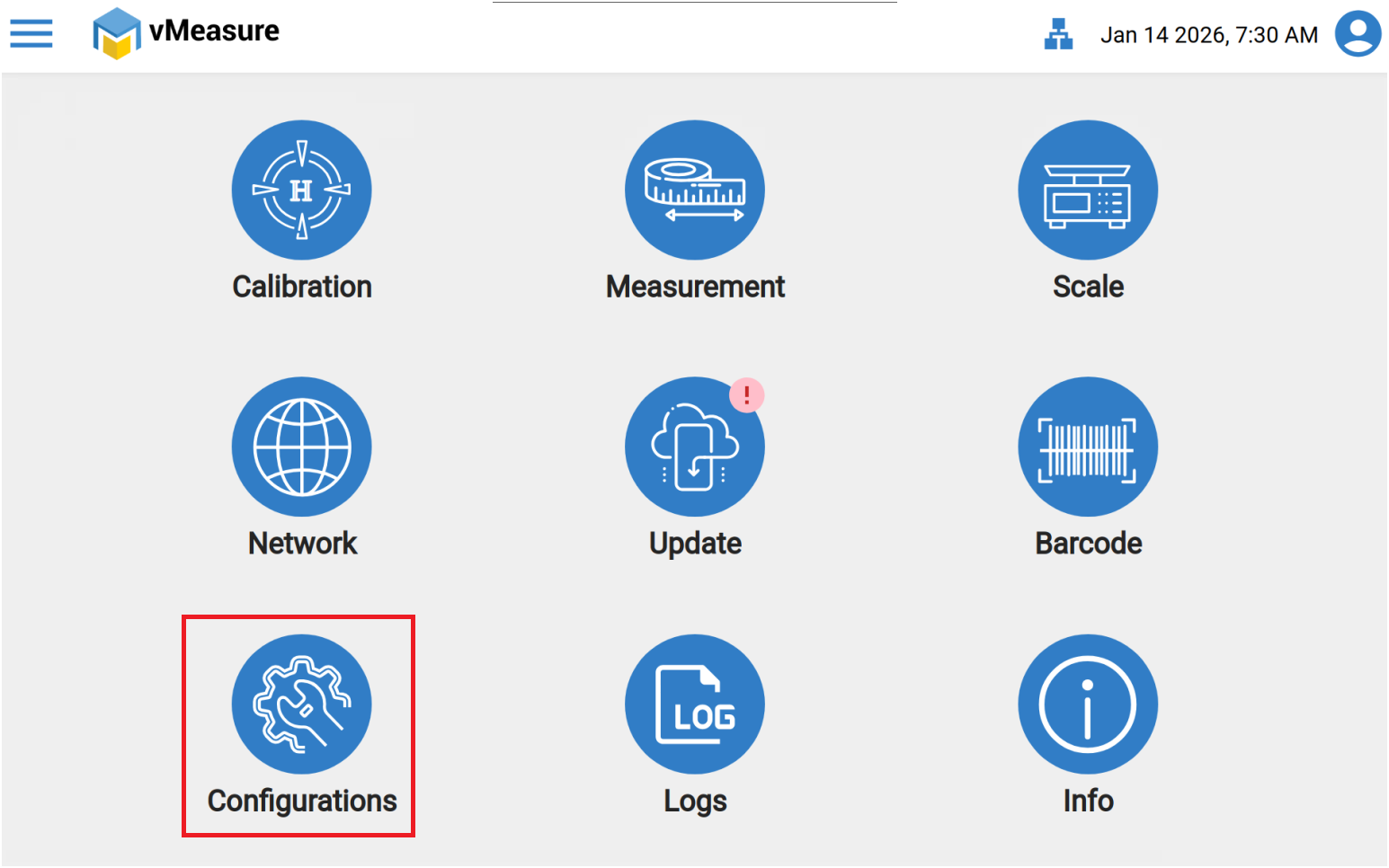
Step - 1: Navigate to "Configurations" option in the vMeasure device.
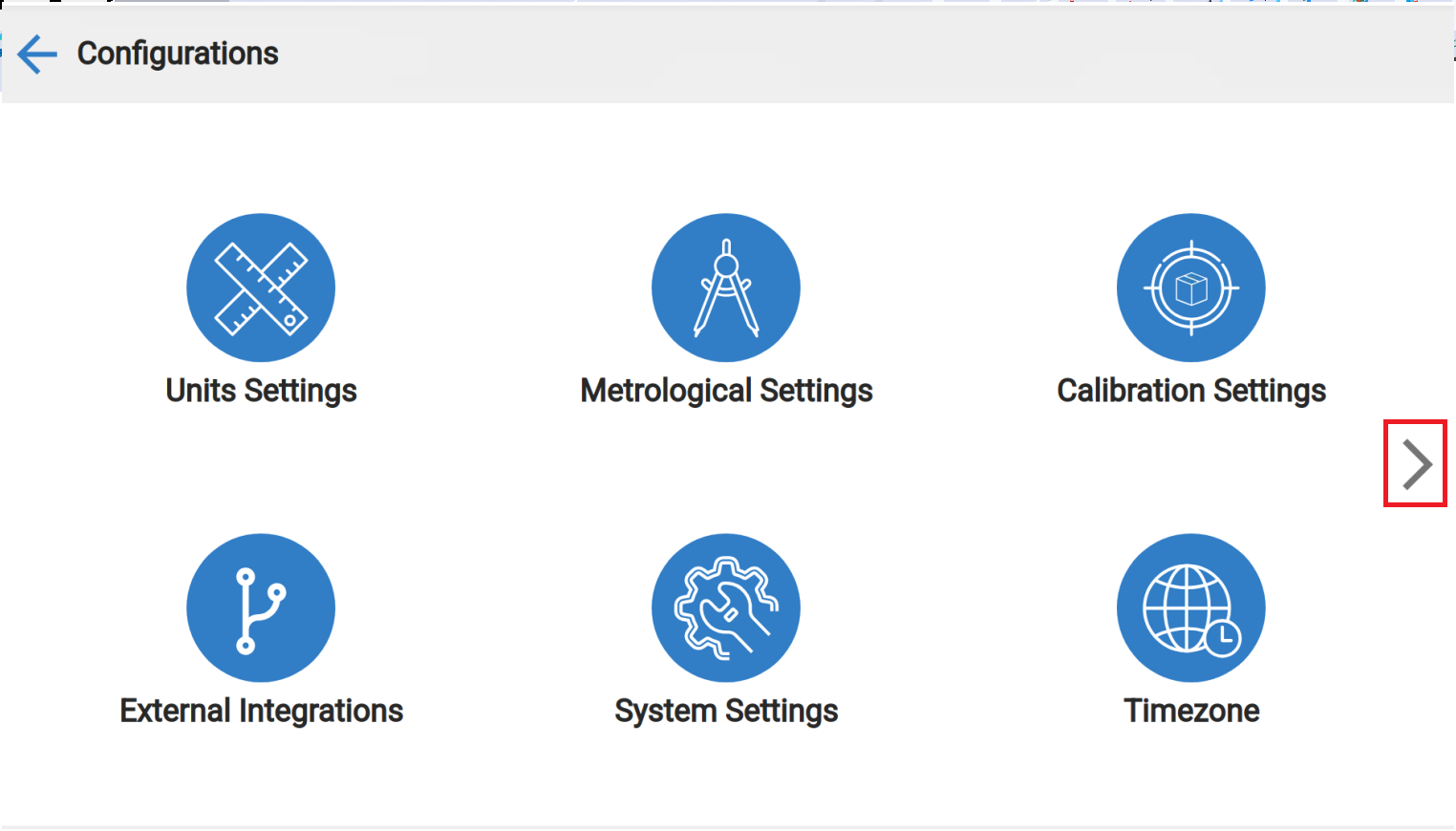
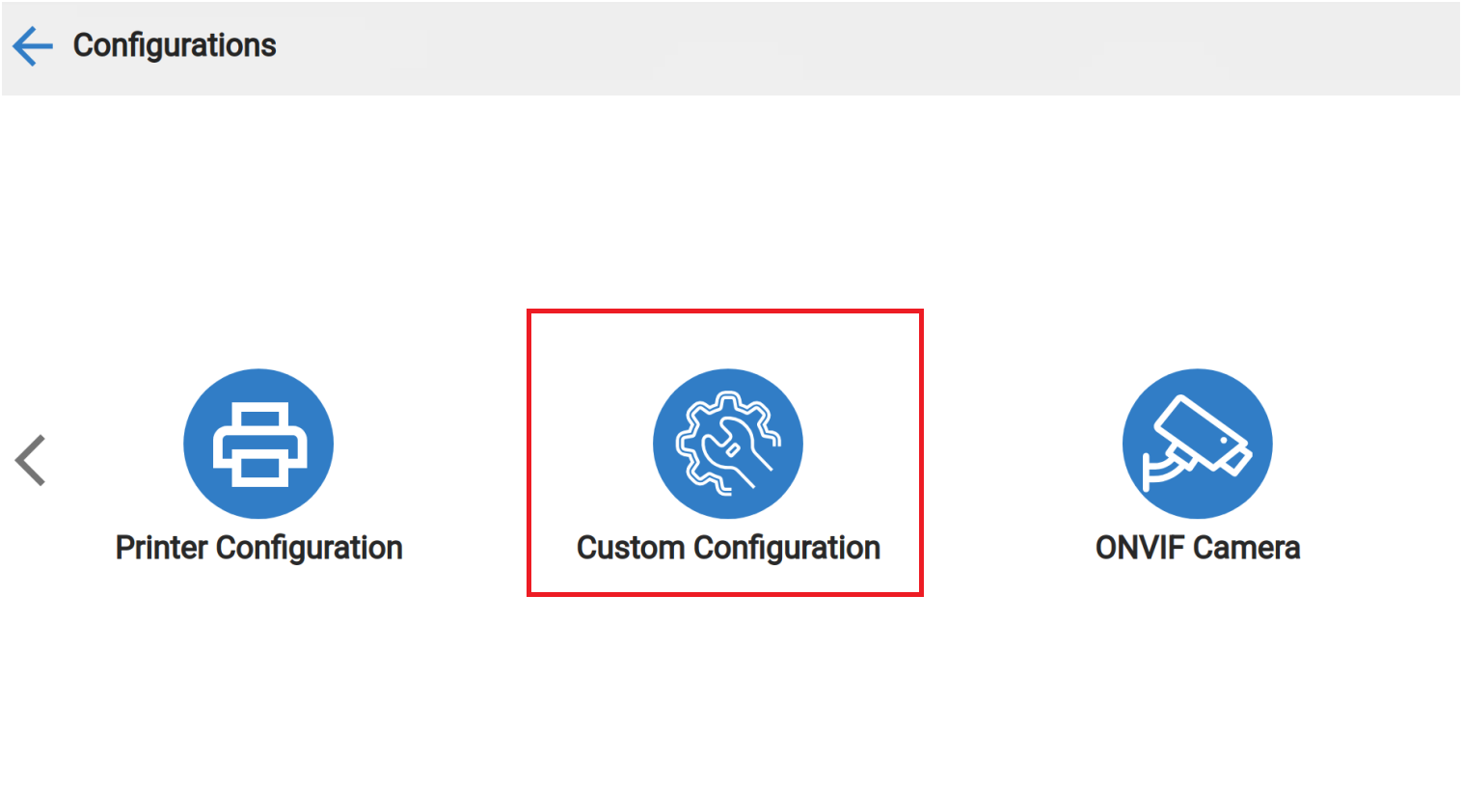
Step - 2: Navigate to next page ">", click on "Custom Configuration" then "Measurement settings".
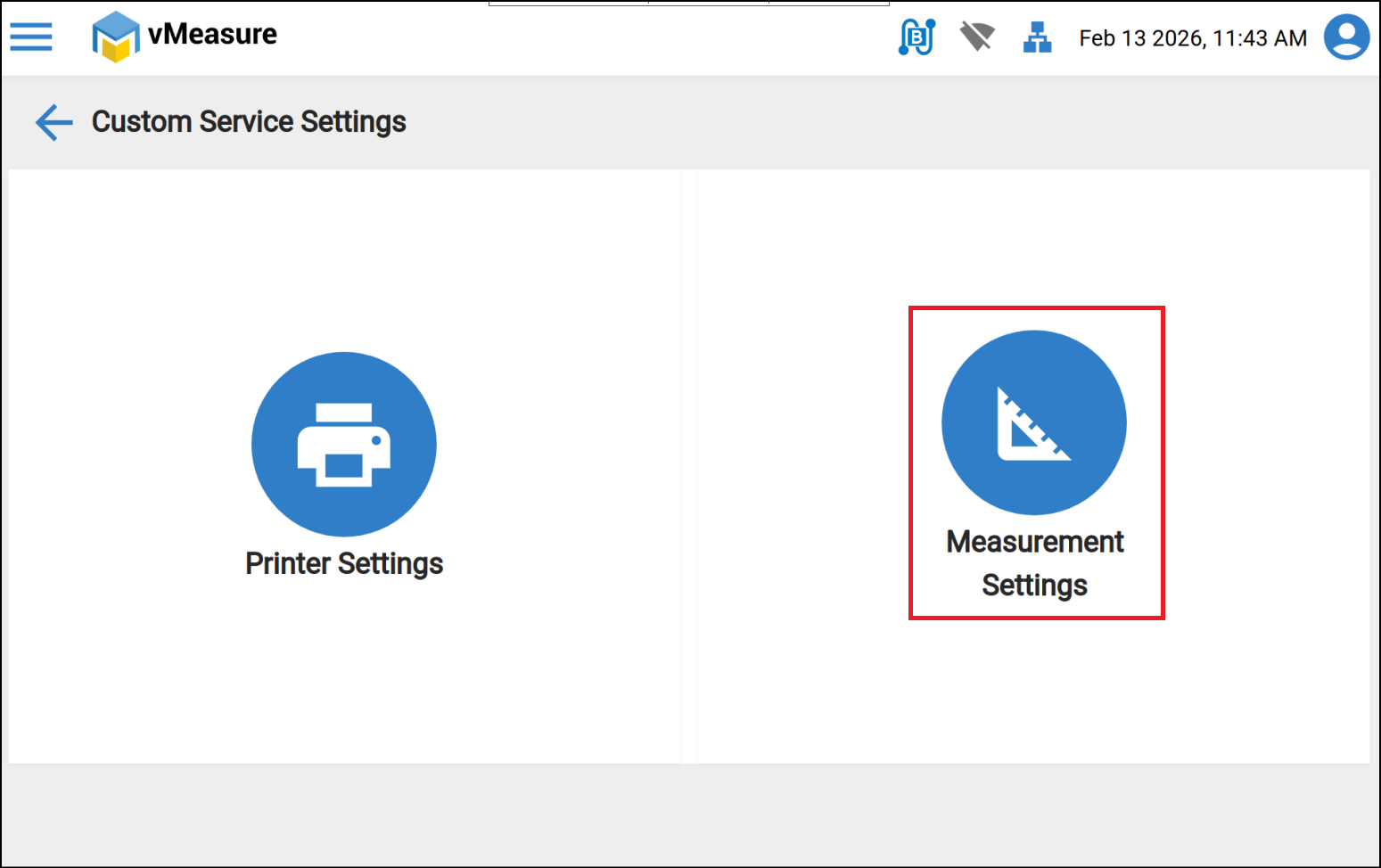
Step - 3: Enable the "Enable Timeout" toggle button & set the "Timer" & "Save" the configuration.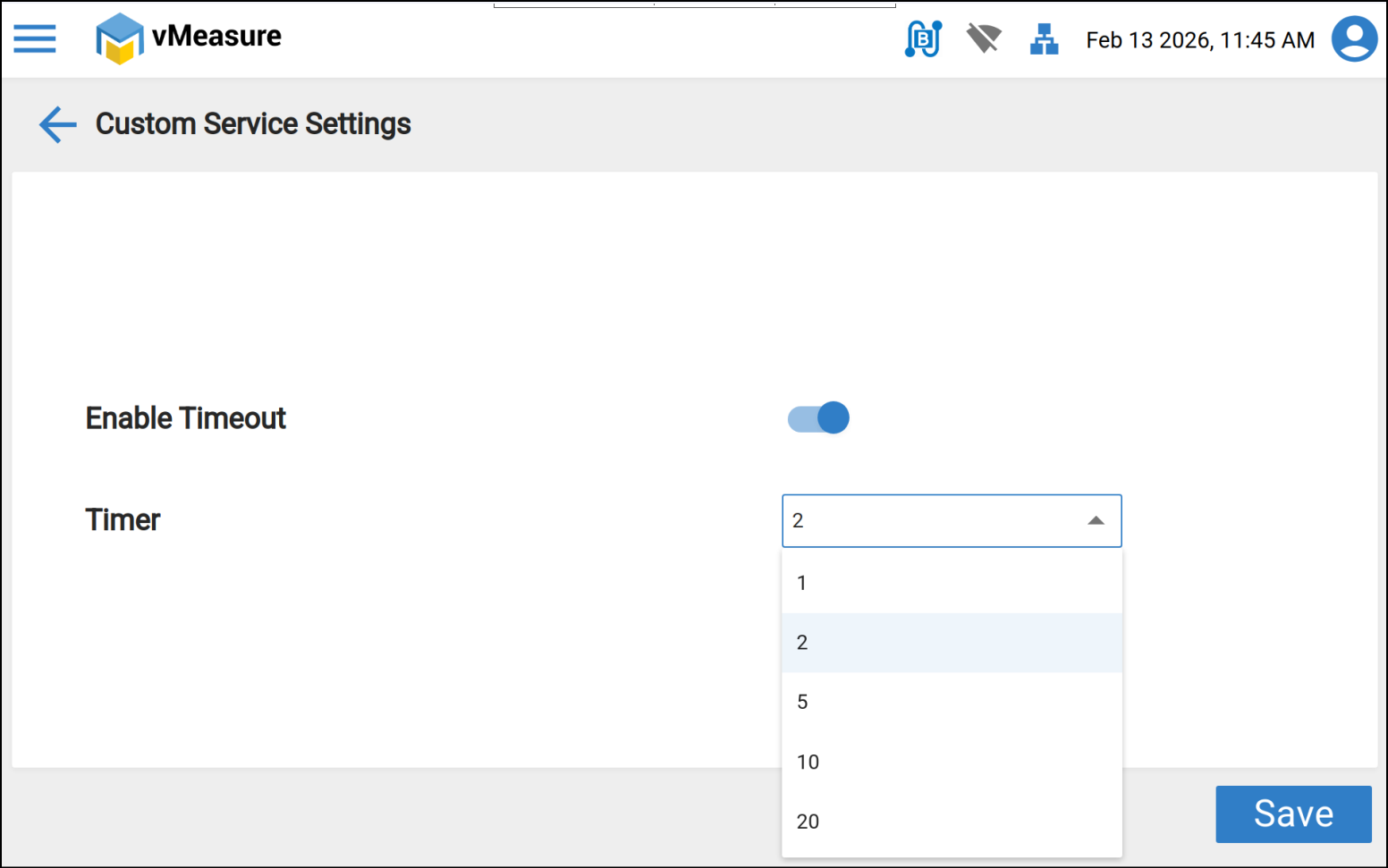
Measurement result timeout feature is successfully enabled.
If you need any support , please drop a mail to vmeasure@visailabs.com
Was this article helpful?
That’s Great!
Thank you for your feedback
Sorry! We couldn't be helpful
Thank you for your feedback
Feedback sent
We appreciate your effort and will try to fix the article