Step 1: Log in to the vMeasure device.
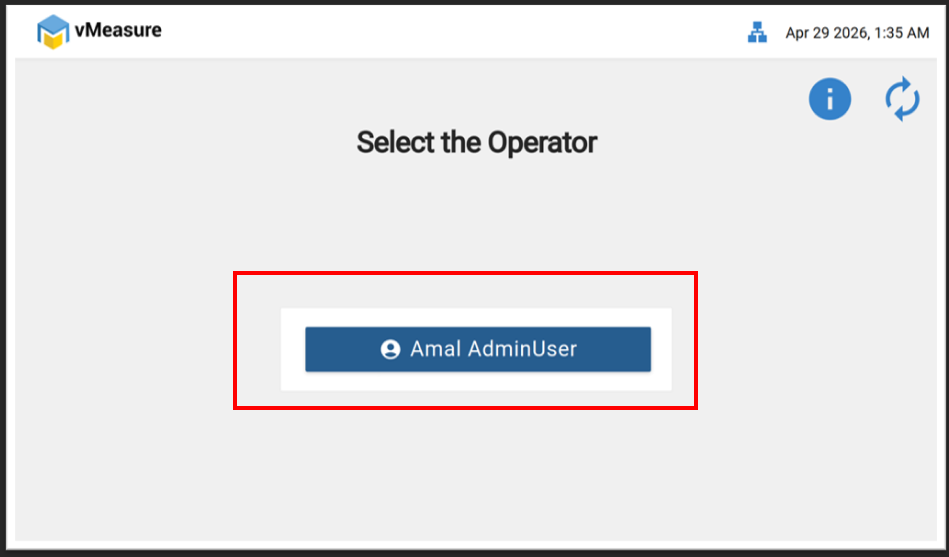
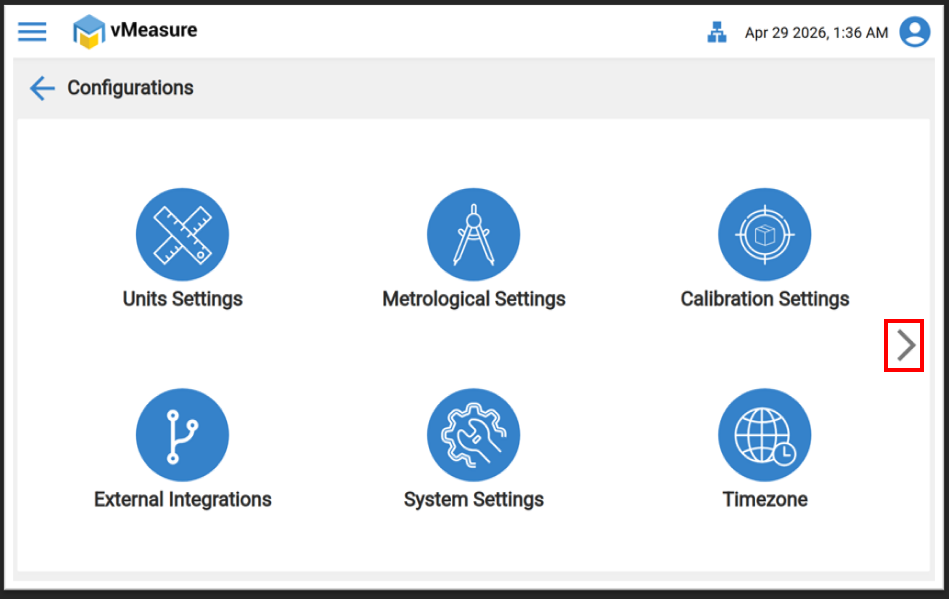
Step 2: Click on “Configuration” and navigate to the next page.
Image-1 :
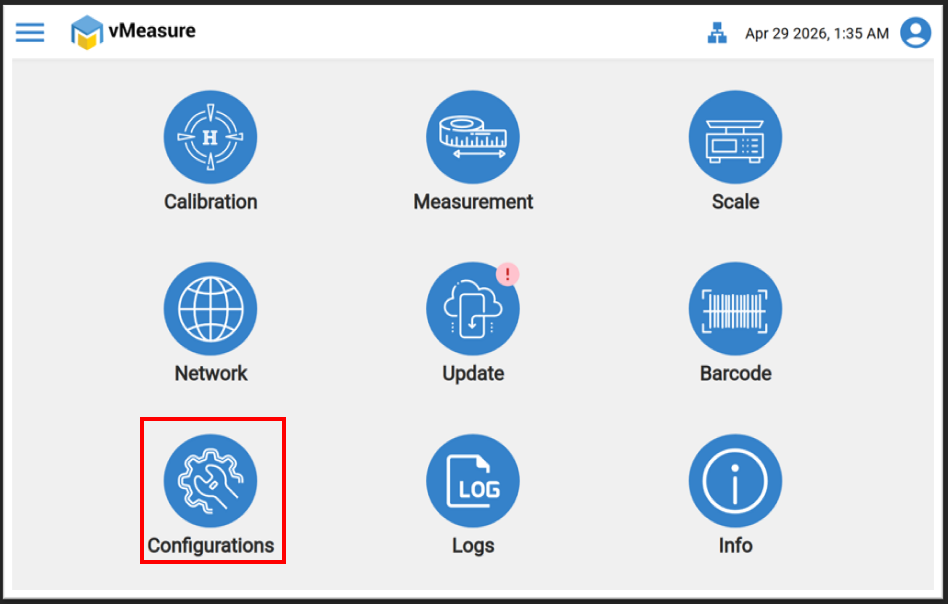
Image-2 :
Step 3: Select “Custom Configuration.” and click on "Printer Setting".
Image-1 :
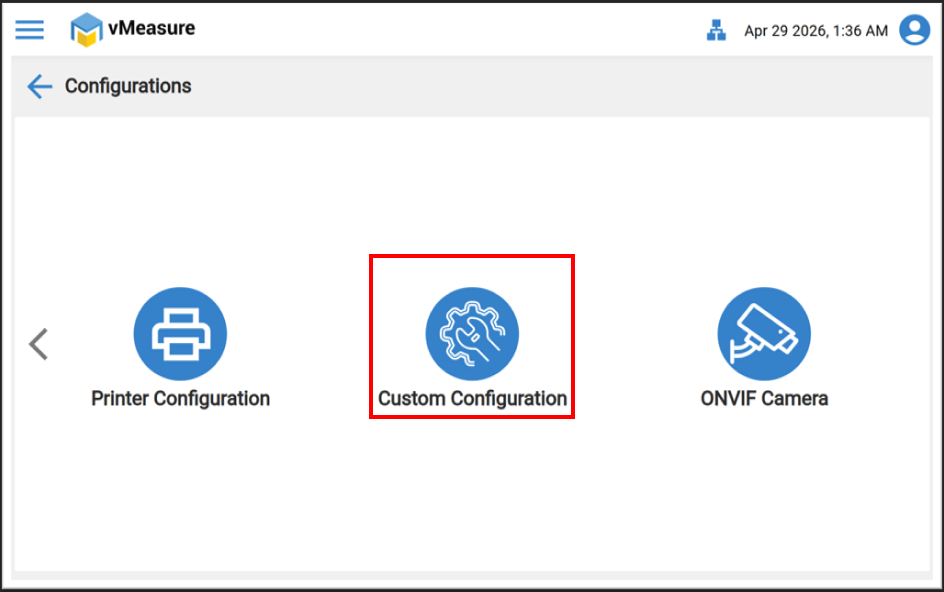
Image-2 :
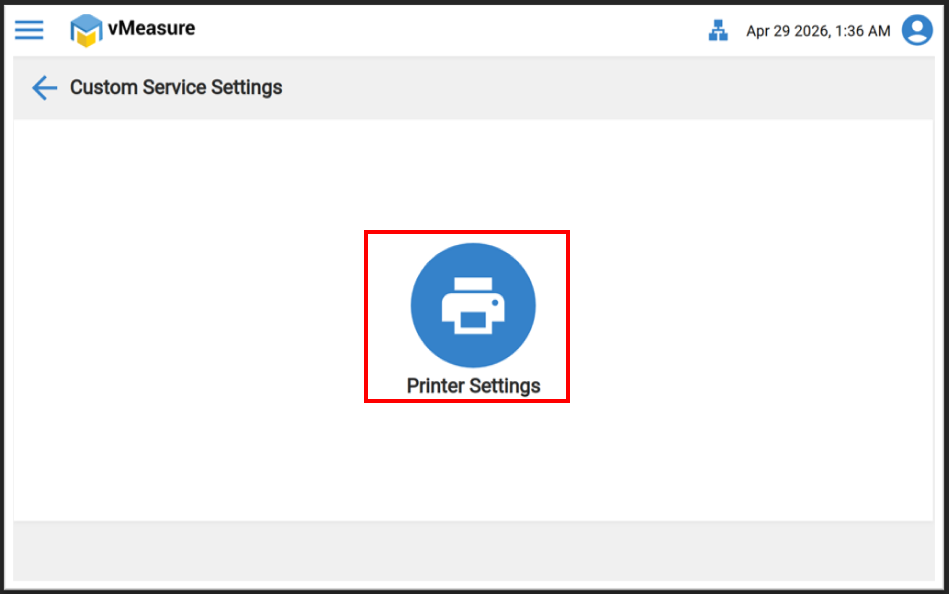
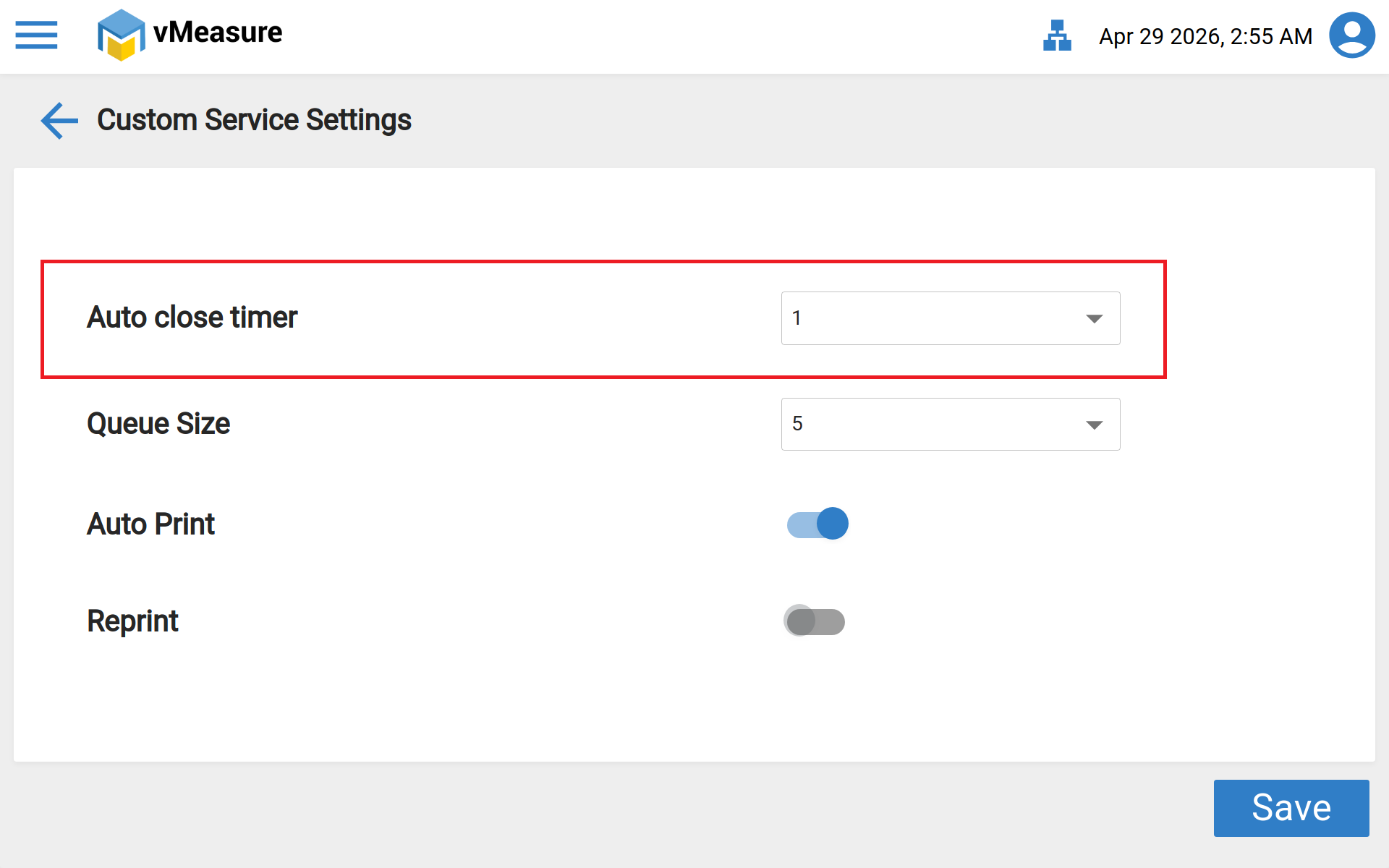
Step 4 : In the menu you will find an option as Auto close timer. Click on the drop down menu.
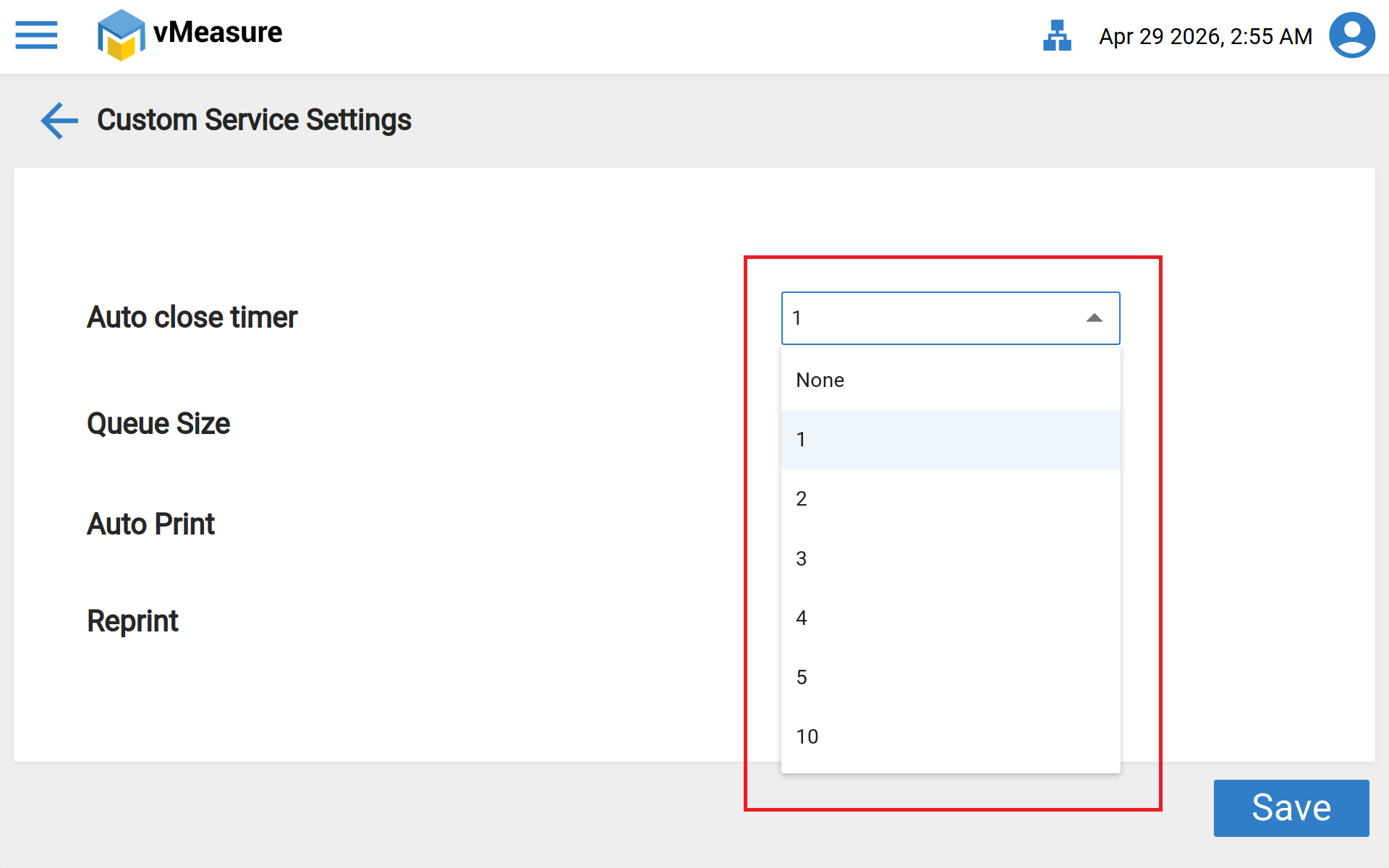
Step 5 : After clicking on the drop down, you will find a list of timers (in seconds) Set the desired timer as per your requirement.
Step 6 : After selecting your timer, click on Save.
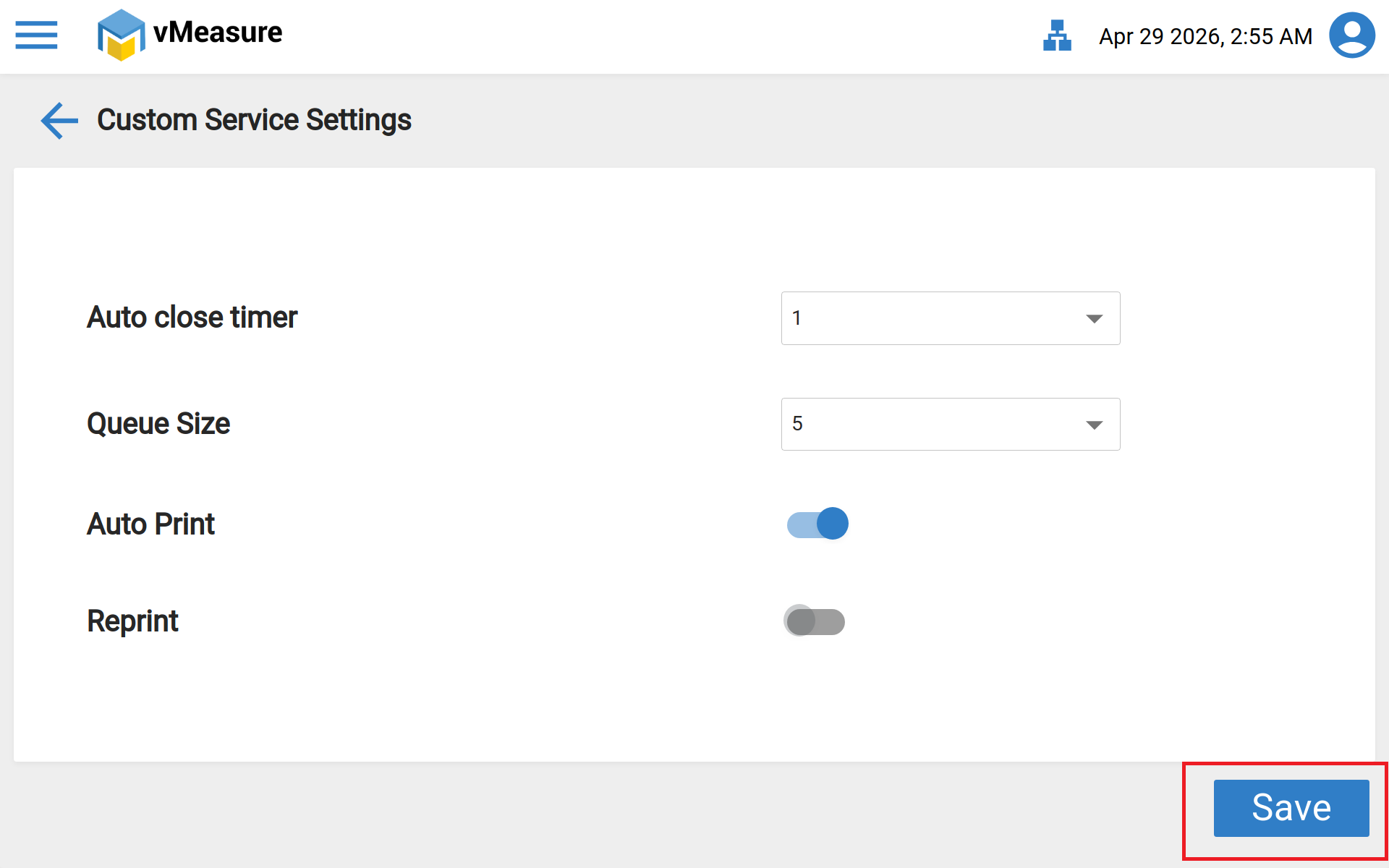
After saving the settings, you will receive a message as Data saved successfully.
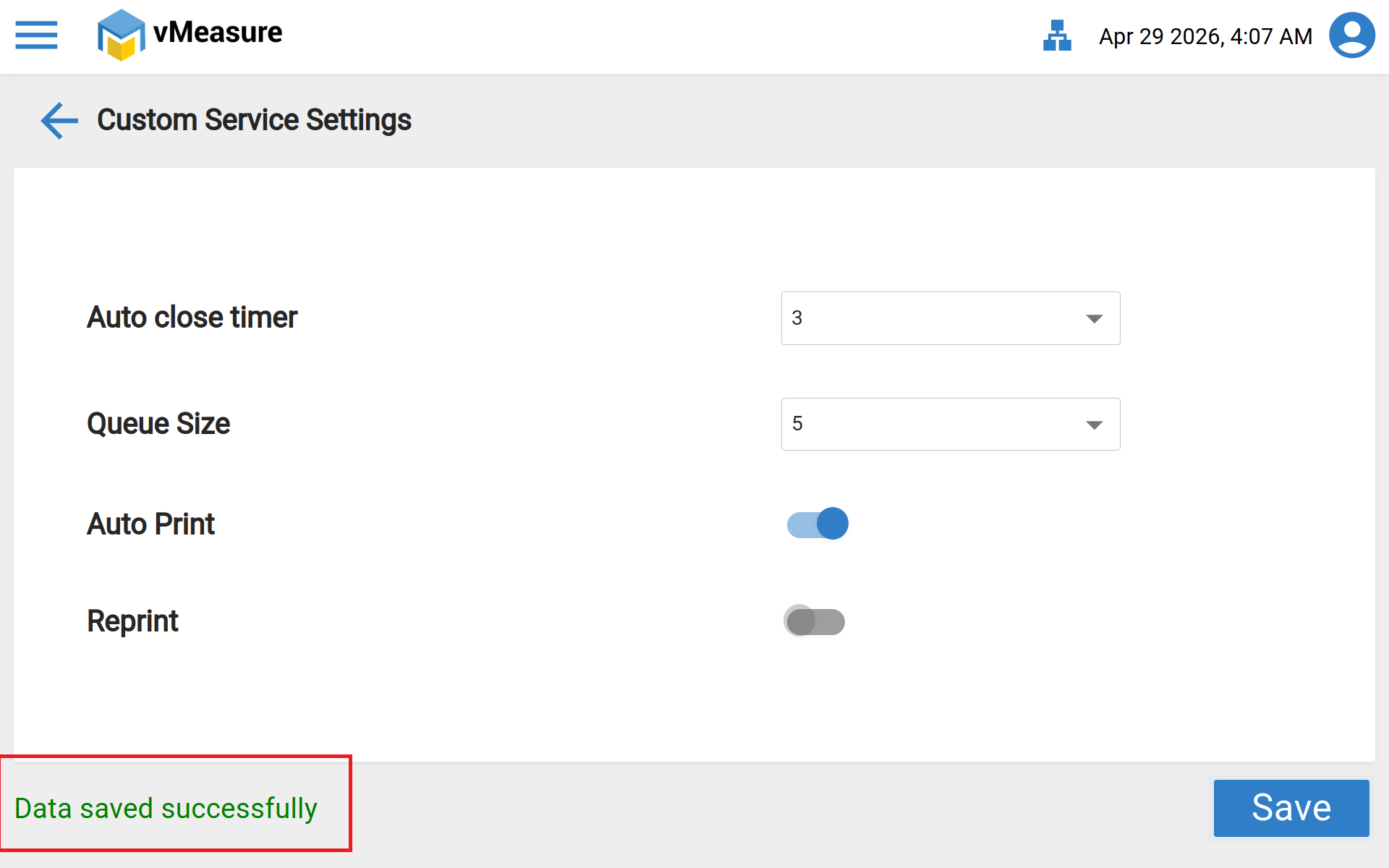
Now you have successfully configured auto close timer for the printer.
Was this article helpful?
That’s Great!
Thank you for your feedback
Sorry! We couldn't be helpful
Thank you for your feedback
Feedback sent
We appreciate your effort and will try to fix the article