Please follow the below steps to download the historical reports.
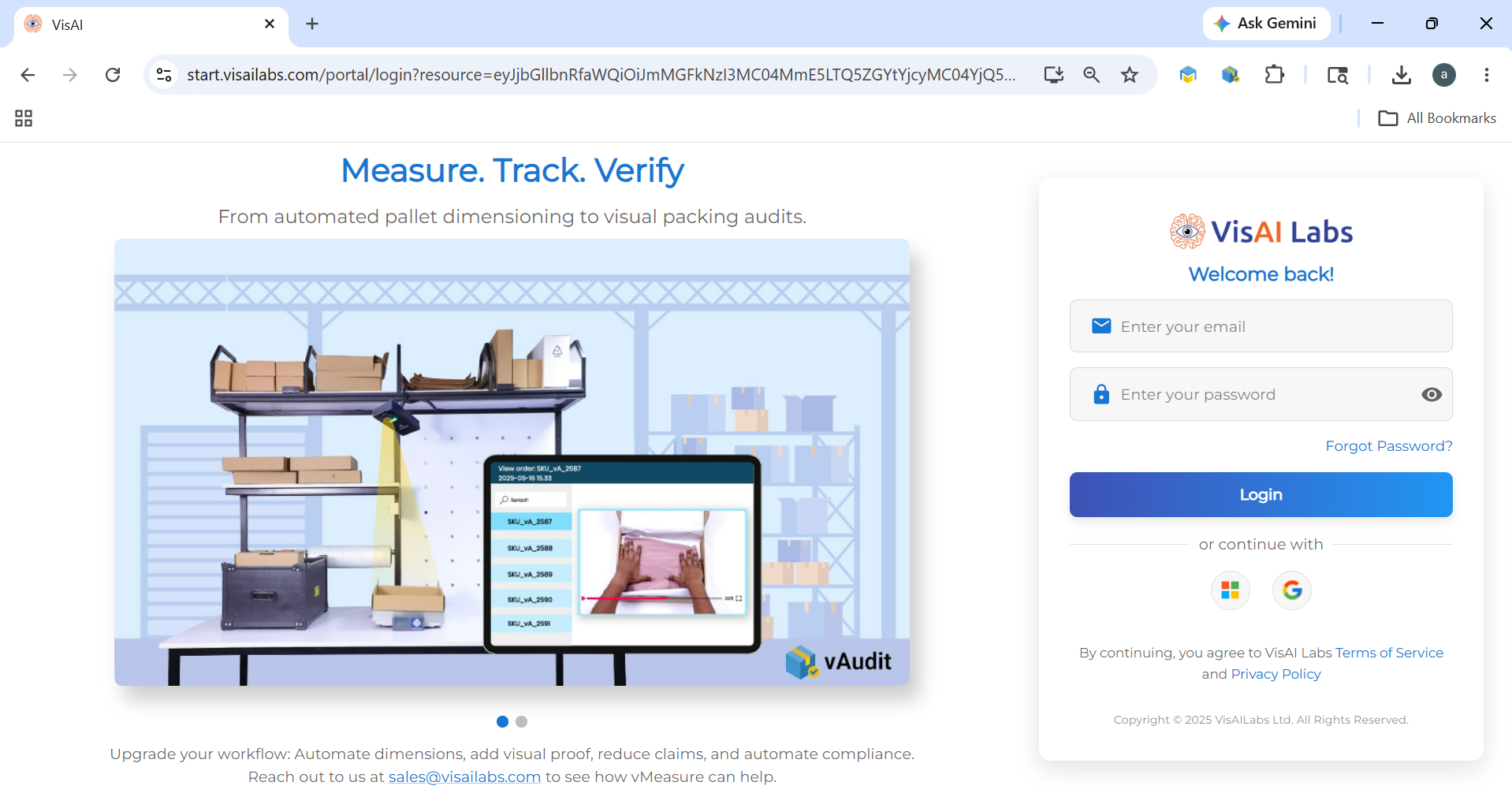
Step 1: Log in to the Forge Account
- Open the Forge portal https://start.visailabs.com
- Enter your login credentials and sign in to your account.
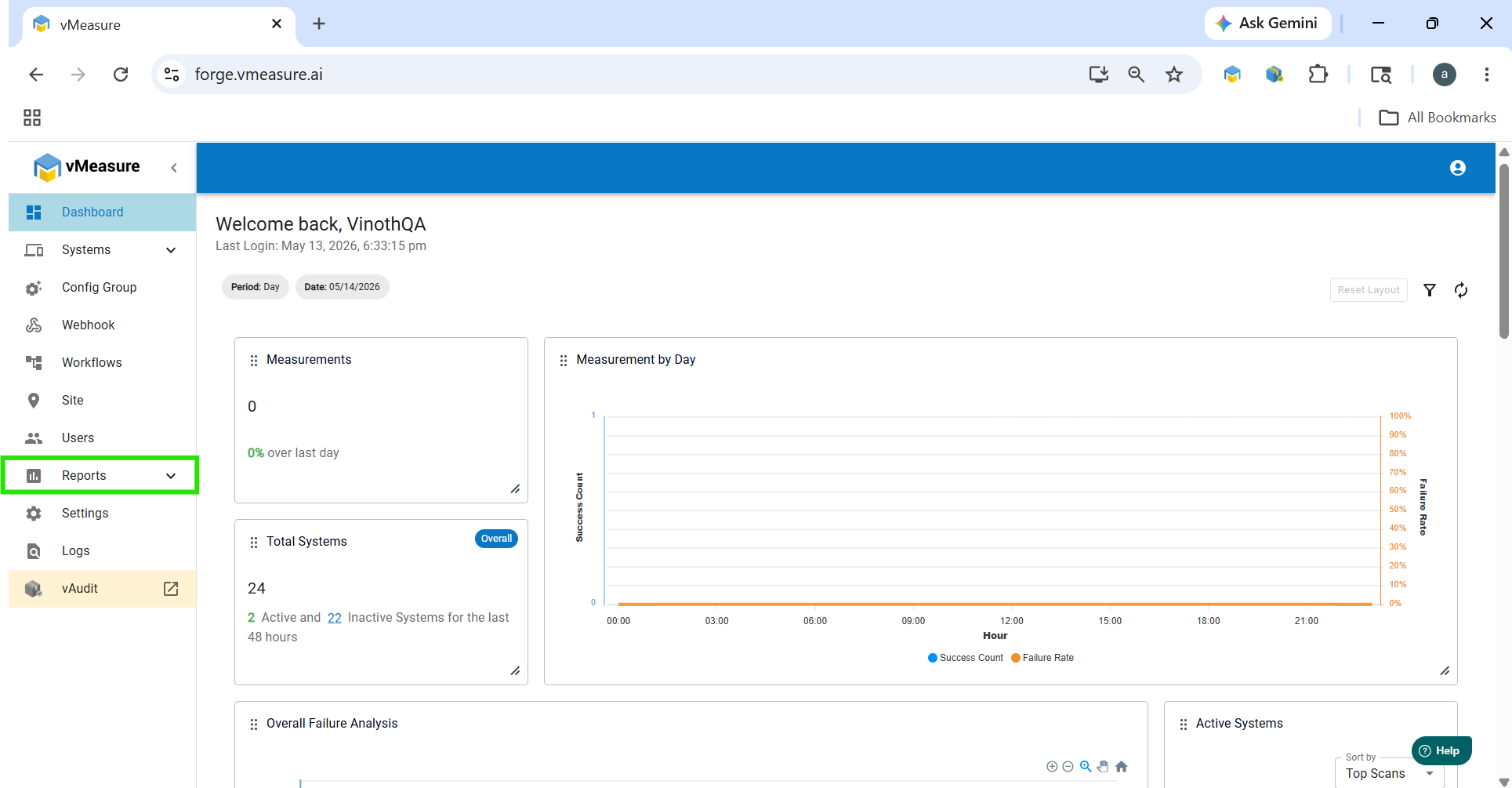
Step 2: Navigate to Reports
- From the Dashboard, navigate to the Reports section.
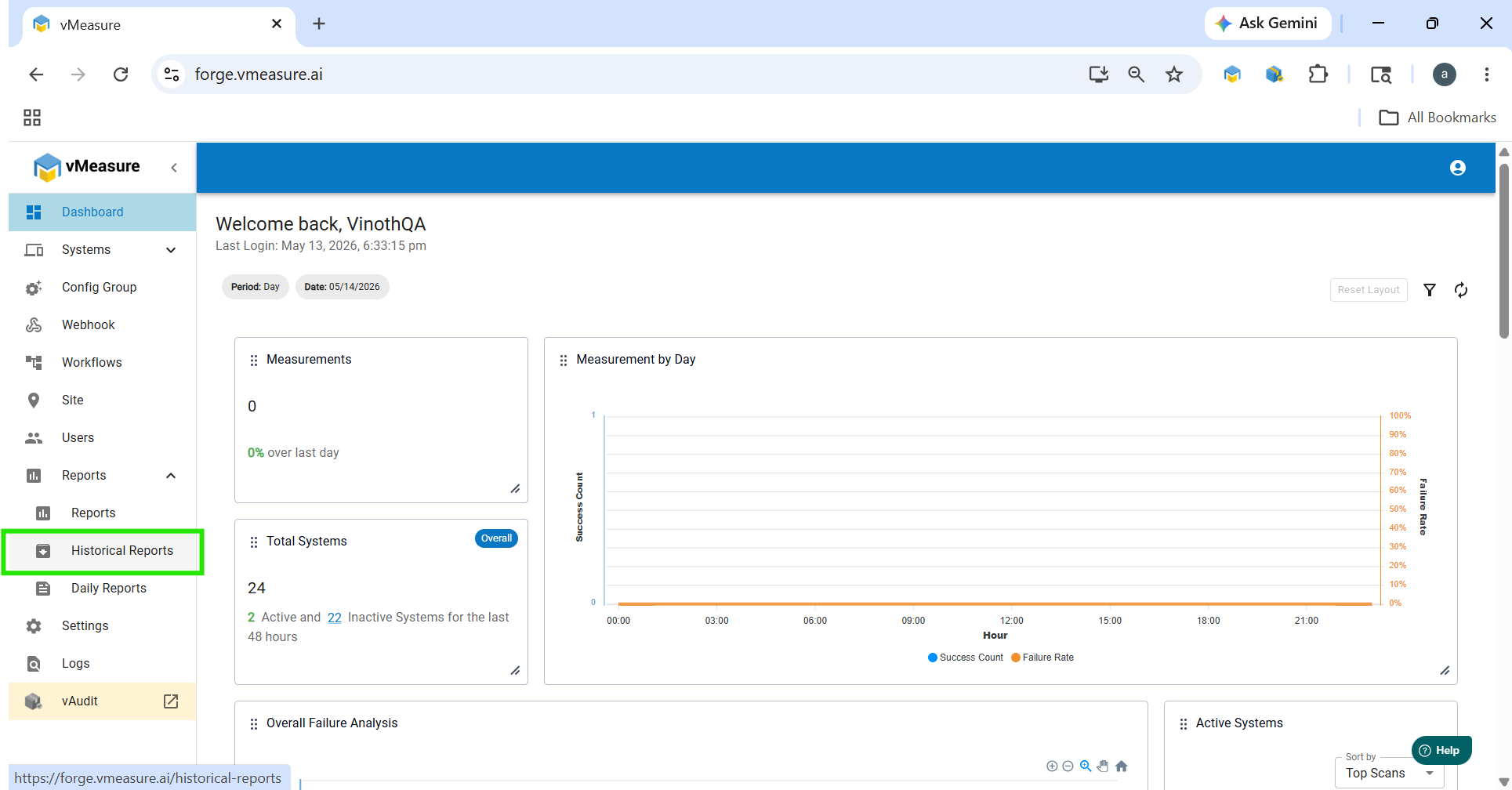
Step 3: Open Historical Reports
- Click on Historical Reports.
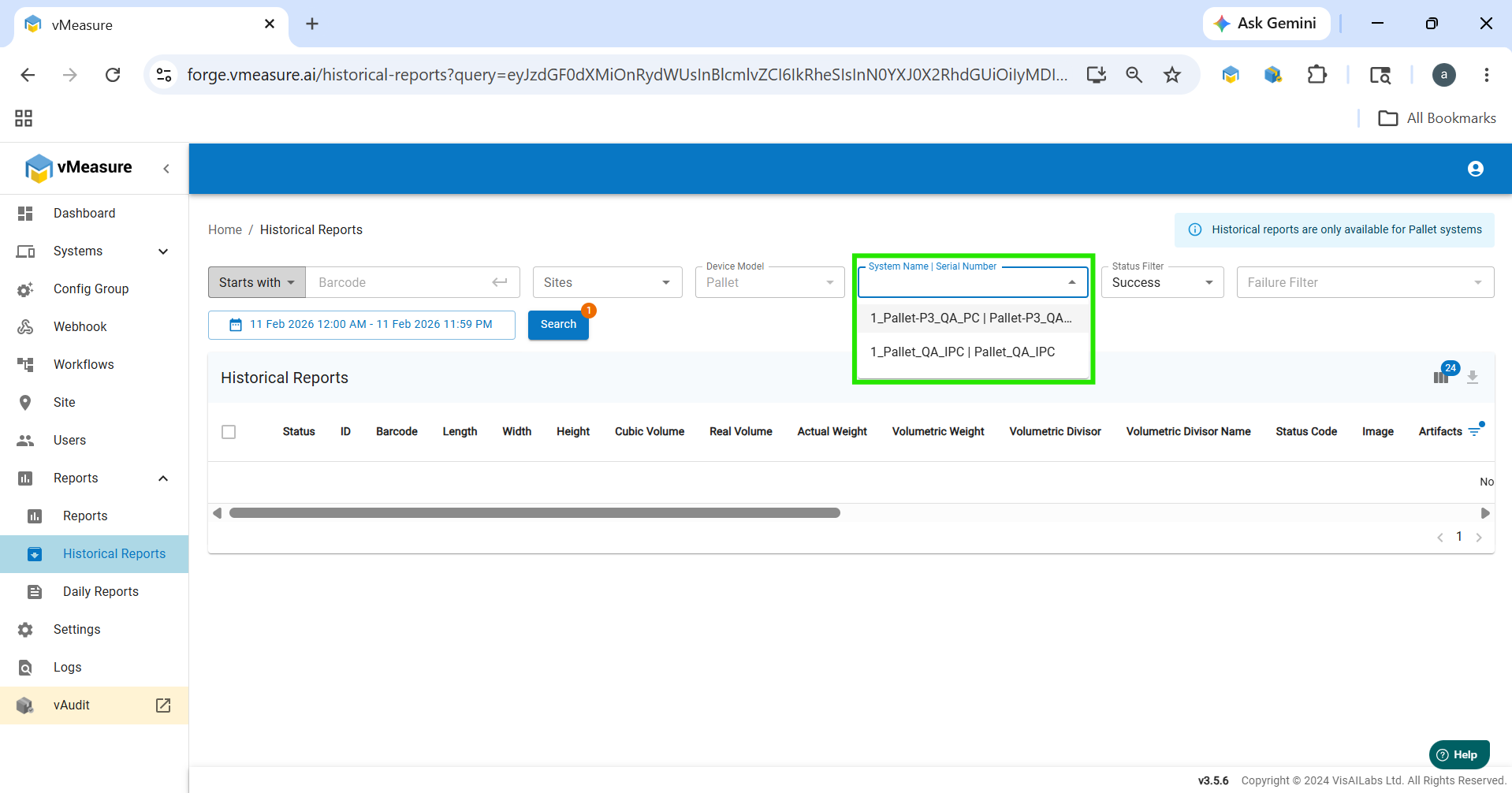
Step 4: Select the System Name
- Choose the required System Name from the available list.
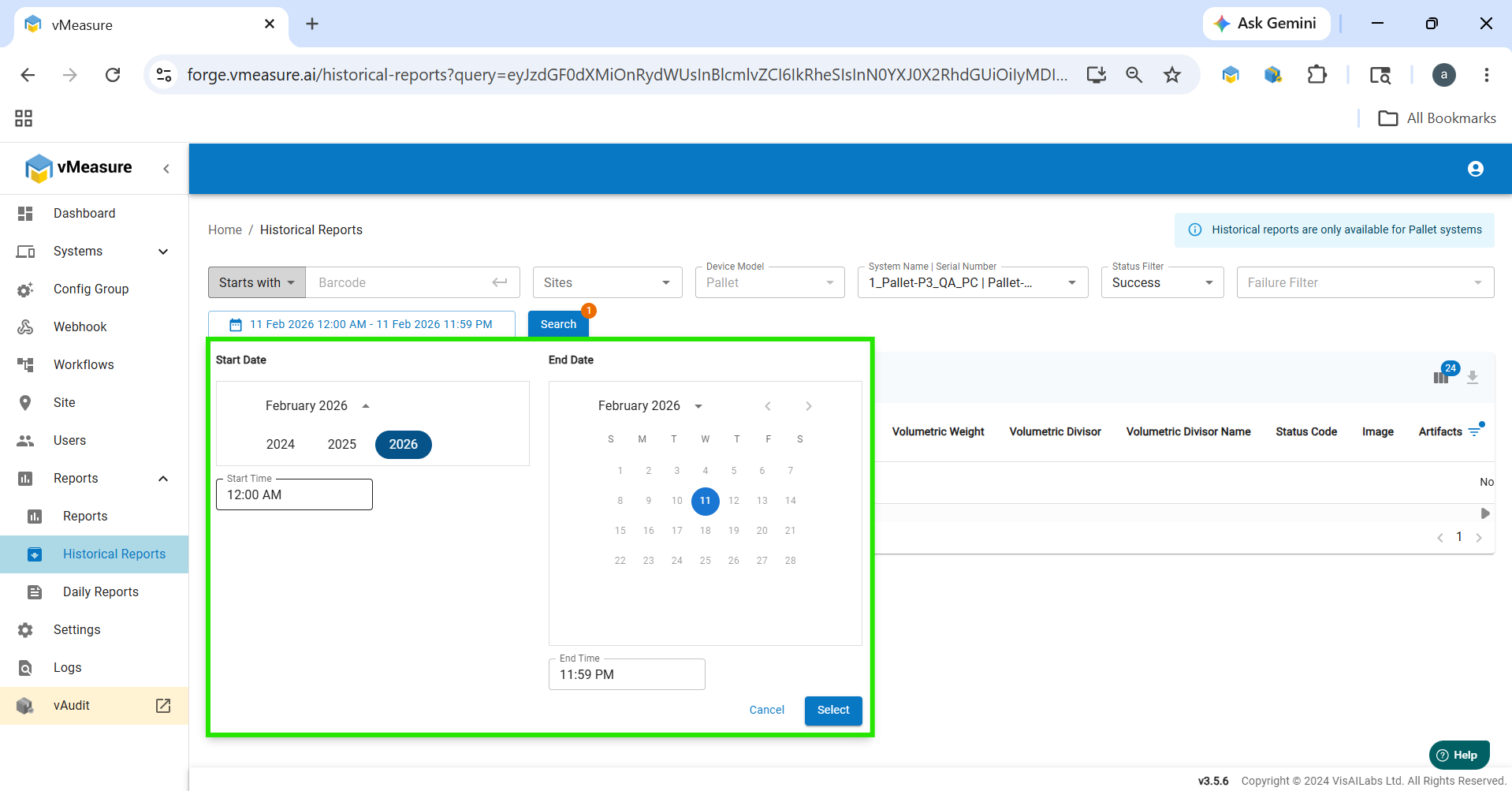
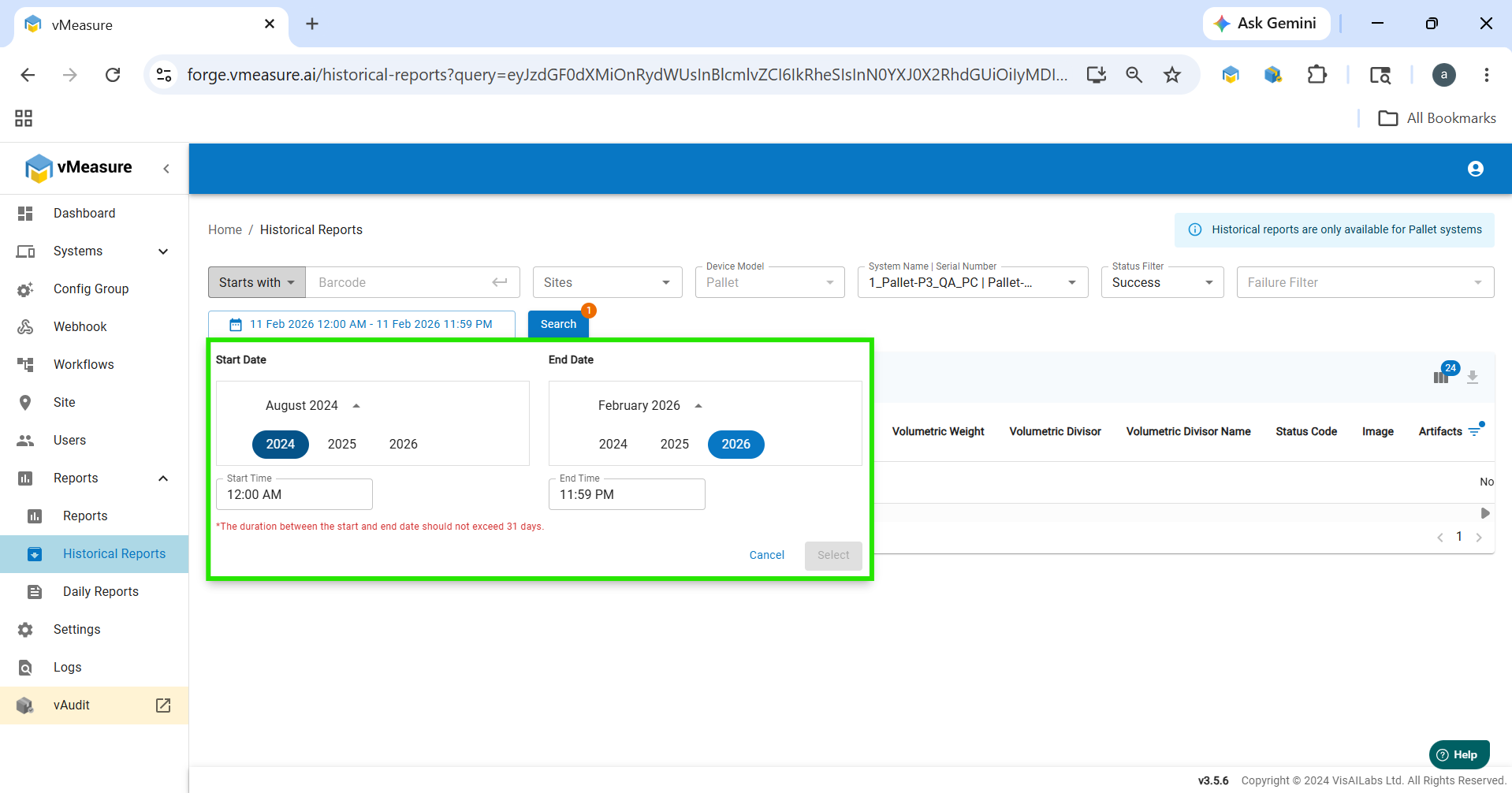
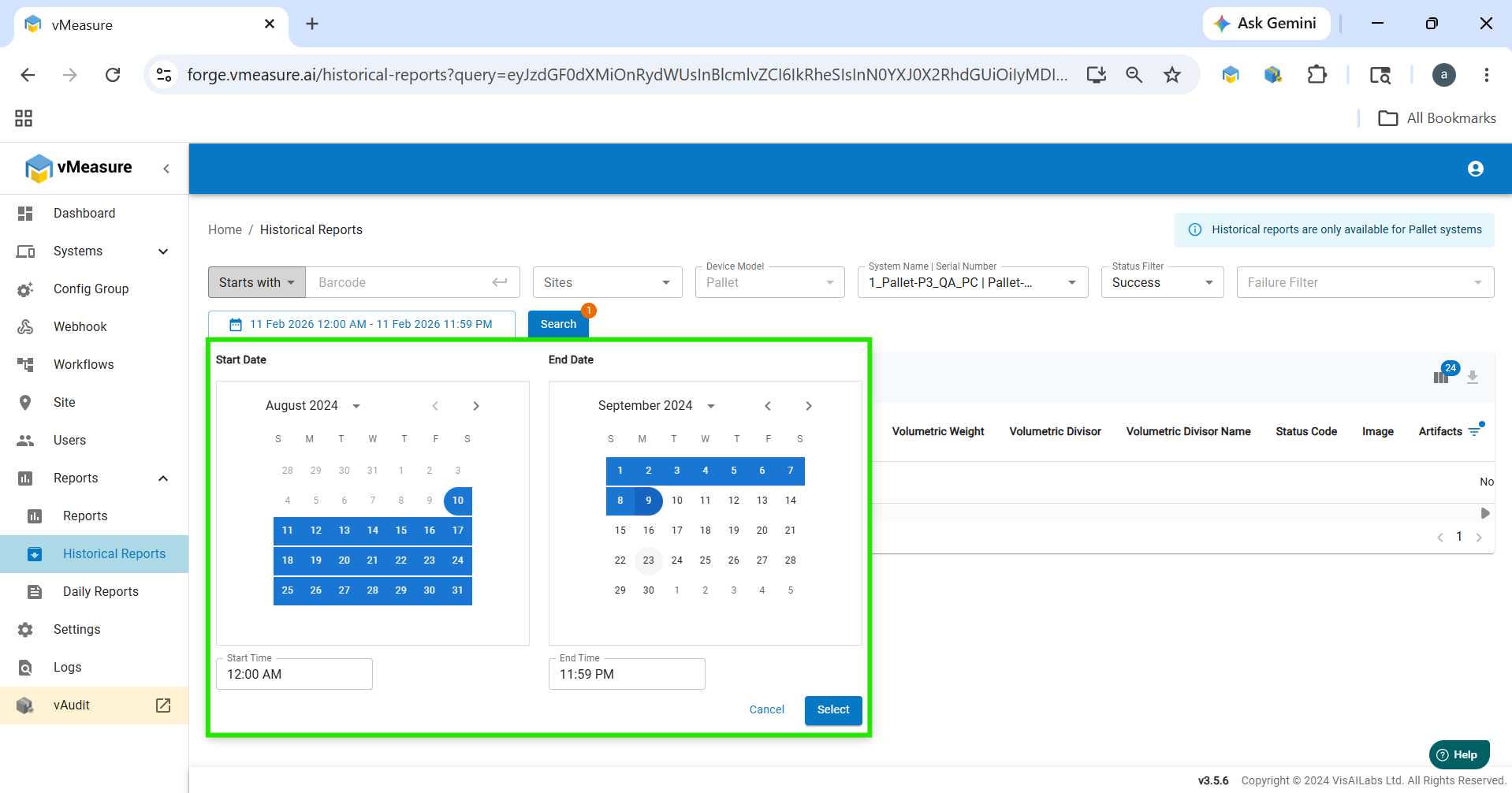
Step 5: Select the Date Range
- Select the Start Date and End Date.
- Click on Select to apply the date range.
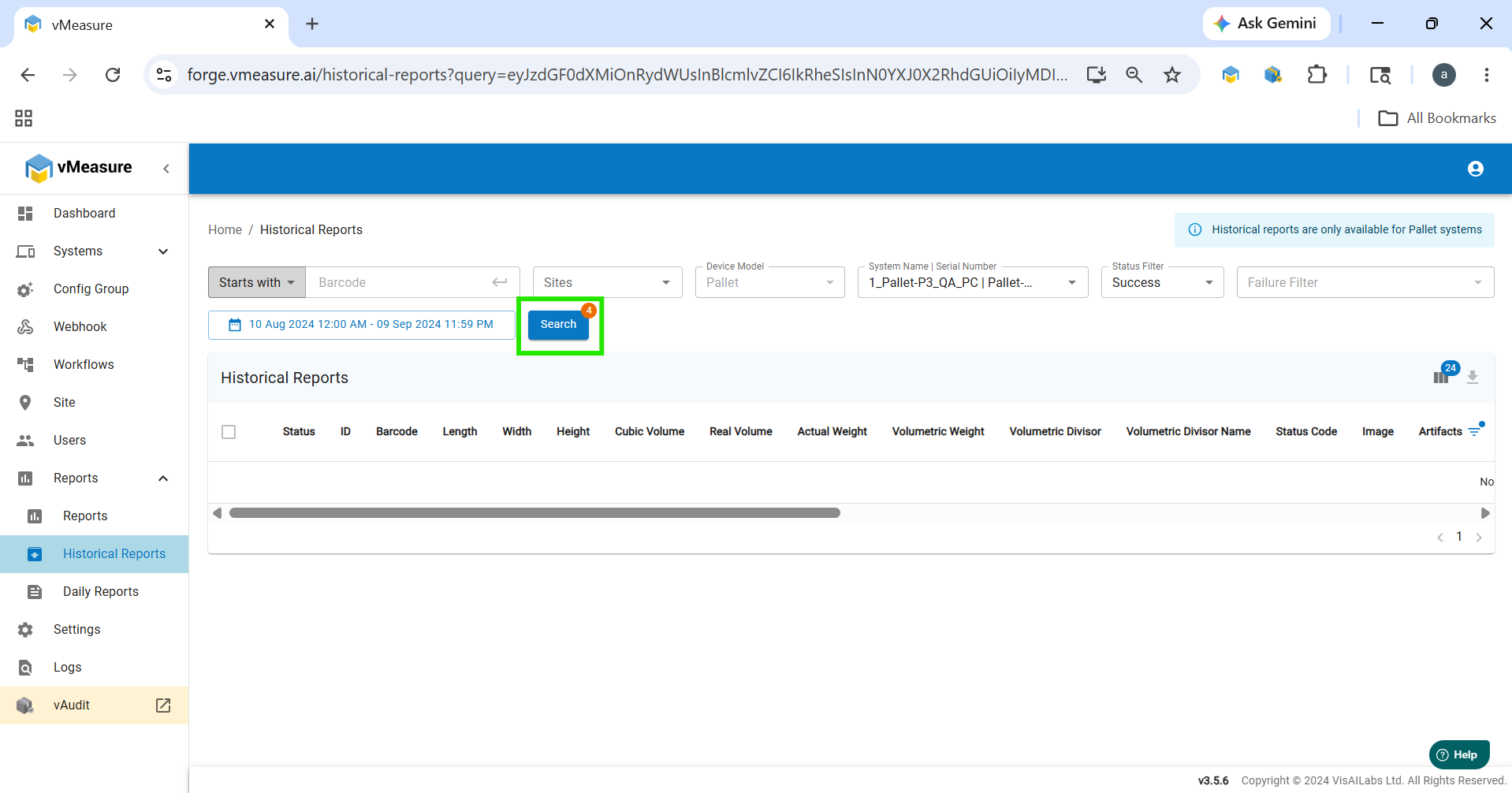
Step 6: Search for Reports
- Click the Search button to display the available historical reports.
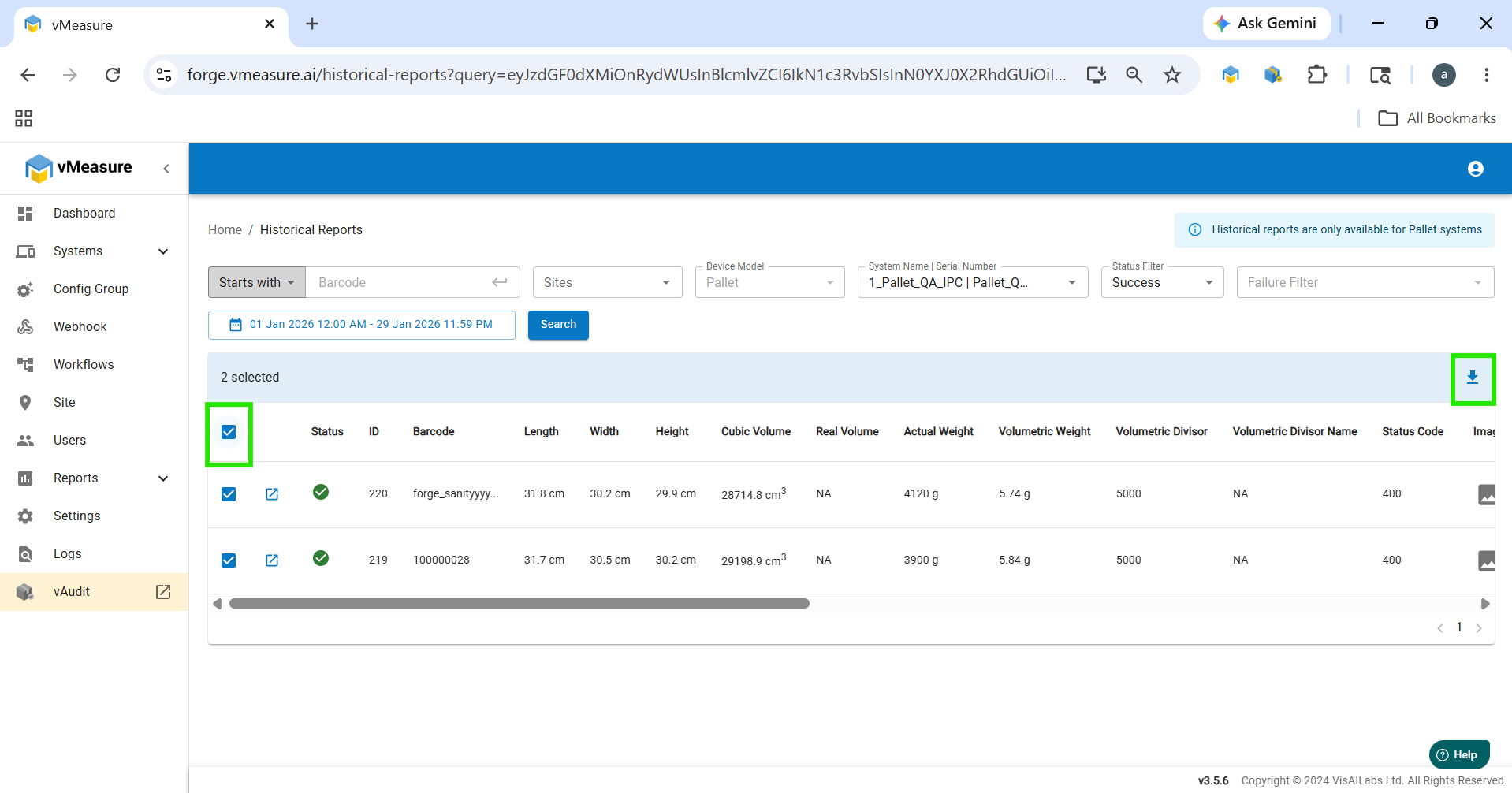
Step 7: Select the Report for Download
- Tick the checkbox for the required report.
- Click the Download icon located on the right side.
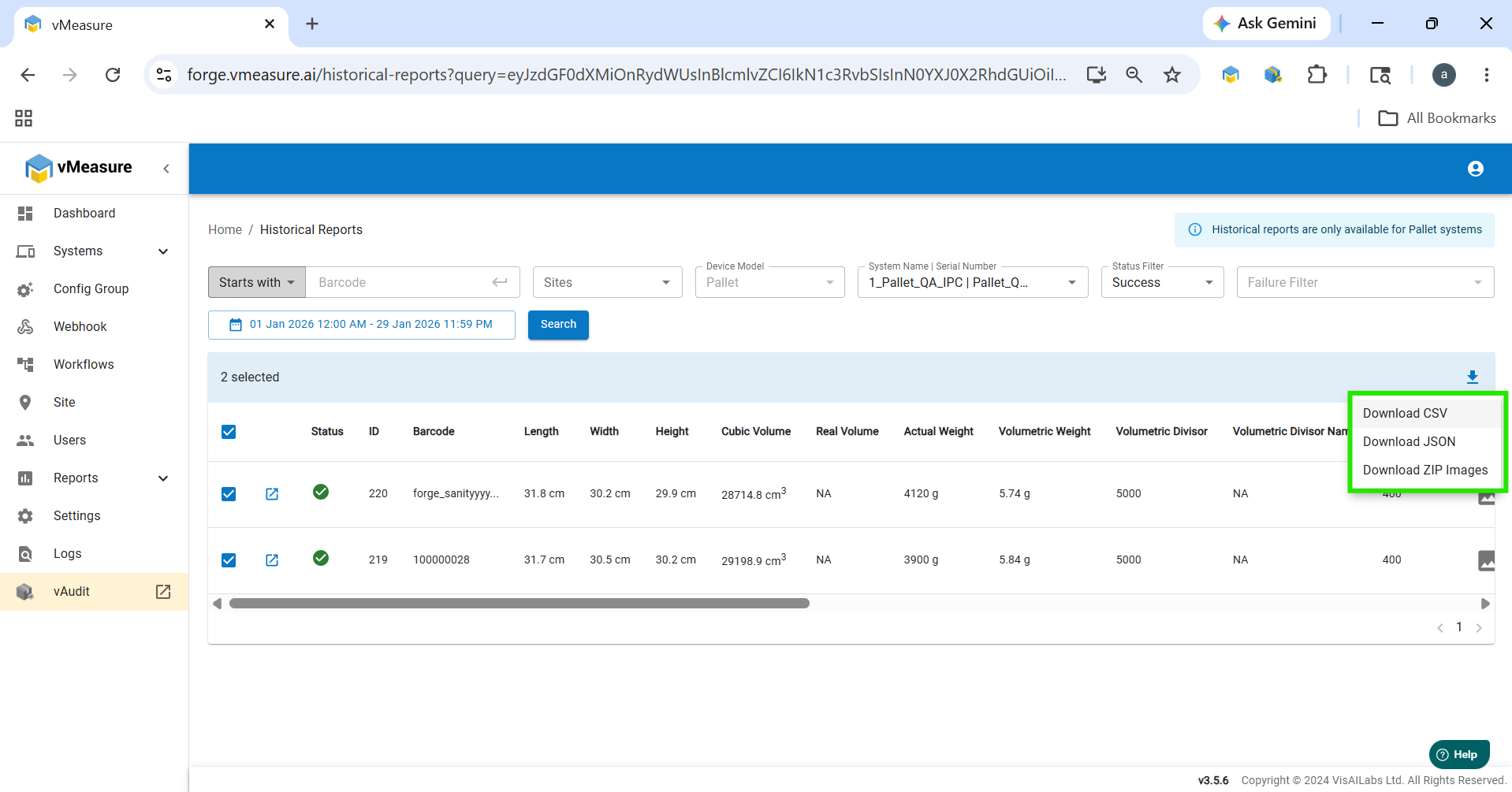
Step 8: Choose the Download Format
- A list of available download formats will appear.
- Select the required format.
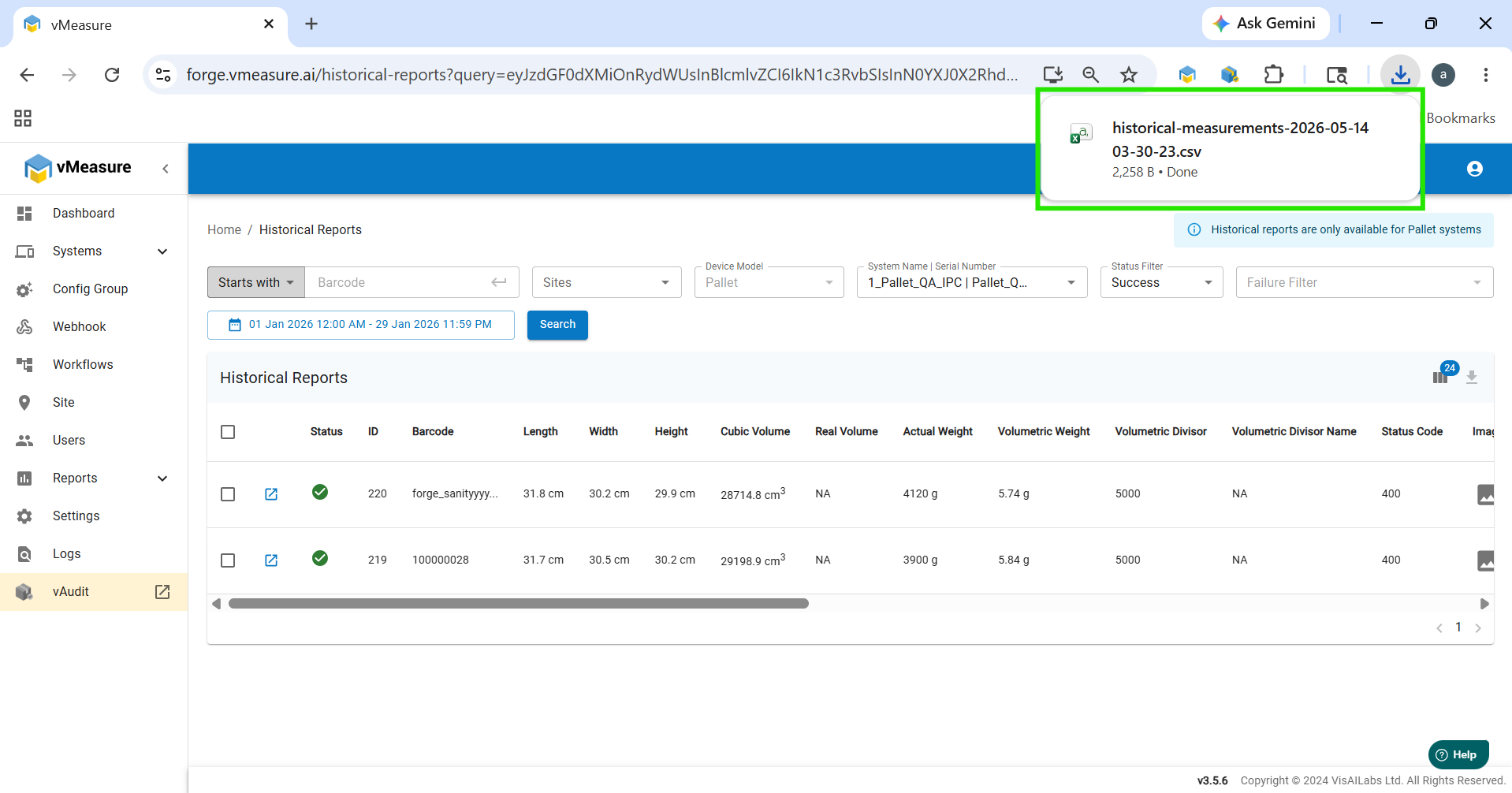
Step 9: Download the Historical Report
- The selected historical report will now be downloaded to your system.
Notes:
- Ensure the selected date range is 30 days.
- Depending on the report size, the download may take a few moments to complete.
If you need any support , please drop a mail to vmeasure@visailabs.com or Click here to Submit a Ticket.
Was this article helpful?
That’s Great!
Thank you for your feedback
Sorry! We couldn't be helpful
Thank you for your feedback
Feedback sent
We appreciate your effort and will try to fix the article