Video Tutorial - Essae Weighing scale calibration video
Follow the steps below to Calibrate the Essae weighing scale:
Step 1: Press and hold the (0) ZERO key then press (T) TARE key 1 time, then press UP ARROW key1 time and SIDE ARROW key 1 time.
Then the Display shows "S-ON". Now release the (0) Zero Key. 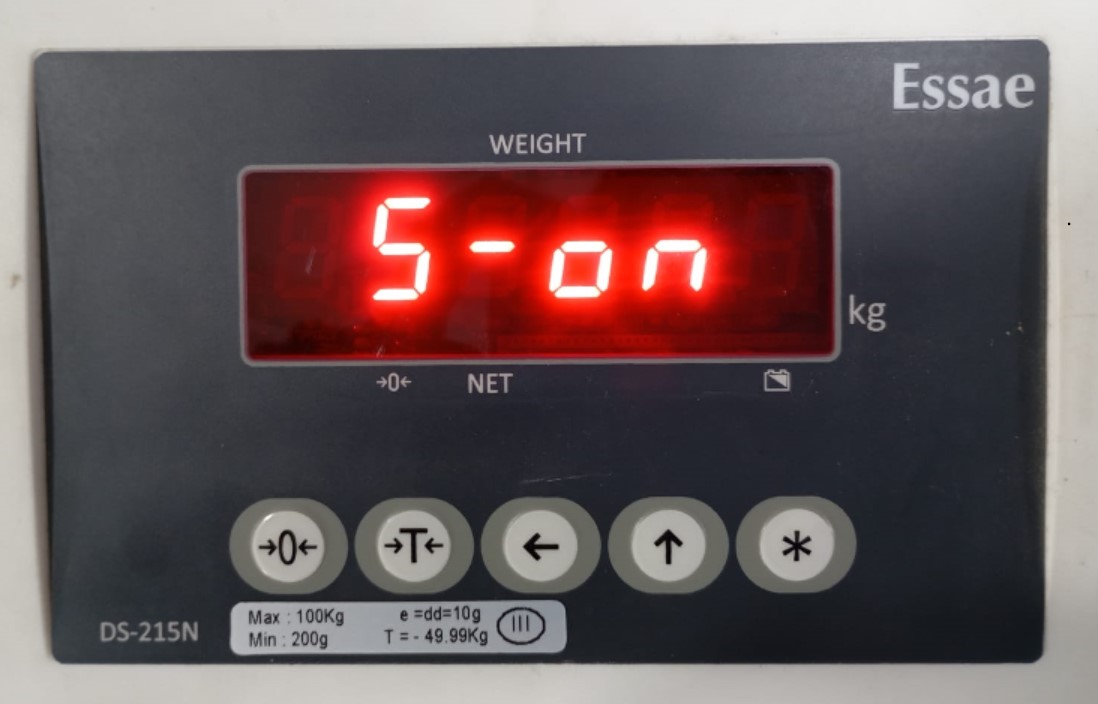
Step 2: Press and hold the (0) ZERO key 1 time, then press the SIDE ARROW key 1 time, then press the (T) TARE Key 2 times. The display shows F5, and the display will be blinking.
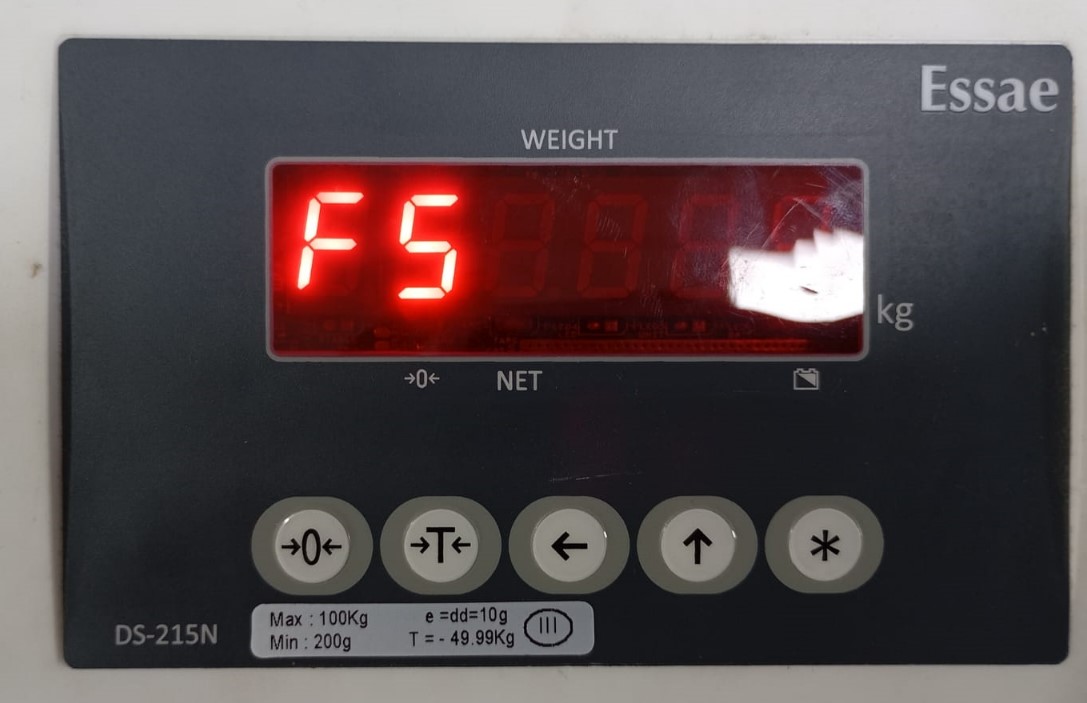
Step 3: By using UP & and SIDE ARROW adjust the weight.
Note: Use a fixed weight like (1 kg. 3kg, 5kg......etc.)
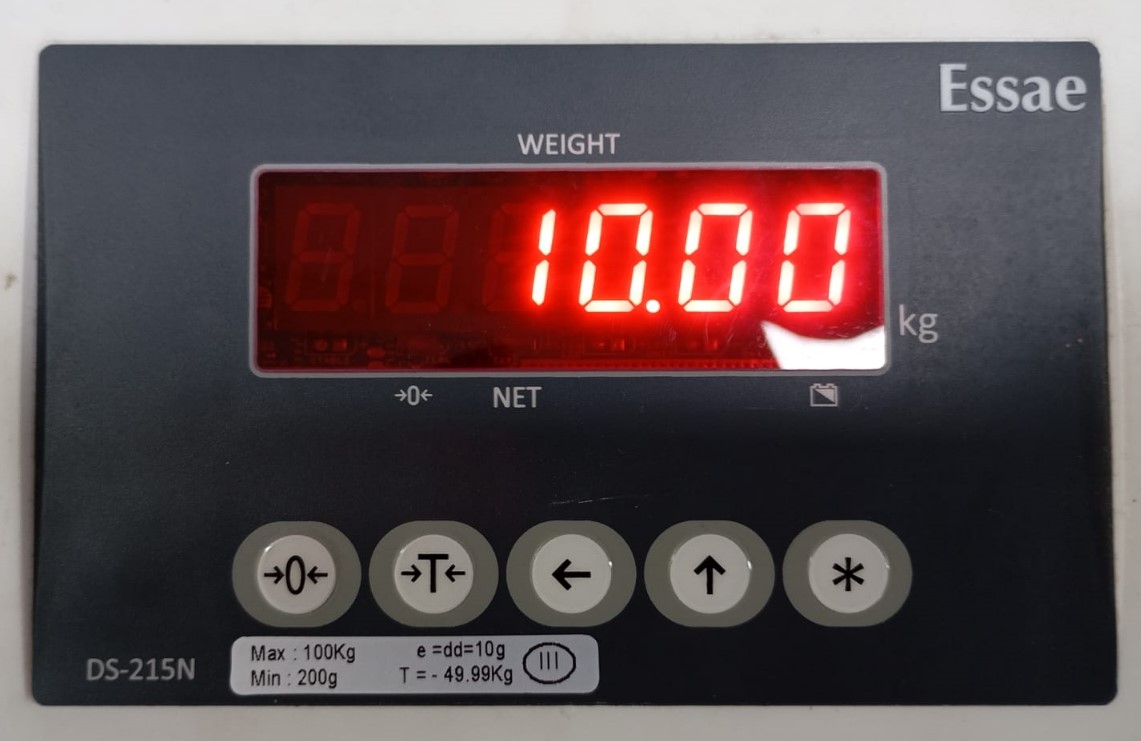
Example: If the available weight is 10kg then enter 10.00 on the digital display by using UP & SIDE ARROW to adjust the weight.
Step 4: Then press the (*) STAR key 1 Time, and the display shows CALL 00 (Sum Count Blinking), Apply some weight with hand and check if weight is increasing.
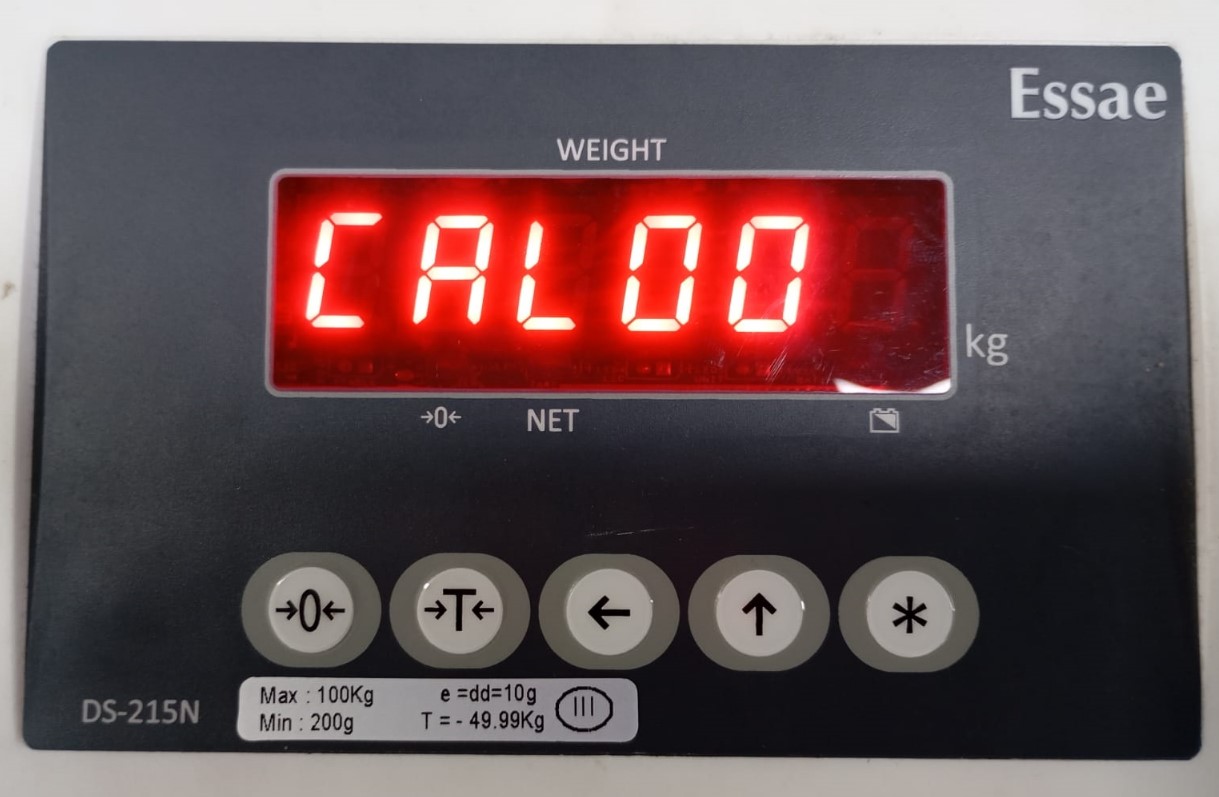
Step 5: Then again press the (*) STAR key 1 time, and the display shows CALL SP (Sum Count Blinking)
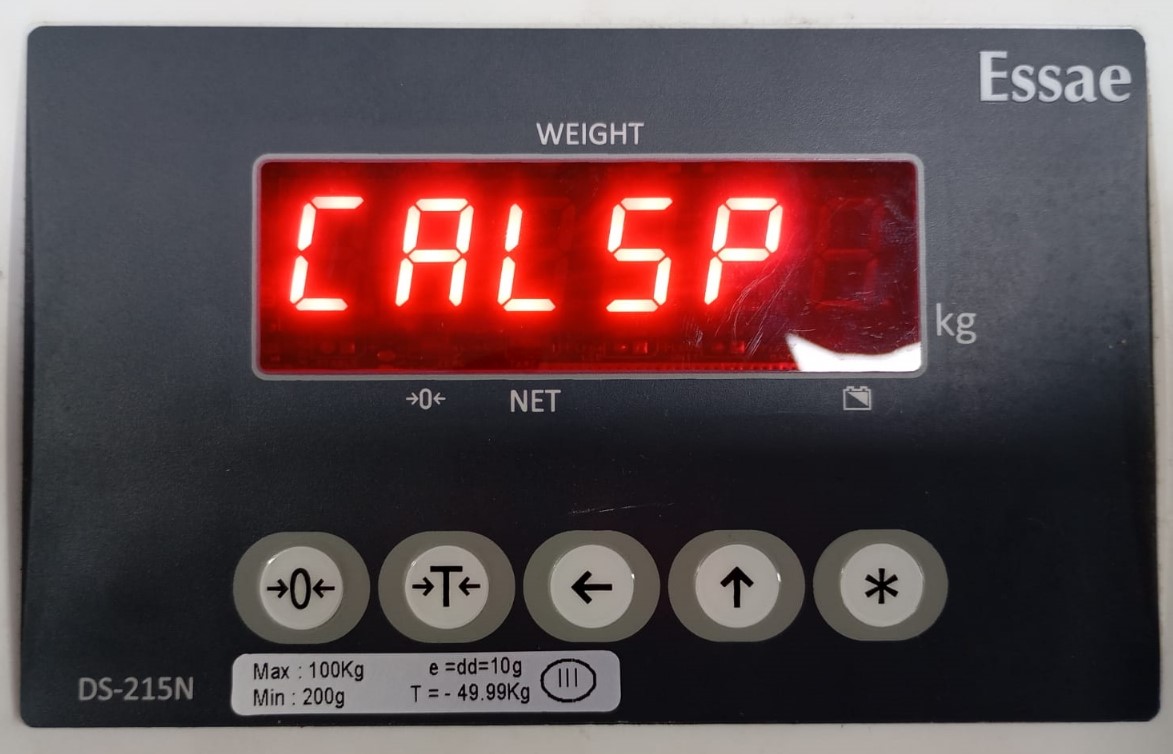
Step 6: Put the weight on the weighing scale (As entered in Step 3) and wait until it stables (won't fully stable, slightly varies in hundred grams) the sum count.
Step 7: Then press the (*) STAR key 1 time, the weight will be stable & the Sum will be displayed.
Weighing scale Calibration is successful.
Step 8: Save the "appropriate weighing scale" in vMeasure device & calibrate the vMeasure device.
If you need any support, please drop a mail to vmeasure@visailabs.com or click here toSubmit a Ticket.
Was this article helpful?
That’s Great!
Thank you for your feedback
Sorry! We couldn't be helpful
Thank you for your feedback
Feedback sent
We appreciate your effort and will try to fix the article