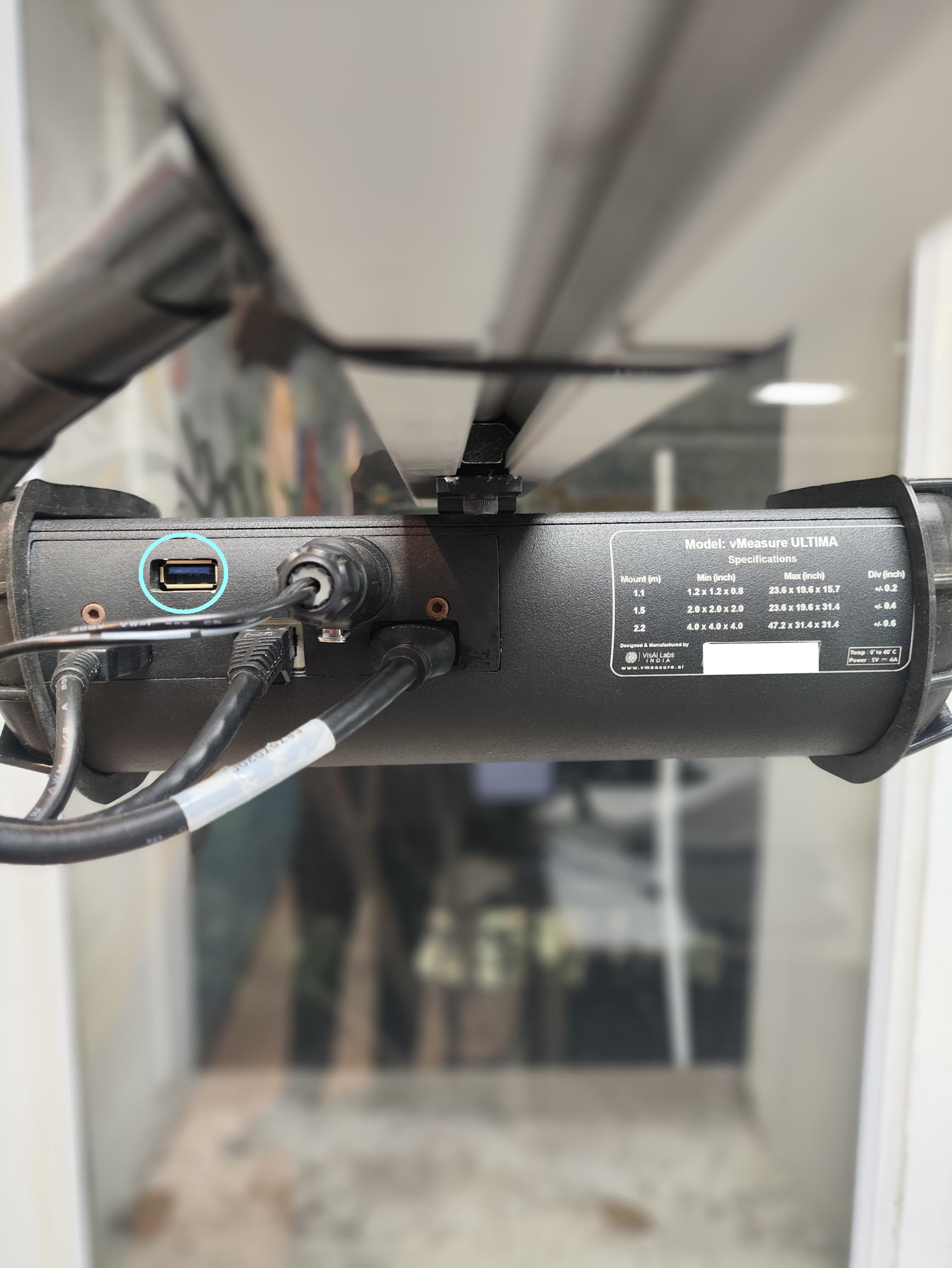
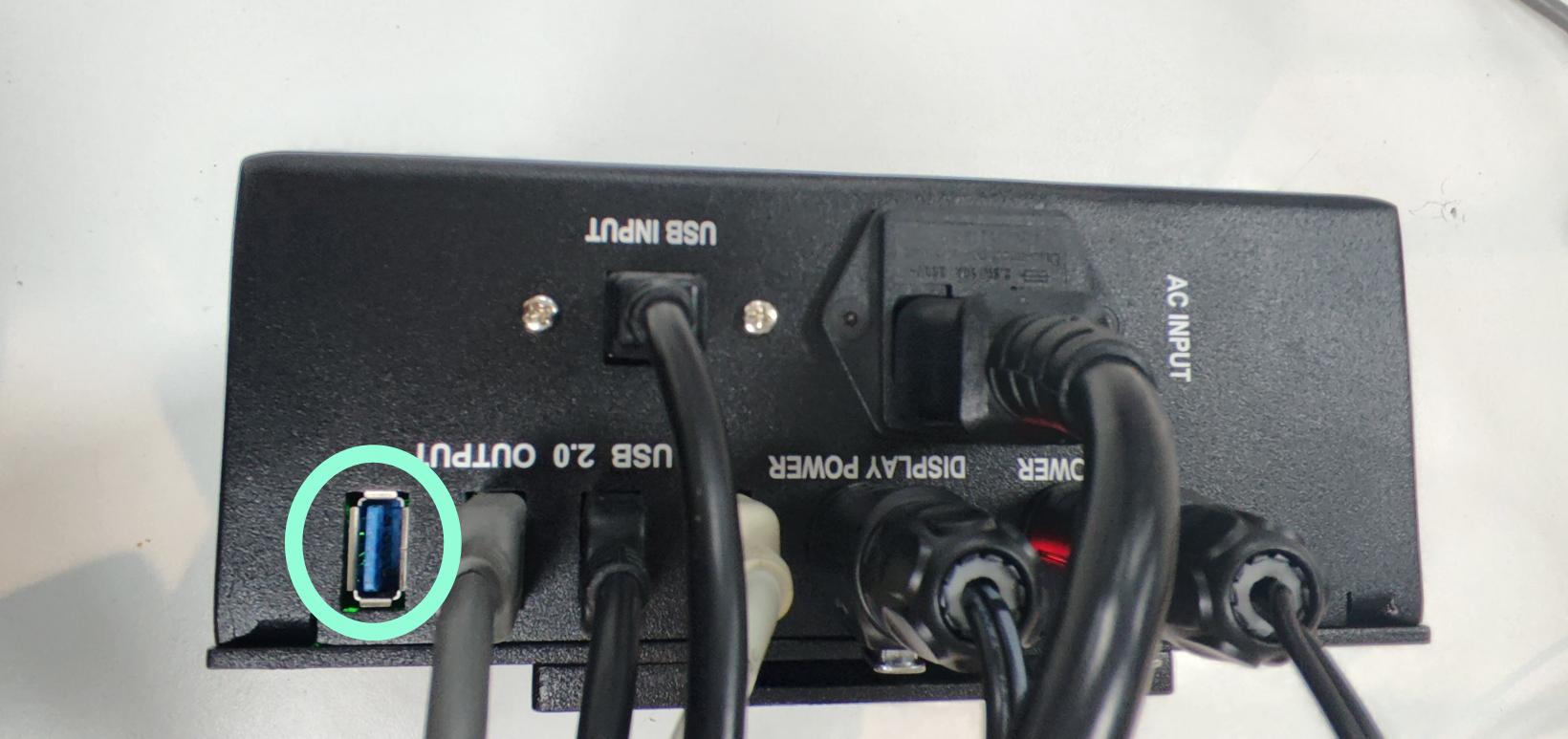
Step 1: Plug the Wi-Fi dongle into one of the USB ports on the SMPS or the VHU of the device, then go to the settings page.
Step 2: Click the "Network" icon.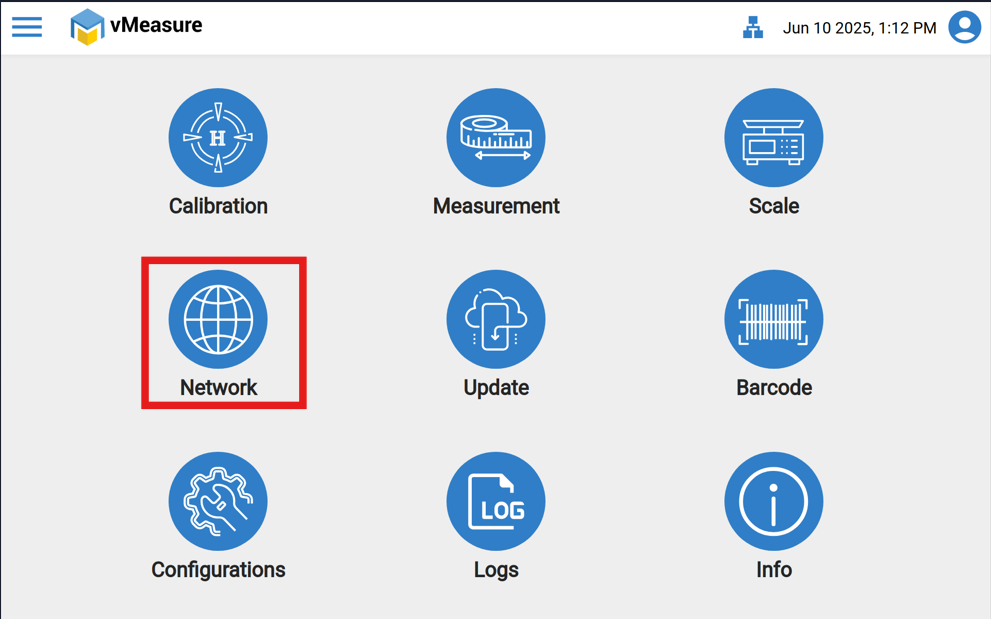
Step 3: Select "Wi-Fi" and ensure the Wi-Fi adapter is connected to the vMeasure device.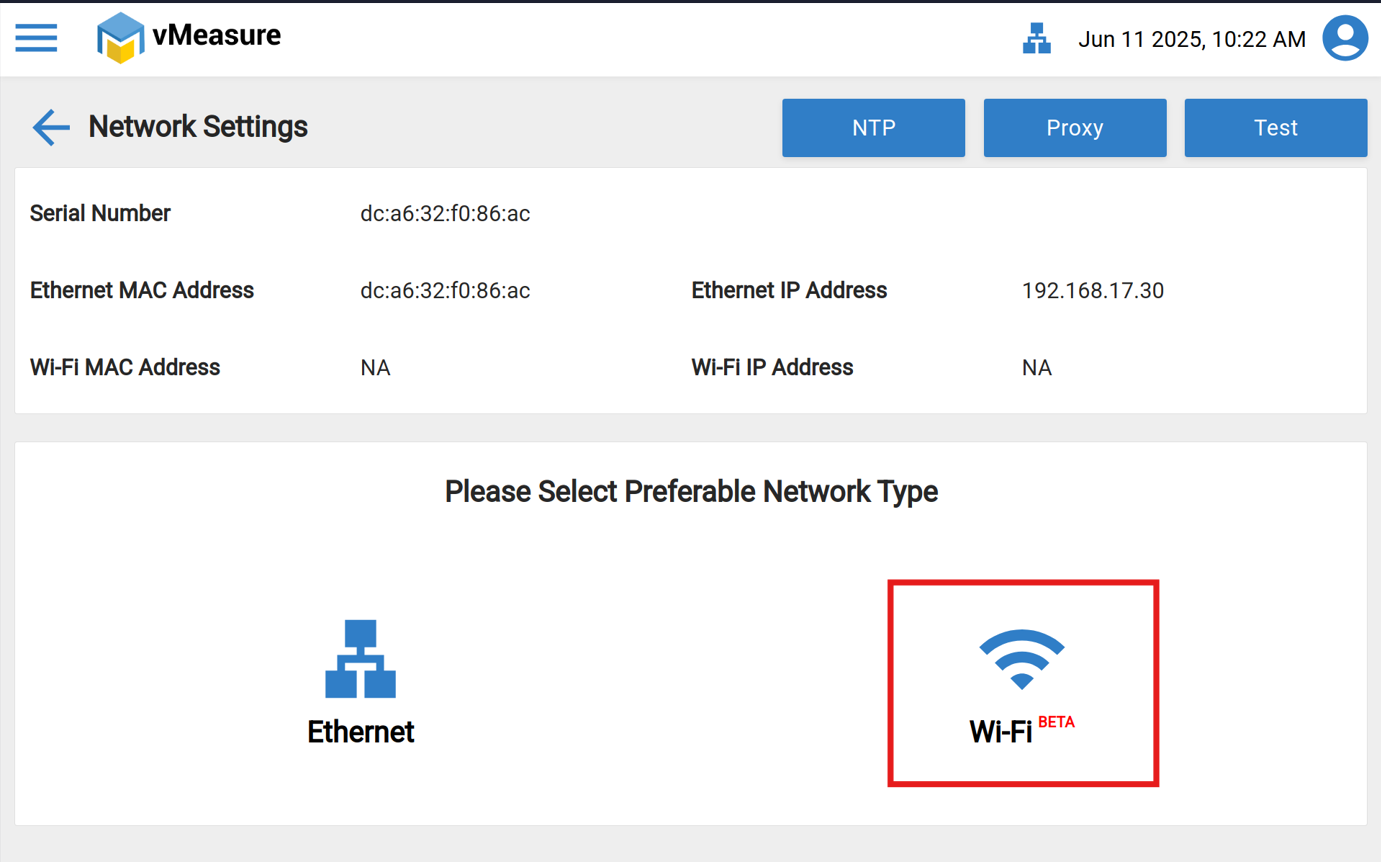
Step 4: Enable Wi-Fi by toggling the button, then click on “Show Networks”.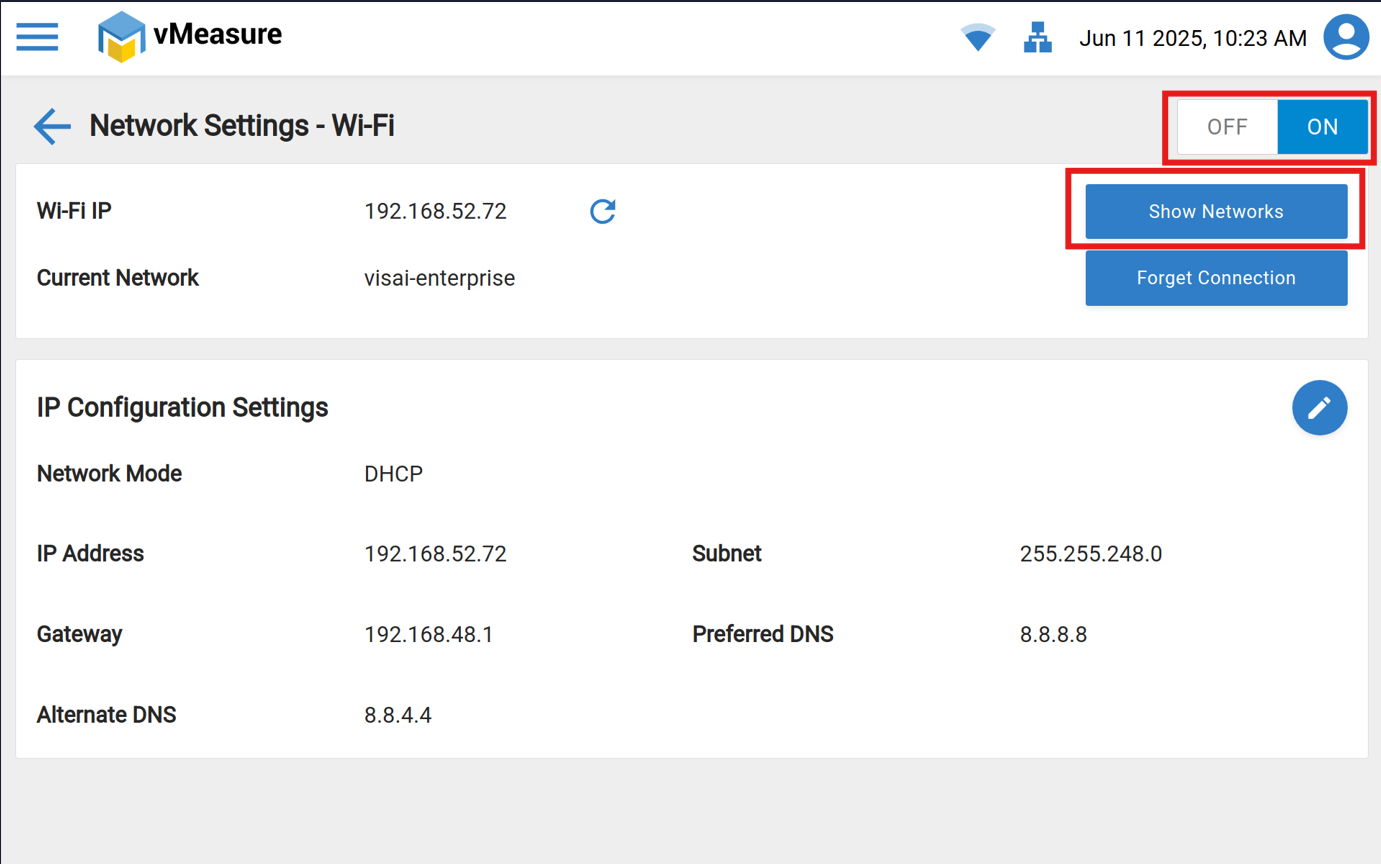
Step 5 : Click the "Refresh" icon and select your "Enterprise network" from the list.
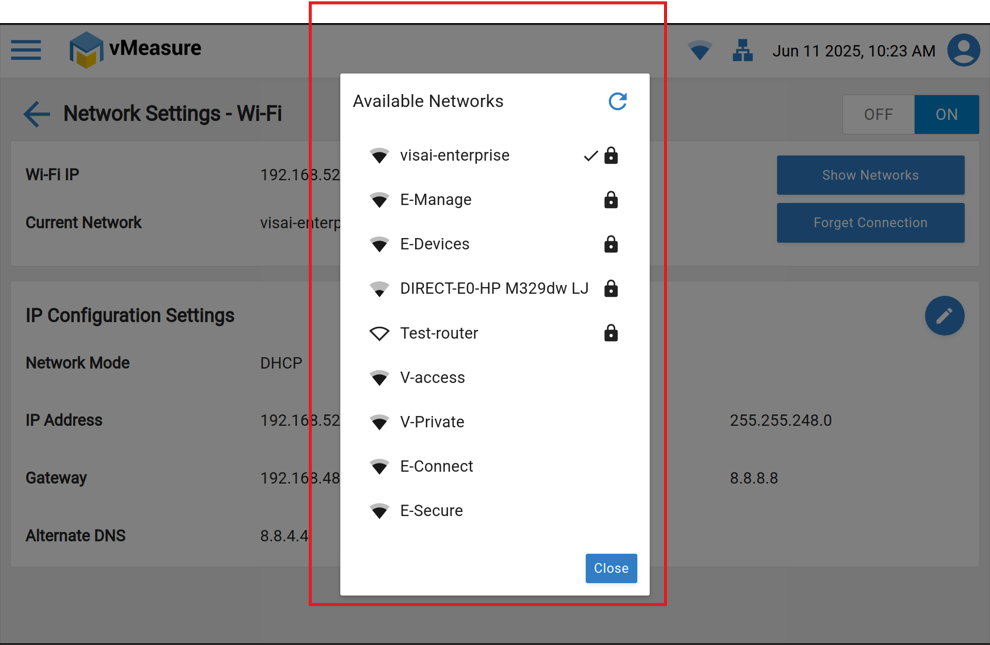
Step 6 :After selecting your enterprise network, you need to enter your "Username and Password."
Note: Please use an "External keyboard" to type in the credentials.
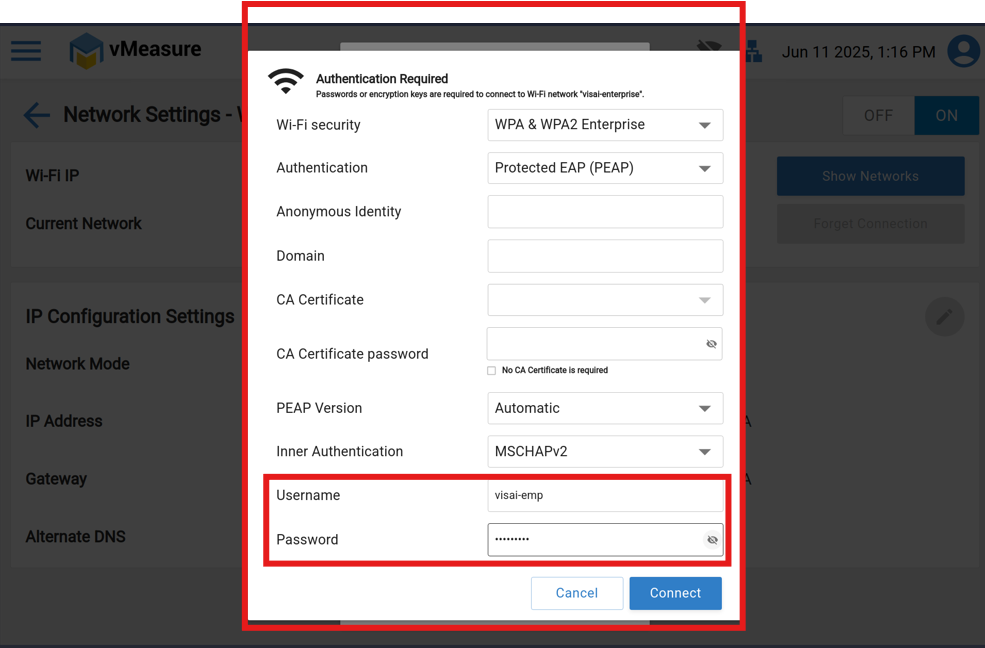
Step 7 : After entering your credentials, click on "Connect". You will then be successfully connected to the Enterprise network with the vMeasure device, and you will be able to see the IP address.
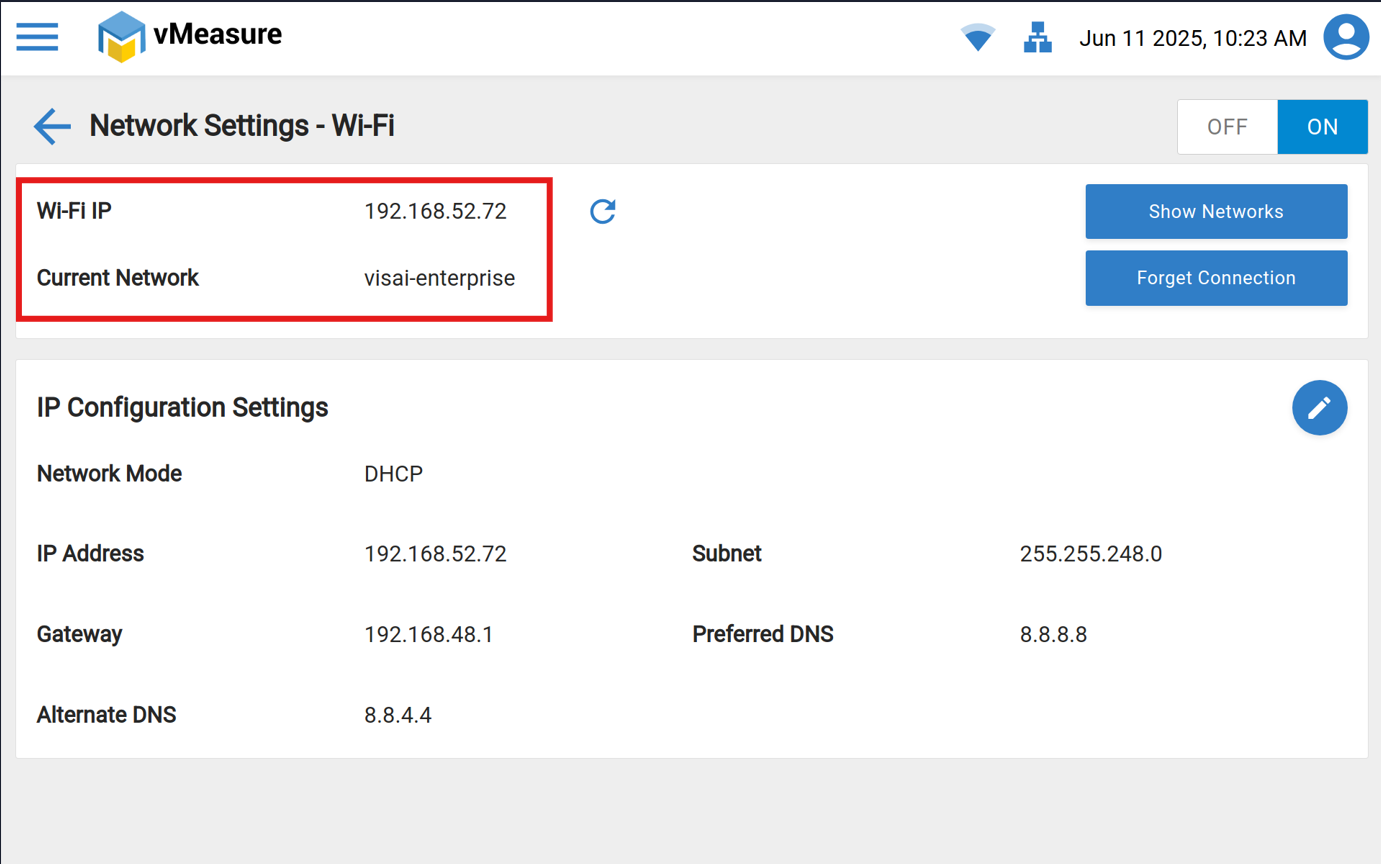
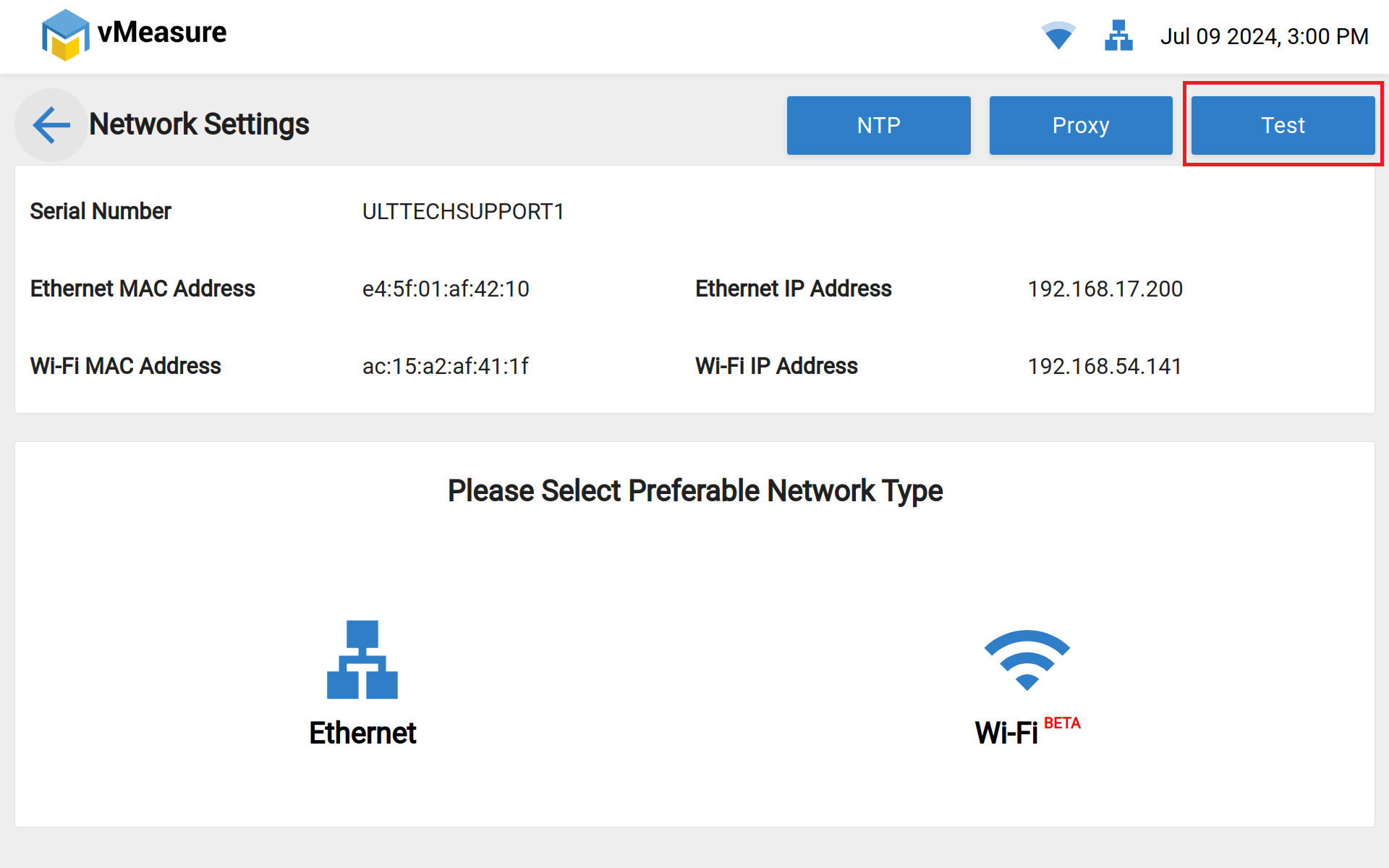
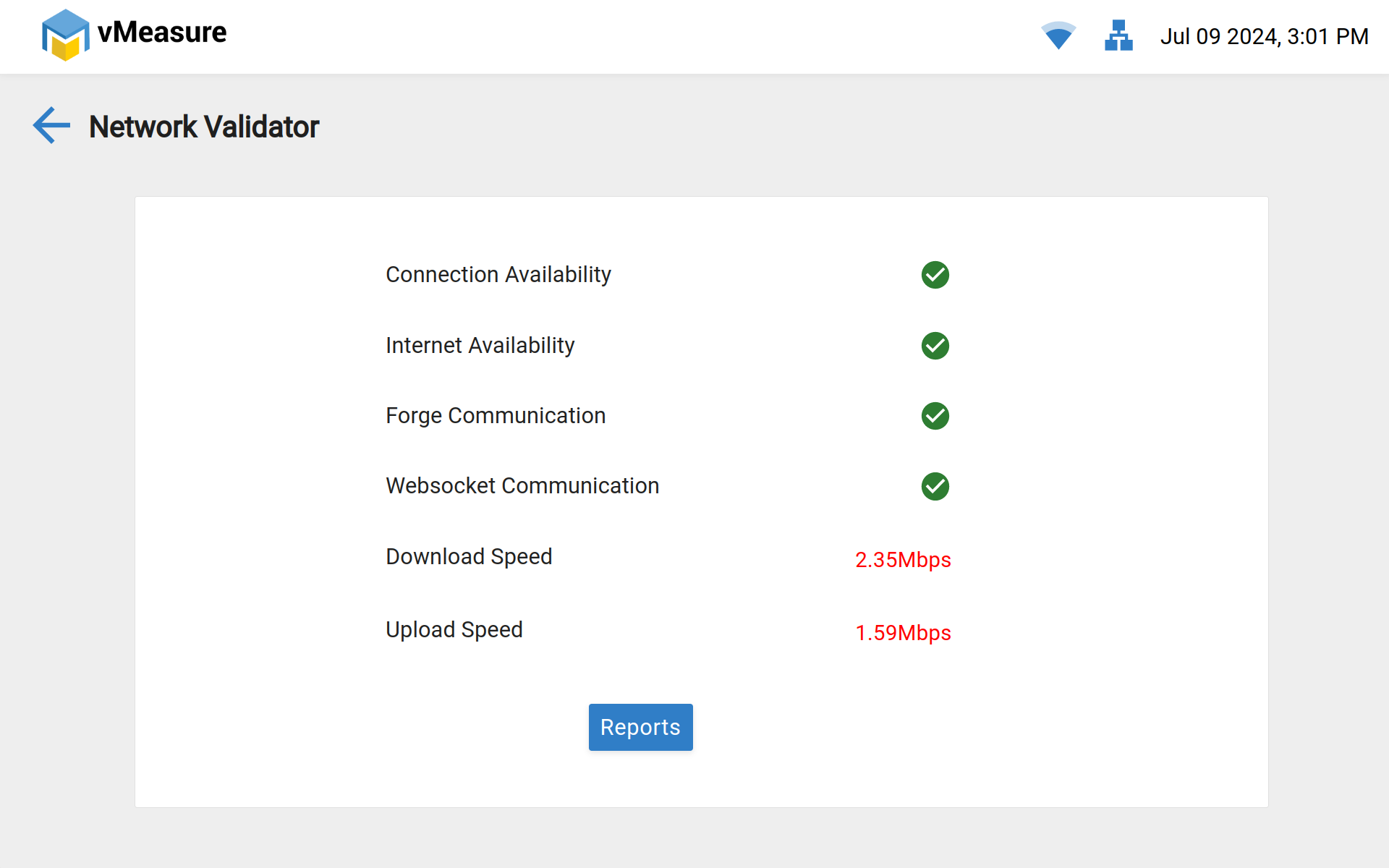
Step 8 : Navigate to the back and click on the "Test" icon to verify the network connection.
Was this article helpful?
That’s Great!
Thank you for your feedback
Sorry! We couldn't be helpful
Thank you for your feedback
Feedback sent
We appreciate your effort and will try to fix the article