Follow the steps below to add the hidden Wi-fi Network in vMeasure device:
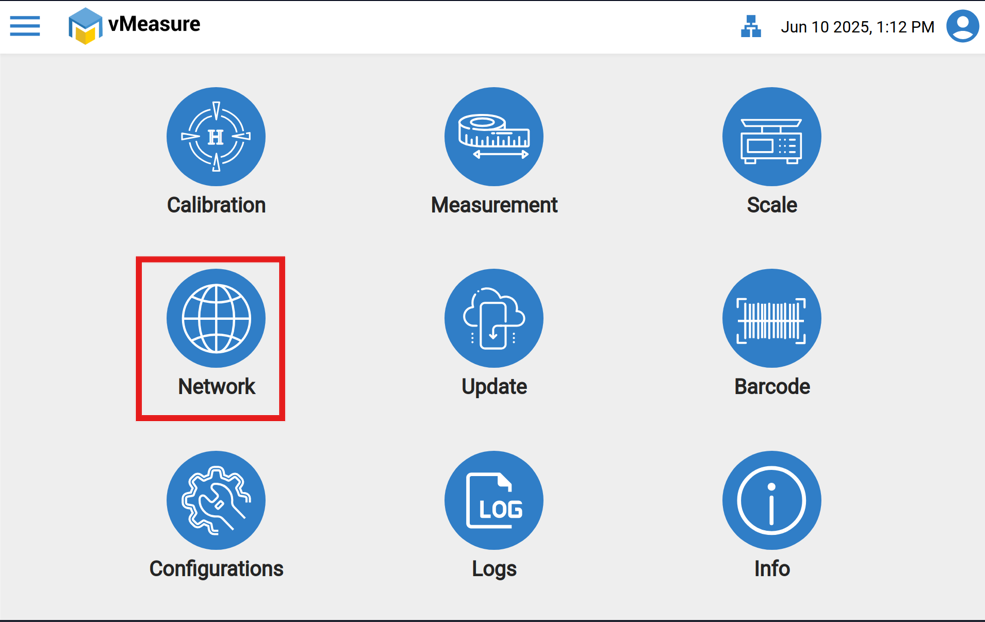
Step 1: Click the "Network " icon.
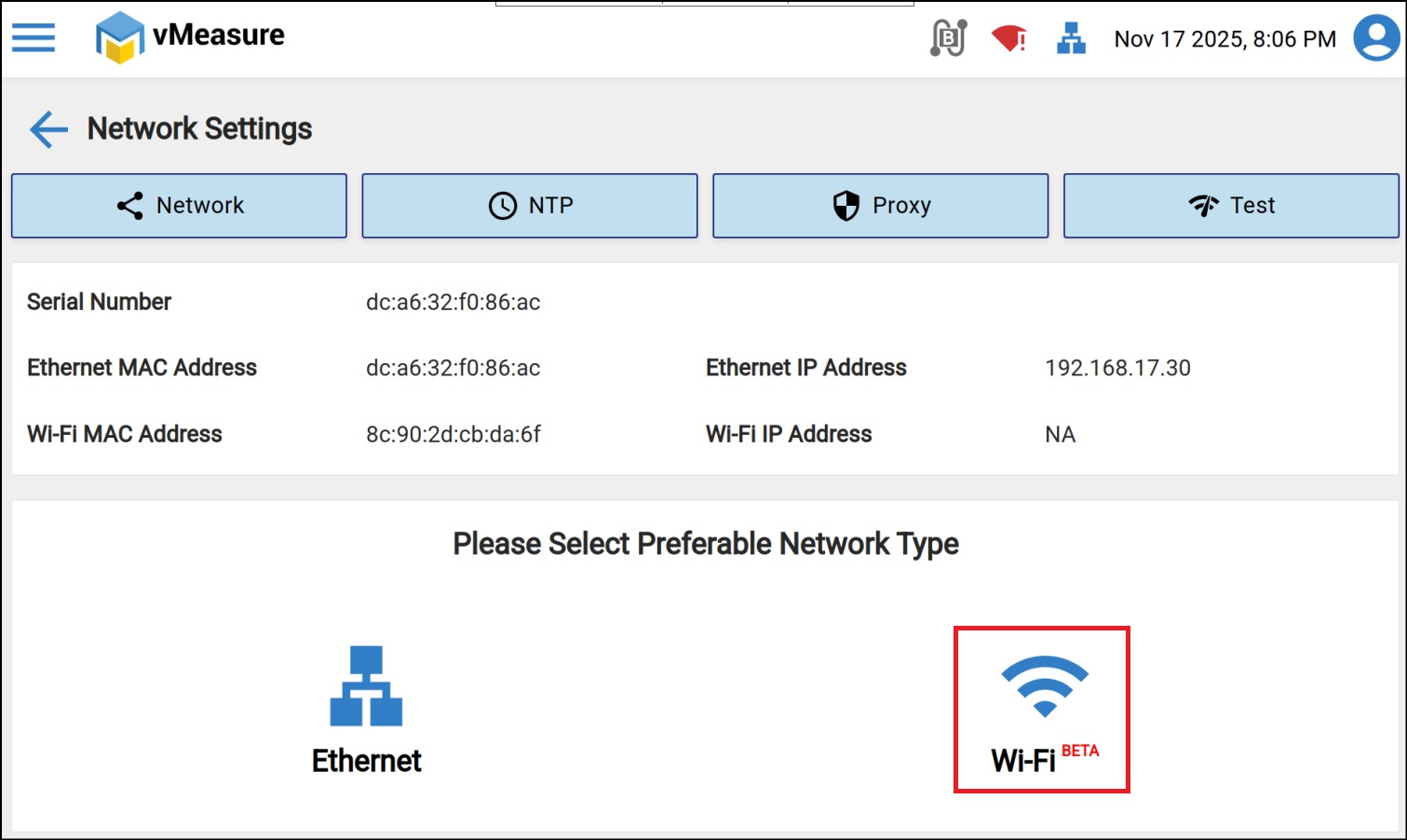
Step 2: Navigate to "Wi-Fi", make sure the Wi-Fi adaptor is connected to the vMeasure device.
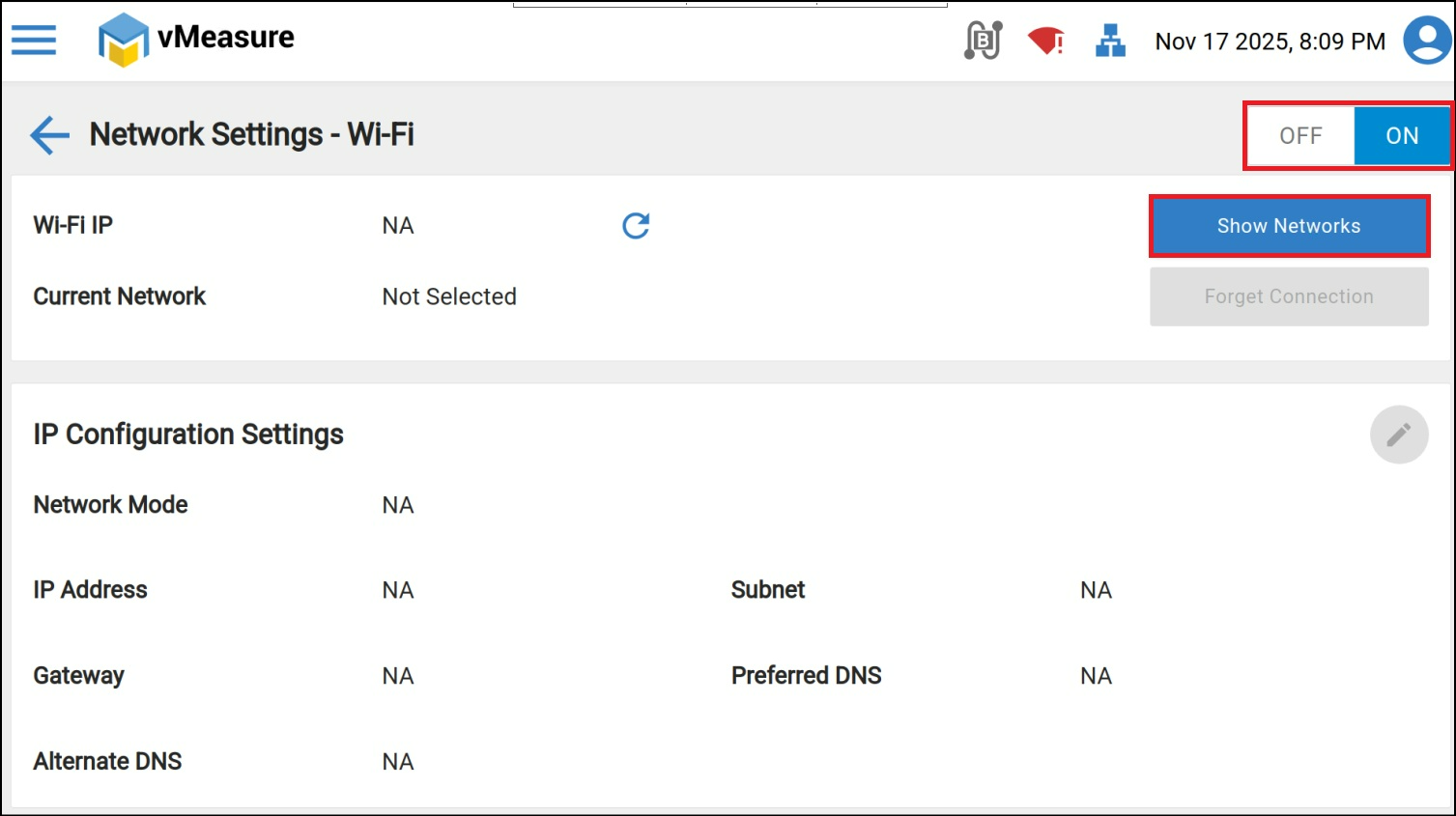
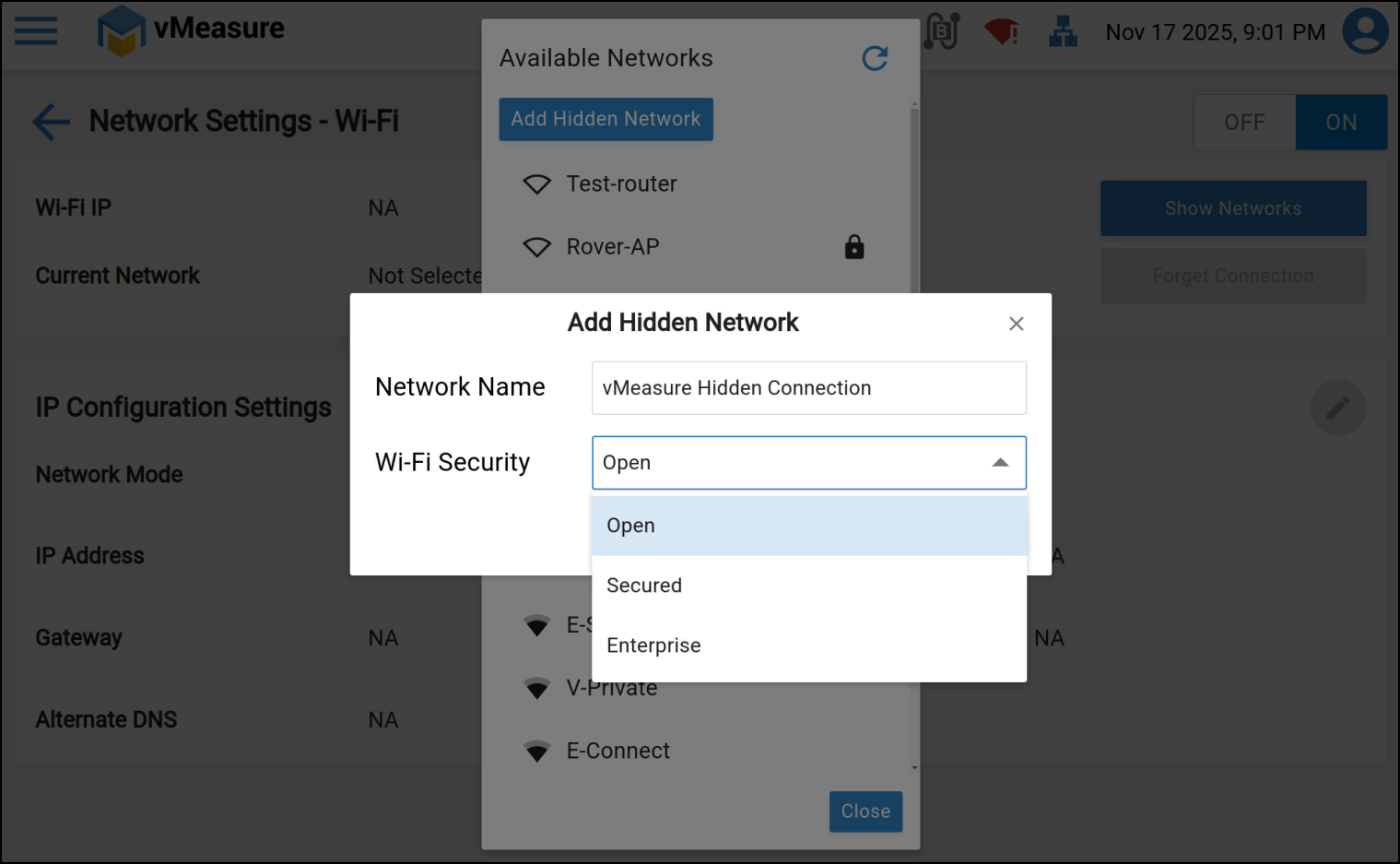
Step 3: Turn on the Wi-Fi toggle & click on "Show Networks". Click on "Add Hidden Network".
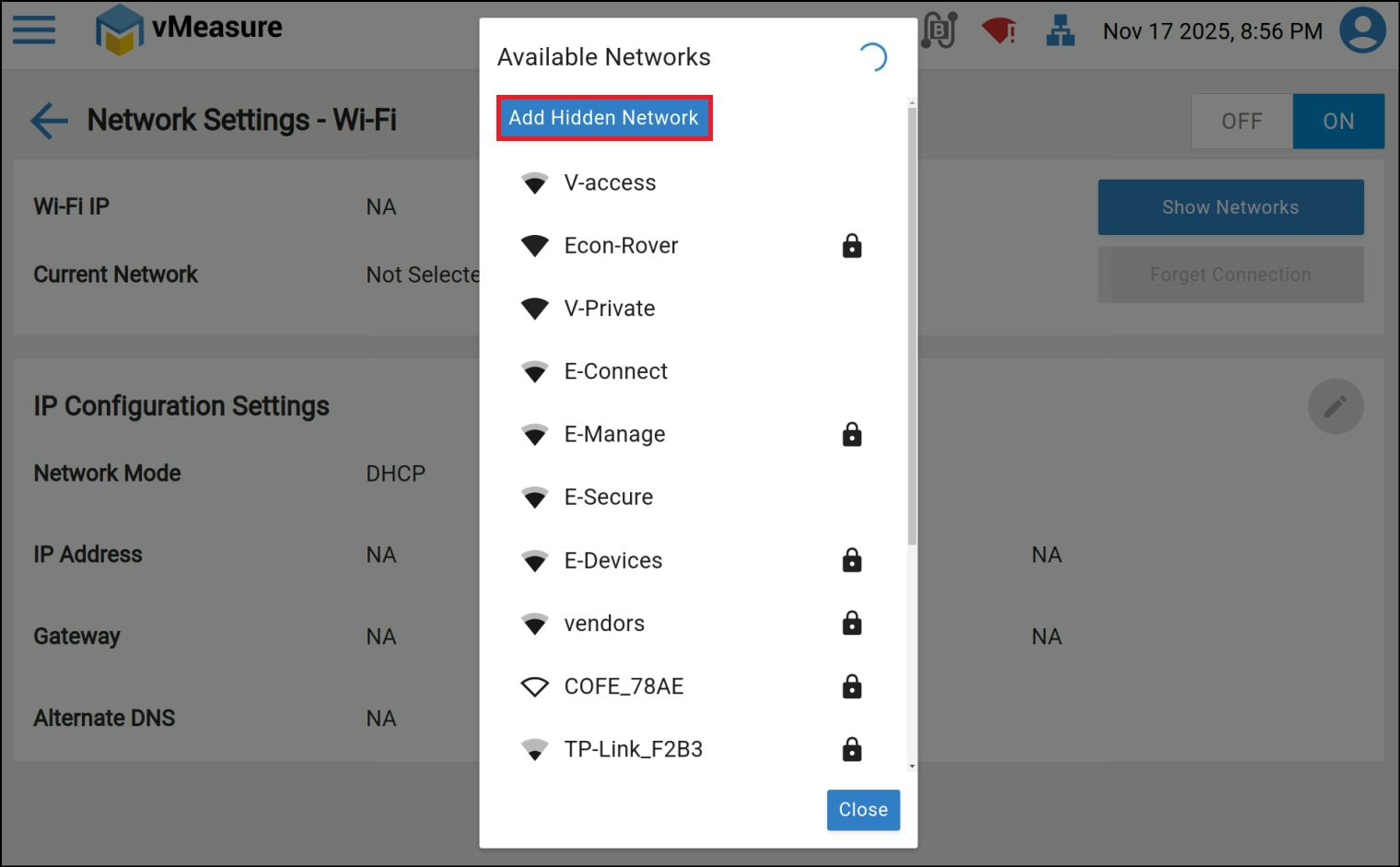
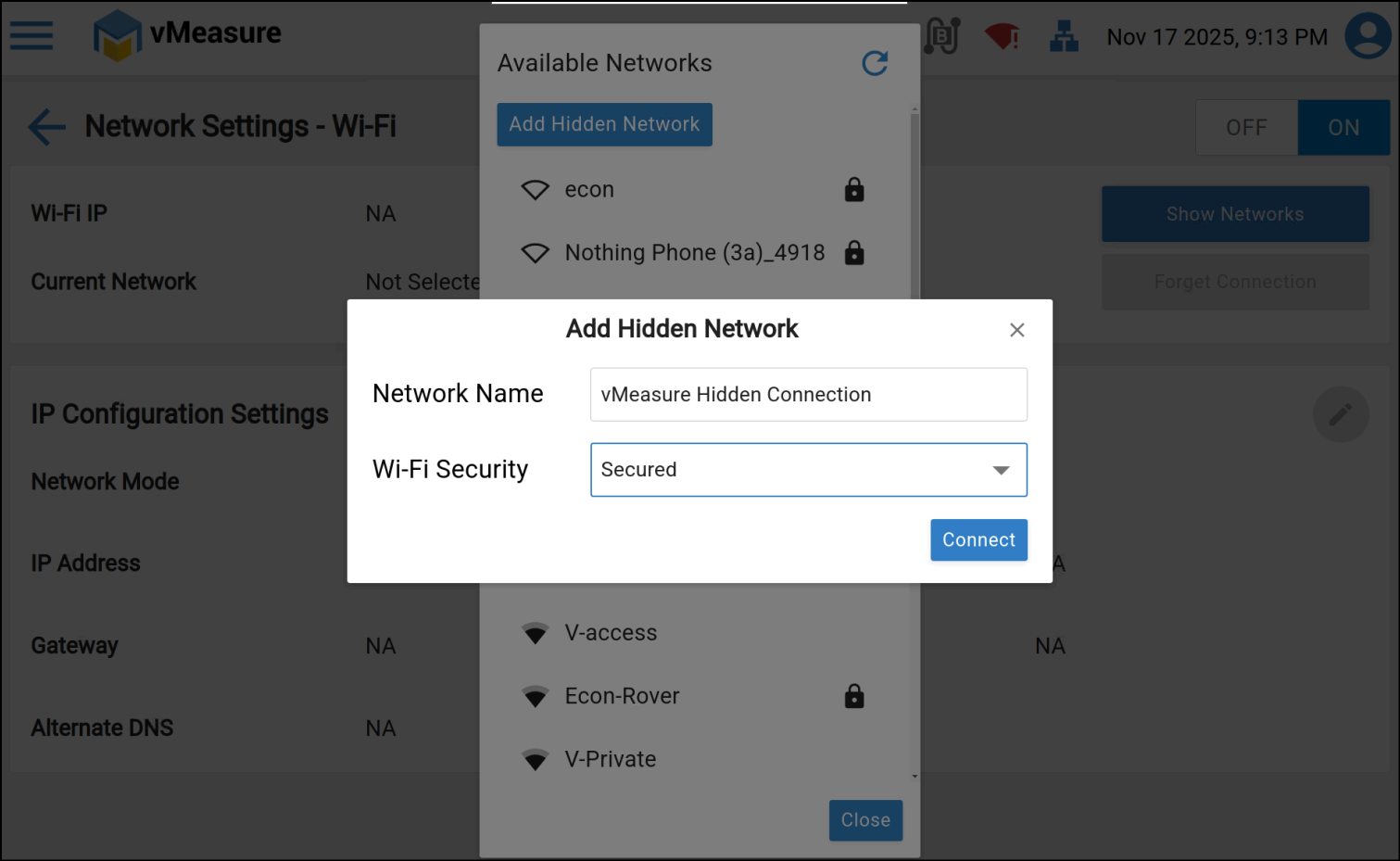
Step 4: Enter the Hidden network network name & Wi-Fi security type & click on "Connect".
Step 5: Enter the Password & Click on Connect.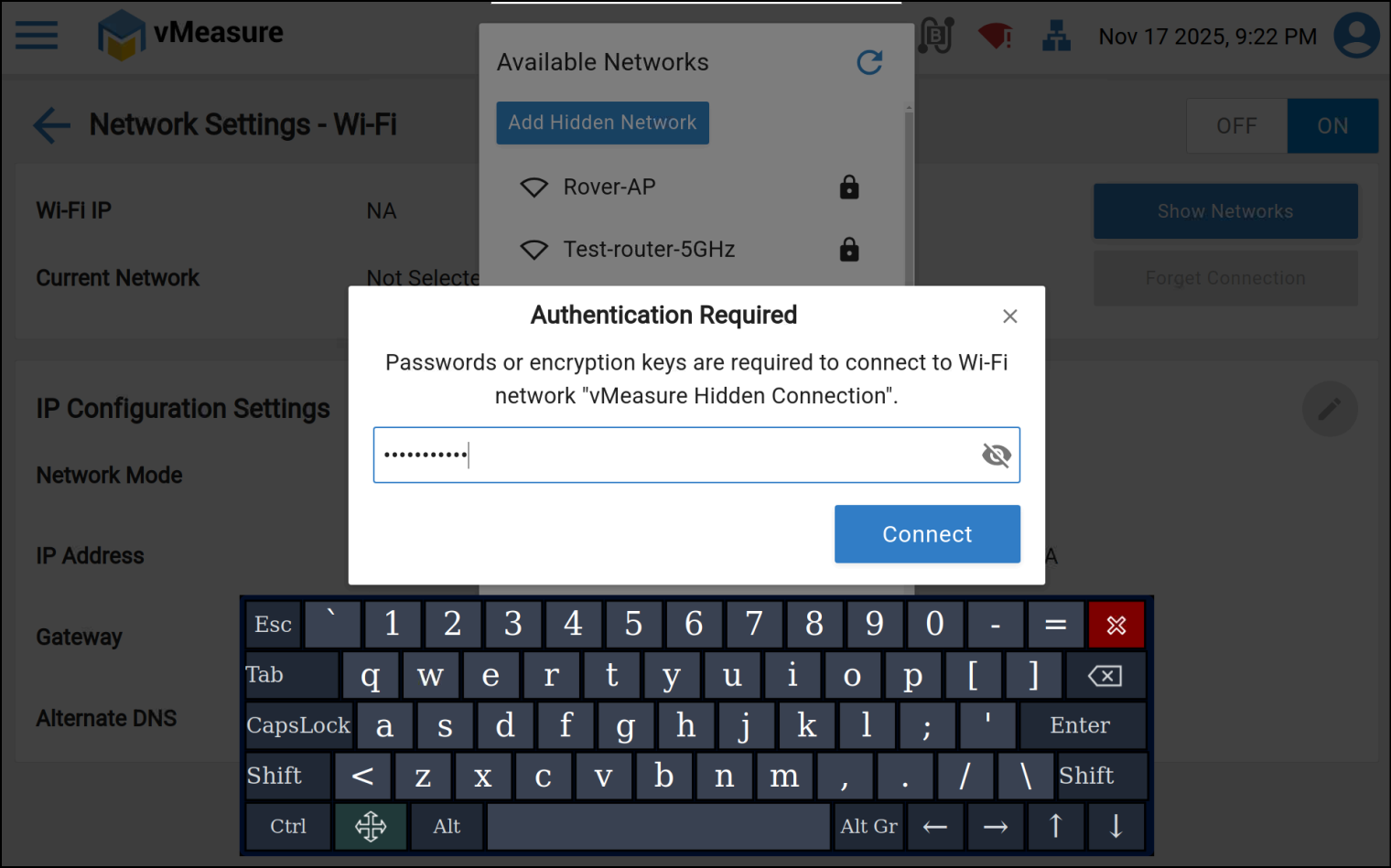
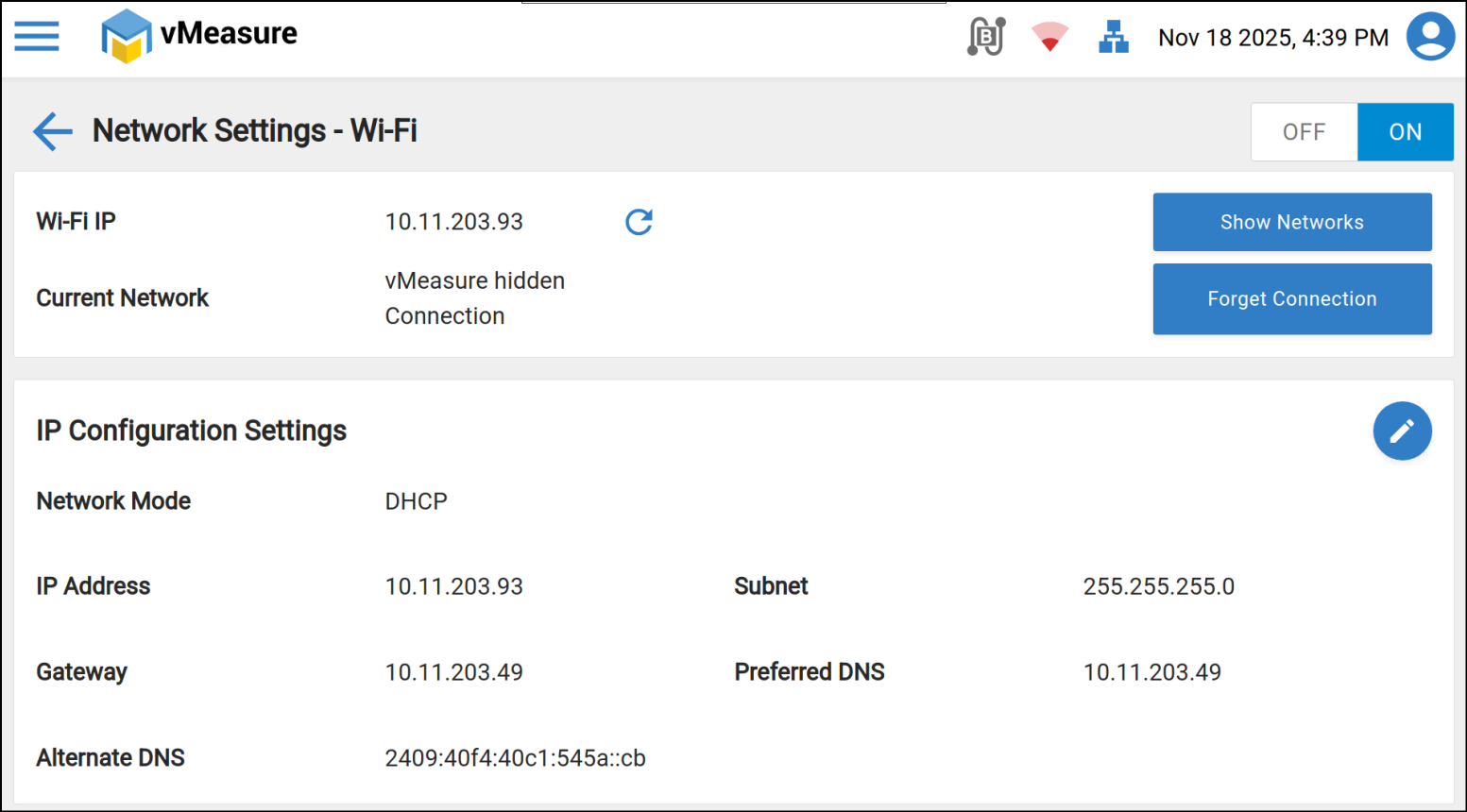
Wi- Fi is connected successfully.
If you need any support , please drop a mail to vmeasure@visailabs.com
Was this article helpful?
That’s Great!
Thank you for your feedback
Sorry! We couldn't be helpful
Thank you for your feedback
Feedback sent
We appreciate your effort and will try to fix the article