How to Troubleshoot: custom_service.error_message (Maximum Print Queue Size Exceeded)
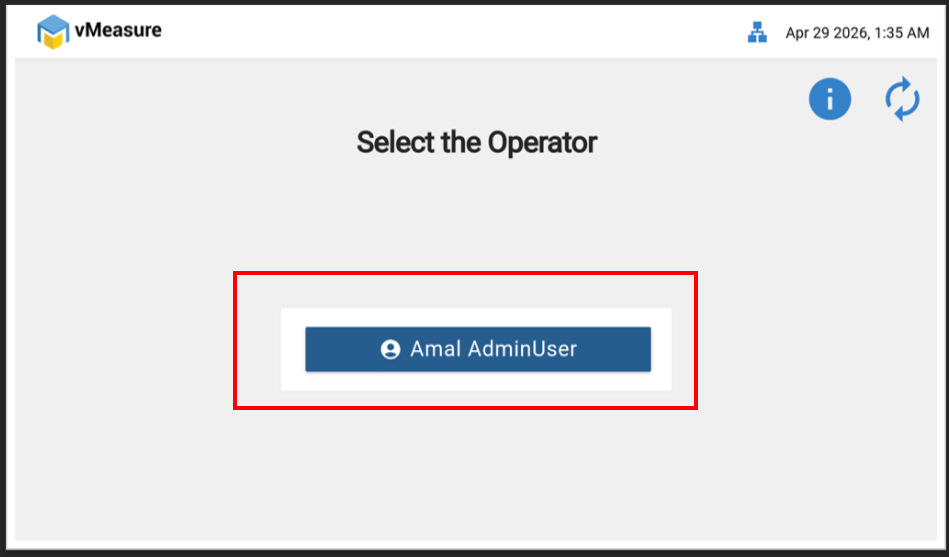
Step 1: Log in to the vMeasure device.
Step 2: Click on “Configuration” and navigate to the next page.
Image 1:
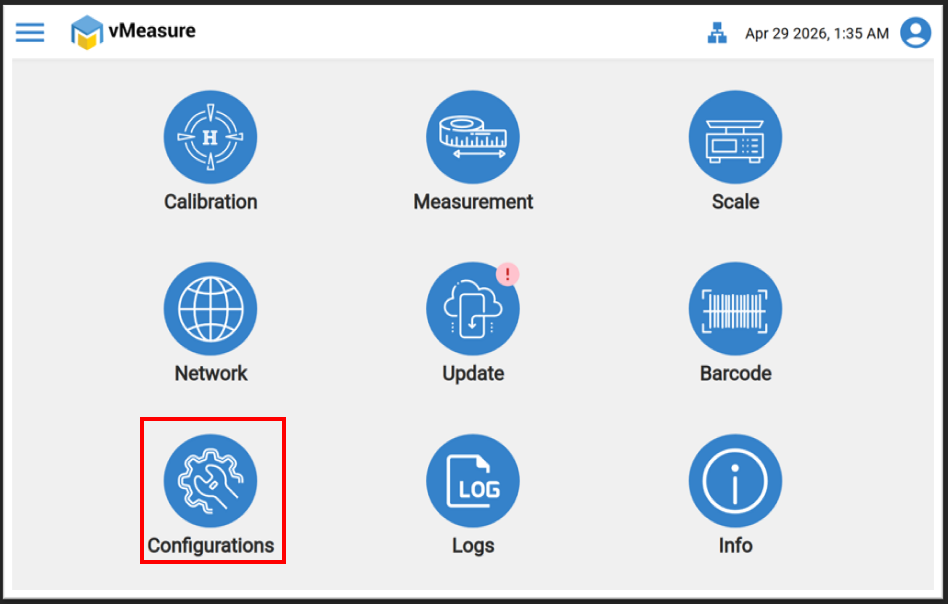
Image 2:
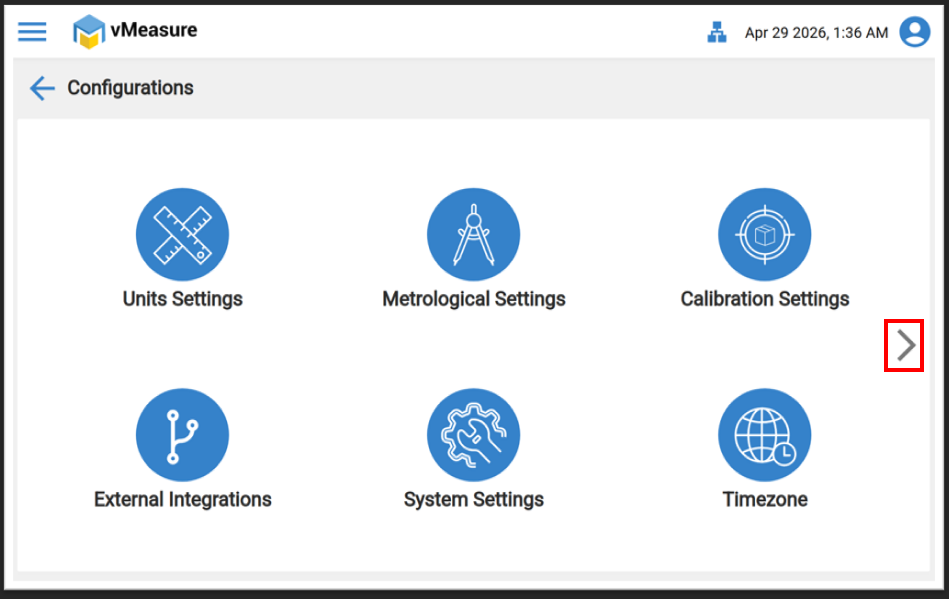
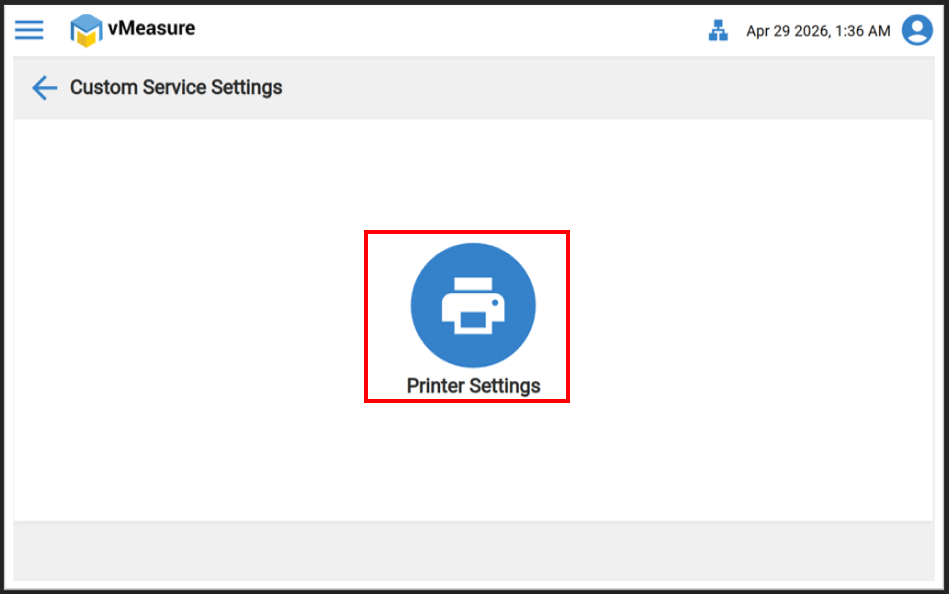
Step 3: Select “Custom Configuration.” and click on "Printer Setting".
Image 1:
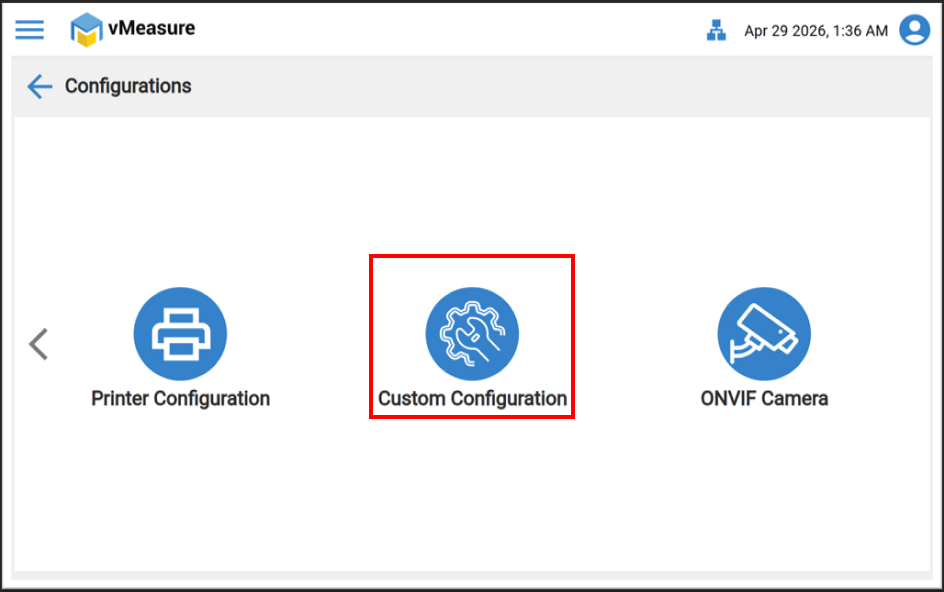
Image 2:
Step 4: By default, the Queue Size is set to “1.”
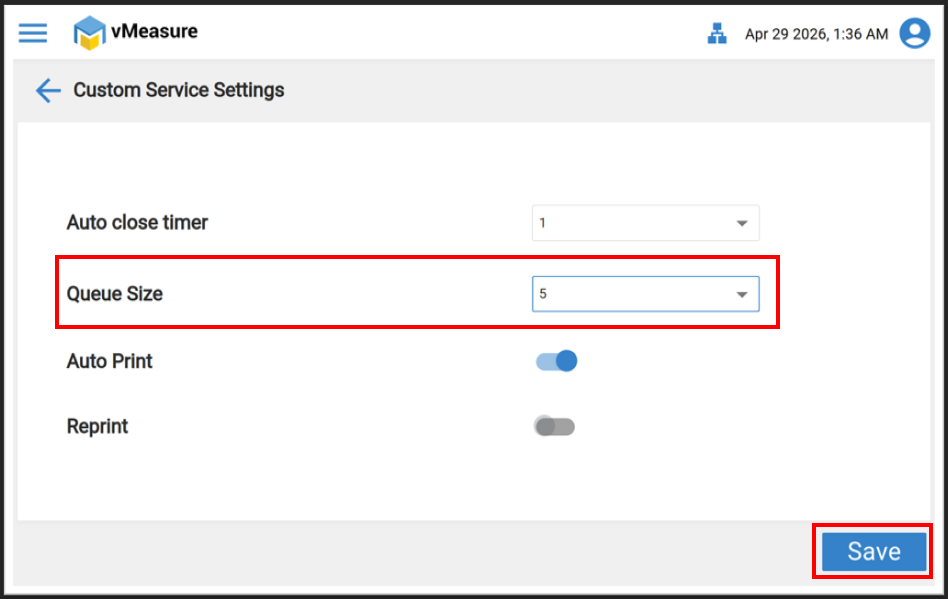
If you are printing more than one label at a time, increase the Queue Size using the dropdown (e.g., set it to “5”).
Image 1:
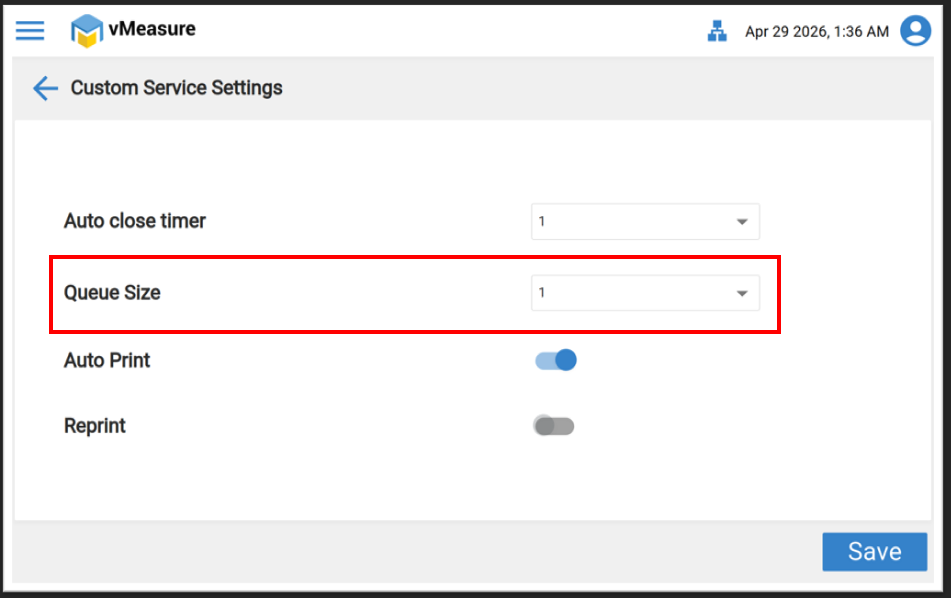
Image 2:
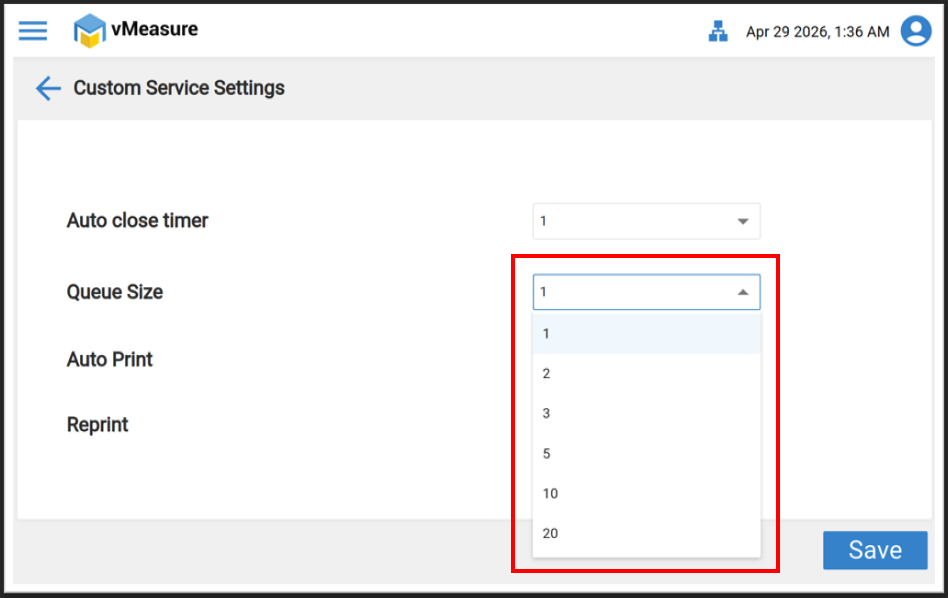
Image 3:
If you need any support , please drop a mail to vmeasure@visailabs.com
Was this article helpful?
That’s Great!
Thank you for your feedback
Sorry! We couldn't be helpful
Thank you for your feedback
Feedback sent
We appreciate your effort and will try to fix the article