Step 1: Connect the laptop to the Wi-Fi AP go to "Network and Internet" in the Control Panel and make sure the vMeasure device is connected to the laptop using an RJ-45 cable.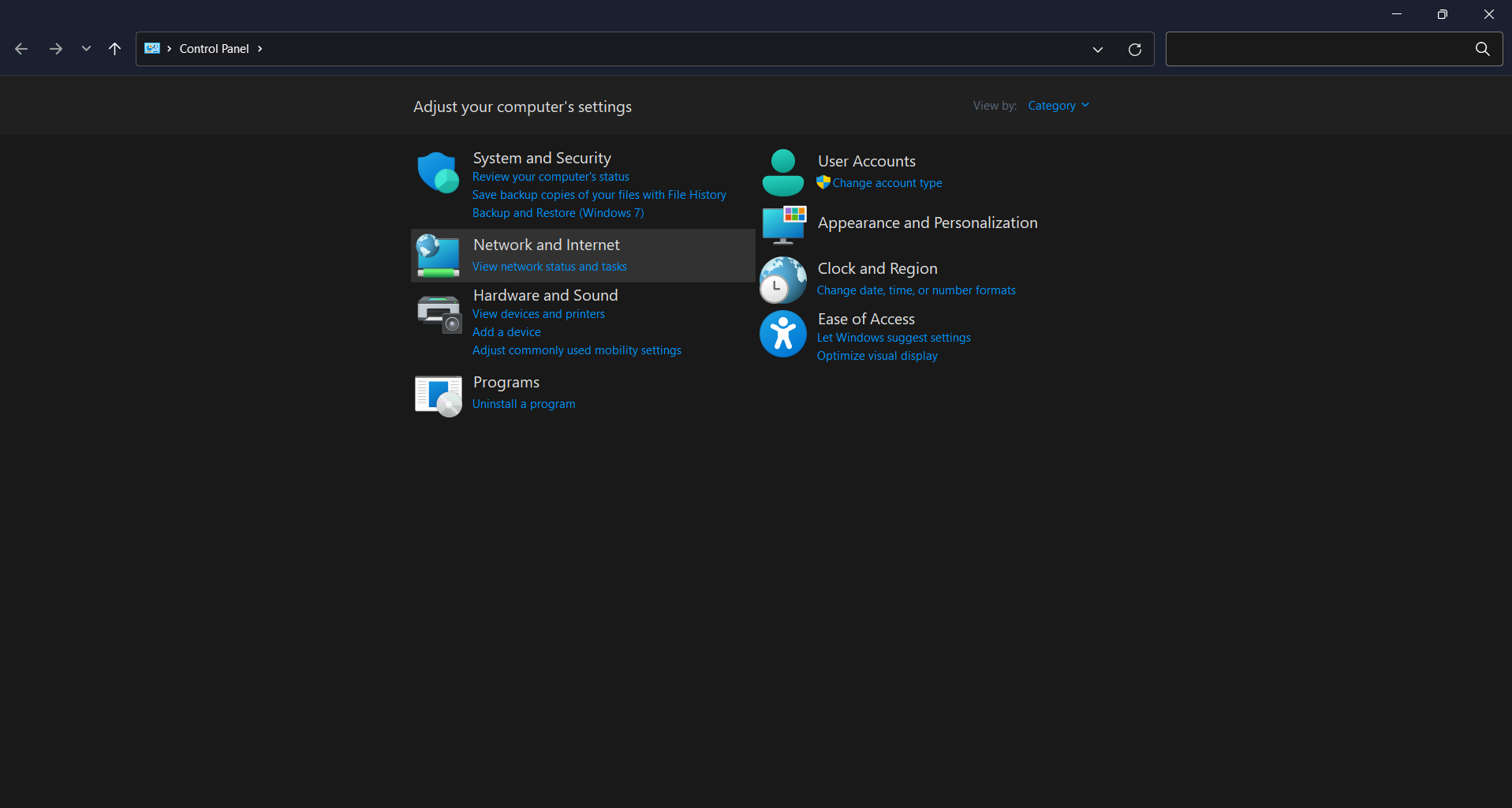
Step 2: In Network and Internet, select "Network and Sharing Center".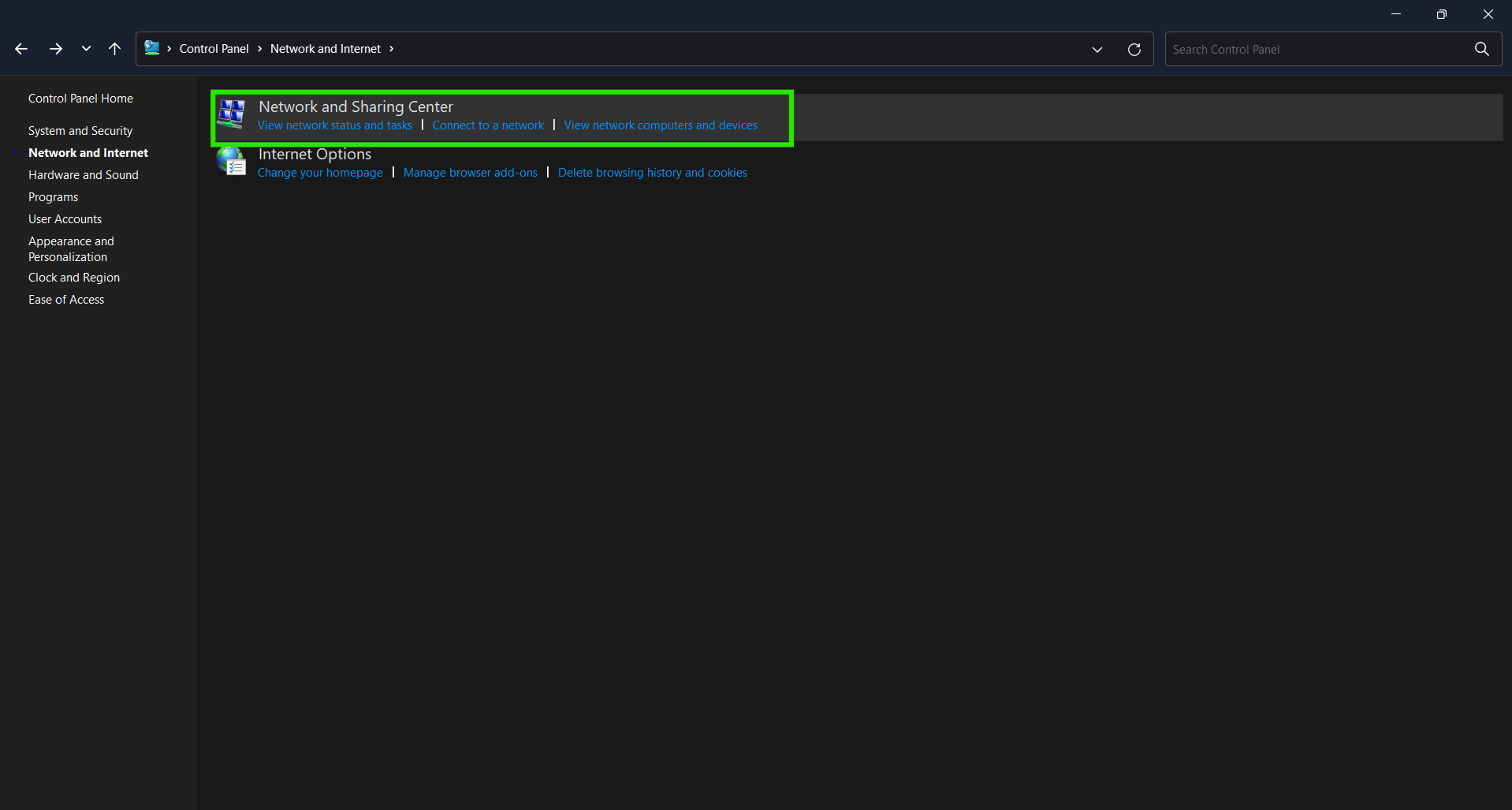
Step 3: Now click on "Change adapter settings".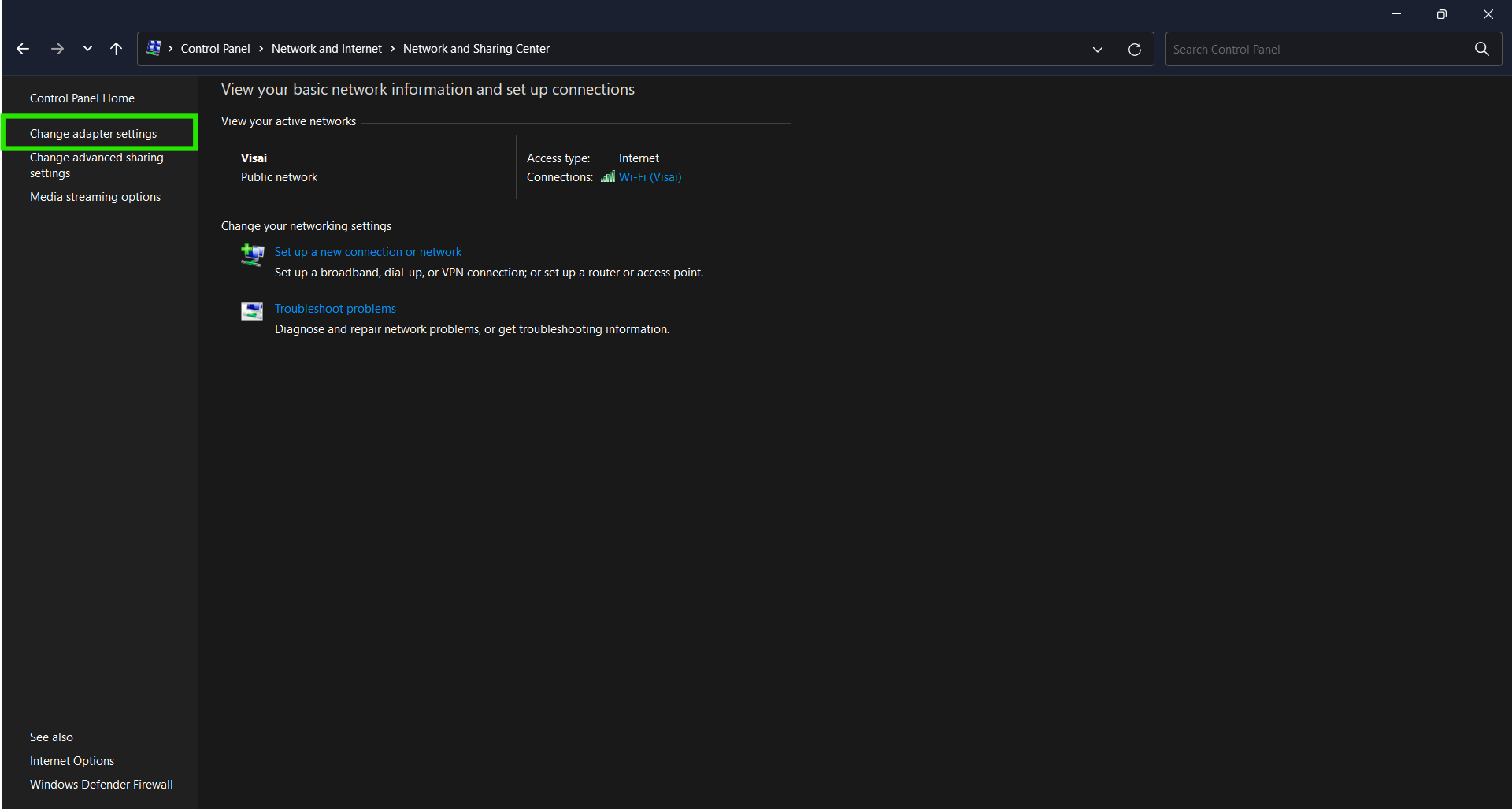
Step 4: Now go to "Wi-Fi" and after right-clicking go to "Properties".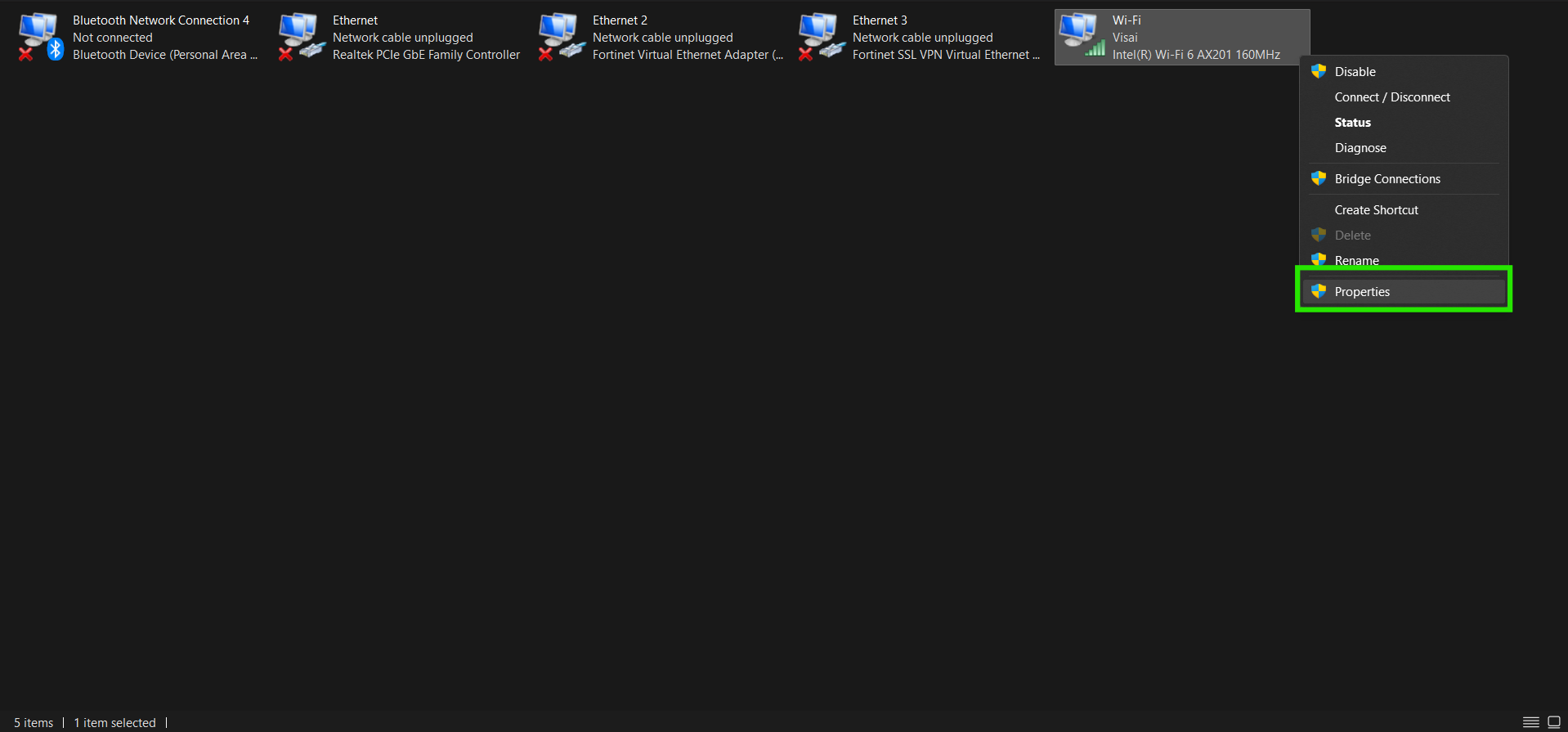
Step 5: In the "Wi-Fi Properties" window, go to "Sharing"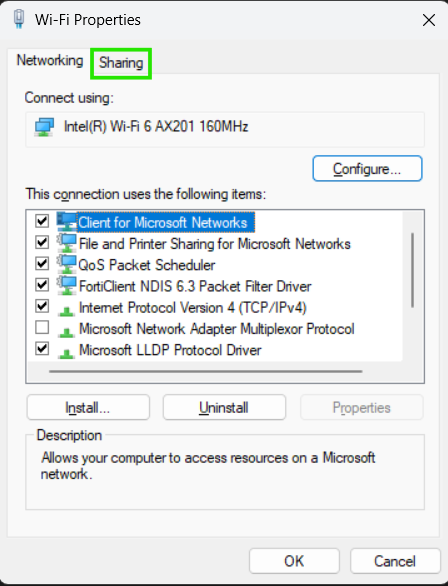
Step 6: Now click the first check-box, and under "Home network connection" select "Ethernet" then press "OK".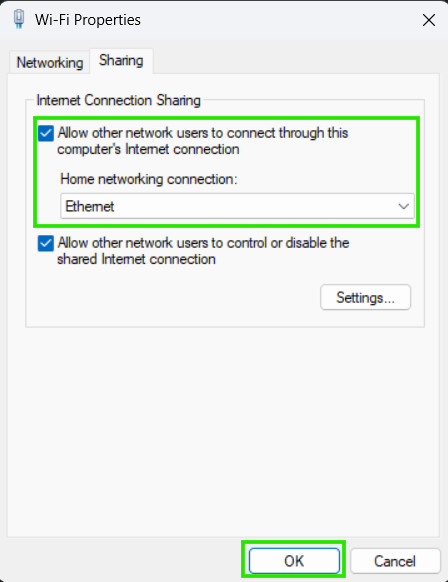
Note: After going through the above procedure you should be able to connect the vMeasure device to the internet and begin operations.
Was this article helpful?
That’s Great!
Thank you for your feedback
Sorry! We couldn't be helpful
Thank you for your feedback
Feedback sent
We appreciate your effort and will try to fix the article