Region-based Mode:
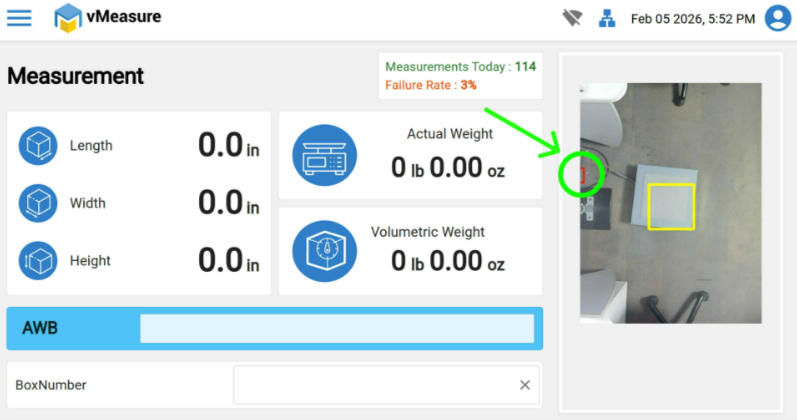
A red square appears on the measurement screen representing the calibration threshold point. Please ensure that this red square remains consistent during measurements (No Height deviation).
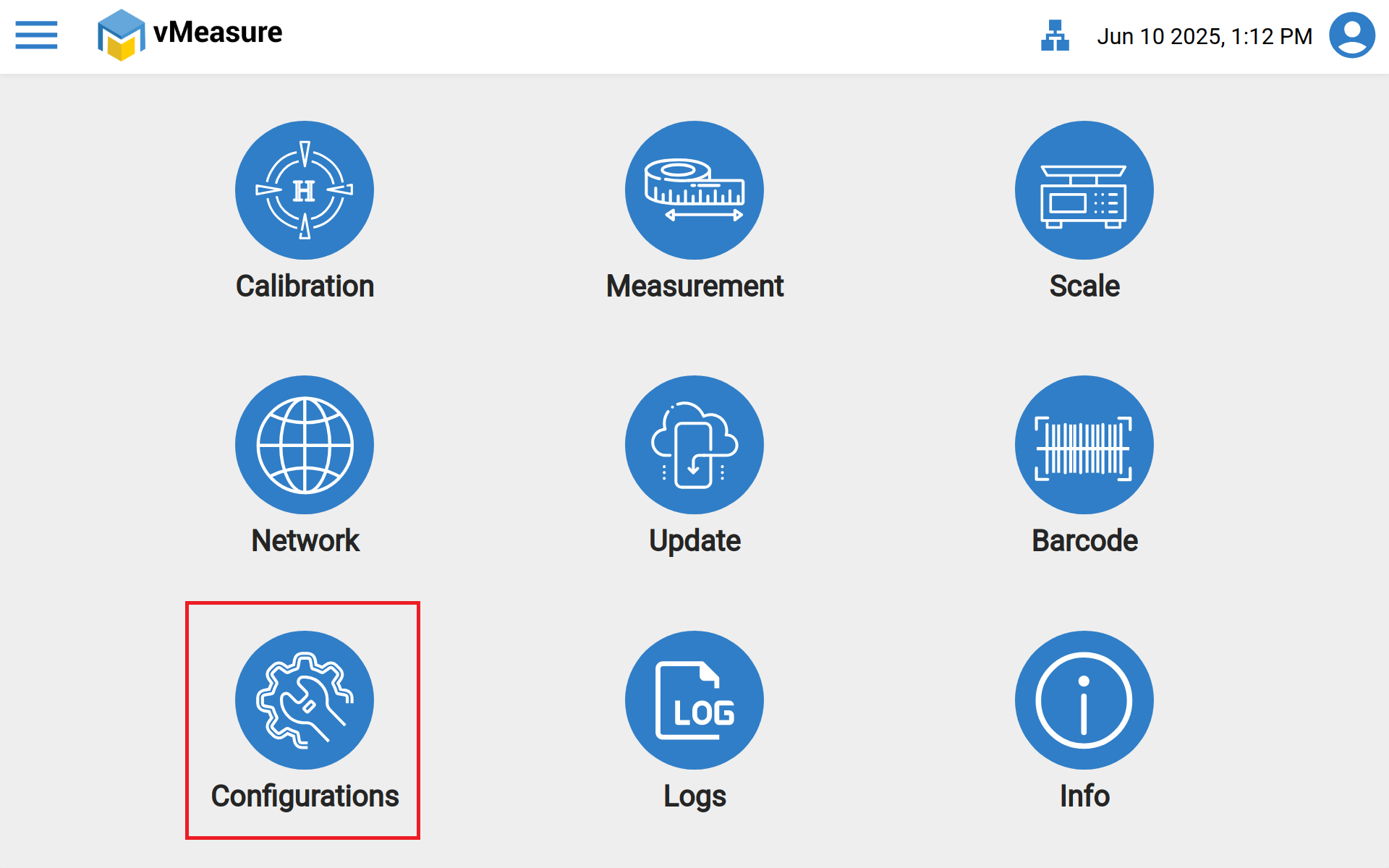
- First login to the vMeasure device, after login once in the settings page, select the "Configuration" icon.
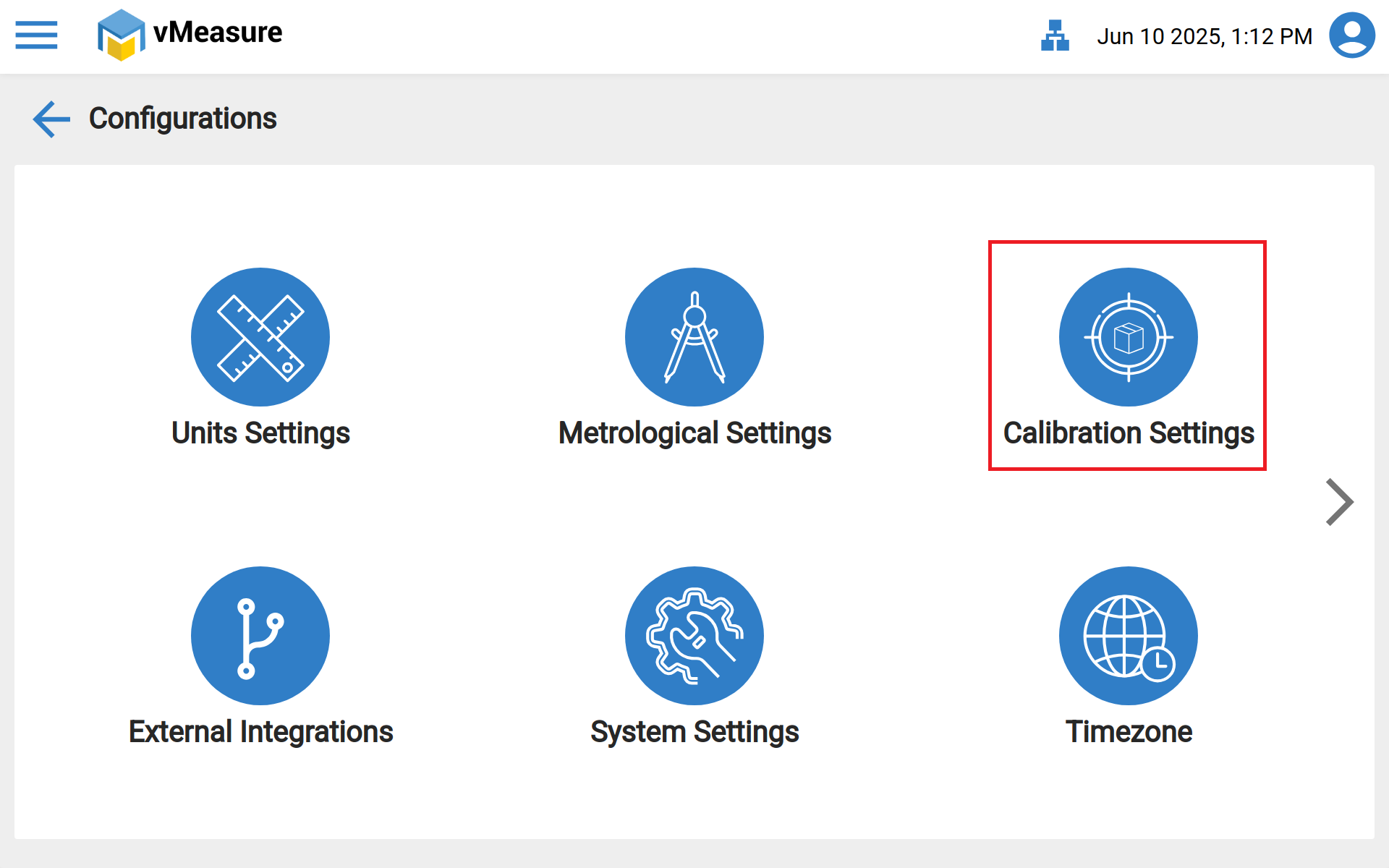
- Once in the "Configuration" page got to "Calibration Settings".
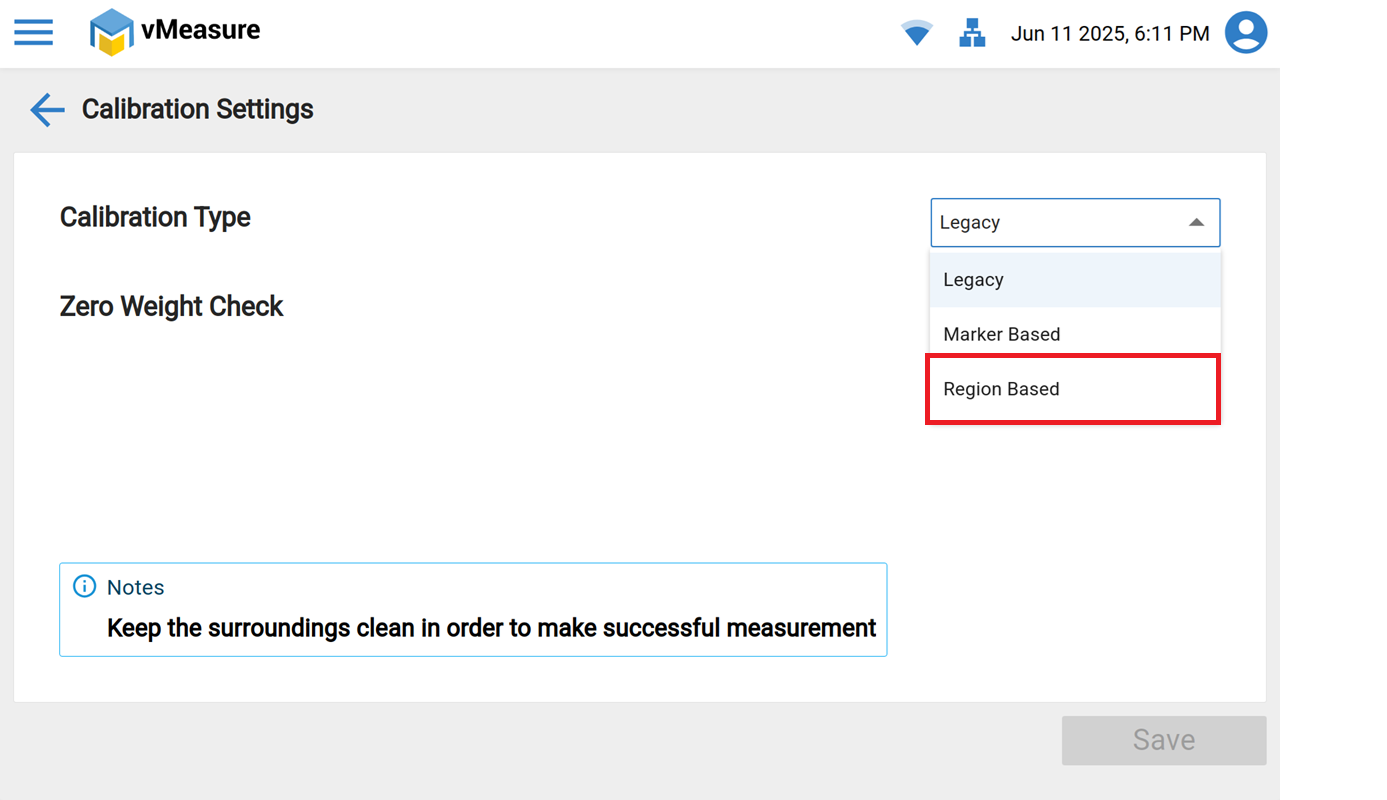
- Once in the "Calibration Settings", from the drop-down select "Region Based" and press "Save". Post this go back to settings and Calibrate the device once.
- Then Calibrate the device, Post calibration a small sqaure will be appeared on the measurement page. Please ensure no obstacles should be found in that red sqaure post calibration while measuring the shipments.
If you need any support , please drop a mail to vmeasure@visailabs.com or Click here to Submit a Ticket.
Was this article helpful?
That’s Great!
Thank you for your feedback
Sorry! We couldn't be helpful
Thank you for your feedback
Feedback sent
We appreciate your effort and will try to fix the article