Marker Based Calibration:
Please find the attached Aruco Marker PDF and place it in the camera FOV at a location where no obstruction occurs (Any corner). This will establish a fixed and consistent reference point, ensuring more stable performance and minimizing repeated calibration issues.
Note: If the Aruco marker position is moved then the device has to recalibrate the device.
Once the Aruco marker is placed, please follow the steps provided to update the calibration settings to Marker-Based mode
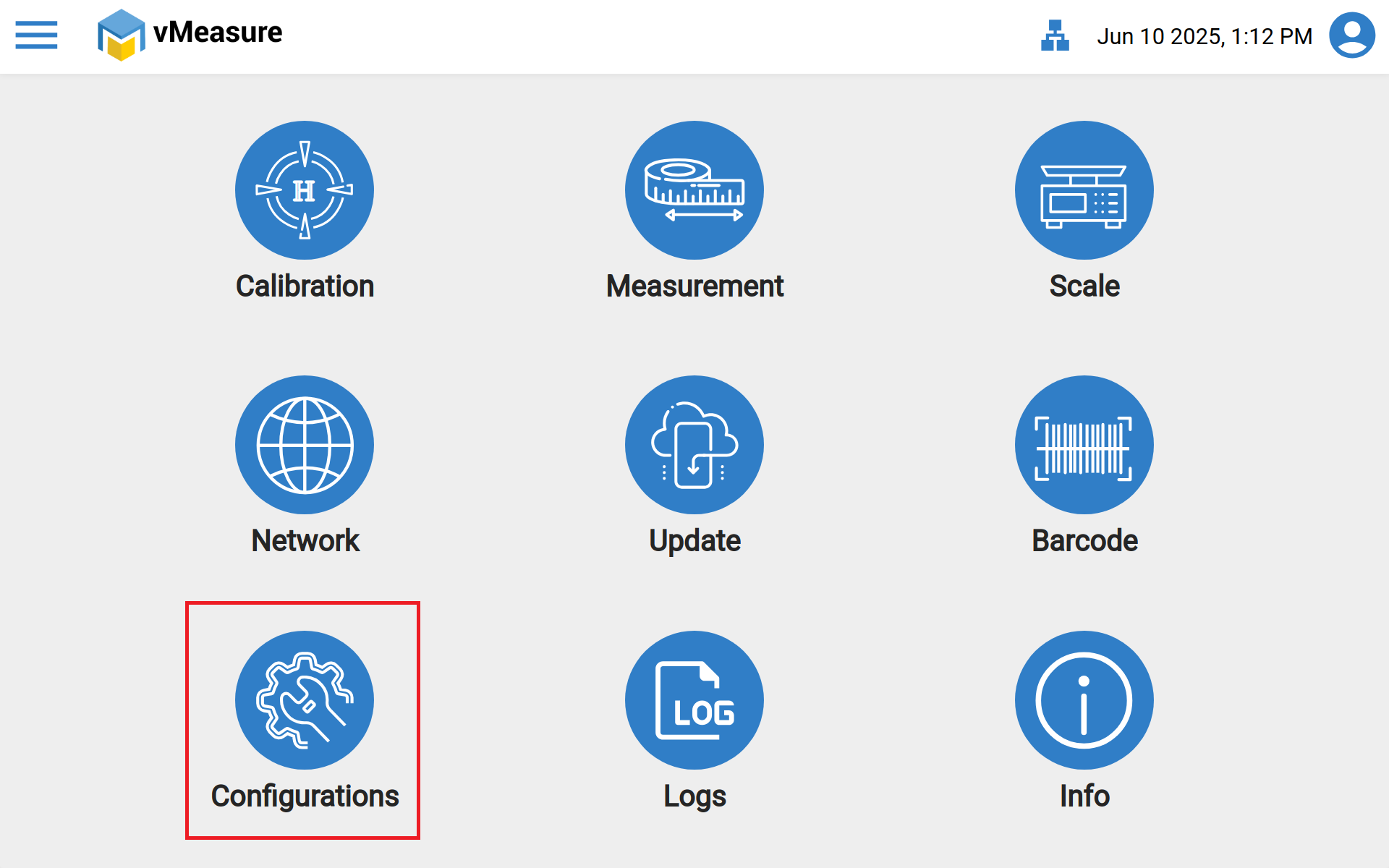
- First login to the vMeasure device, after login once in the settings page, select the "Configuration" icon.
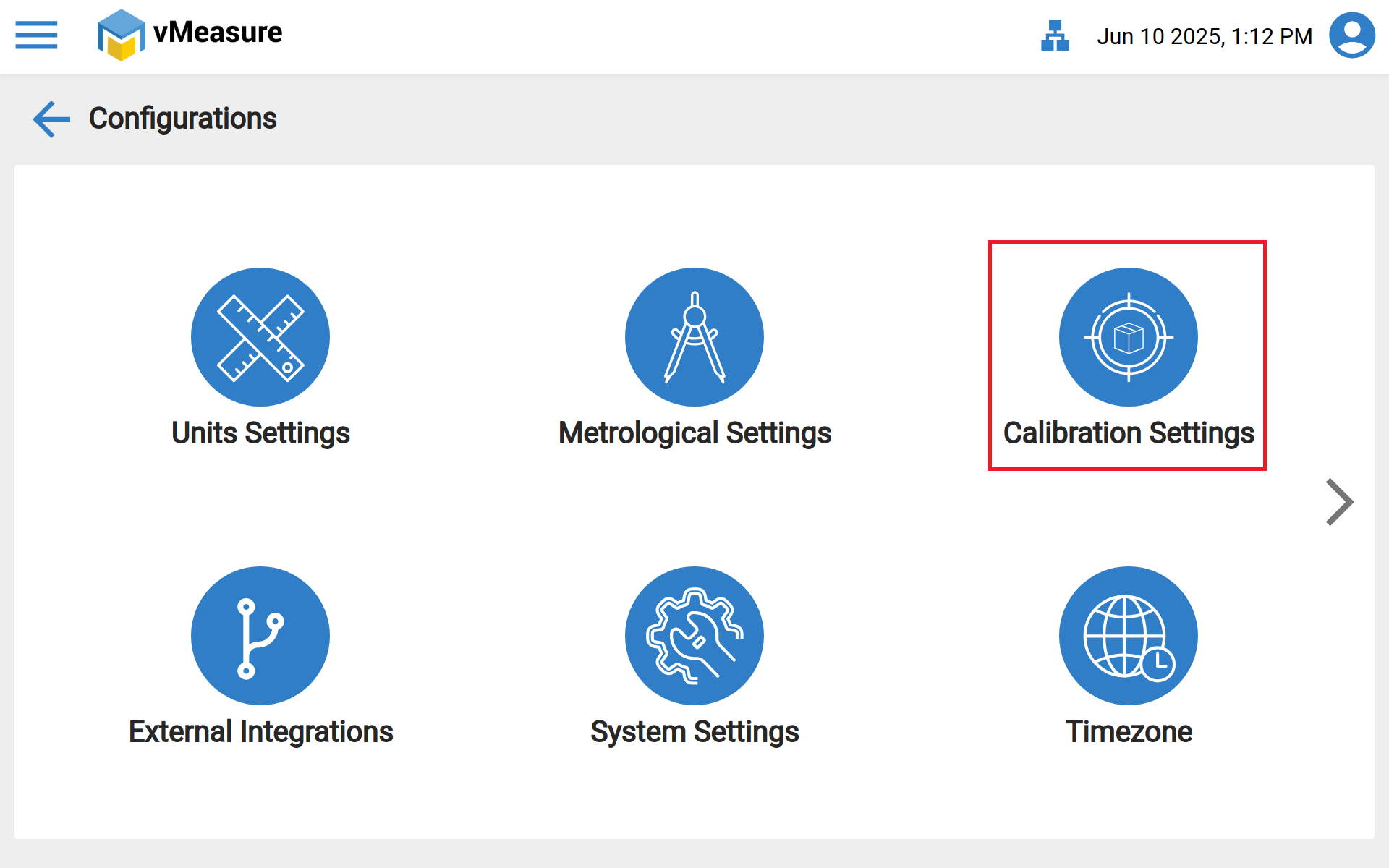
- Once in the "Configuration" page got to "Calibration Settings".
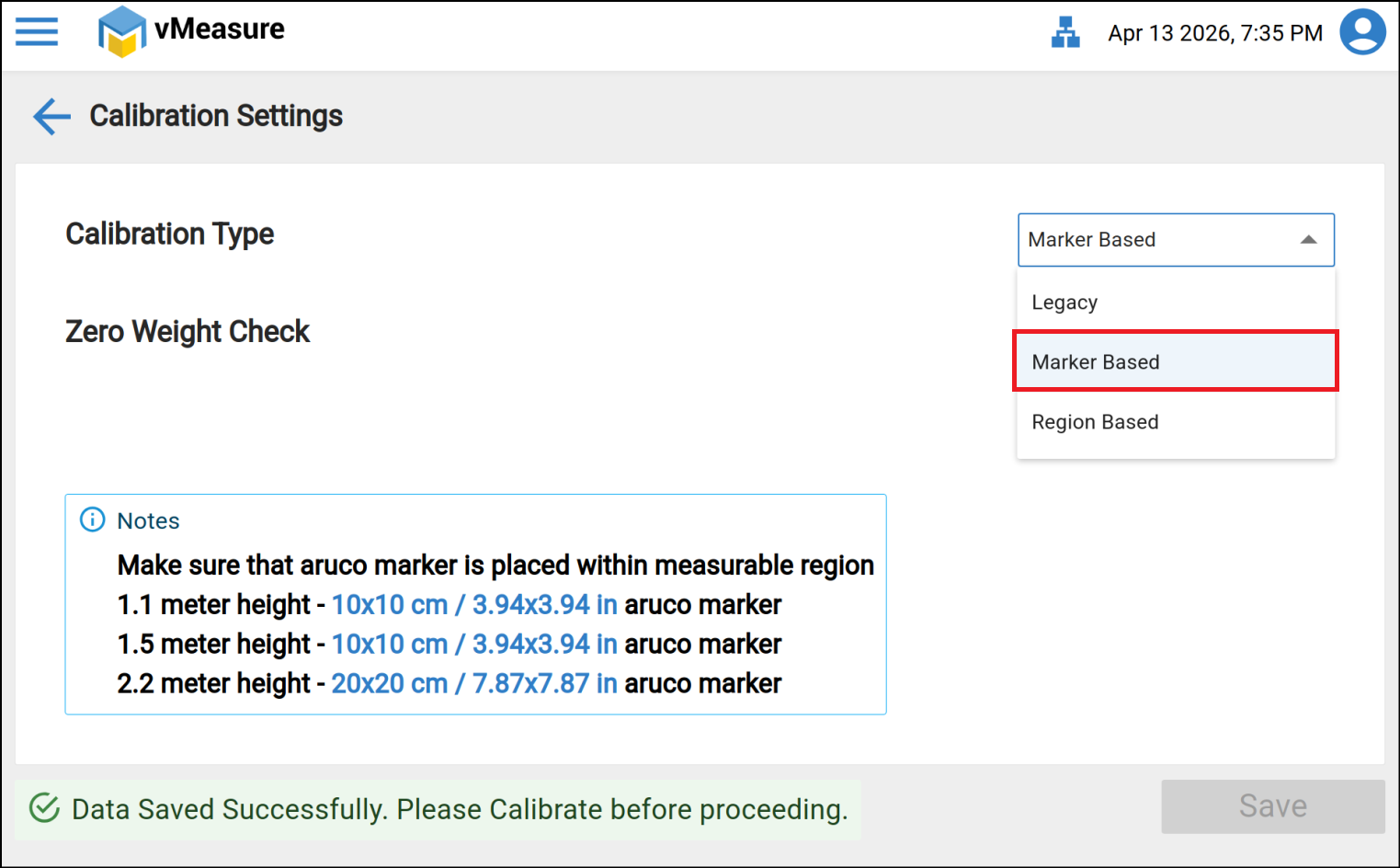
- Once in the "Calibration Settings", from the drop-down select "Marker Based" and press "Save". Post this go back to settings and Calibrate the device once.
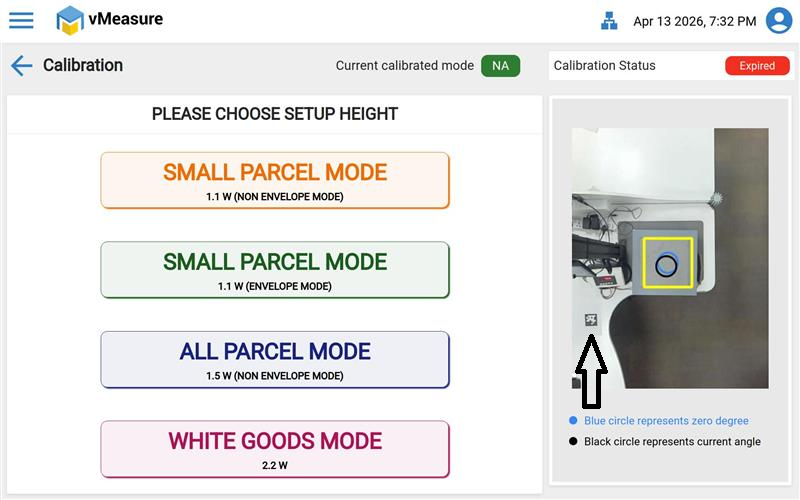
4. Place the Aruco Marker in the corner of the table/floor & calibrate the device, There should be NO obstacles at the time of calibration & measurement in the marker placed region.
Note: Recalibrate has to be performed in case of marker is moved to other place.
If you need any support , please drop a mail to vmeasure@visailabs.com or Click here to Submit a Ticket.
Was this article helpful?
That’s Great!
Thank you for your feedback
Sorry! We couldn't be helpful
Thank you for your feedback
Feedback sent
We appreciate your effort and will try to fix the article