1. Open Network Settings on the vMeasure device.
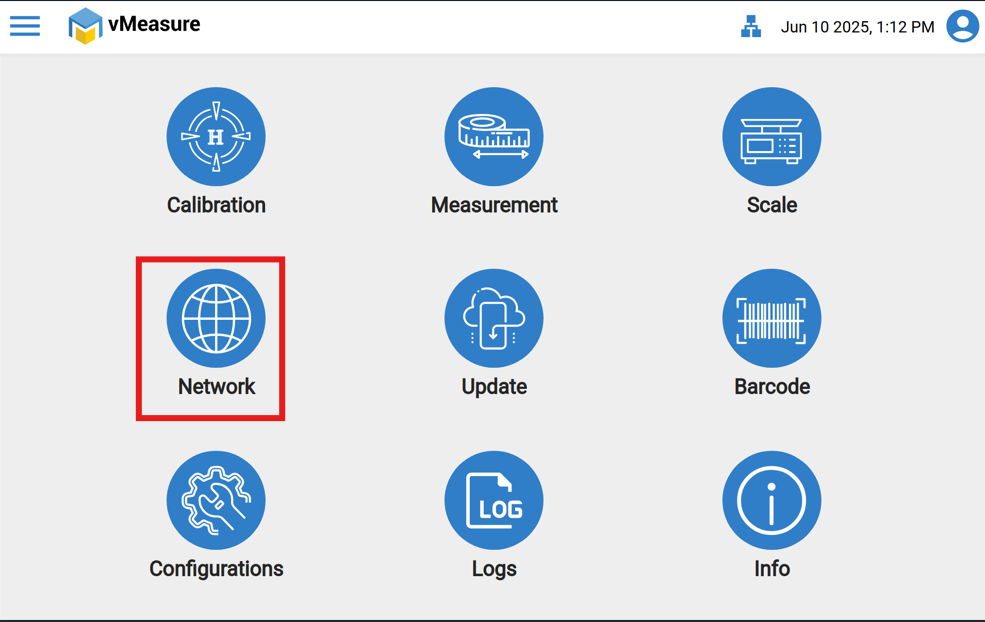
2. Navigate to the Ethernet or Wi-Fi settings you plan to use for connecting your vMeasure device.
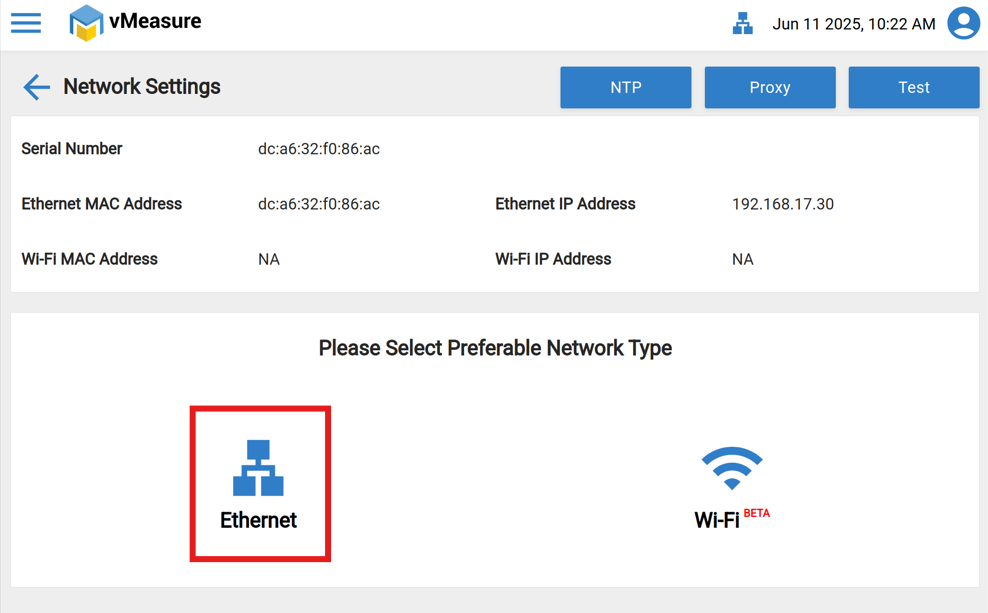
3. Click on the Edit icon.
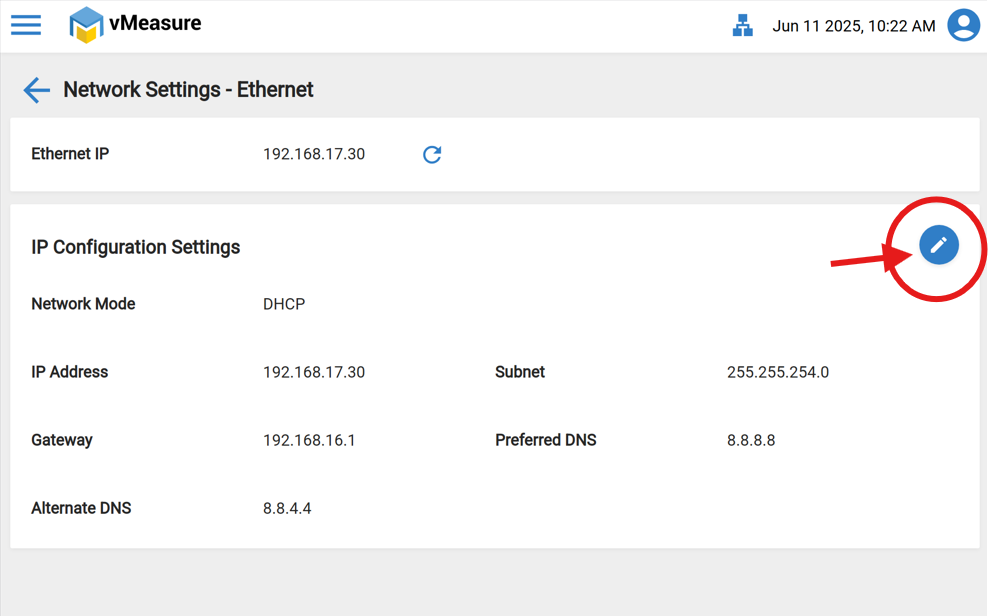
4. Change the Network Mode from DHCP to Static IP.
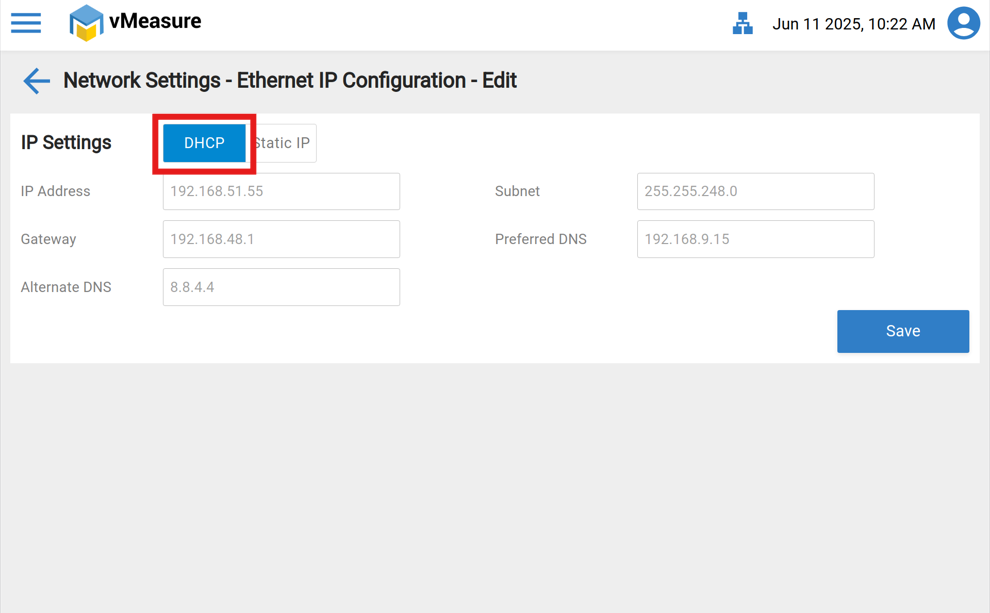
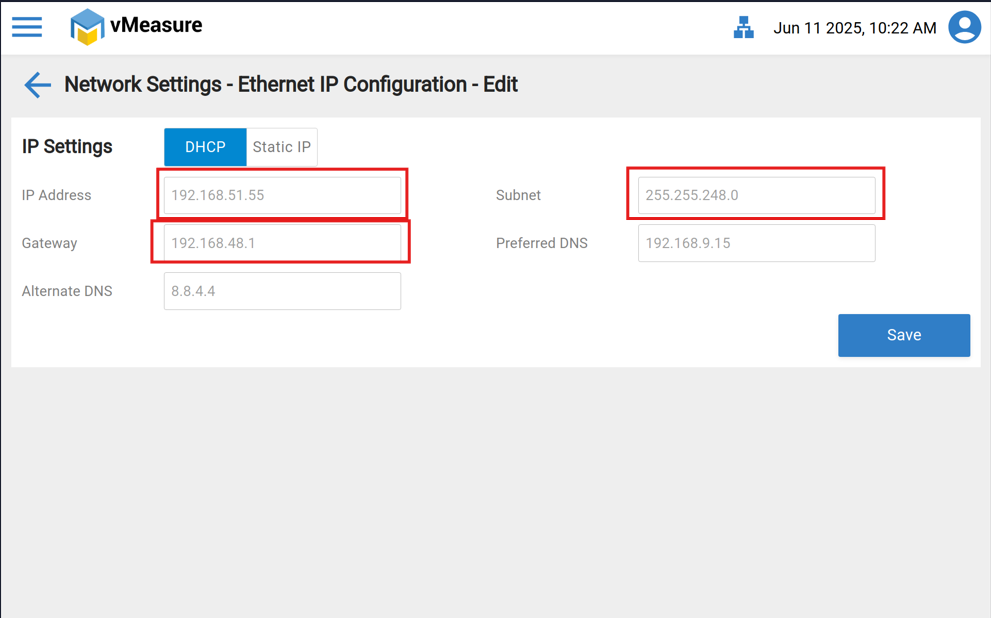
5. Enter the IP Settings (Note: The IP Address, Gateway, and Subnet should remain the same as in DHCP mode).
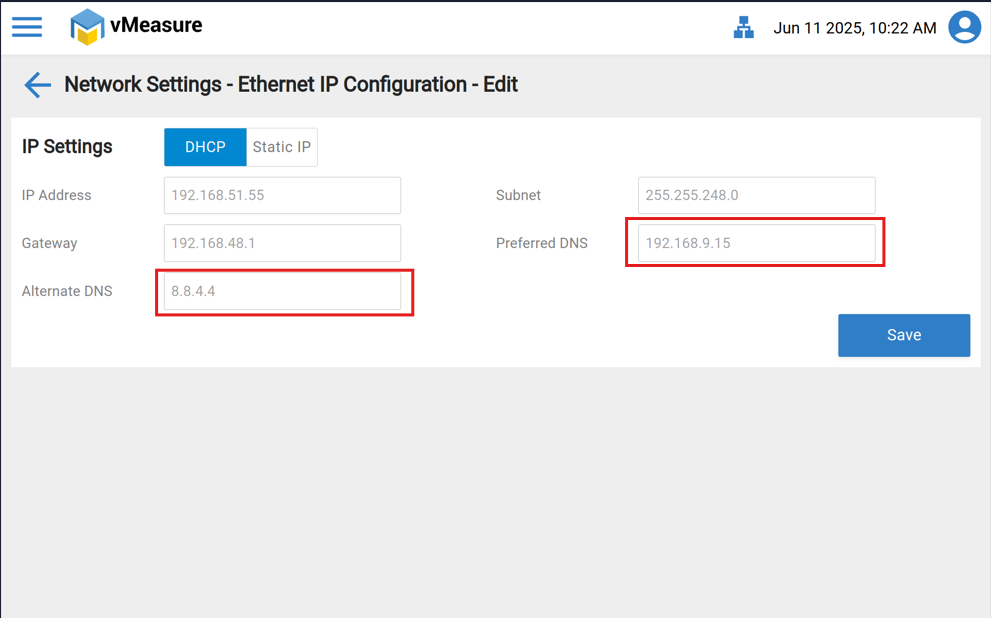
6. Set the Alternative DNS IP to 8.8.4.4 and the Preferred DNS IP to 8.8.8.8
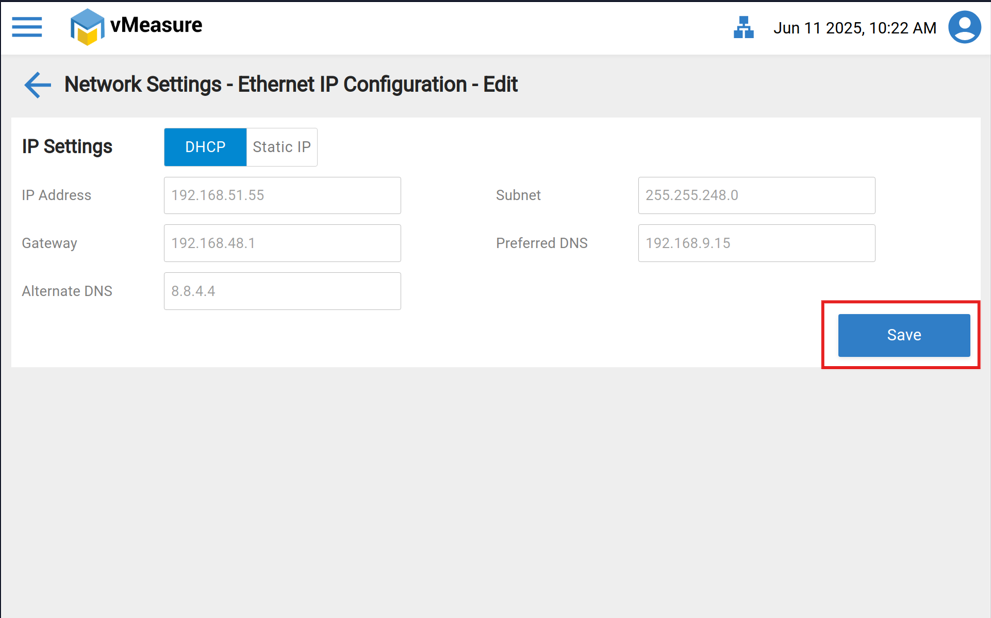
7. Finally Save the settings and check the connectivity.
If you need any support, please drop a mail to vmeasure@visailabs.com or click here to Submit a Ticket.
Was this article helpful?
That’s Great!
Thank you for your feedback
Sorry! We couldn't be helpful
Thank you for your feedback
Feedback sent
We appreciate your effort and will try to fix the article